
For every part of your club / The committee
FOR THE COMMITTEE
Sports Club OS for club committees
Members, money, courts, staff and functions in one place, so the committee sees how the club is going without asking three people. Reports, a dashboard for each person and an AI assistant answer the committee’s questions in plain words.
HANDING OVER
Handing over to the next treasurer or president
Most clubs are run by a handful of people. When one of them moves on, the knowledge goes with them: the login, the spreadsheet, the way things are done.
Sports Club OS keeps it in the club. The report pages, the figures and who may see them stay with the club, and the next person is given a role, not a password. The Administrator can also download everything the club holds, as spreadsheets, whenever the committee wants a copy.
WHAT IT AIMS FOR
What a club gets from Sports Club OS
Sports Club OS aims to be clear, fast and secure, to do most of the club’s admin, and to give the committee and the office a view of the club and control over who does what. It keeps developing, with new features through the year shaped by the clubs using it.
More about what it aims for ↗WHAT THE COMMITTEE USES
How a committee uses Sports Club OS
The monthly meeting pack
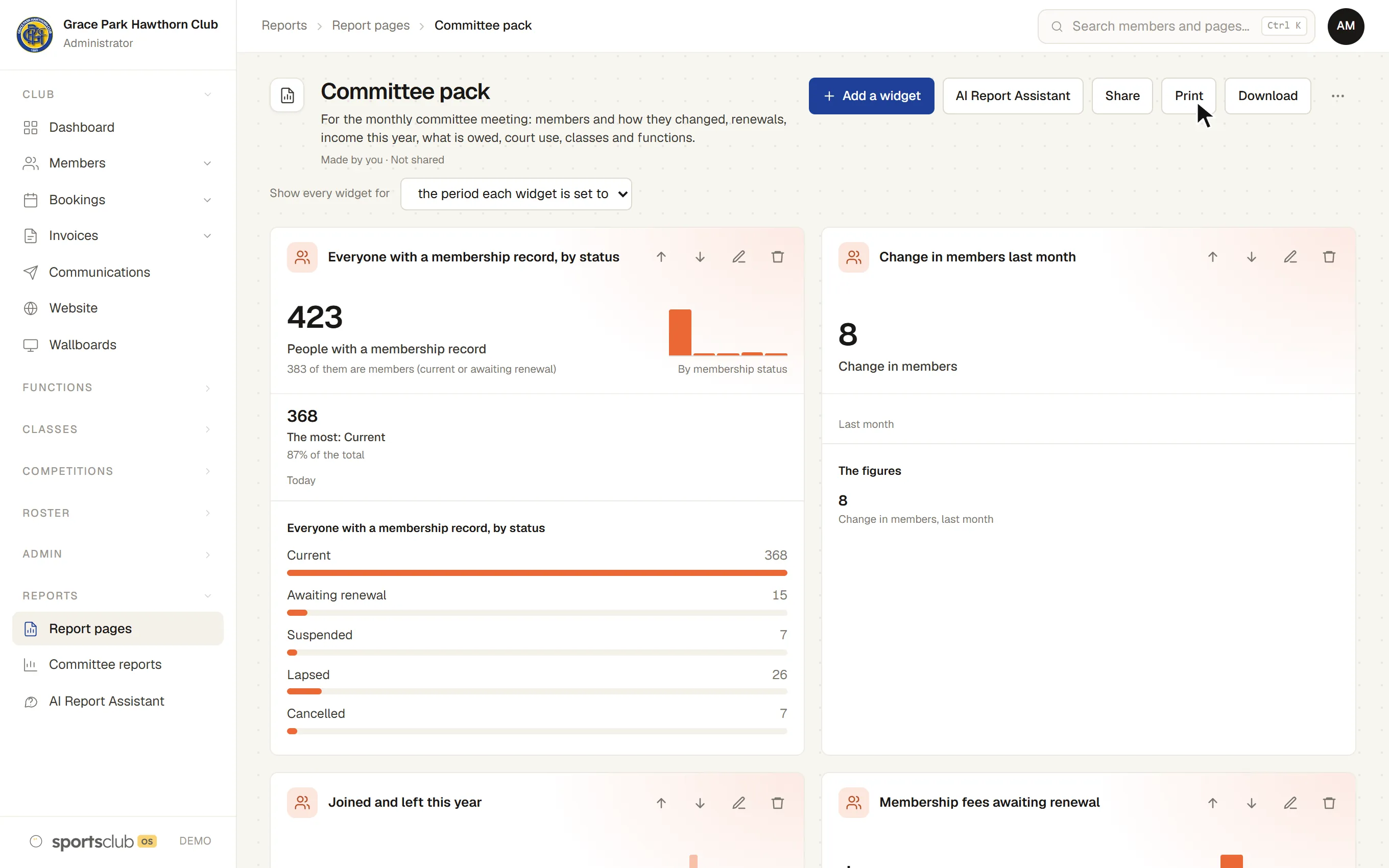
One report page with members, renewals, income, what is owed, court use, classes and functions. Print it or download it.
Report pagesThe money
Income by source against last year, what is owed and how late, and the GST on invoices raised.
Income and invoicesMembers
Who joined, who left and why, who is awaiting renewal, and new applications for the committee to decide.
Members and renewalsQuestions about the figures
Ask in plain words and get an answer with the figures it came from.
AI Report AssistantDASHBOARD
A dashboard for each committee member
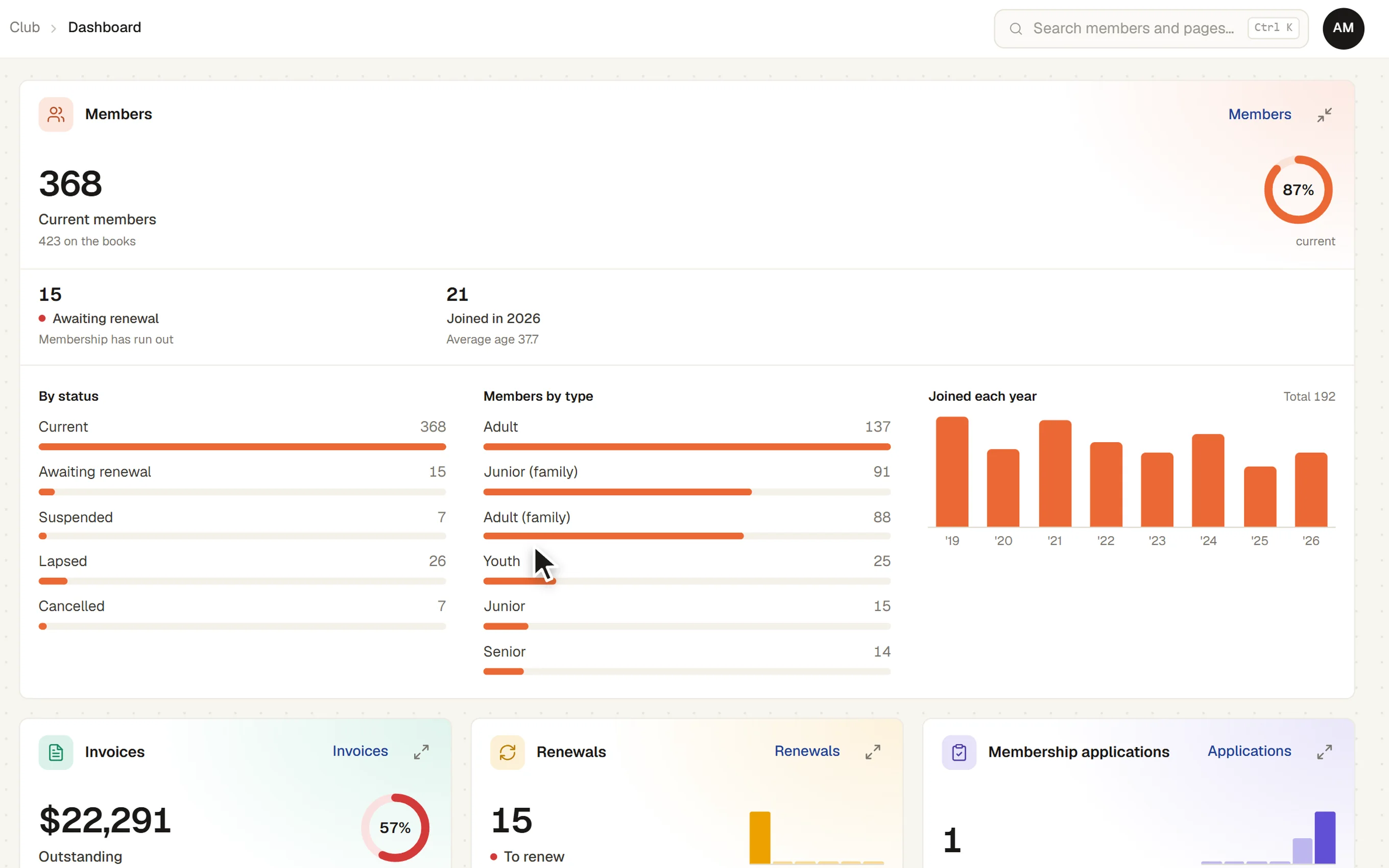
Each person chooses the widgets on their own Dashboard: members, bookings, invoices, renewals, sign-ups, applications, income, communications, the roster, hours and competitions.
- A headline figure and a small chart.Open a widget out across the row to see more of it.
- Only what their role can open.A widget is offered only to someone who may open the page it sums up.
- Report widgets too.A widget built in the report editor, or suggested by the AI Report Assistant, can be added to a Dashboard.
REPORT WIDGETS
Reports you build yourself
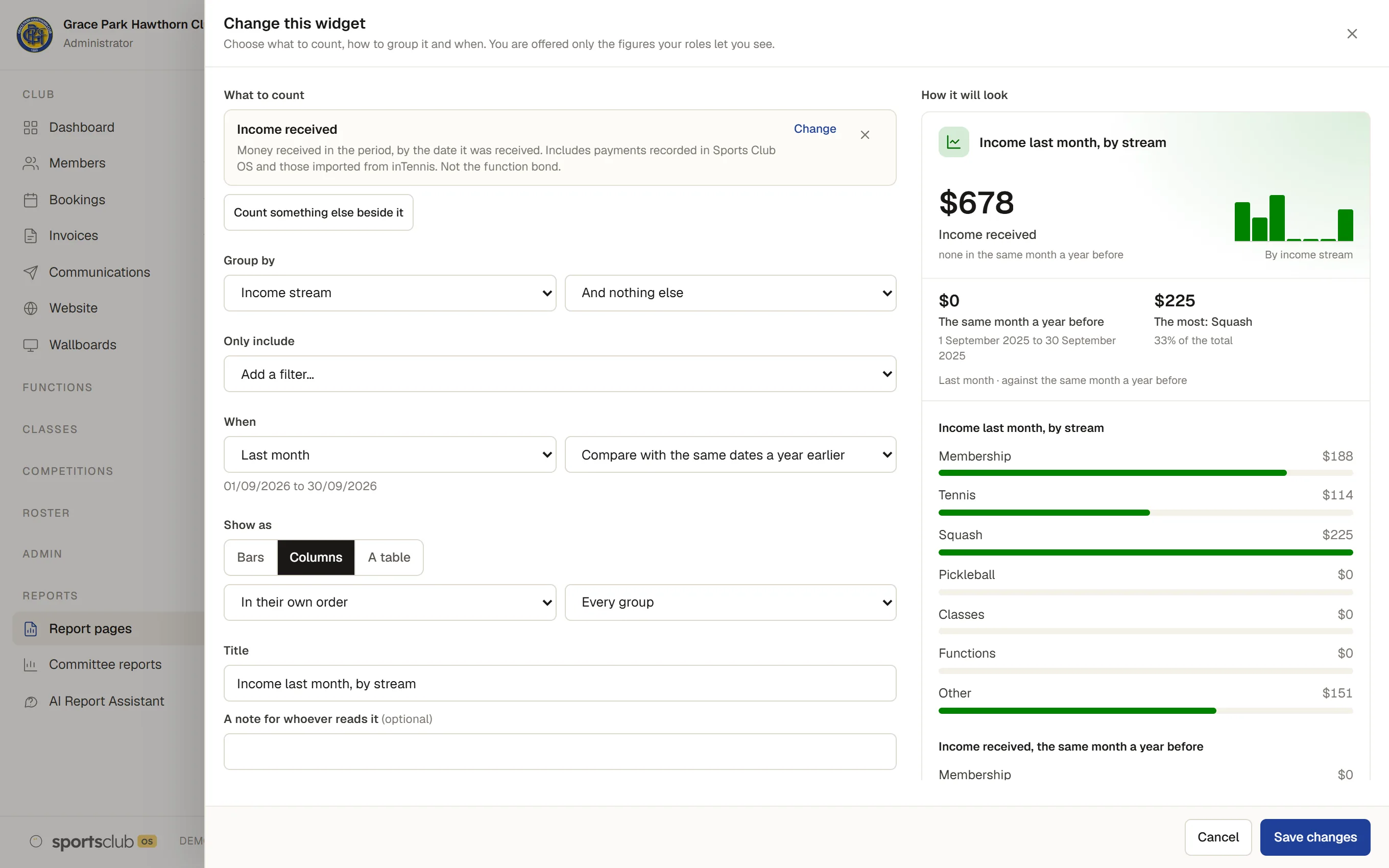
Make a widget from a catalogue of measures across membership, income, invoices, courts, classes, functions, the roster, hours, communications and competitions. A live preview changes as you change each setting.
- What to count.Up to three measures, each with a plain description.
- Group by.Up to two things, such as income stream, month, membership type, status, age band, gender, postcode, tag, sport, court, hour or day of the week.
- Which period.This or last financial year, this calendar year, the last 12 months, the year so far and more, or two dates. The club sets when its financial year starts.
- Compared with.The period before, or the same dates a year earlier.
- Shown as.A number, bars, columns, a line, a ring or a table, with a title and a note for whoever reads it.
REPORT PAGES
Ready-made report pages for the committee
Start a report page from a blank page or a template: Treasurer’s monthly, Committee pack, Membership officer, Grant and affiliation, AGM, Court use, Functions manager, Head coach, Staff hours and Communications health. Each is a ready-made starting point: add, change, reorder and rename its widgets.
- One period for the whole page.Show every widget for this financial year, last month or any other period, in one choice.
- Print it for the meeting.With the club’s name, the period, and who printed it and when.
- Download it.A spreadsheet of the page’s figures, and the rows behind them where you may see them. Every download is recorded.
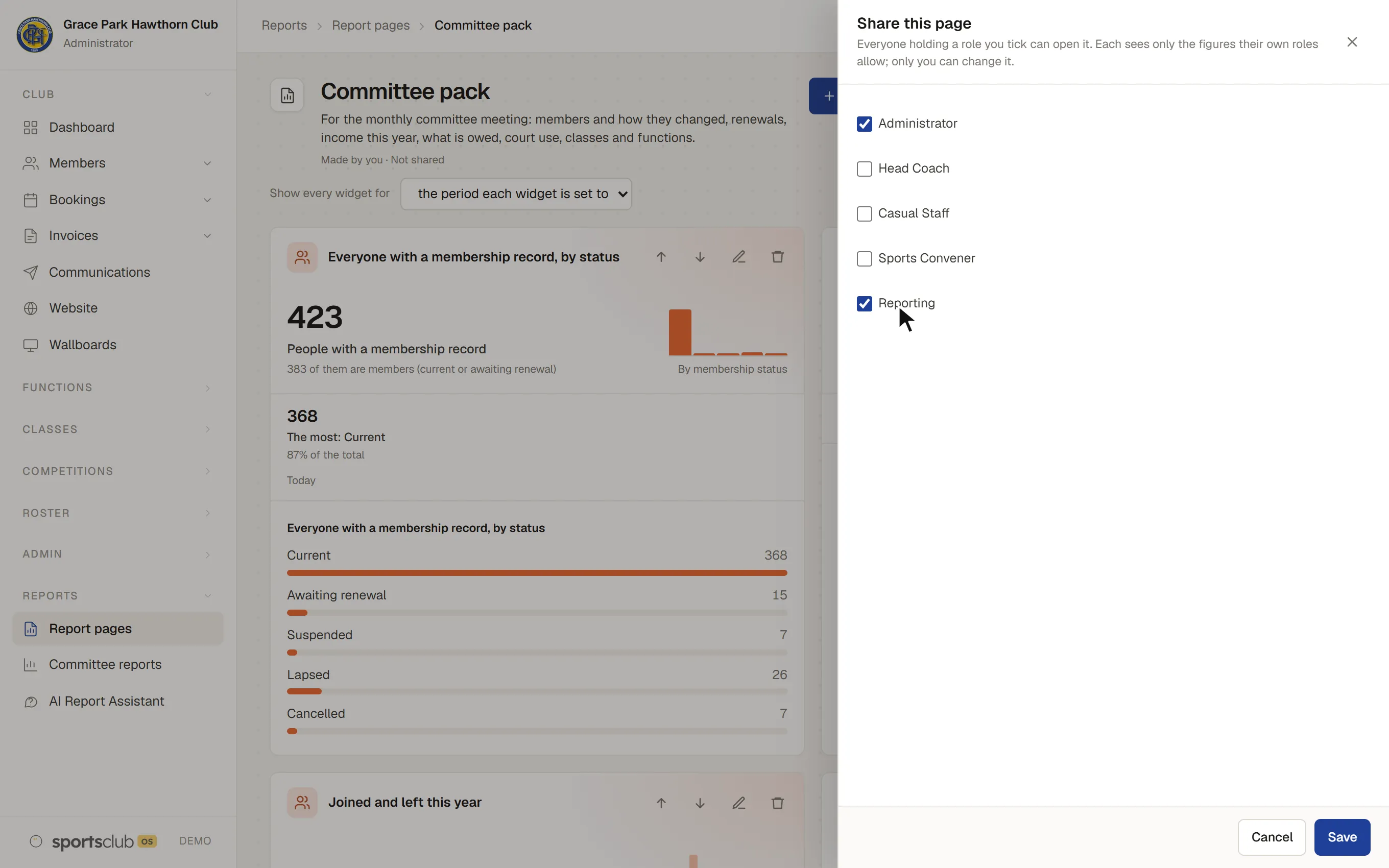
- Share it with roles.Everyone holding a role you tick can open the page. Each sees only the figures their own roles allow.
FOR THE TREASURER
Income, what is owed and invoices
The Treasurer’s monthly template shows last month’s income by stream against the month before and a year earlier, how it was paid, income each month over a year, what is owed by how late, invoices raised by kind of line, the GST on them, and functions income.
- Every payment is recorded for income.A payment taken in Sports Club OS is written to the income record at the same moment as the invoice.
- Income by source.Membership, joining fees, court hire for each sport, classes, functions and other, with a “court hire only” view.
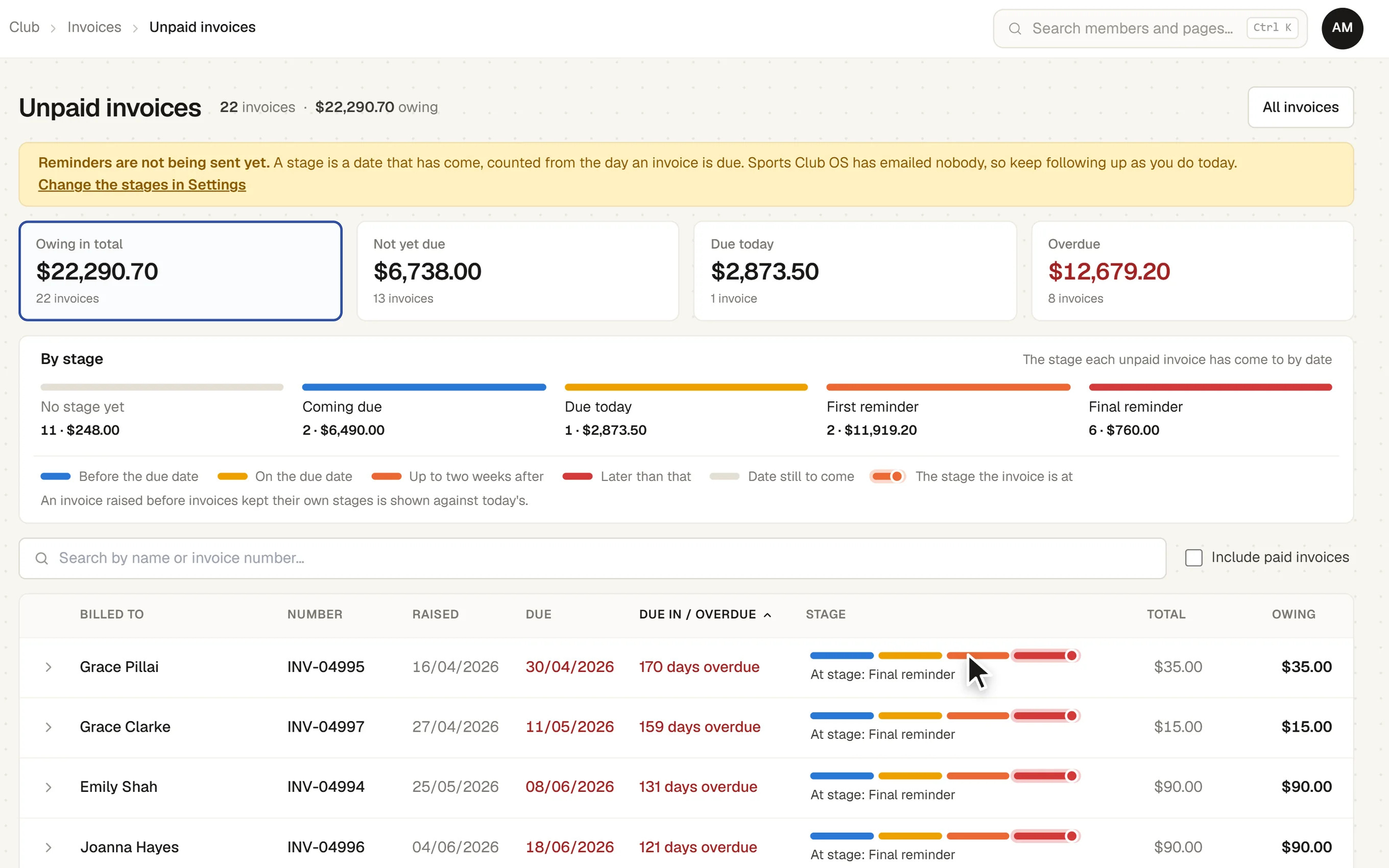
- What is owed, invoice by invoice.The Unpaid invoices page shows what is not yet due, due today and overdue, and the date each invoice has reached.
- Bank reconciliation.The treasurer imports the bank statement as a CSV file and matches each line to the invoice payments and till cash takings it paid for. Nothing is matched until someone confirms it, and once the statement balances, the period up to that date is locked.
- GST and the BAS.Every price has a GST code, and the BAS worksheet gives the quarter’s figures, on a cash or accrual basis, with every sale behind them. Each month’s money exports as a summary for MYOB and a spreadsheet for the accountant. Finance and GST.
- Members who pay monthly.Members can pay yearly or monthly. Each month shows as paid, not paid, due or to come, and the office decides what to do about a missed month.
Sending invoice reminders is being built: the schedule can be set now, and nothing is sent yet. Card payments and a Xero connection are also on their way.
AI REPORT ASSISTANT
Ask the AI Report Assistant
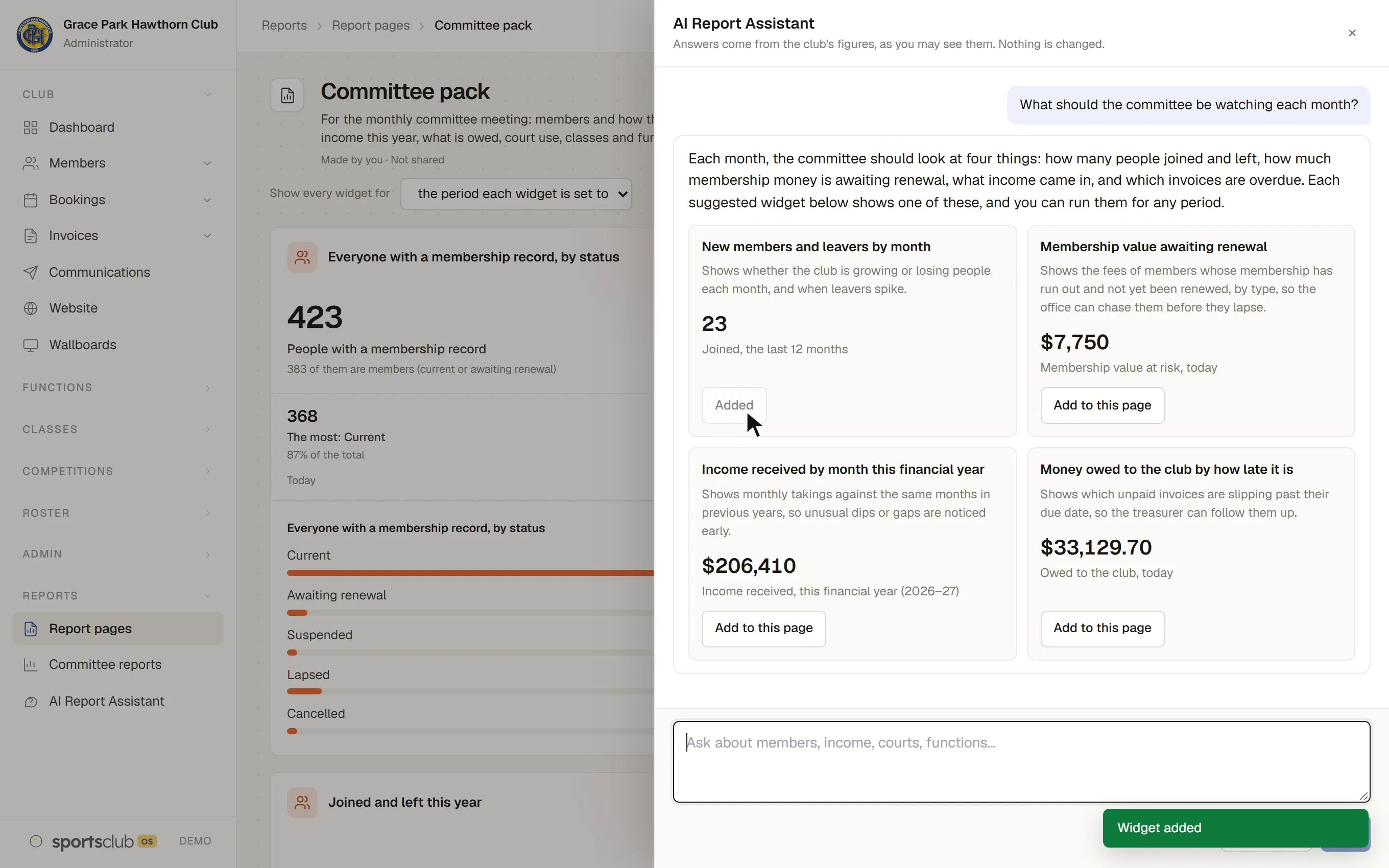
Ask a question in plain words, such as “How many court bookings did each sport have in the last 30 days?”, and get an answer with the figures it came from.
- It shows its working.The assumptions it made (“Last 30 days means 19 September to 18 October”) and the figures it looked at, so you can check them.
- It suggests what to watch.Ask what the committee should be watching and it suggests up to four widgets, each with a reason and its figure today. Add the ones you want to a report page or your Dashboard.
- Follow-ups change the last widget.Say “only squash” and the widget it just made changes.
- It asks when a question is unclear.Where a question could mean two different things, it asks you once, with buttons to choose from, and it says plainly when it cannot answer.
Administrators and the Reporting role can use it by default. The club sets a daily limit on questions and a monthly spending limit.
CHECK ANY FIGURE
The rows behind any figure
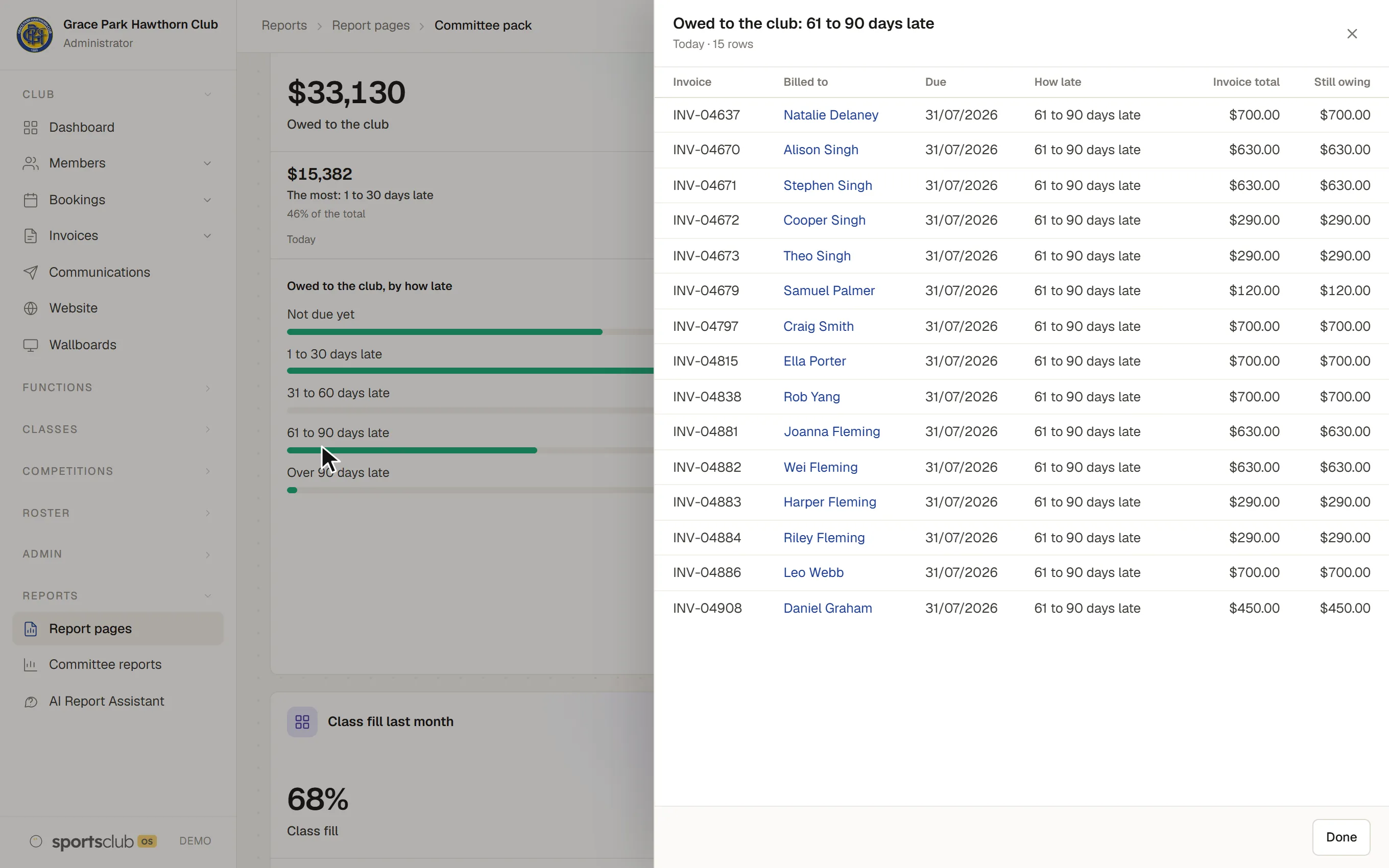
Press a bar, a column, a point, a table cell or the main figure to see the rows it was made from, under your own permissions. A row links to its member, invoice or function only if you may open that.
- One meaning everywhere.Every measure is defined once, so “members” and “income” mean the same on the Dashboard, the report pages and in the AI Report Assistant.
- Small groups are protected.A group small enough to single someone out shows as “under 5” to anyone who cannot open the member list. The club can change that number.
FOR THE MEMBERSHIP OFFICER
Members, renewals and applications
The Membership officer template shows members by type, who joined this year against last year, who left and why, and who is awaiting renewal. Each change of status is kept with its date, and a count of members is taken each day, so the history builds up.
- Why people leave.When someone becomes Lapsed or Cancelled, the office can record why. The reason is optional.
- Renewals in one go.The Renewals page raises every renewal invoice at once, after showing how many and the total. For a member on auto renew, the invoice is raised for them 30 days before their membership expires.
- Tags that keep themselves up to date.Tag rules tag members from what they do, such as New member, Lapsed player or Renewal due, every night, and take a tag off when it stops being true. Group a report by tag, or send a message to everyone with one.
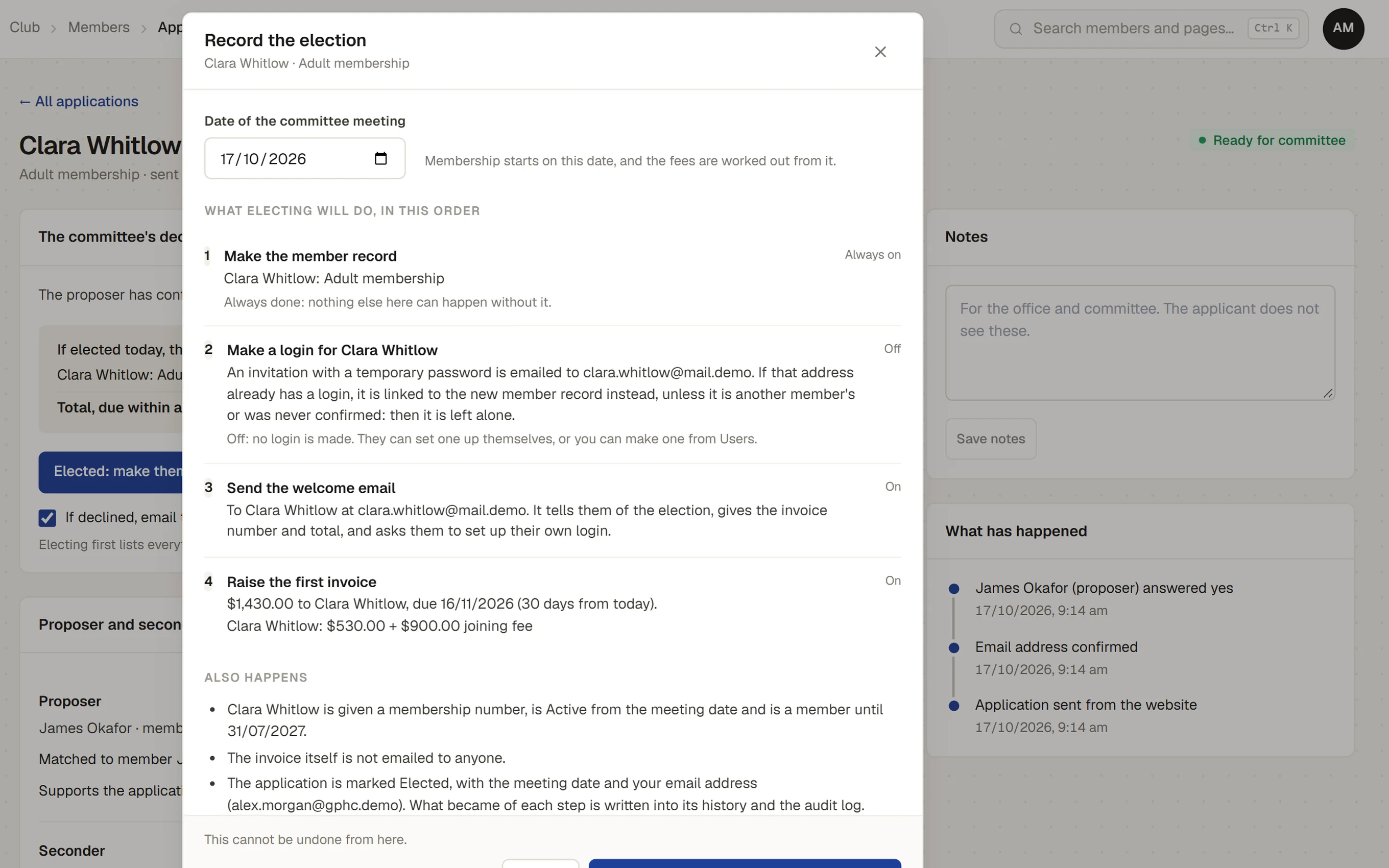
- Applications for the committee.New members apply from the club’s website with a proposer. An administrator records the committee’s decision, and electing makes the member records, an optional login, the welcome email and the first invoice.
WHO CAN SEE WHAT
Who can see the money and the member list
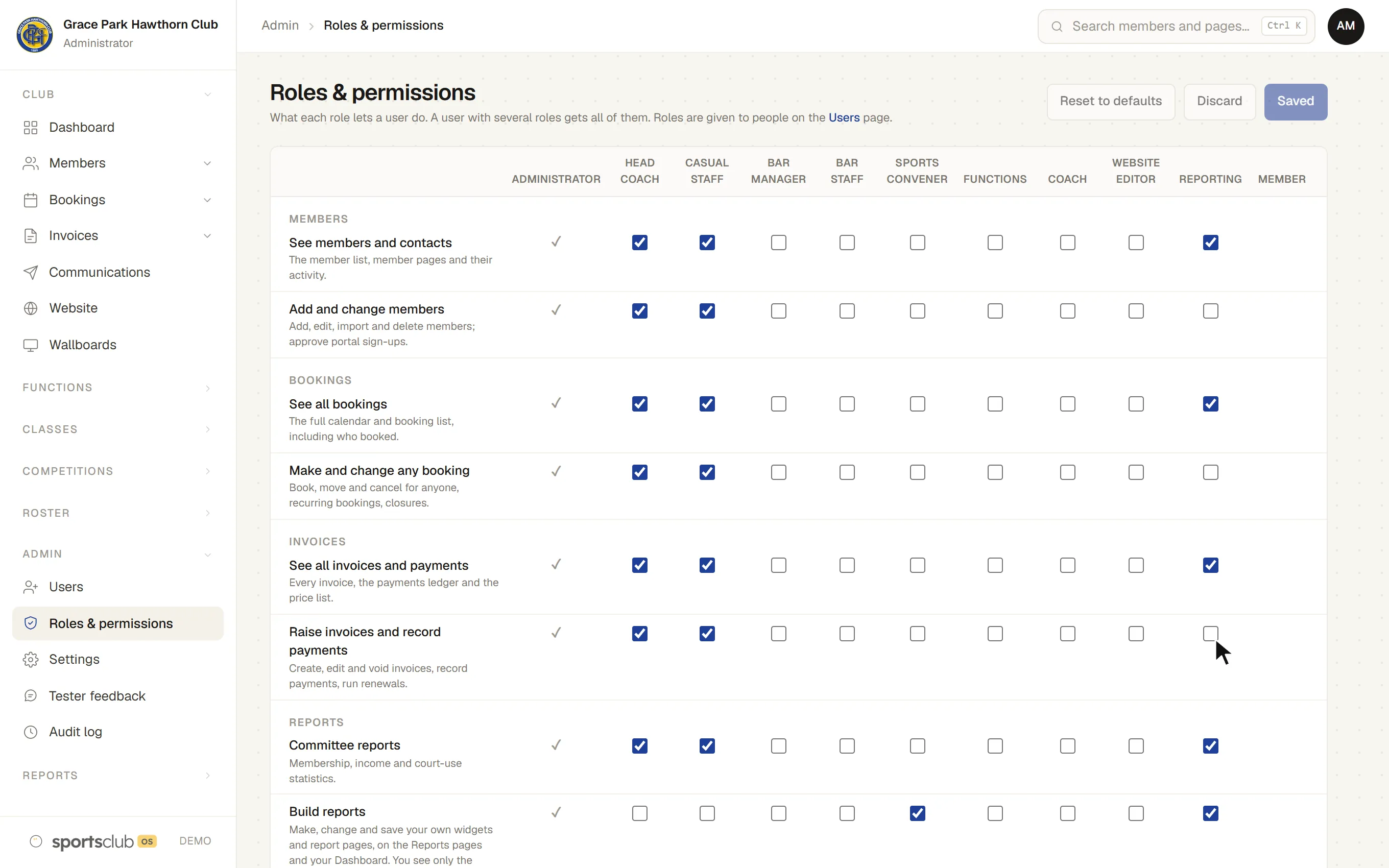
The club decides what each role may do on its Roles & permissions page, and gives roles to people on the Users page. Every change is recorded. When a volunteer steps down, take their role away.
- A Treasurer role.By default it runs Finance and GST (GST codes, the BAS worksheet, income received in advance, bank reconciliation and the export to the accounts), sees and manages invoices and payments, sees the sales figures and functions, and reads and downloads reports.
- A Reporting role for a secretary or anyone who reads the figures.By default it can see members, bookings, invoices, functions and bank statements, build and share report pages, download figures and ask the AI Report Assistant. It cannot change anything in the club.
- Conveners see their own figures.A Sports Convener builds widgets from the competitions figures and nothing else.
- Checked every time.A shared page or widget runs as the person looking at it, with their own permissions.
YOUR DATA AND THE AI
The AI Report Assistant and your data
The AI Report Assistant reads club data, read-only, and only for people whose role already lets them see it. It cannot change, send or delete anything.
Read the Trust Centre ↗- What it is sent.Your question and the figures it needs to answer it, sent to an AI model on Amazon Bedrock, processed in the same part of the world as your data. AWS does not train on them or share them with the model’s maker.
- What it never reads.Dates of birth, contact details, medical notes, message text and the audit log are never part of a figure.
- What is kept.Sports Club OS does not keep the question or the answer. The audit log records that a question was asked, by whom, which figures it used and what it cost.
- The other assistants.The assistants that draft emails and edit the website are sent no member data.
COMMON QUESTIONS
What committees usually ask
What does it cost?
Three prices, by the size of your membership.
PricingHow do we change over?
We bring your data across and set the club up with you.
Changing overWhat does it not do yet?
Card payments and Xero are on their way. We say so plainly.
QuestionsWho runs it?
Adam Gough, a club member who built it, and his business partner Simon Craft.
Meet the teamWhat support and training are there?
Adam and Simon are on hand for your first year. After that, a reply within 24 hours.
Support and trainingIs our data safe?
Kept in Australia, on Amazon Web Services in Sydney, and seen only by the people your club chooses.
Trust CentreBOOK A WALKTHROUGH
Get a personalised walkthrough and demo
Book a walkthrough and bring the jobs that take your office the longest.