
For every part of your club / Members & families
FOR MEMBERS & FAMILIES
Sports Club OS for members and families
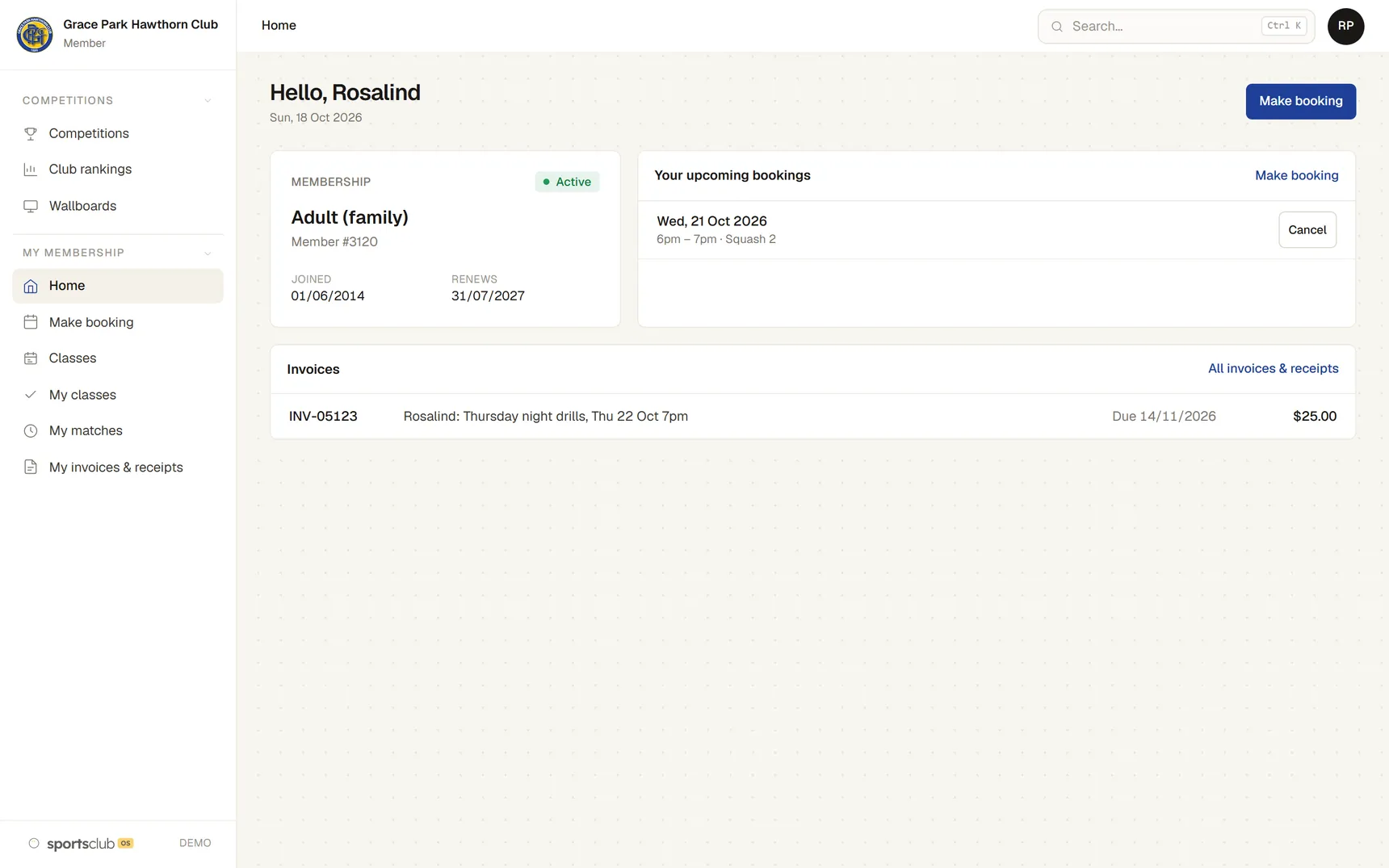
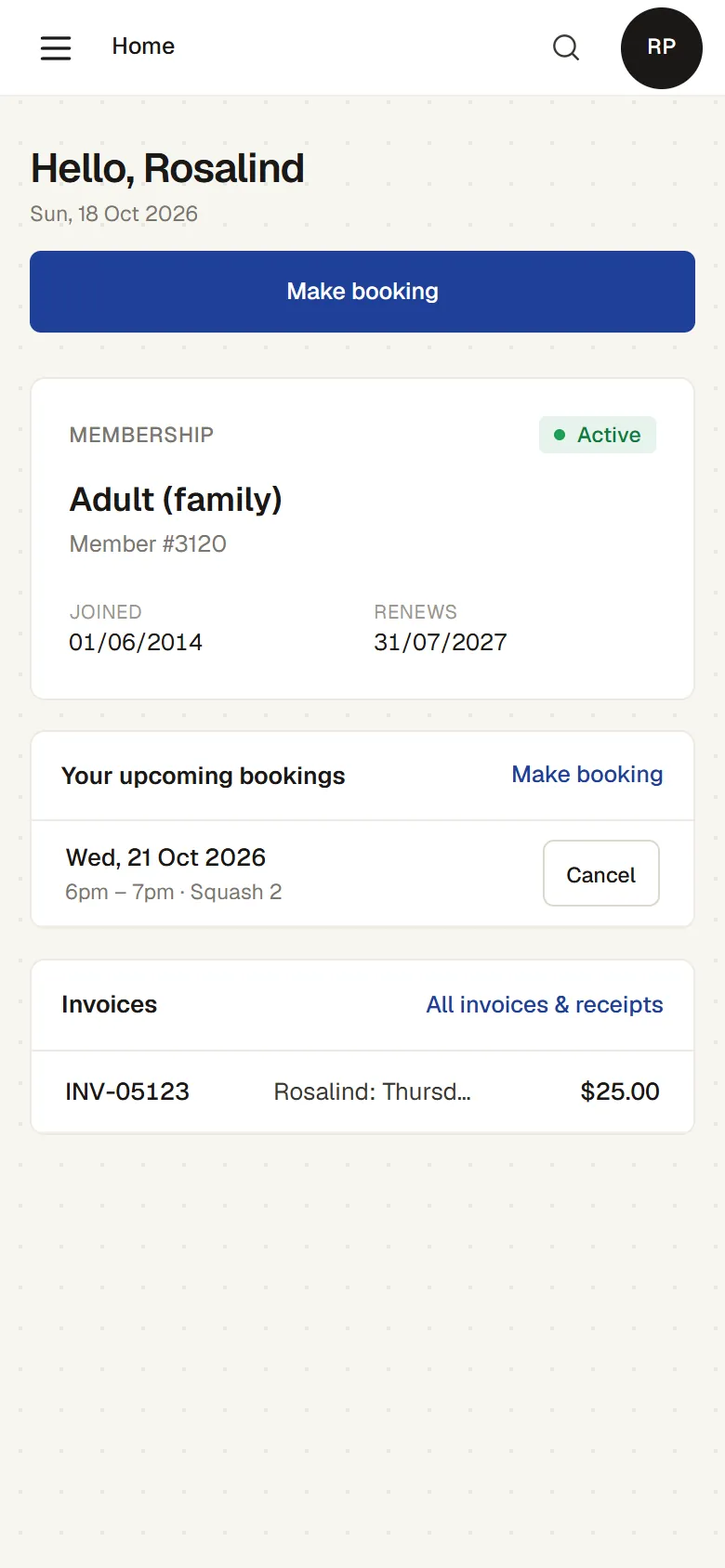
Members book a court, enrol the children in classes, see what they owe and choose which emails they get, on a phone or a computer. It is a web page at the club’s own address, such as yourclub.sportsclubos.net, or on the club’s own domain if it prefers, so there is no app to download.
GETTING IN
How members get to it
Members open it in the browser on their phone or computer, and can add it to their phone’s home screen. There is nothing to download from an app store.
- They sign up with their email address.The club checks the account against its member list and approves it. Until then, the page says it is waiting for approval.
- Two-factor sign-in.There for anyone who wants it.
- One sign-in for the family’s classes.An adult books classes and enrols the children from their own sign-in.
BOOKING A COURT
Book a court
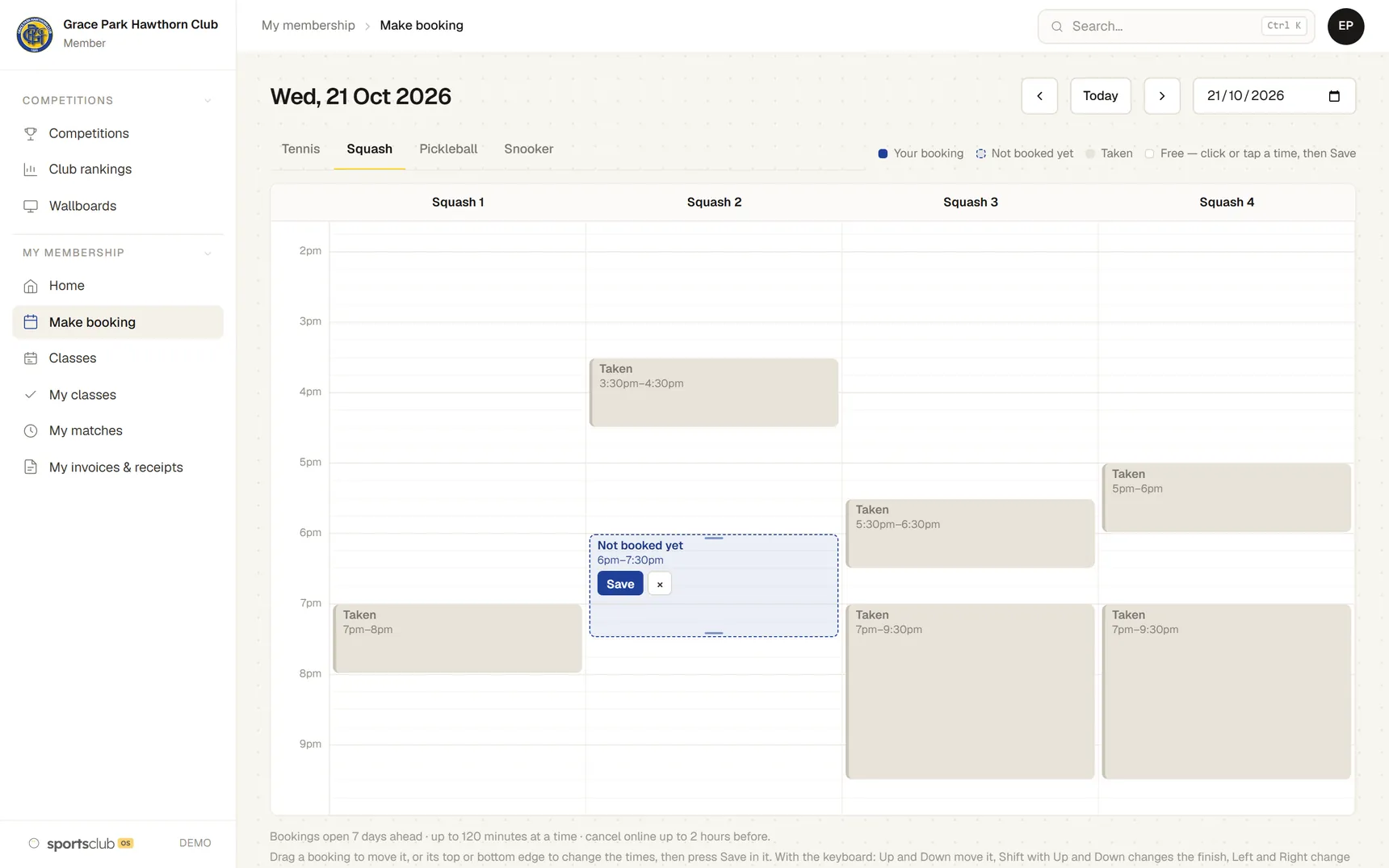
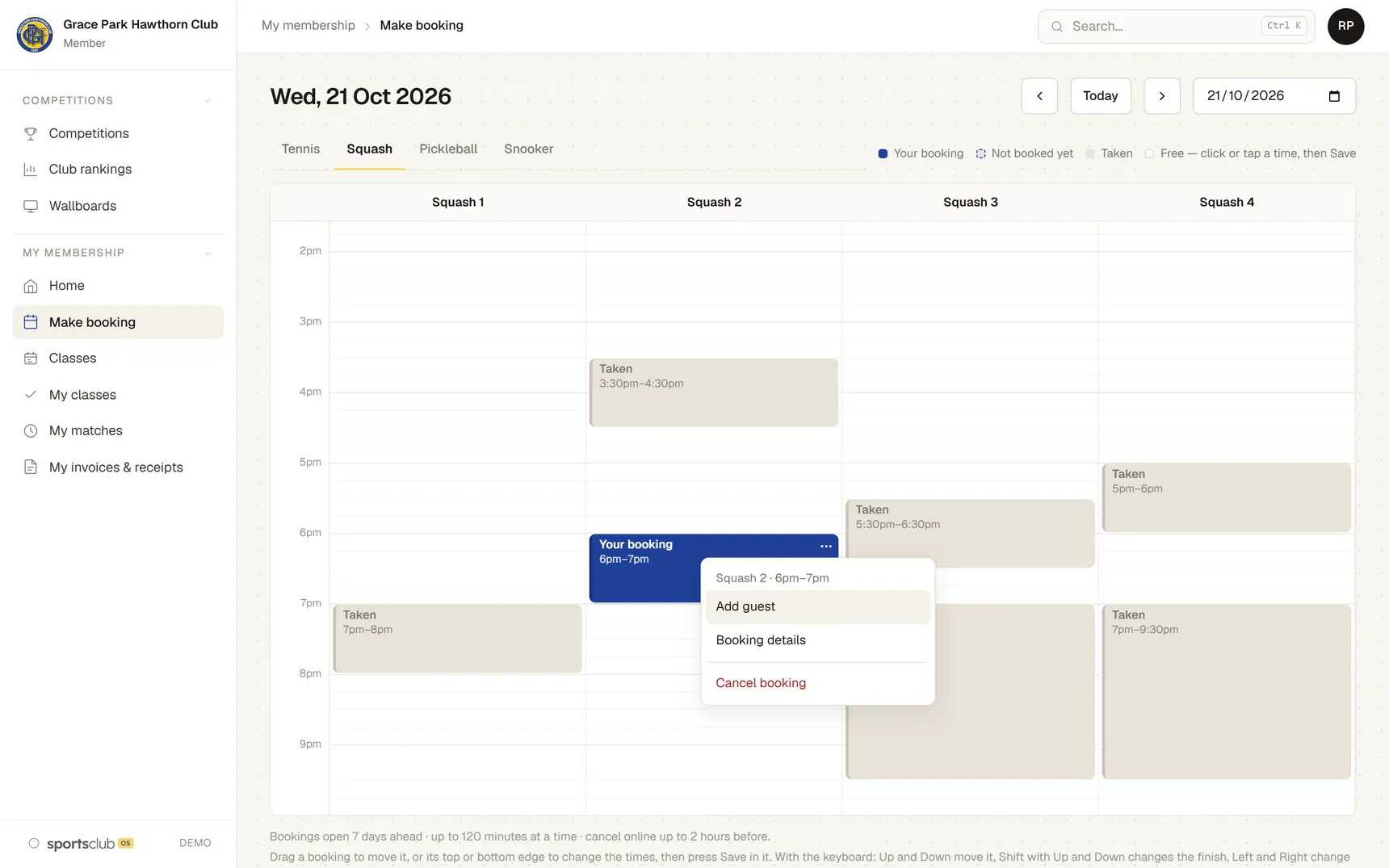
Tap a free time and a draft appears, marked “Not booked yet”. Stretch it or move it, then press Save. Nothing is booked until then.
- The club’s rules, checked as you go.Opening hours, how far ahead, the longest booking and off-peak times. If a time can’t be booked, the draft says why.
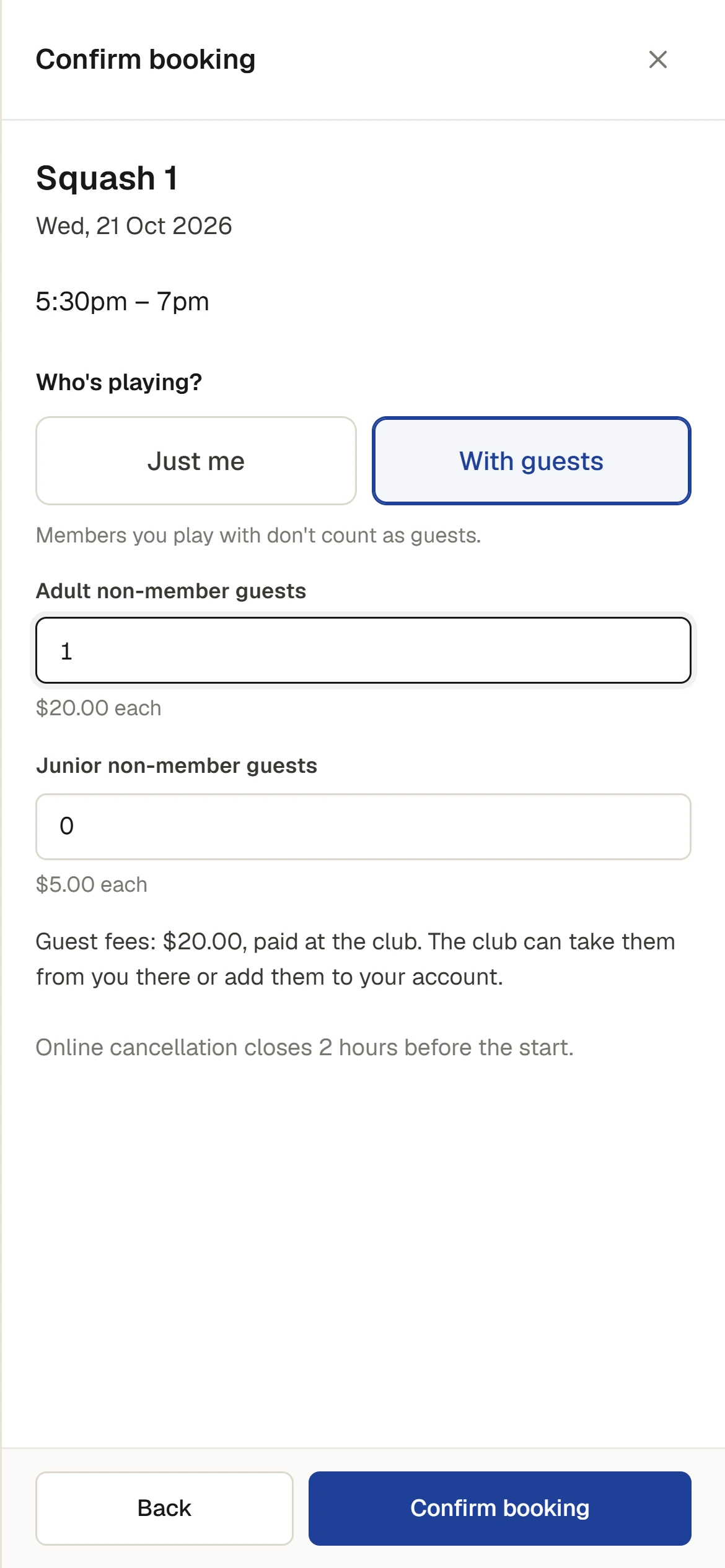
- Guests on the same screen.Save asks who is playing, and shows the adult and junior guest fees before the booking is made.
- Nobody can double-book.Two members can’t book the same court at the same time.
CHANGING A BOOKING
Change or cancel a booking
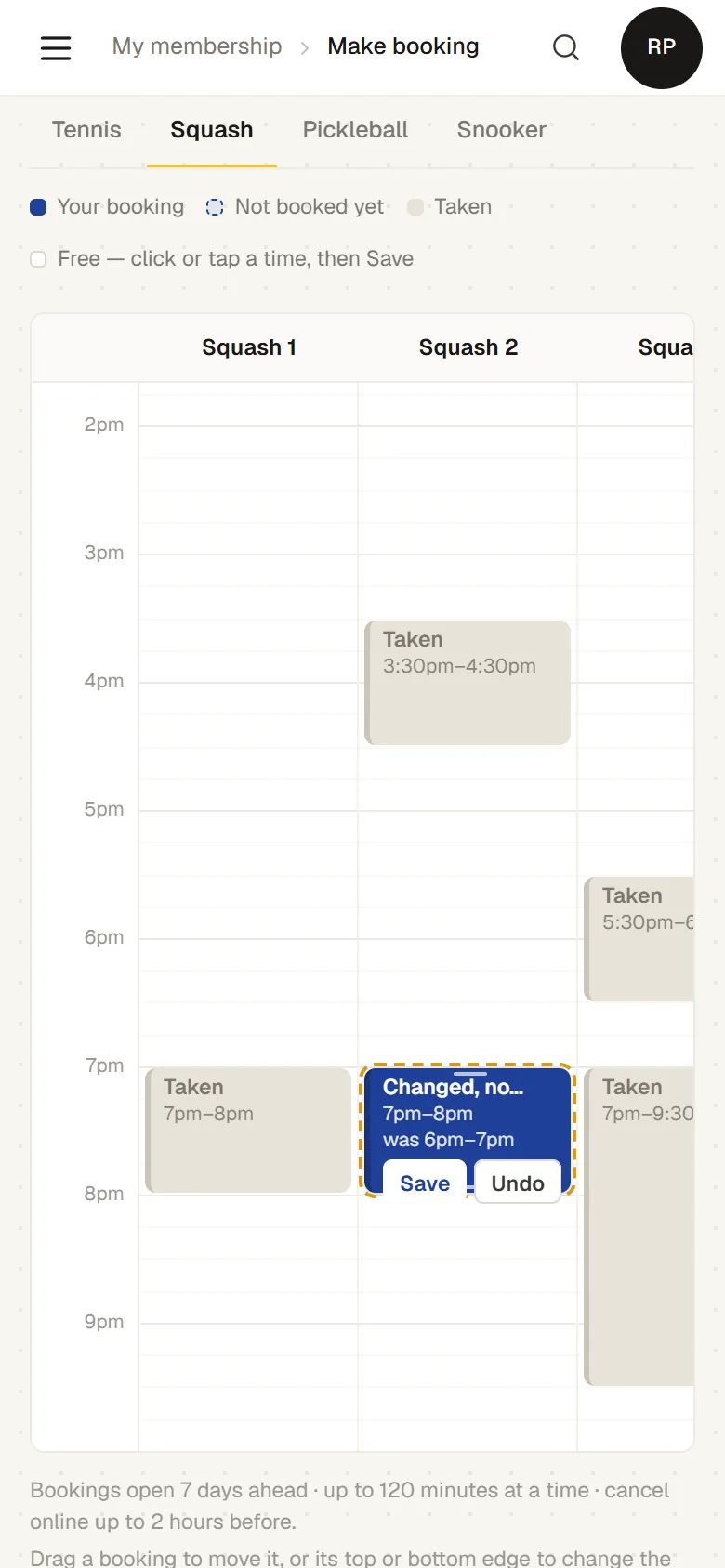
Drag a booking to another time, or another court for the same sport, or stretch it. The change waits with Save and Undo until you press Save.
- A menu on your own booking.Right-click it on a computer, or hold your finger on it on a phone: Add guest, Booking details, Cancel booking.
- The keyboard works too.Arrow keys move a booking, Enter saves and Escape undoes.
- Asked before you leave.If a change isn’t saved, the page asks before you go.
CLASSES
Classes for the whole family
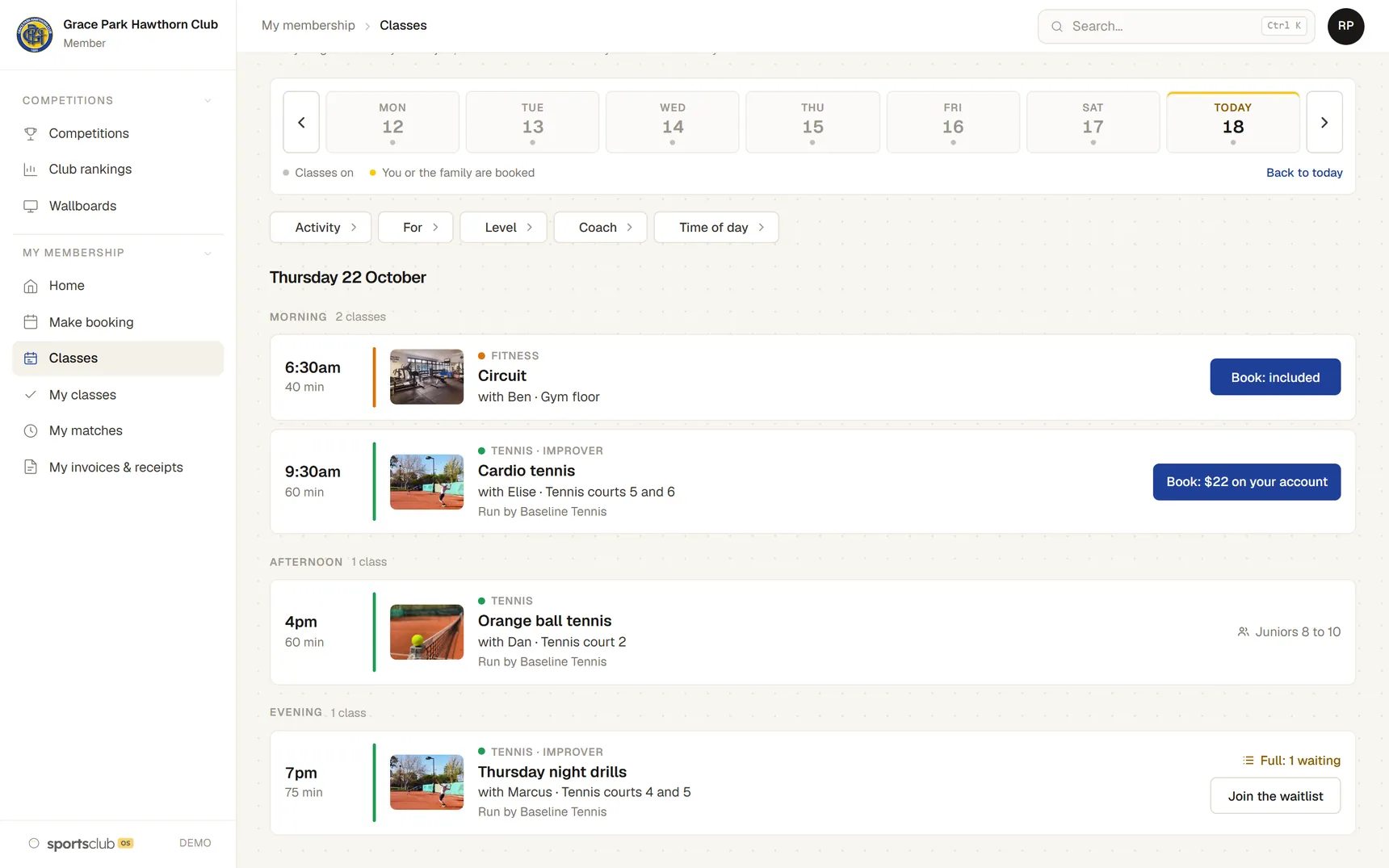
The timetable shows every class the member can join, at their own price, and how it is paid for: included in the membership, a pass, or an amount on the club account.
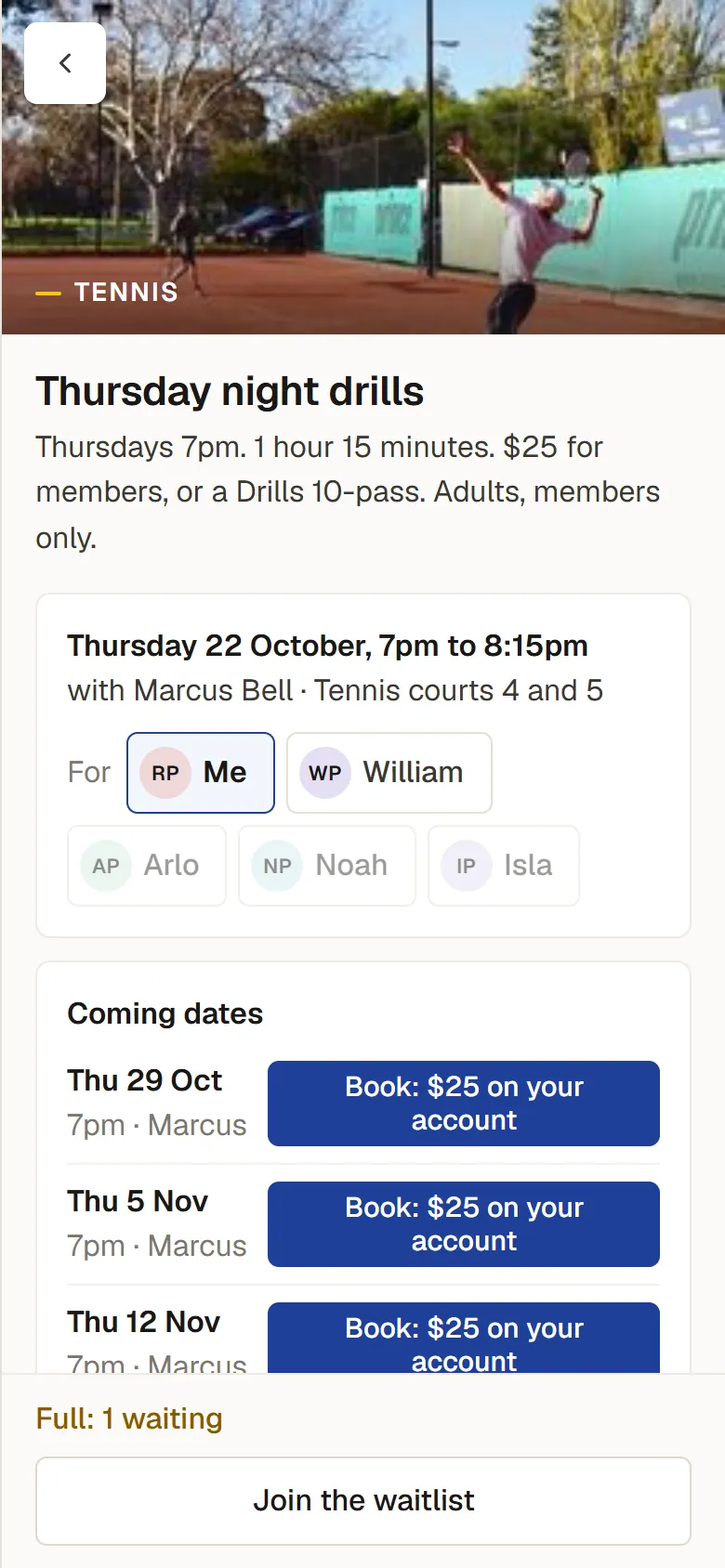
- Book for anyone in the household.Choose who the place is for. A class someone can’t join says why, such as “Juniors 8 to 10” or “Adults, members only”.
- Filters.By activity, who it is for, level, coach and time of day.
- Other people’s names stay private.Members see how many places are left, not who has booked.
- On the club’s website too.The same timetable shows on the club’s own website. Someone who is not yet a member can ask for a place there.
WAITLISTS
Waitlists and offered places
Joining the waitlist for a full class is free, and the member sees their place in the queue.
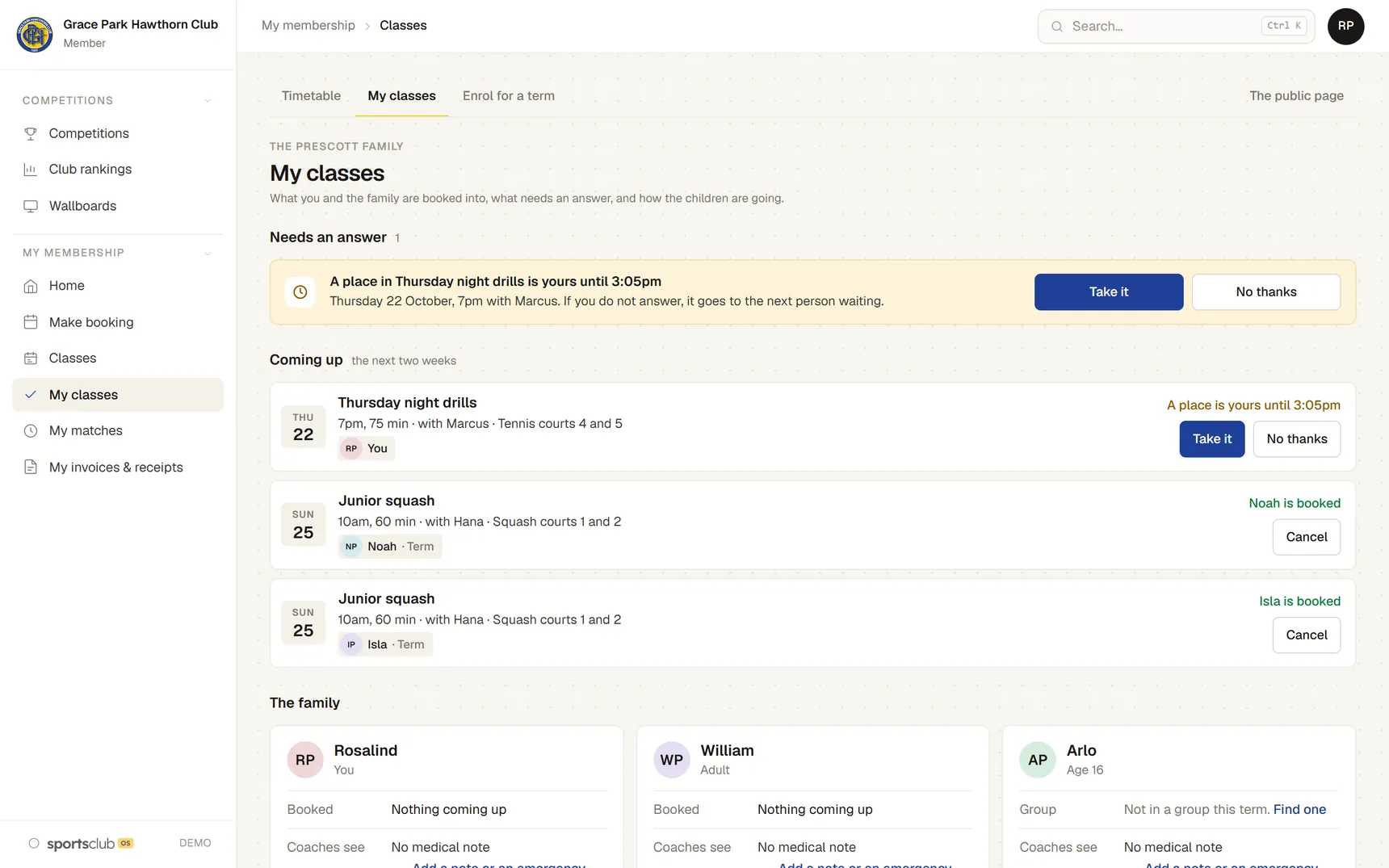
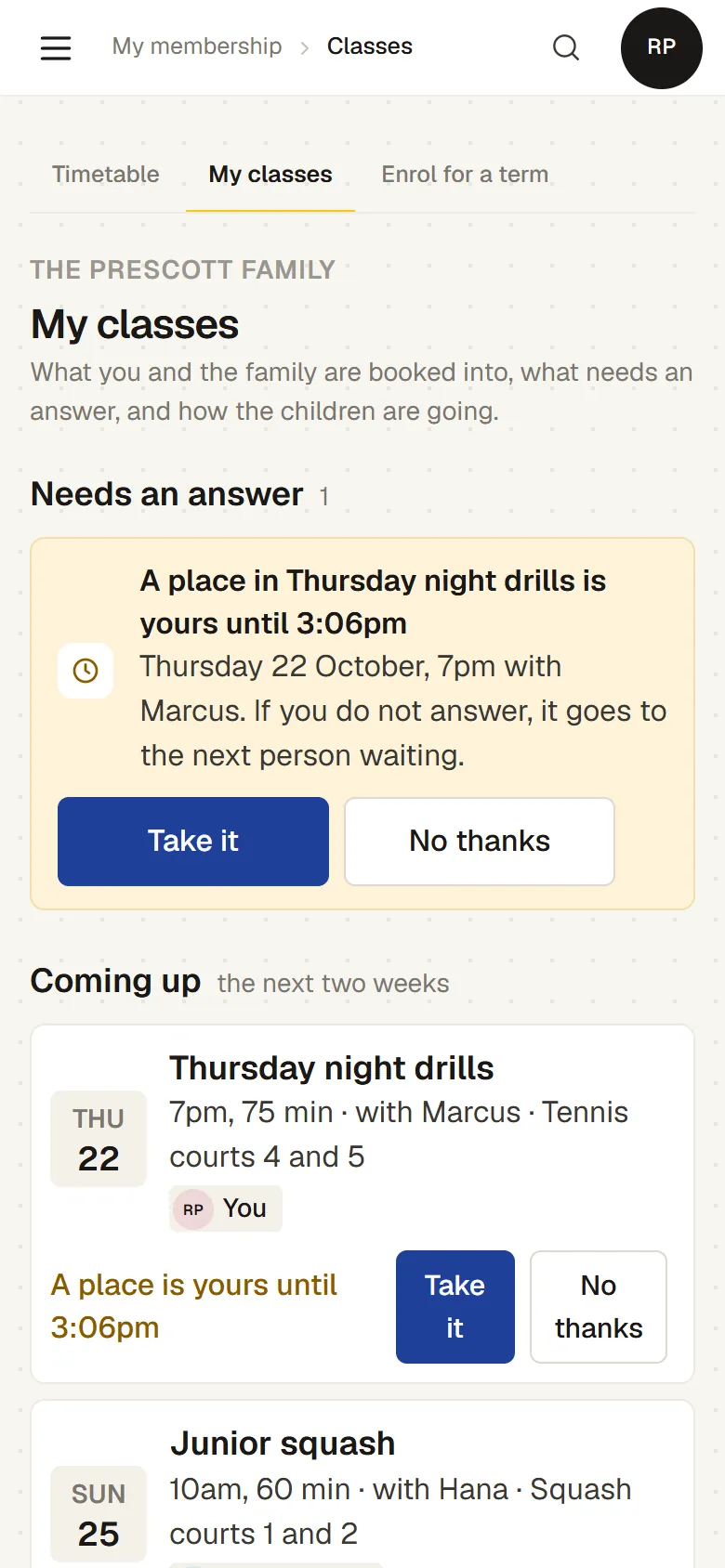
- An offer with a deadline.When a place comes up, the next person is offered it until a set time, with Take it and No thanks. If they don’t answer, it goes to the next person.
- Nothing to pay until the place is taken.The fee is added only when they take it.
- Told by email.The offer is emailed as well as shown here.
TERMS
Term enrolment
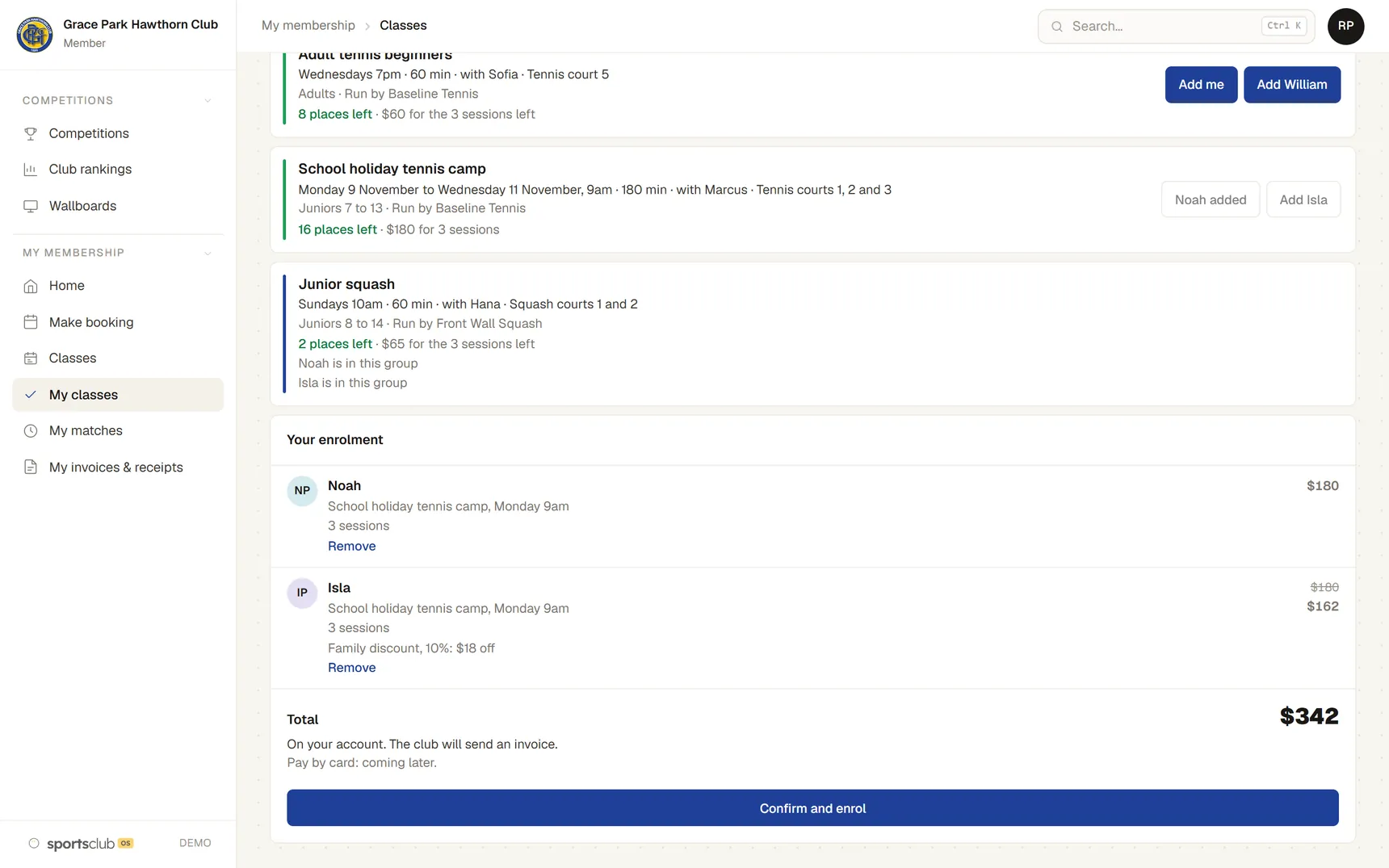
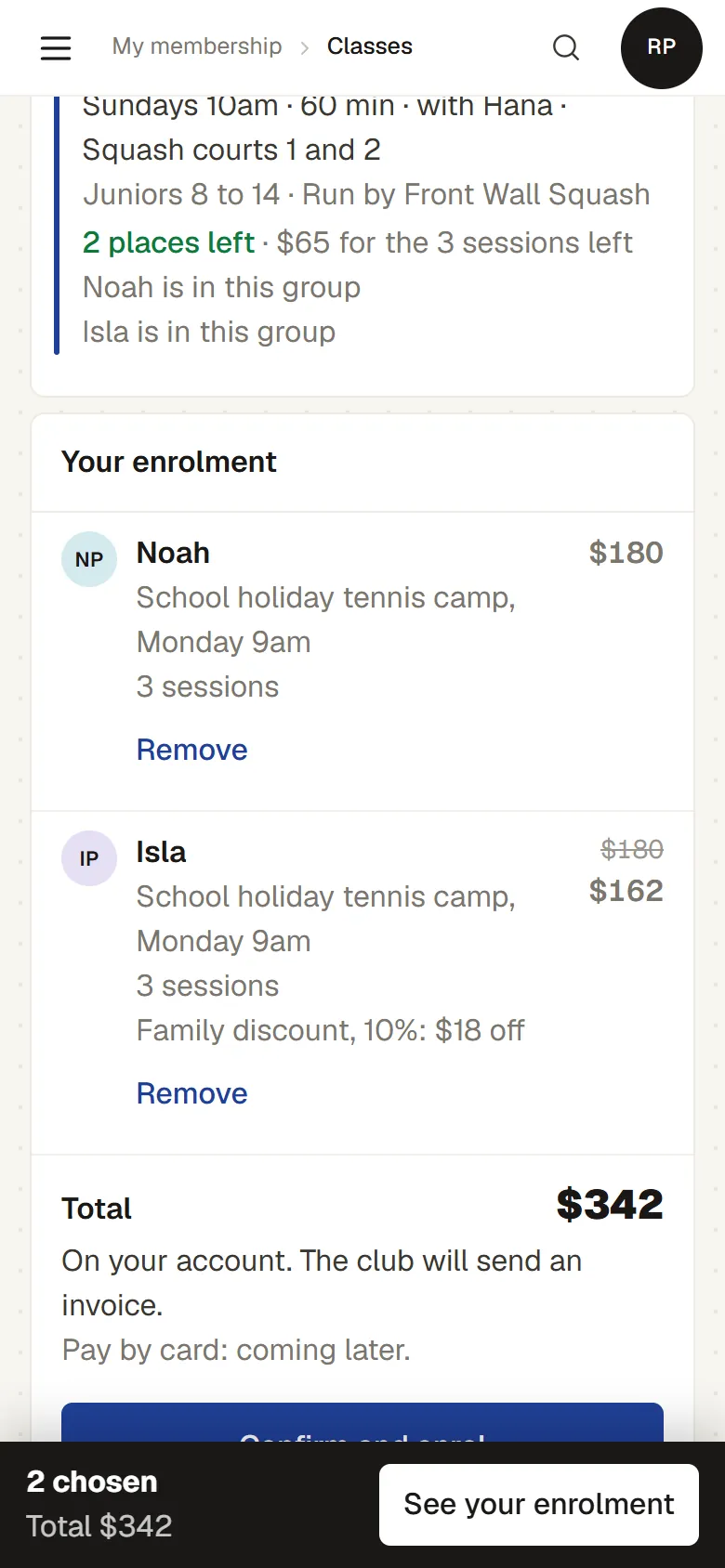
Parents choose a group for each child, see the family discount and the total, and enrol them all in one go.
- One invoice for the family.The fees go on the family’s account and the club sends the invoice.
- Next term’s place, held.Children already in a group can be offered their place first, held until a date.
- How the children are going.My classes shows each child’s group, the sessions they came to and any note from the coach. Parents add a medical note and an emergency contact for the coach.
INVOICES
Invoices and how to pay
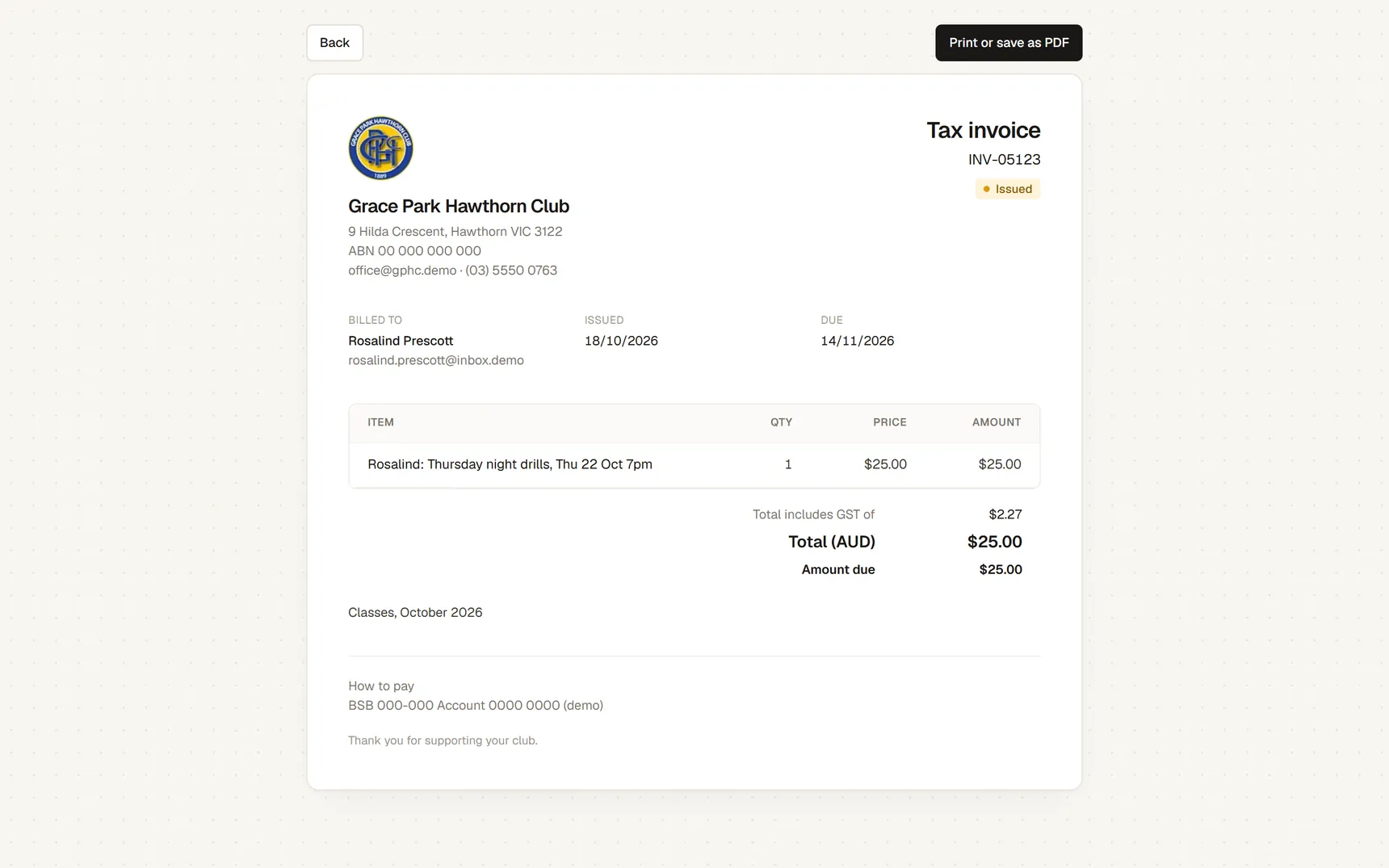
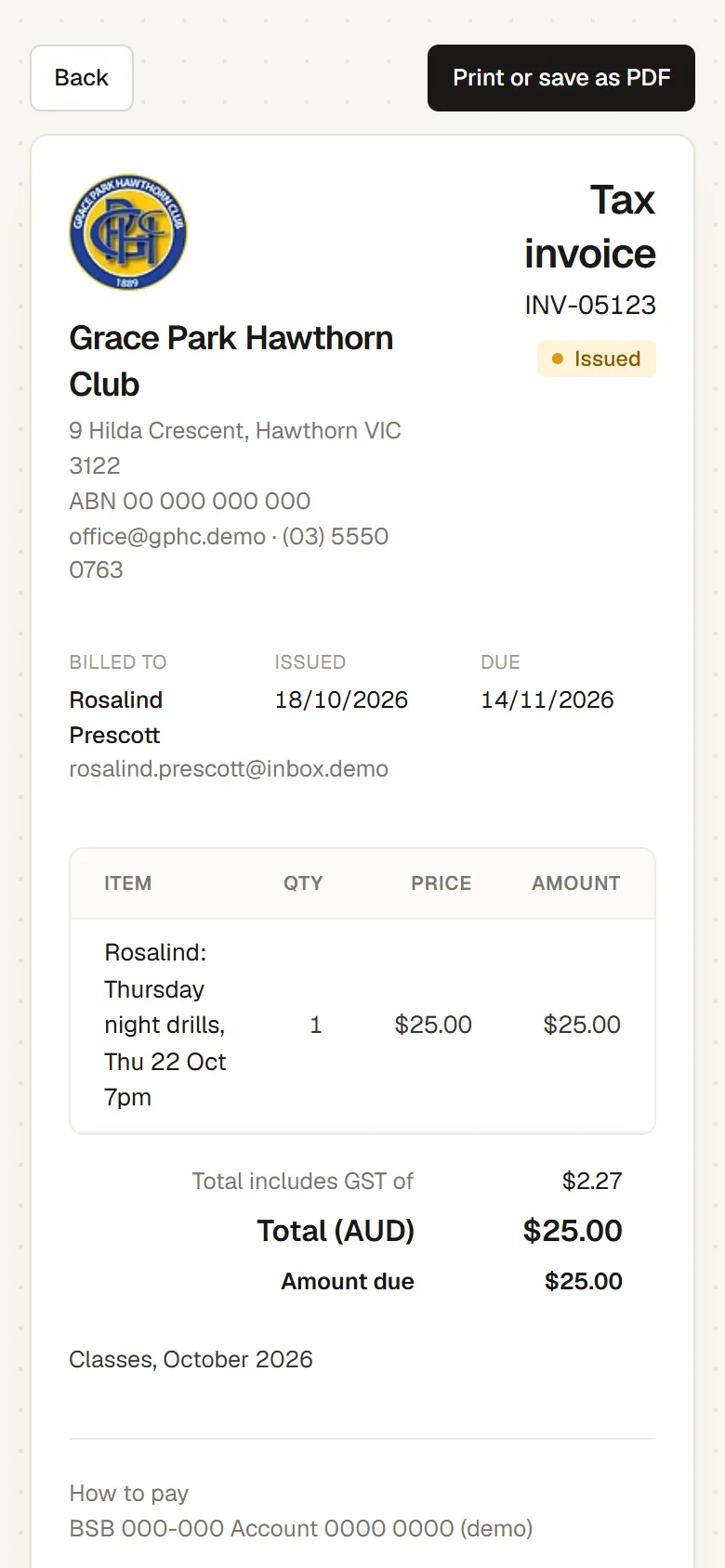
Members see each invoice, what is owing and the club’s bank details, and can print an invoice or save it as a PDF.
- Paid by bank transfer or at the club.The club records the payment when it arrives, and the invoice shows as paid.
- Renewals.The home page shows when the membership renews, and the renewal invoice once the club has raised it.
- Pay yearly or monthly.Where the club allows it, the head of a household chooses yearly or monthly for each person on their page, and sees exactly what a change does before making it. A timeline shows each month as paid, not paid, due or to come.
Online card payment and automatic charging are being built. Until then, members pay every invoice, monthly ones included, by bank transfer or at the club.
COMPETITIONS
Competitions and results
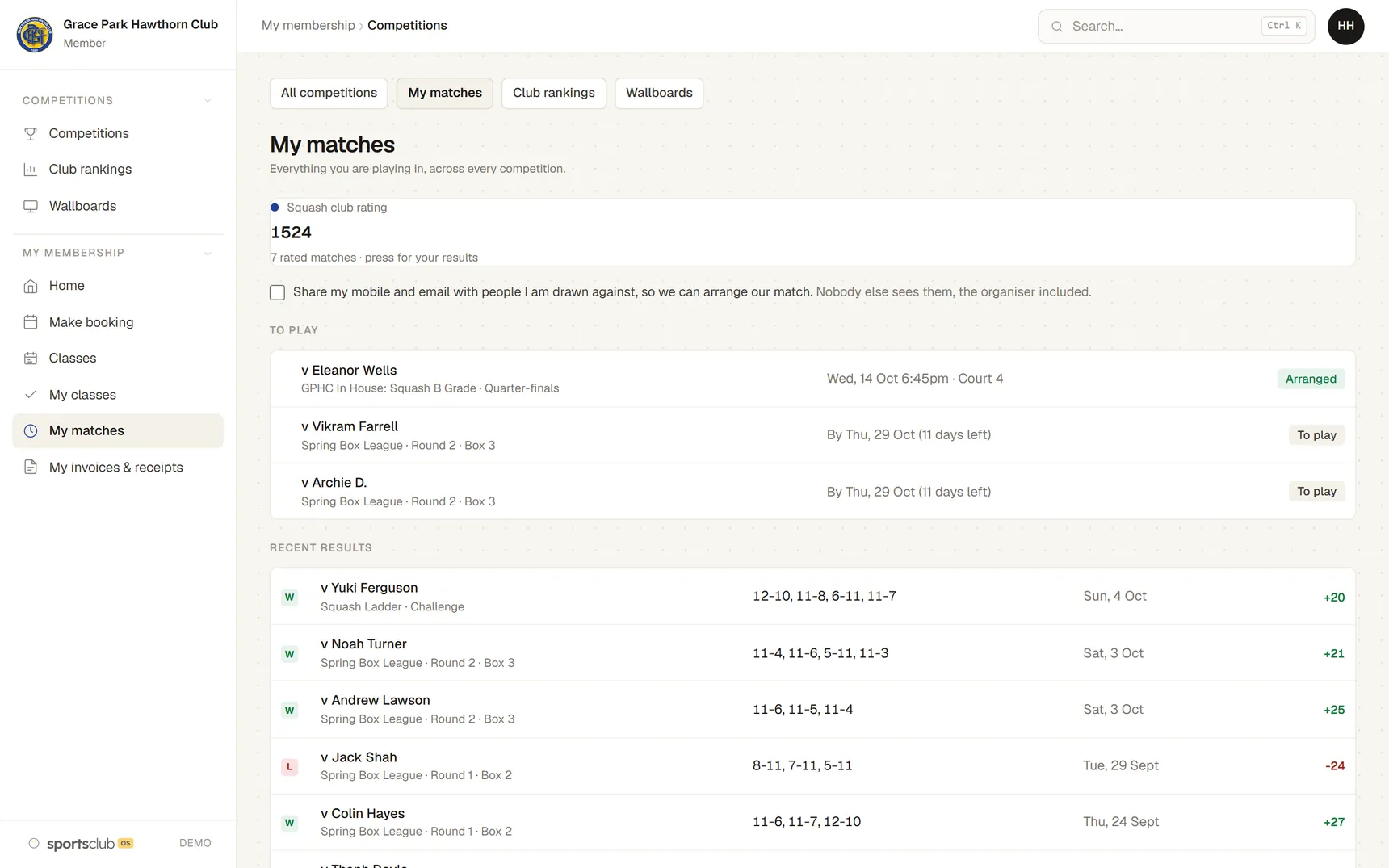
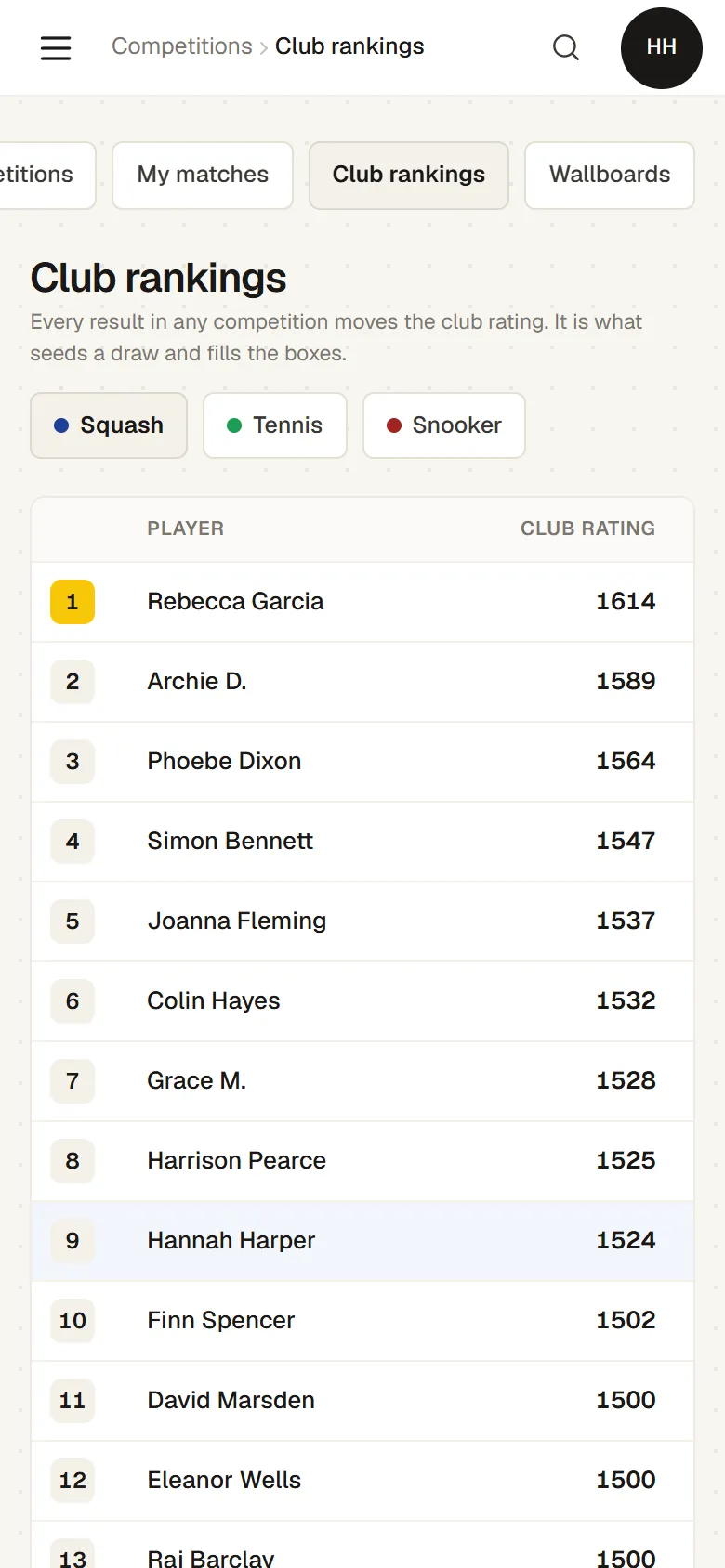
Members see the matches they have to play and their results, enter a score, and follow the ladder and the club rankings.
- A score counts straight away.Either player can enter the result. The players and the convener can correct it.
- Club rankings for each sport.Every result moves the club rating.
- Contact details only if they choose.A member can share their mobile and email with the people they are drawn against. Nobody else sees them.
PURCHASES
What the household bought at the club
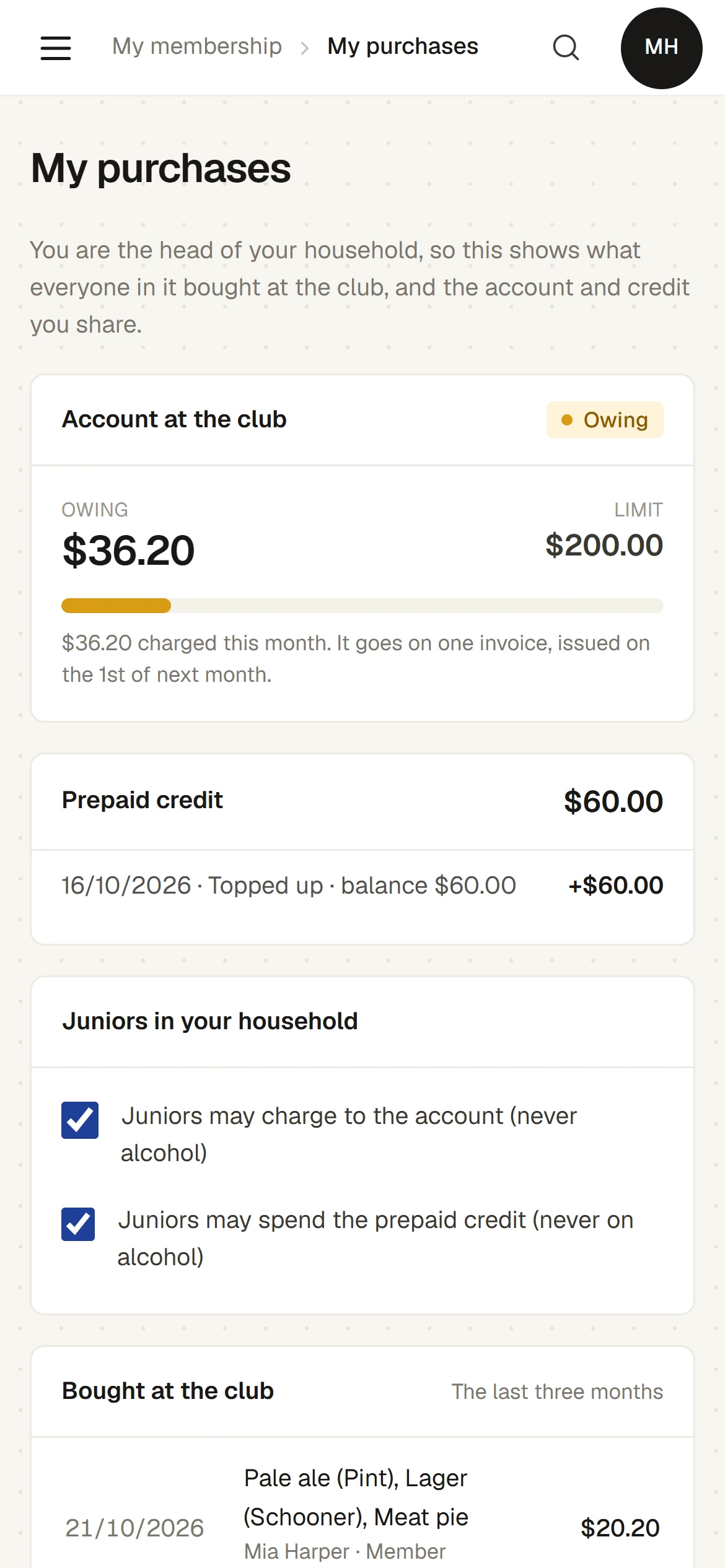
What the household bought at the bar, the pro shop and the front desk is on their own page, with the club account and any prepaid credit.
- The head of the household sees everyone’s.Any other member sees only their own purchases, and nobody sees another household’s.
- Account charges on one invoice.A month of charges to the household’s account goes on one invoice, issued on the 1st of the next month.
- Juniors.The head of the household decides whether juniors may charge to the account or spend the credit. Alcohol is never sold to a member under 18.
Email preferences
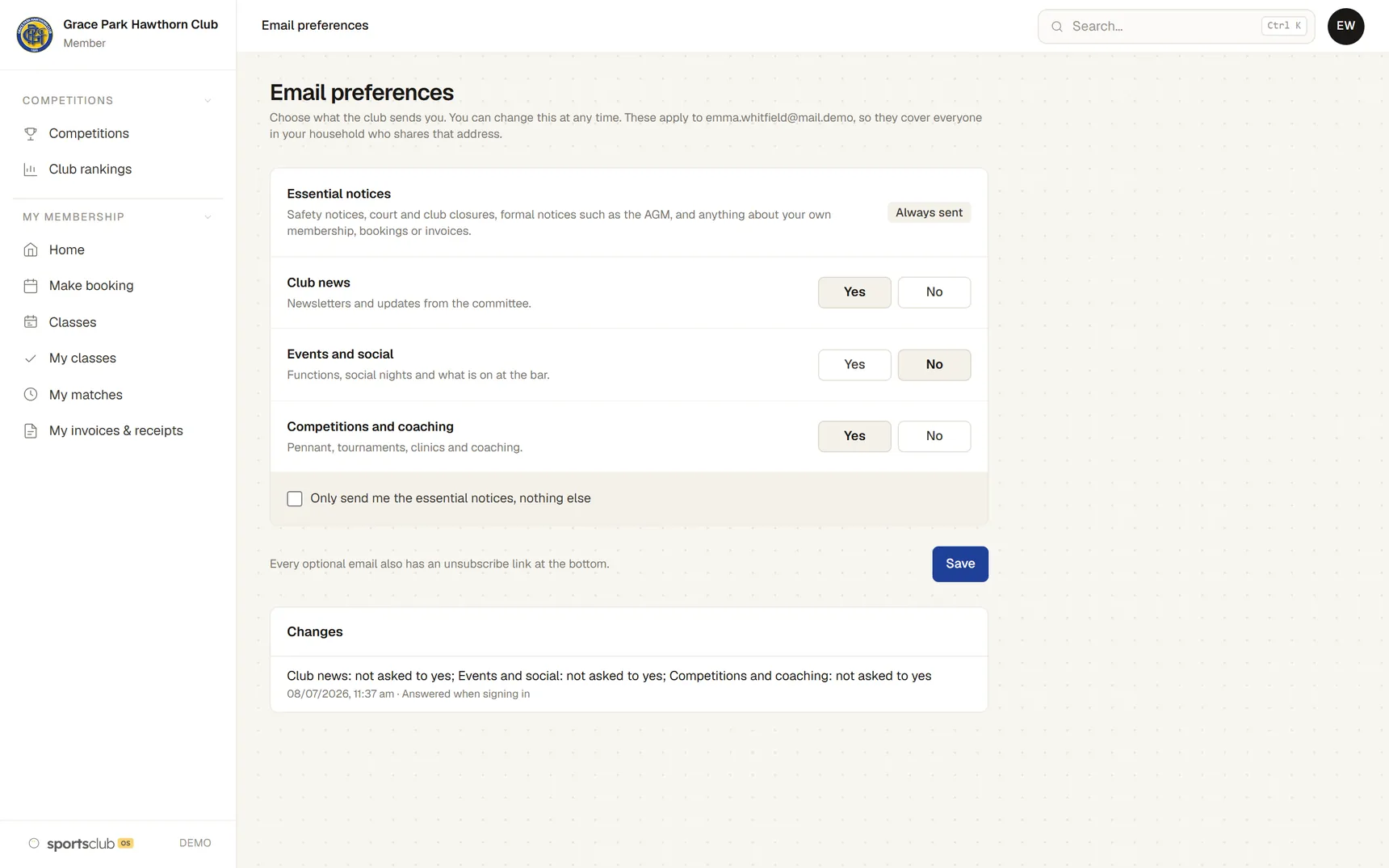
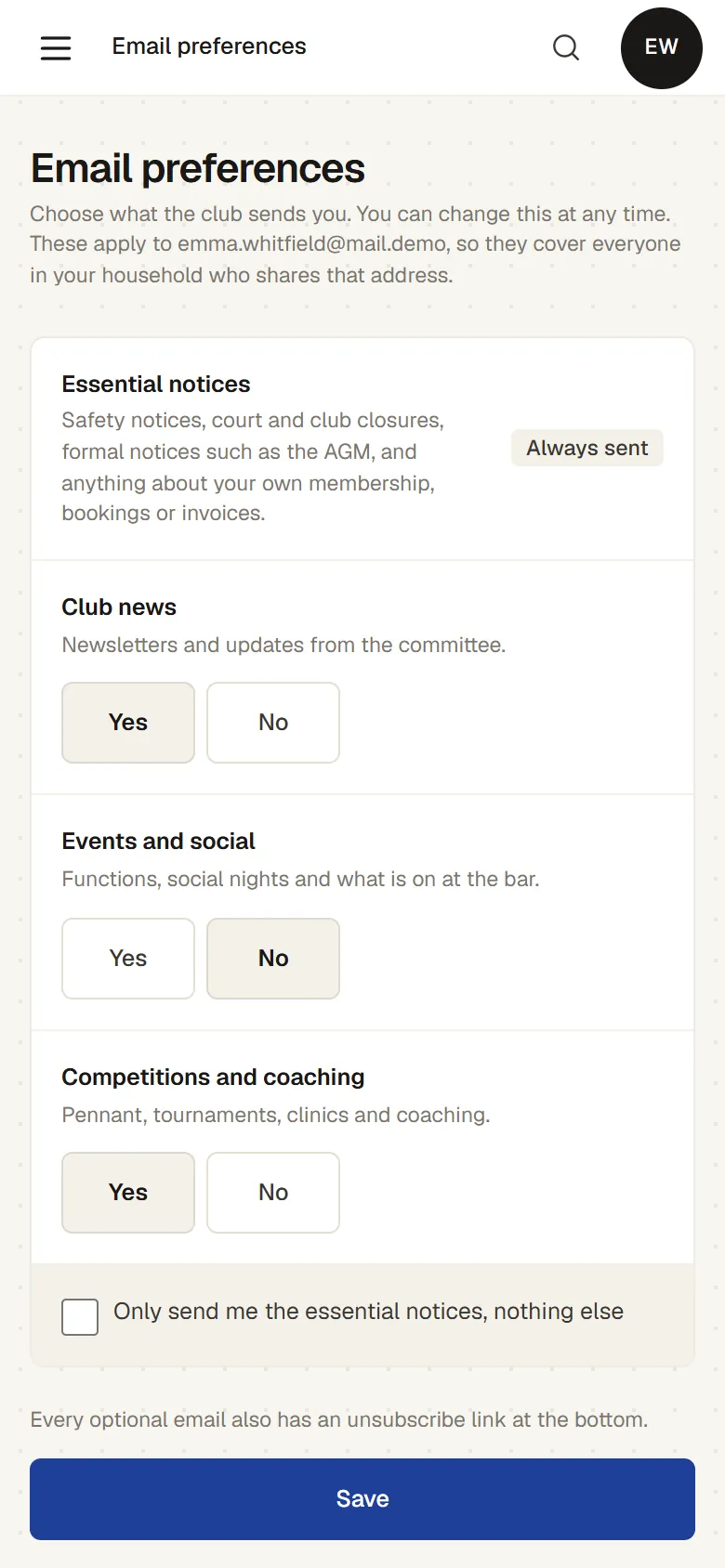
Members choose which kinds of email they get from the club, and can change their minds at any time.
- Essential notices always arrive.Court and club closures and anything about their own membership, bookings or invoices.
- One choice for a shared address.A family that shares an email address shares the choice.
- Unsubscribe from any optional email.Every optional email has a link at the bottom.
JOINING
Joining the club
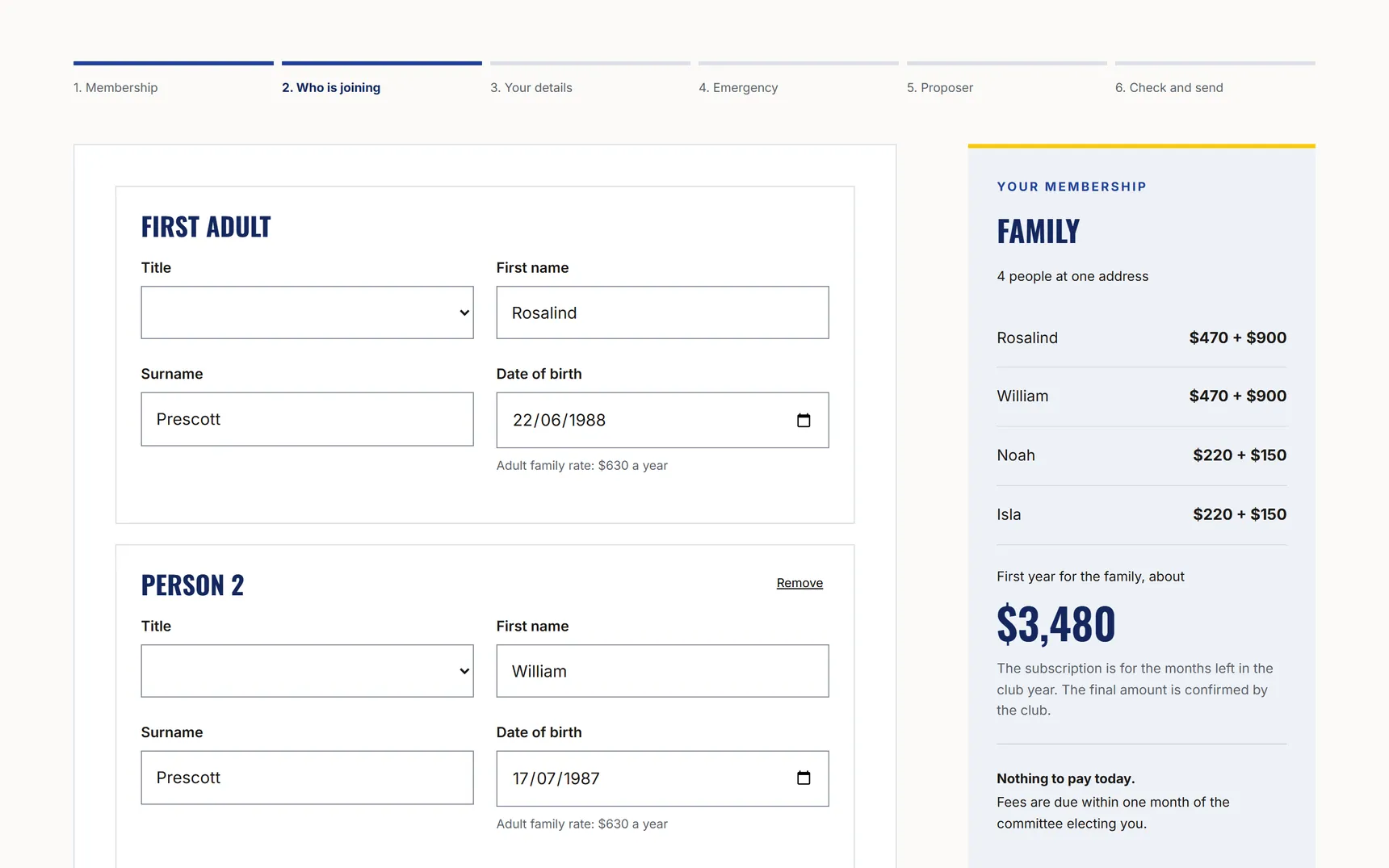
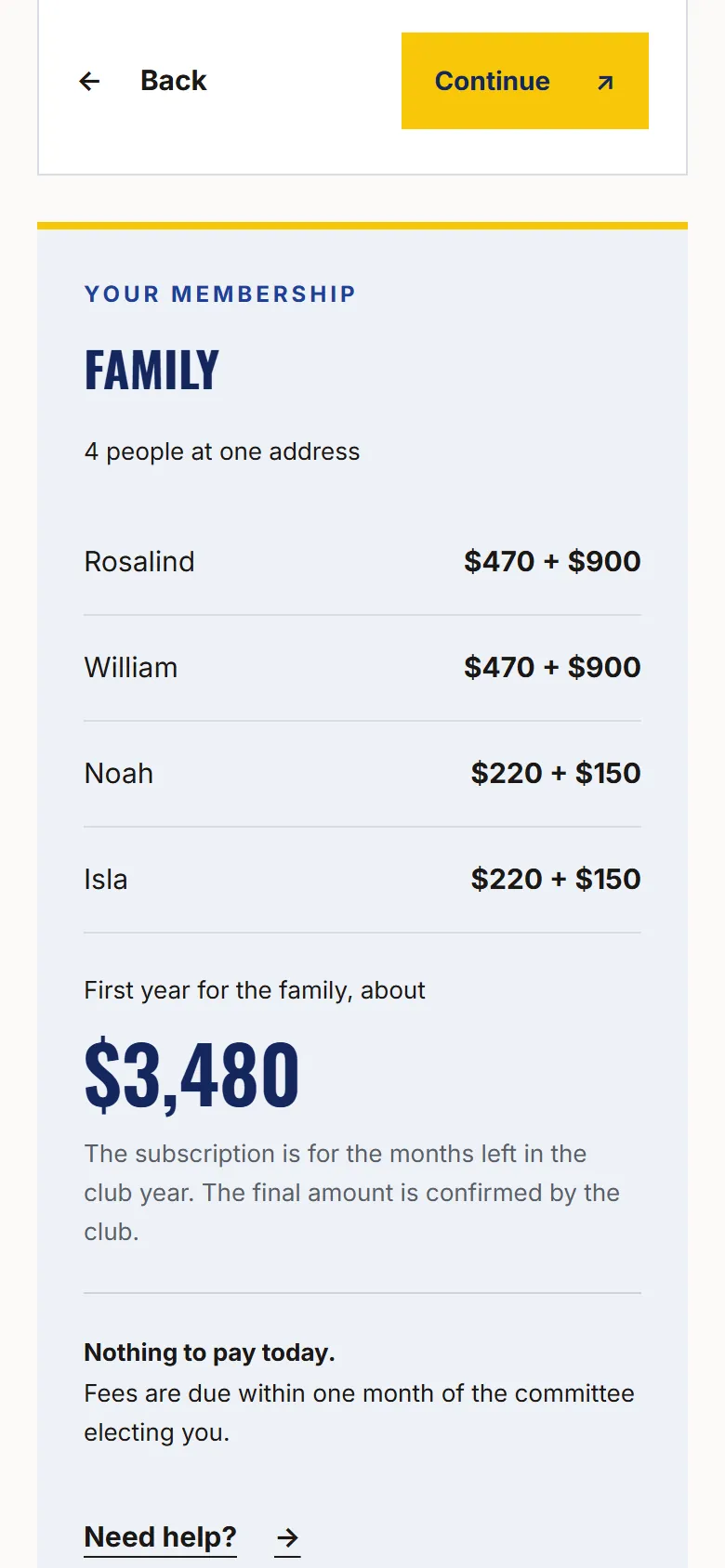
People apply from the club’s website. A family sends one application with everyone’s name and date of birth, and sees the fees before sending it.
- A proposer says yes by email.The proposer, a member, gets a link to confirm. A seconder is optional.
- The committee decides.Once the committee elects them, the club makes the member records and the first invoice.
- Nothing to pay when applying.The first invoice comes after the election.
QUESTIONS
Common questions
from members
Do members need to download an app?
No. Sports Club OS is a web page. Members open it in the browser on their phone or computer, and can add it to their home screen.
Can members pay by card?
Not yet. Online card payment is being built. Today members pay by bank transfer or at the club, and the club records the payment against the invoice.
Who sees a member’s details?
The club decides who in the office can see what. Other members see how many places are left in a class, not who booked. In competitions, a member’s mobile and email go only to the people they are drawn against, and only if they switch sharing on. Anyone under 18 is shown by first name and initial.
Can one parent look after the whole family?
Yes. An adult books classes and enrols the children from their own sign-in, and sees the family’s classes on one page.
Will members get text messages?
Not today. Messages to members go by email.
BOOK A WALKTHROUGH
Get a personalised walkthrough and demo
Book a walkthrough and bring the jobs that take your office the longest.