
The club system / Sport Booking Management
SPORT BOOKING MANAGEMENT · FULL DETAILS
Everything about bookings
Courts and tables for members and the office, with the club’s own rules, closures, regulars and a screen for the foyer.
THE FULL WALKTHROUGH
Every part of Sport Booking Management, start to finish
A longer, slower look at the real pages, in chapters. Press a chapter to jump to it.
What it is
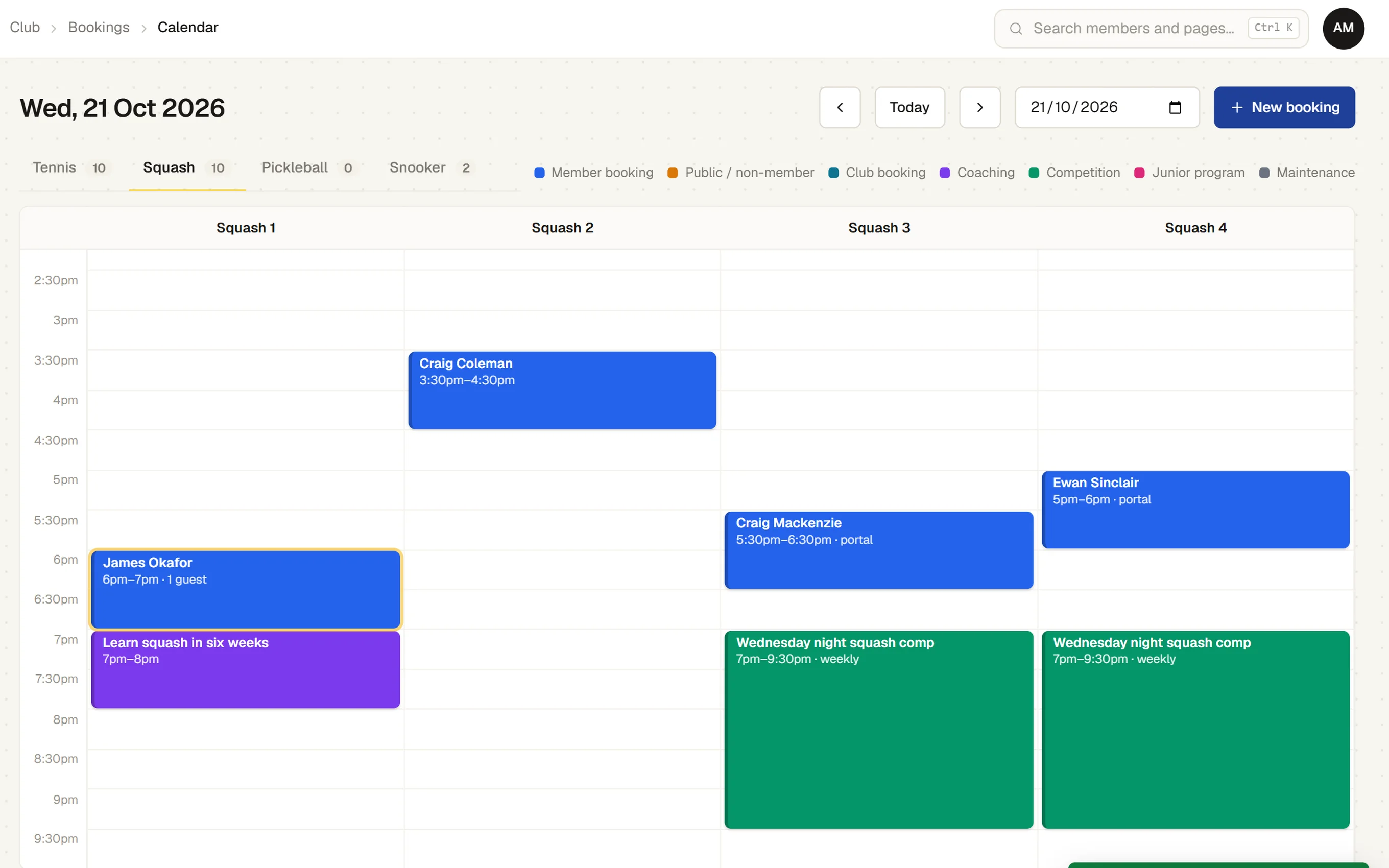
Sport Booking Management is one calendar for every court and table at the club. The office sees the whole day; members see the same calendar from their phones and book under the rules the club sets.
Two people can never hold the same court at the same time, whoever books it and however it was booked.
Everything it does
- A day at a glance
- A column for each court or table, a tab for each sport and a line showing the time now.
- Any sport
- Tennis, squash, snooker, pickleball or anything else, each with its own opening hours, usual booking length and courts.
- Kinds of booking
- Member, public, club, coaching, competition, junior programme and maintenance, each in its own colour.
- Guests
- Adult and junior guests on a booking, with the guest fee worked out.
- Weekly regulars
- A booking that repeats each week for up to a year. Weeks that clash are skipped and listed, and one week or every later week can be cancelled.
- No double-booking
- Each court is held for each quarter hour the moment it is booked, so two bookings can never meet.
- Members book for themselves
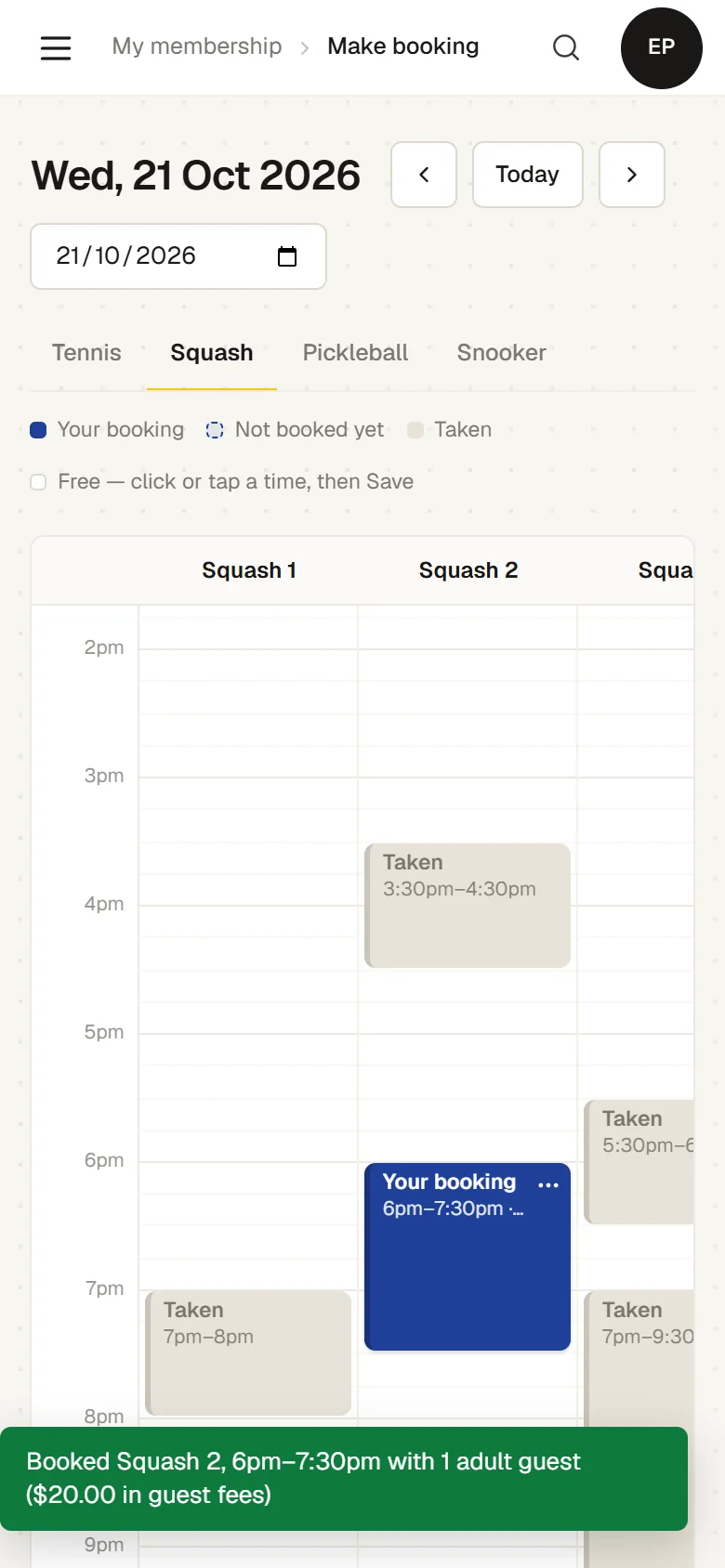
- Members book from their phone under the club’s rules: a current membership, how far ahead, how long, how many a week, which sports and which times. A tap places a draft, marked “Not booked yet”, to move or stretch before pressing Save.
- Members change their own
- A member drags their booking to another time or another court of the same sport, or stretches it, and saves the change. Guests are added from the booking’s menu, with the fee shown.
- Privacy for members
- Other members’ bookings show as busy, without names.
- Closures
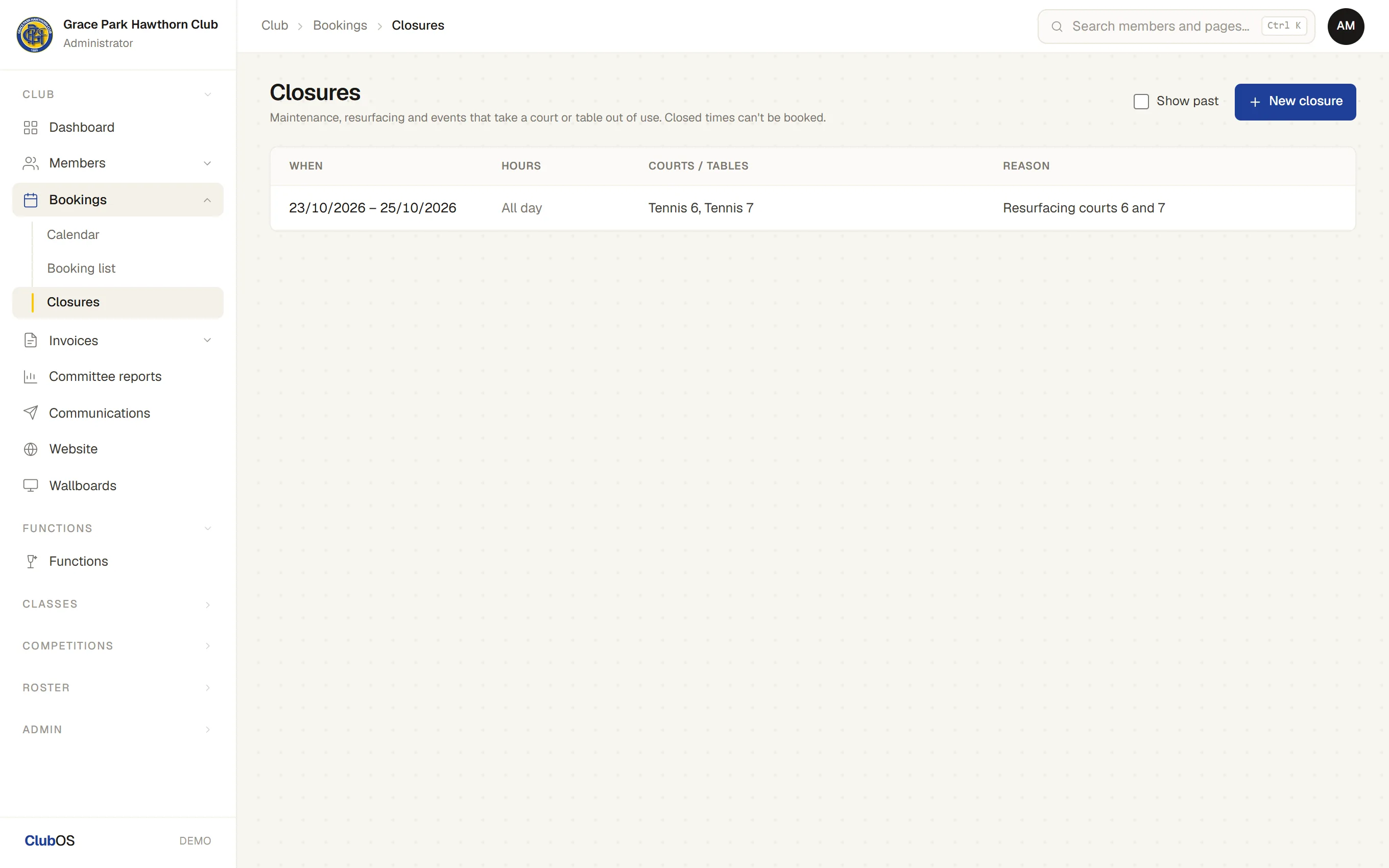
- Close courts for resurfacing, an event or lighting repairs, all day or for some hours. Closures block bookings and show on the calendar, the member’s page and the foyer screen, with a list of the bookings they affect.
- The booking list
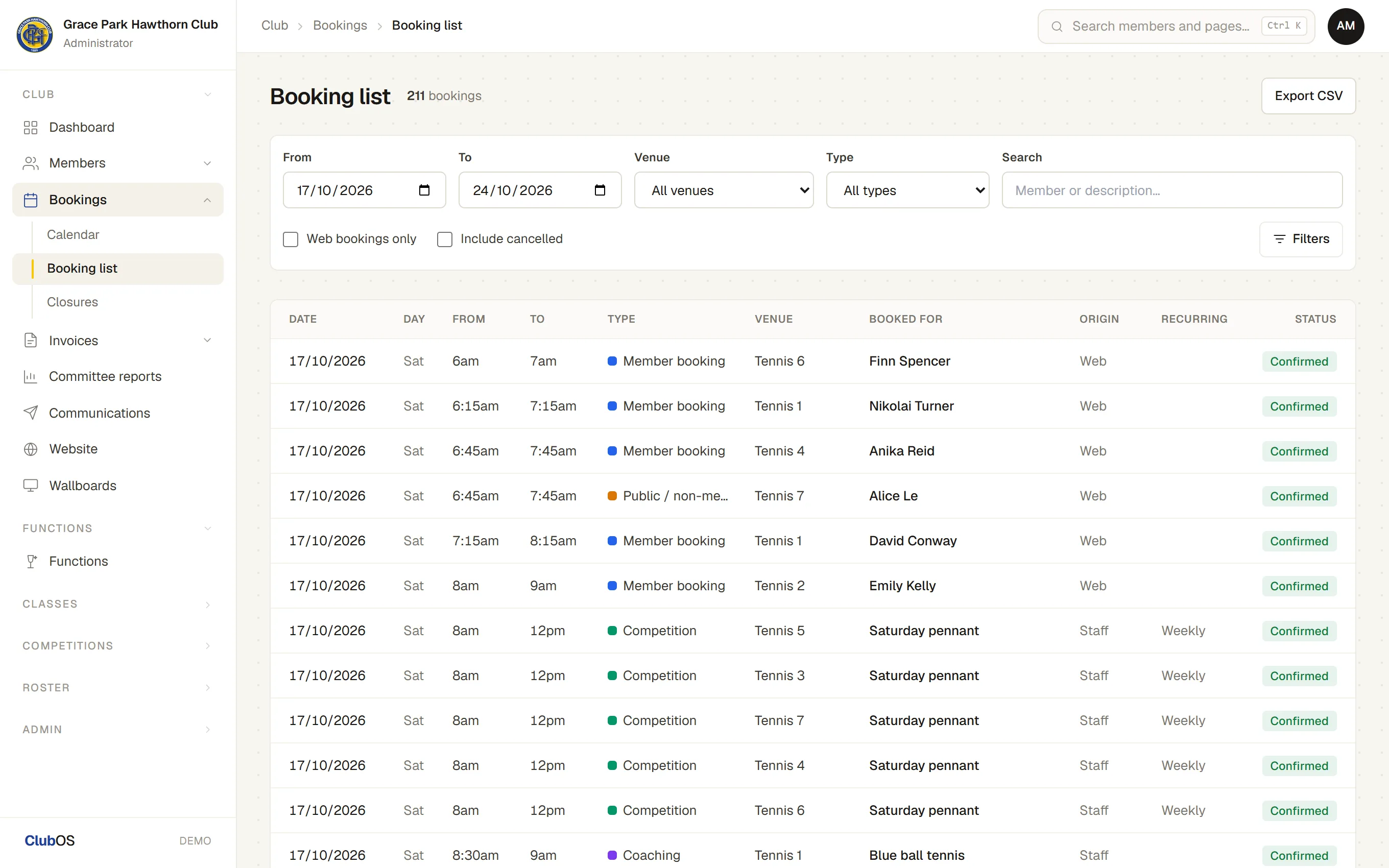
- Every booking between two dates, filtered and searched, with who made or cancelled it, and an export.
- A foyer screen
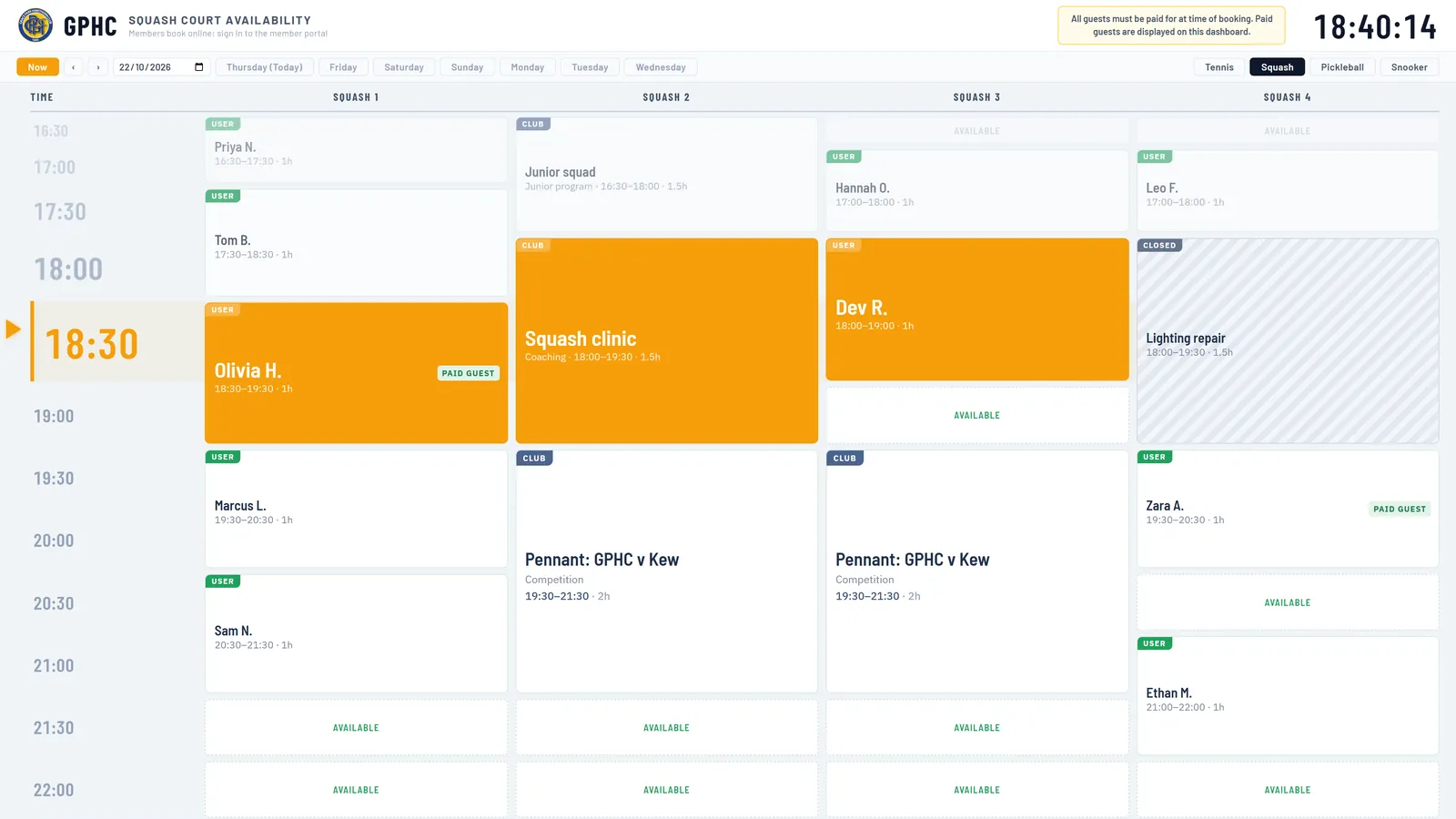
- Court availability on the clubhouse TV, with a clock, and names shown the way the club chooses: in full, first name and initial, initials, or just “Reserved”.
- Court use reports
- Bookings, court hours, peak share, the busiest hours of the week and the most active members, for the committee.
How it works
- The club sets the rules. Opening hours, booking lengths and what members may book.
- A member books. From their phone: pick a court and a time, add a guest if they like.
- The calendar updates. The office, the member and the foyer screen see the booking at once.
- Plans change. Members move their own bookings, or cancel them up to the club’s cut-off. The office can move or cancel any of them.
The screens
Real screens from Sports Club OS, on an invented club.
Settings and options
- Sports and courts
- Each sport’s courts or tables, opening hours, booking step and usual length.
- Member rules
- How far ahead, how long, how many a week, peak times, and the cancellation cut-off.
- Membership types
- Which sports each type includes and its weekly limit, and off-peak only types.
- Guest fees
- What an adult or a junior guest costs.
- The foyer screen
- How names are shown in public.
Who can do what
| Who | What they can do |
|---|---|
| Administrator | Everything, including the sports, courts and rules. |
| Office staff (Head Coach, Casual Staff) | See and make bookings for anyone, close courts and read the court use reports. |
| Members | Book, change and cancel their own, under the club’s rules. |
| Anyone at the club | The foyer screen needs no sign-in. |
These are the starting roles. The club can change what each role may do on its Roles & permissions page, give a person several roles, and take a role away when they step down. The server checks every request against those roles, so a hidden button is never the only protection.
What gets sent
| To | What |
|---|---|
| Everyone | A booking or a closure shows at once on the calendar, on the member’s own page and on the foyer screen. |
Questions
Can members book for a friend?
Yes, as guests on their own booking, with the guest fee worked out.
Do members pay for bookings online?
Not yet. Online card payment is being built.
Can coaching and competitions hold courts?
Yes. Classes hold their court automatically, and the office can book courts for competitions.
What about pitches and grounds?
They are planned.
On its way
Pitches and grounds.
Paying for bookings online.
Works with
 Classes & Coaching
 Functions and Events
 Competitions & Leagues
BOOK A WALKTHROUGH
Get a personalised walkthrough and demo
Book a walkthrough and bring the jobs that take your office the longest.