
The club system / Communications
COMMUNICATIONS · FULL DETAILS
Everything about communications
Newsletters and notices that look like the club, sent to the right members, with their choices respected and every result reported.
THE FULL WALKTHROUGH
Every part of Communications, start to finish
A longer, slower look at the real pages, in chapters. Press a chapter to jump to it.
What it is
Communications writes and sends the club’s emails from the member list itself. No exporting to another tool, and no copy-and-paste of addresses.
Members choose what they hear about, and the system asks their choice before every email. An address that bounces stops being sent to.
Everything it does
- Six steps
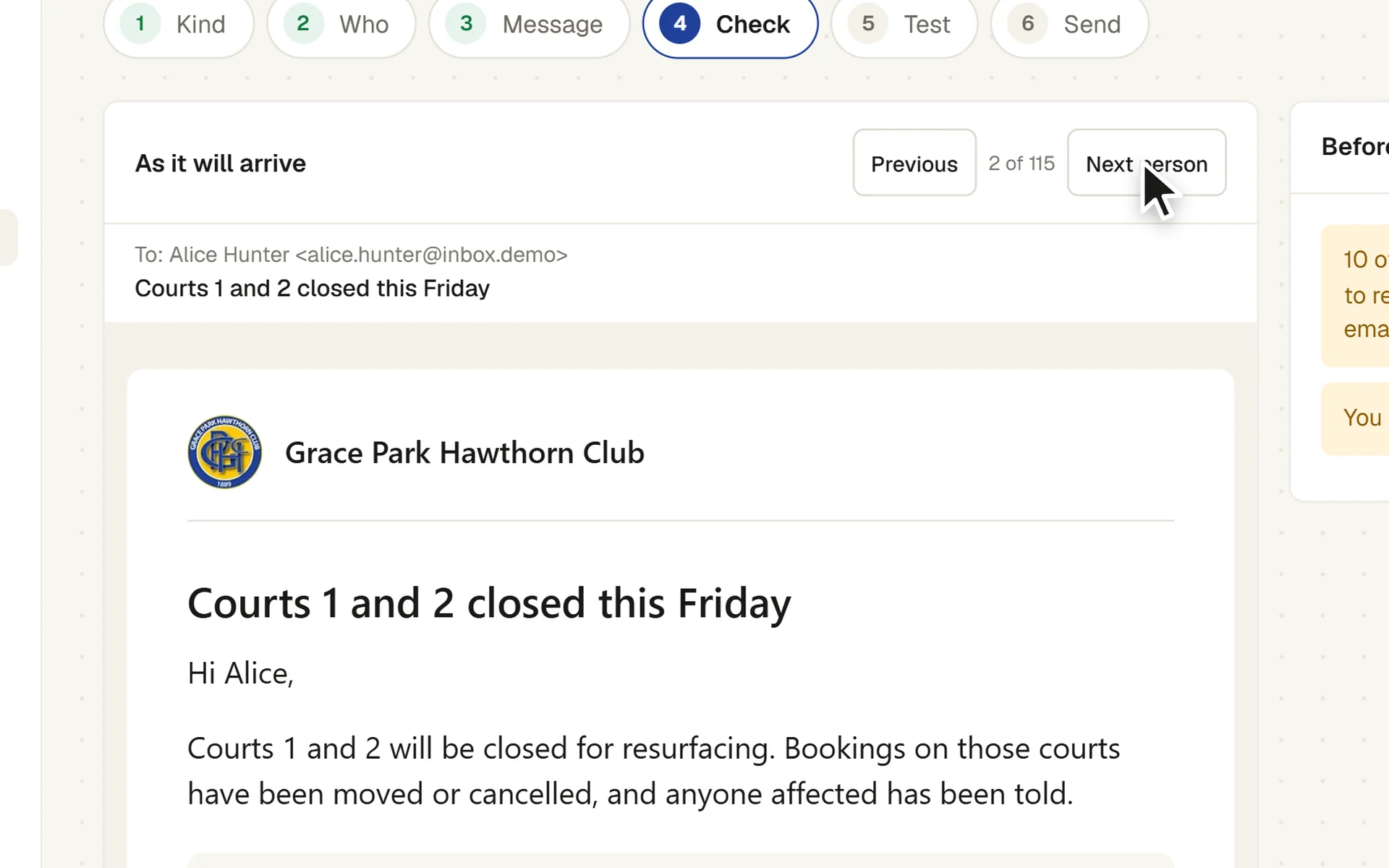
- Kind, Who, Message, Check, Test, Send, saved as you go, so a message can be finished later.
- Who it goes to
- By status, membership type and tag, plus people added or removed by hand. One copy per address, to the head of the household. Tags kept up to date by the club’s tag rules, such as Lapsed player or Renewal due, can choose who a message goes to, and so can a filter saved on the member list.
- Who is left out, and why
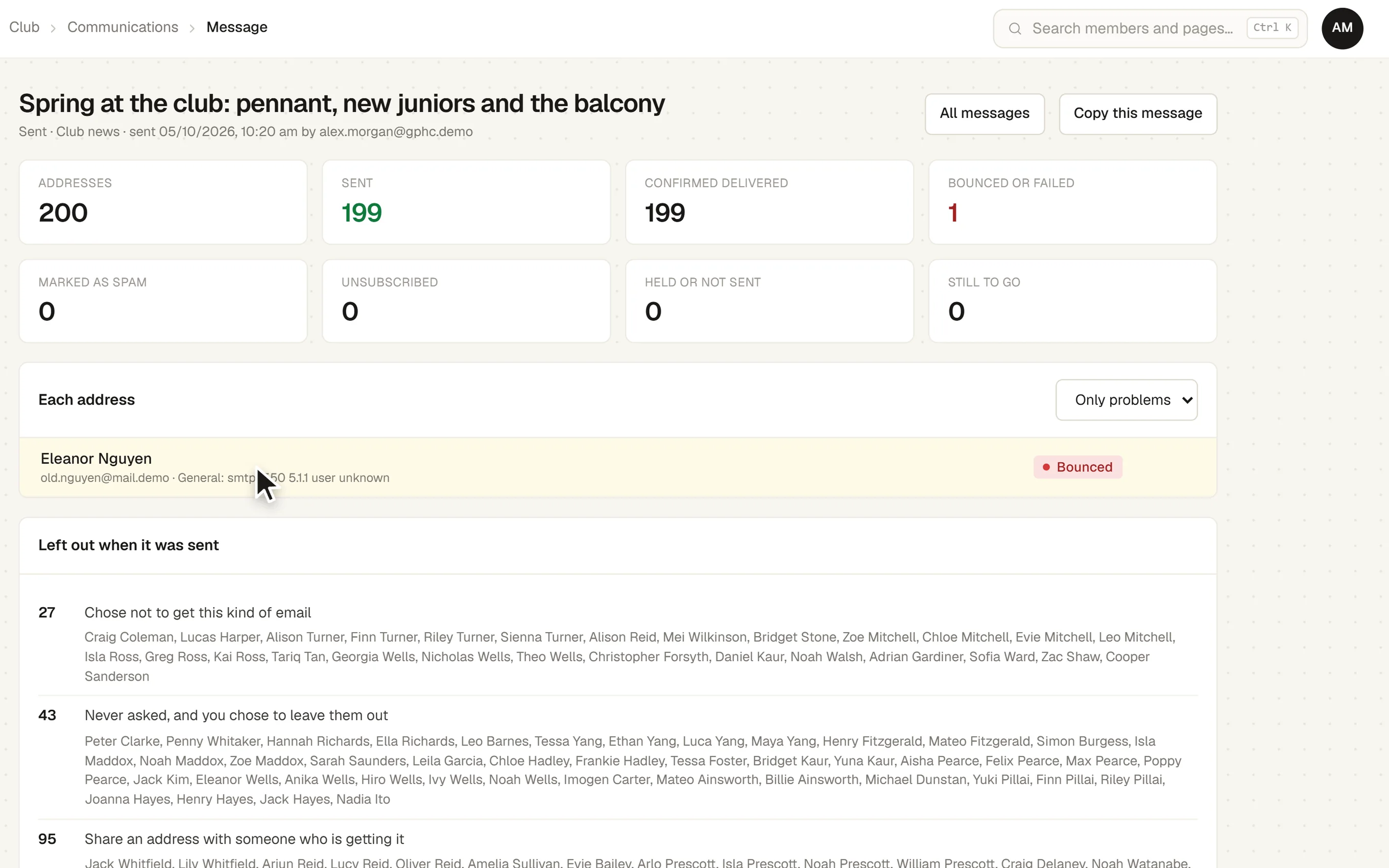
- No address, a shared address, a category switched off, an address that bounced, or never asked. You see the list before you send.
- Edit the email itself
- Headings, text, pictures, buttons, panels, columns and fold-out details, edited in place as the email will look. Bold, italic, links and lists.
- Merge fields
- A first name and the like, with a fallback for anyone without one.
- Templates
- Ready-made messages to start from, or start from one you sent before.
- First drafts written for you
- Describe the message and a draft is written for you to check. Or have a paragraph made shorter, friendlier, more formal or plainer.
- Check before sending
- The email exactly as it will arrive, for any person on the list, with warnings for anything left to fill in.
- A test copy
- Send it to yourself first.
- A 30-second hold
- Sending starts after 30 seconds, with a Stop button.
- Results
- Delivered, bounced, complained or left out, for every address, as the message goes.
- Email preferences
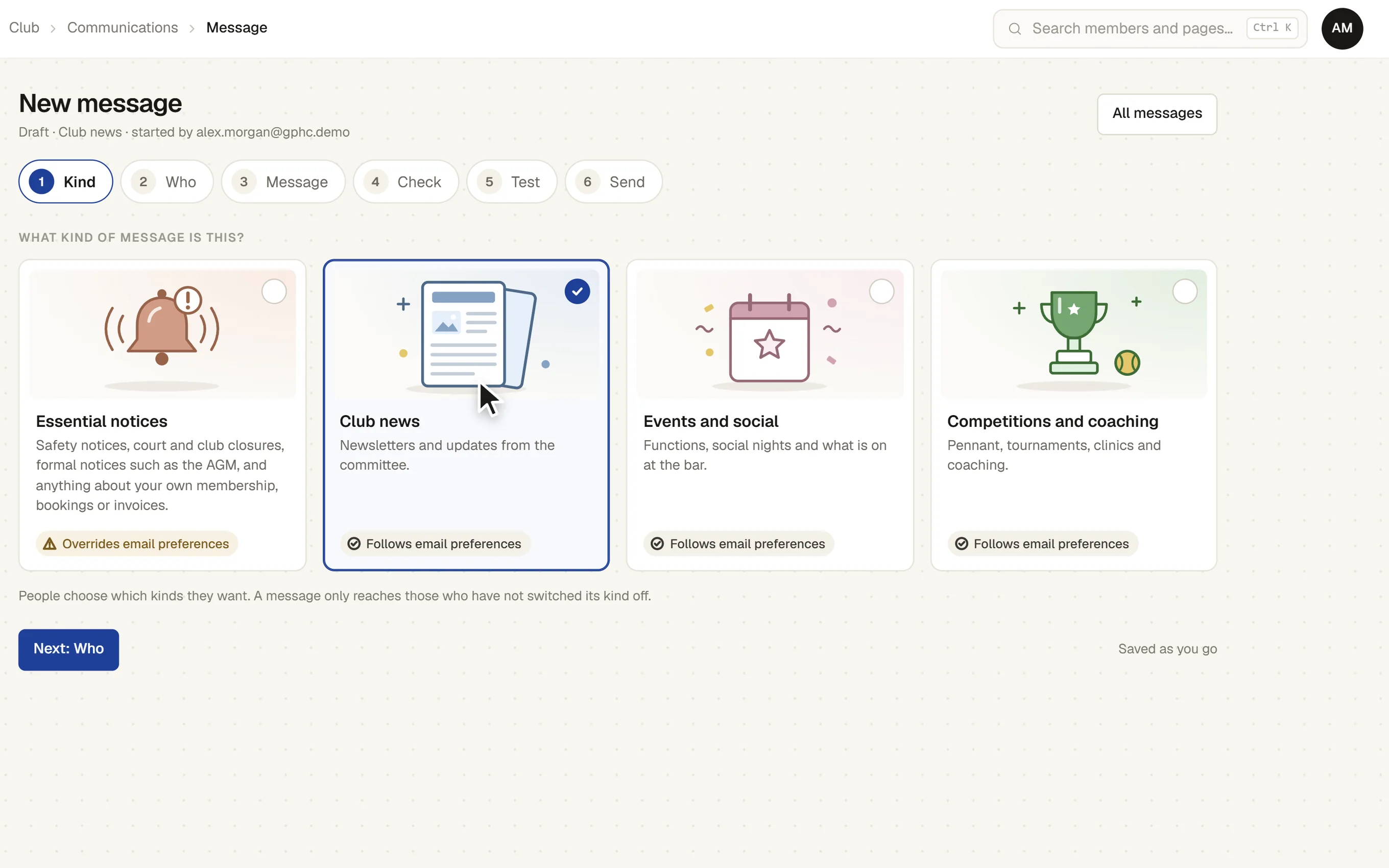
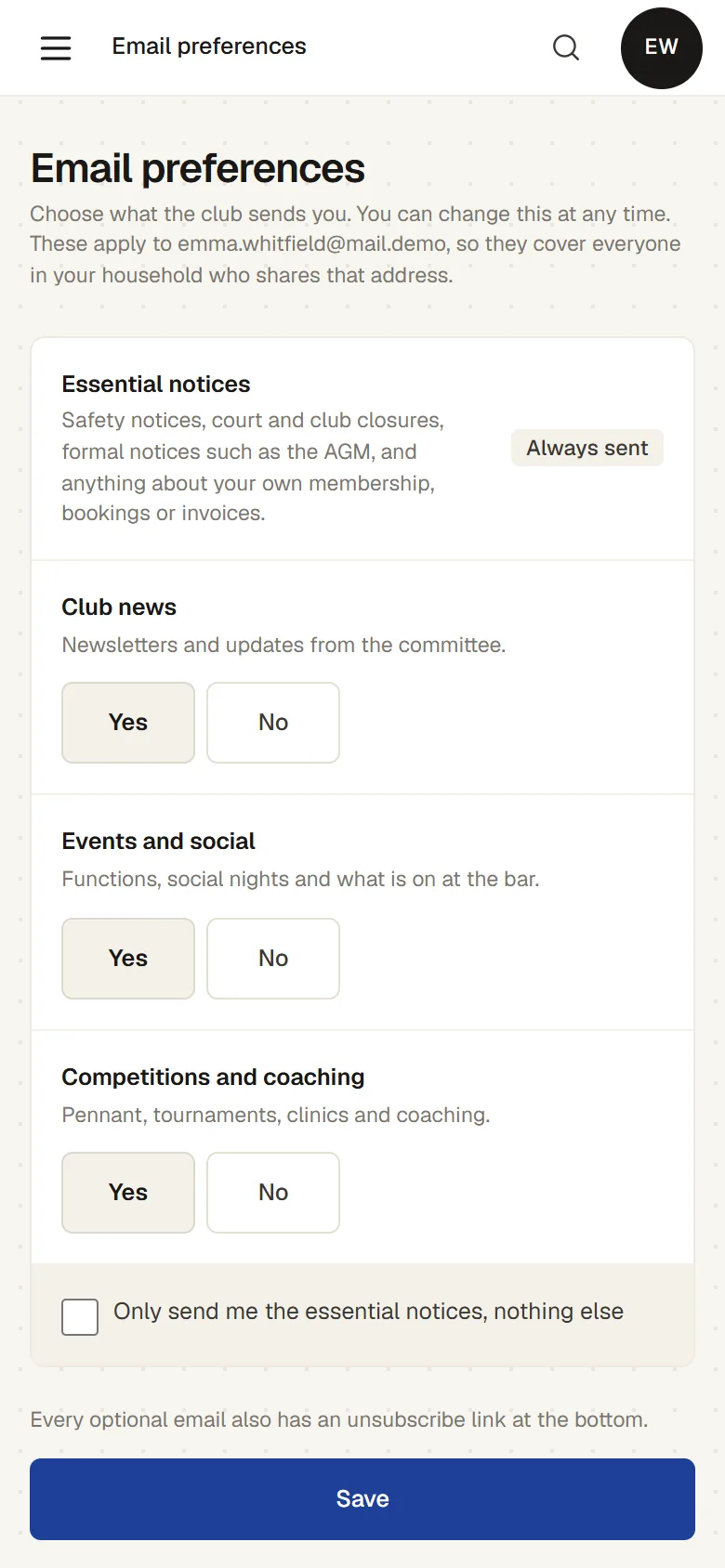
- Each address has its own choices by category. One category, essential notices, cannot be switched off.
- Unsubscribe
- Optional emails carry an unsubscribe link and the one-click unsubscribe that mail programs offer.
- On the member’s record
- The latest messages sent to each member, beside their email choices.
How it works
- Choose the kind. An essential notice or an optional category.
- Choose who. From the member list. See who is left out and why.
- Write it. From a template, a past message or a description.
- Check and test. See it as each person will, and send yourself a copy.
- Send. Confirm the number, and watch the results come back.
The screens
Real screens from Sports Club OS, on an invented club.
Settings and options
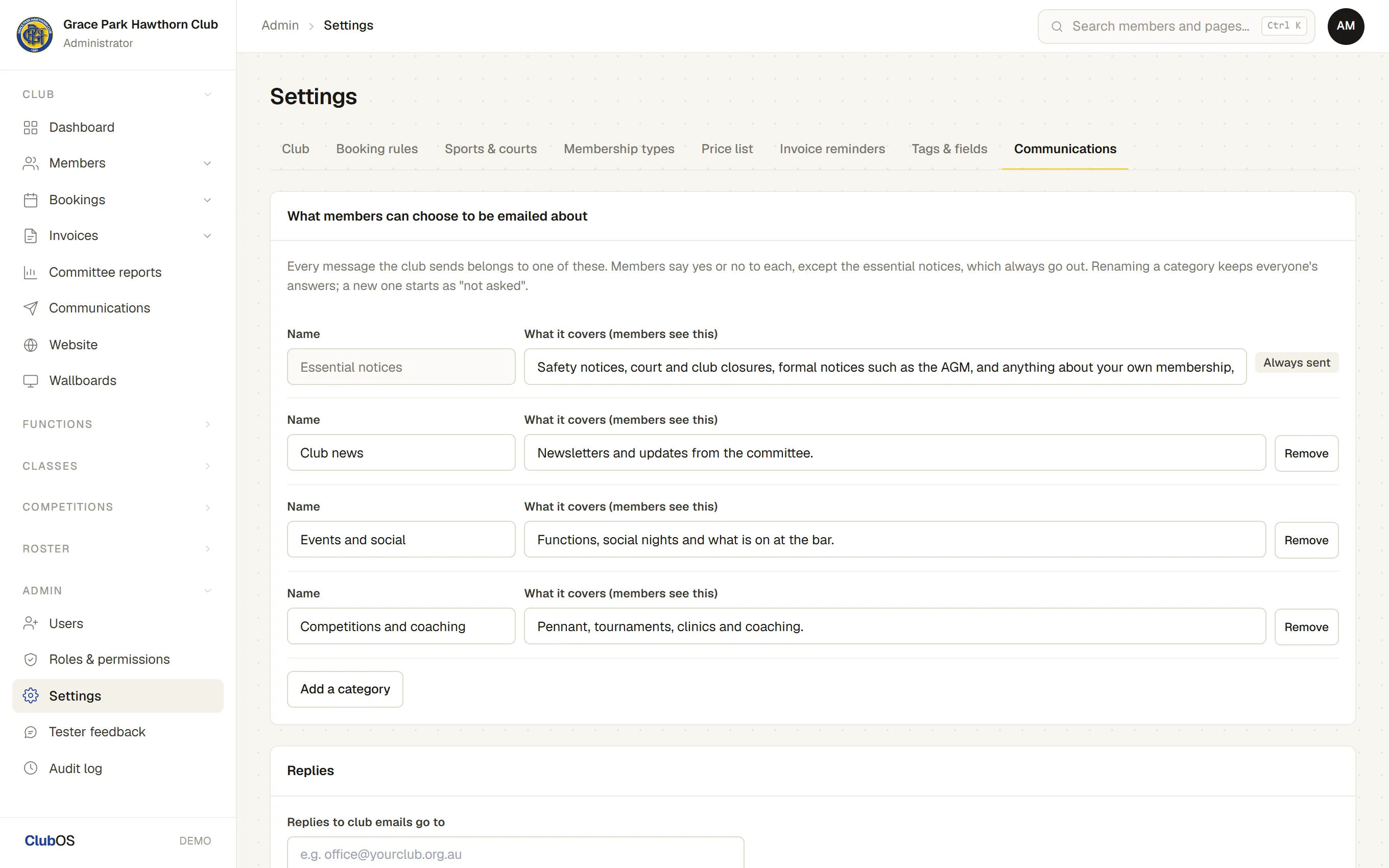
- Categories
- What members can choose to hear about, such as club news, events and social, competitions and coaching.
- Replies
- The address replies go to.
- Text wording
- The words of each kind of staff text message.
Who can do what
| Who | What they can do |
|---|---|
| Administrator | Writes and sends messages, and sets the categories. |
| Others | Sending can be given to another role on the Roles & permissions page. Names behind any count are shown only to people who may see members. |
| Members | Their own email choices. |
These are the starting roles. The club can change what each role may do on its Roles & permissions page, give a person several roles, and take a role away when they step down. The server checks every request against those roles, so a hidden button is never the only protection.
What gets sent
| To | What |
|---|---|
| Members | The messages the club sends, as each person has chosen. |
| Staff | Shift messages and reminders by email and text (see Staff and Volunteers). |
Questions
Do the email and website assistants see our members?
No. To draft a message the AI is sent only your description and the club’s name, and the request is processed in Australia. First names are filled in later, by the system, when each email is sent. The AI Report Assistant reads club data, read-only, and only for people whose role already lets them see it. More in the Trust Centre.
Can we send texts to members?
Not yet. Texts go to staff about their shifts today. Texts to members are coming.
Can we schedule a message for later?
Not yet. It is on the list.
Will it look right in Outlook?
Yes. Emails are built the way older mail programs need, with a plain-text copy too.
On its way
Texts to members.
Sending invoice reminders.
Scheduling a message for later.
Works with
 Membership Management
 Classes & Coaching
 Competitions & Leagues
BOOK A WALKTHROUGH
Get a personalised walkthrough and demo
Book a walkthrough and bring the jobs that take your office the longest.