
The club system / Member Inbox
MEMBER INBOX · FULL DETAILS
Everything about the Member Inbox
Emails and SMS automatically matched to a member, tracked to completion centrally with tags, folders and status flags.
What it is
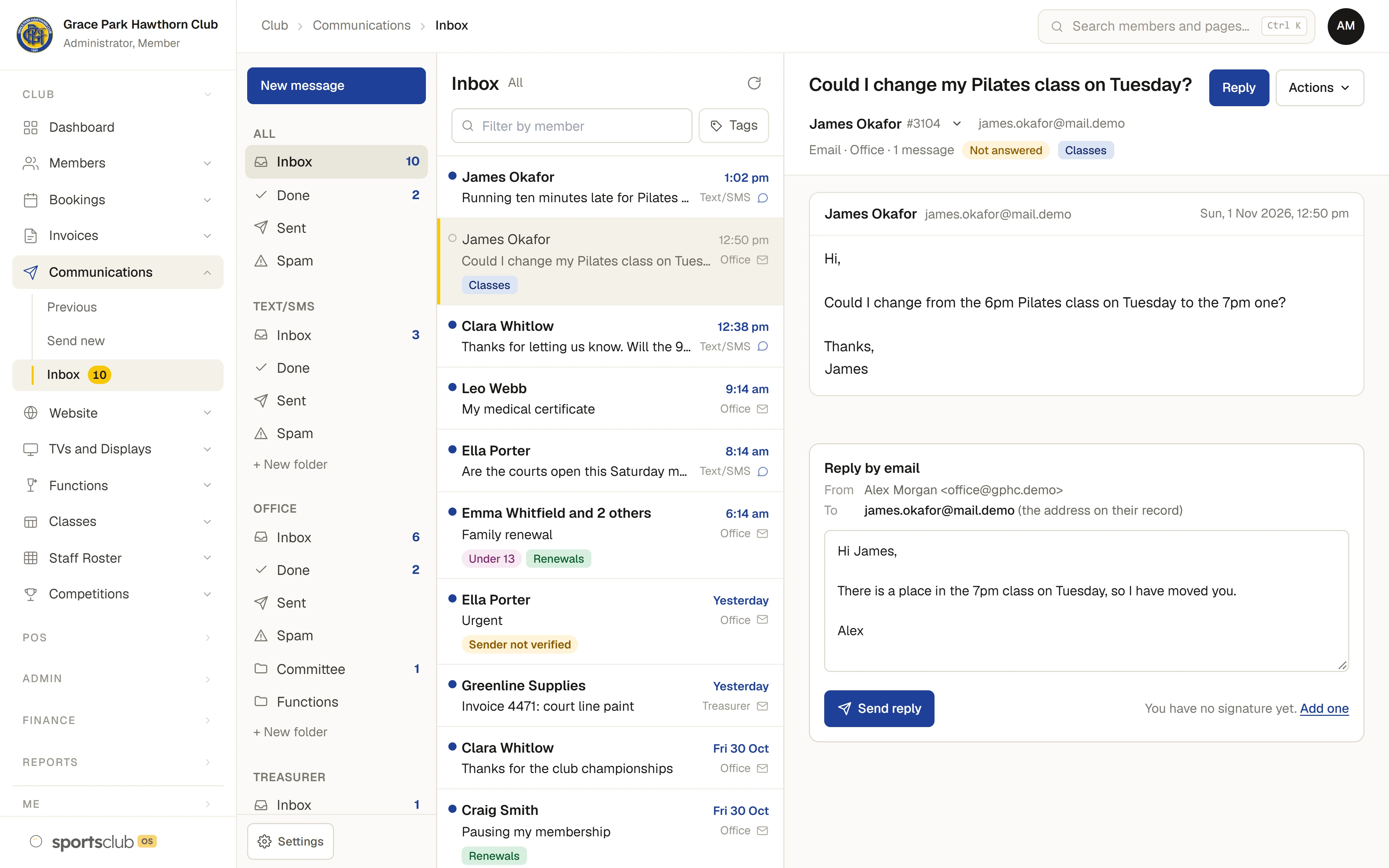
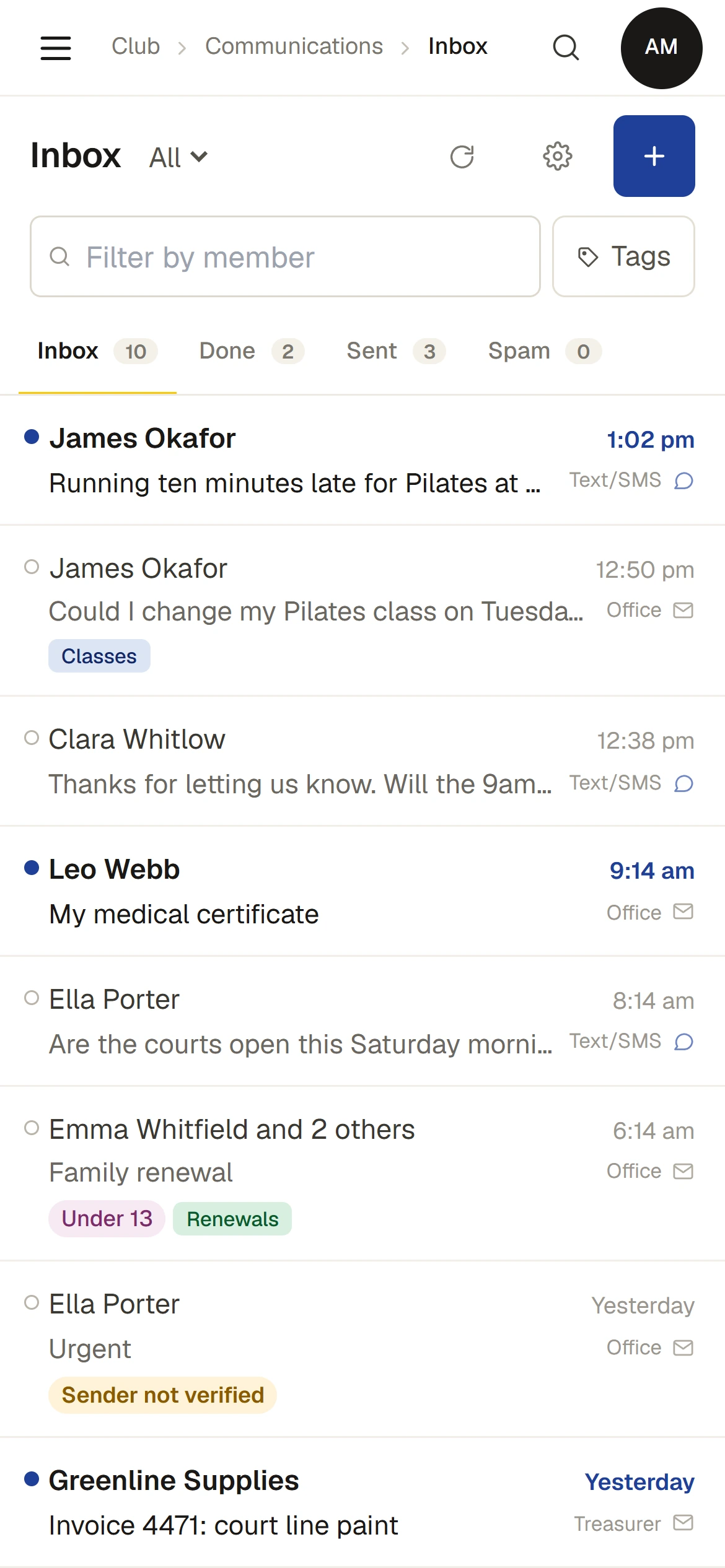
The Member Inbox brings together what members send. The club’s mailbox forwards to an inbox in Sports Club OS, replies to the club’s texts land beside the emails, and the people named on it read, reply and mark done, so nothing is answered twice or missed. A member’s emails and texts can be seen together. See Member Inbox.
To write to many members at once, use Bulk Communications.
Everything it does
- One inbox for emails and texts
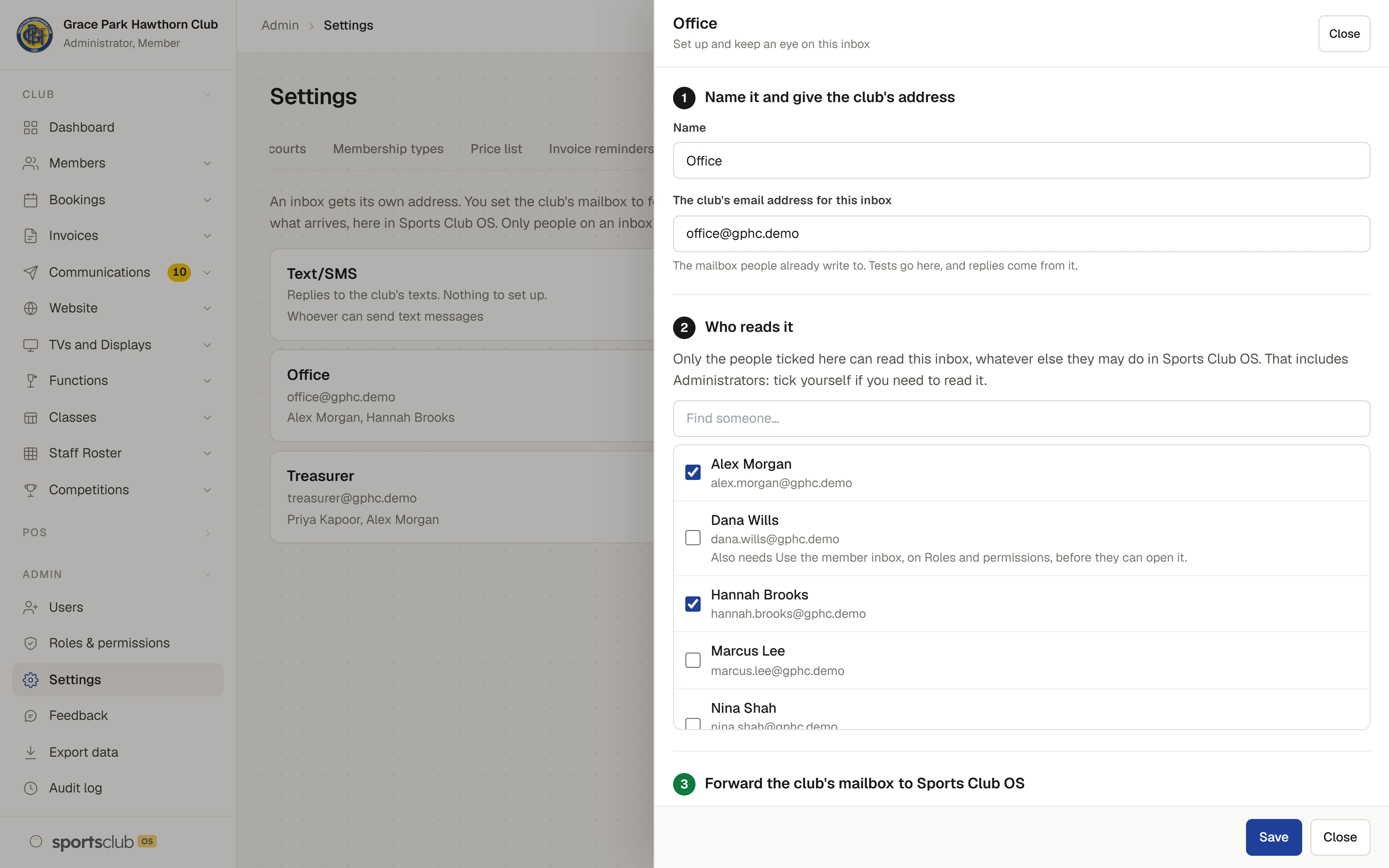
- An Administrator makes an inbox, which gets its own forwarding address, and sets the club’s mailbox to forward to it. The club keeps its mailbox. What members email, and what they text back, arrive in one list, with the steps for Gmail, Microsoft 365 and other hosts in the set-up, and a test to show it works.
- Named people read it
- Each inbox lists the people who may read it, and only they see its mail, Administrators included. Read or not is each person’s own. All my inboxes shows them together.
- Reply and mark done
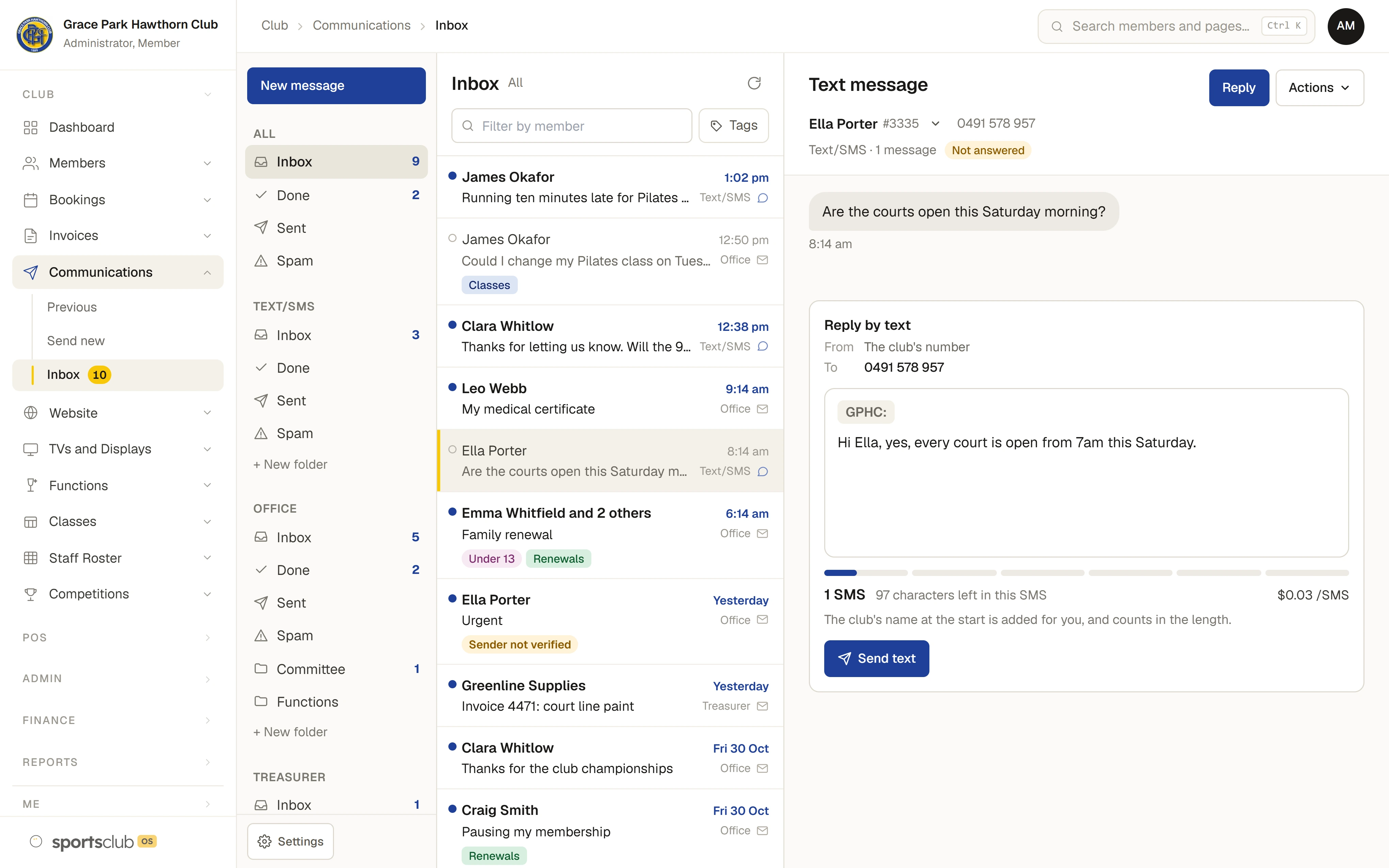
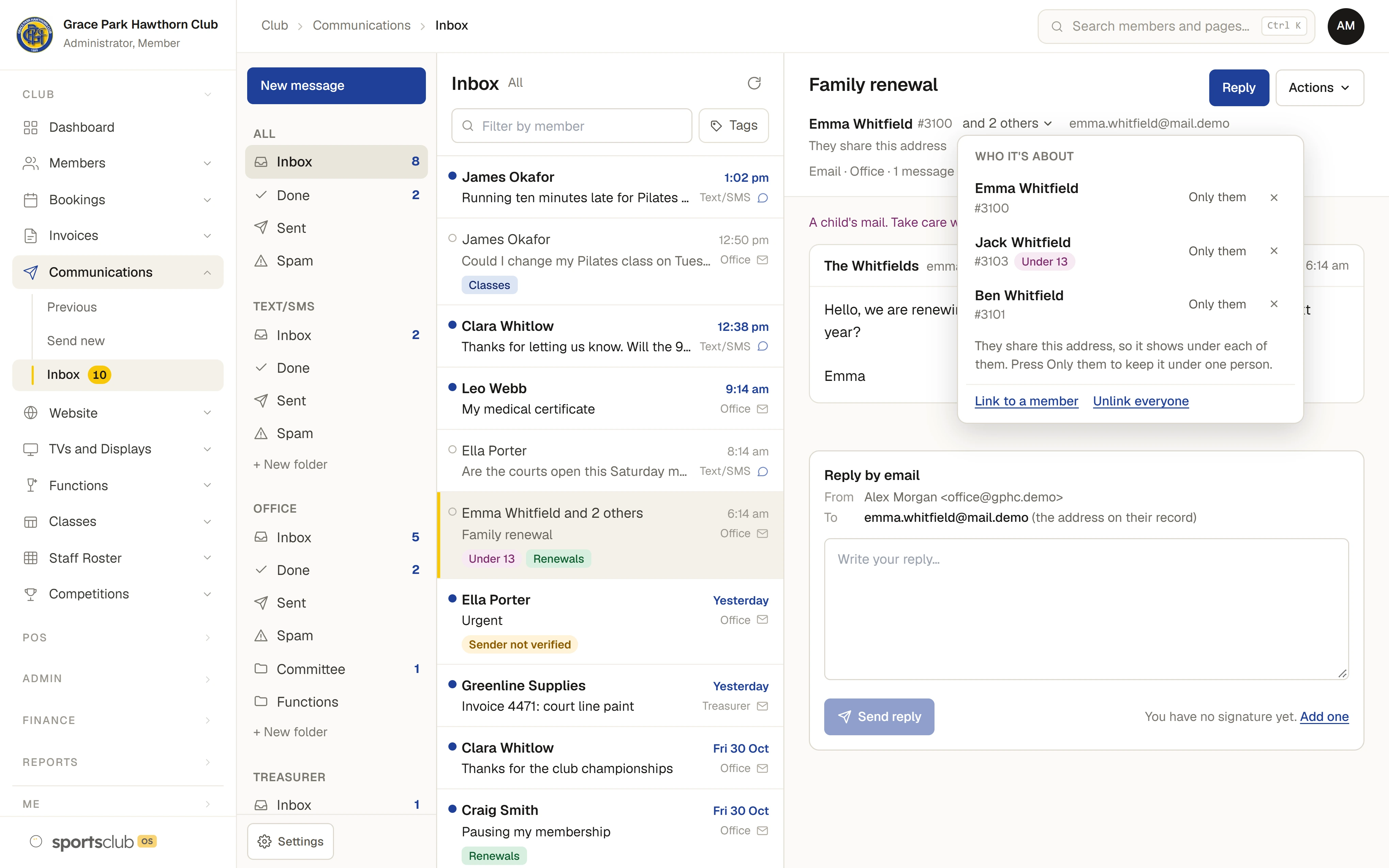
- Anyone on the list can reply, by email from the club’s own address with their name on it, or by text to someone who texted, and mark it done, so nothing is answered twice. A member who writes again brings it back. Filing a conversation away closes it.
- Linked to the member
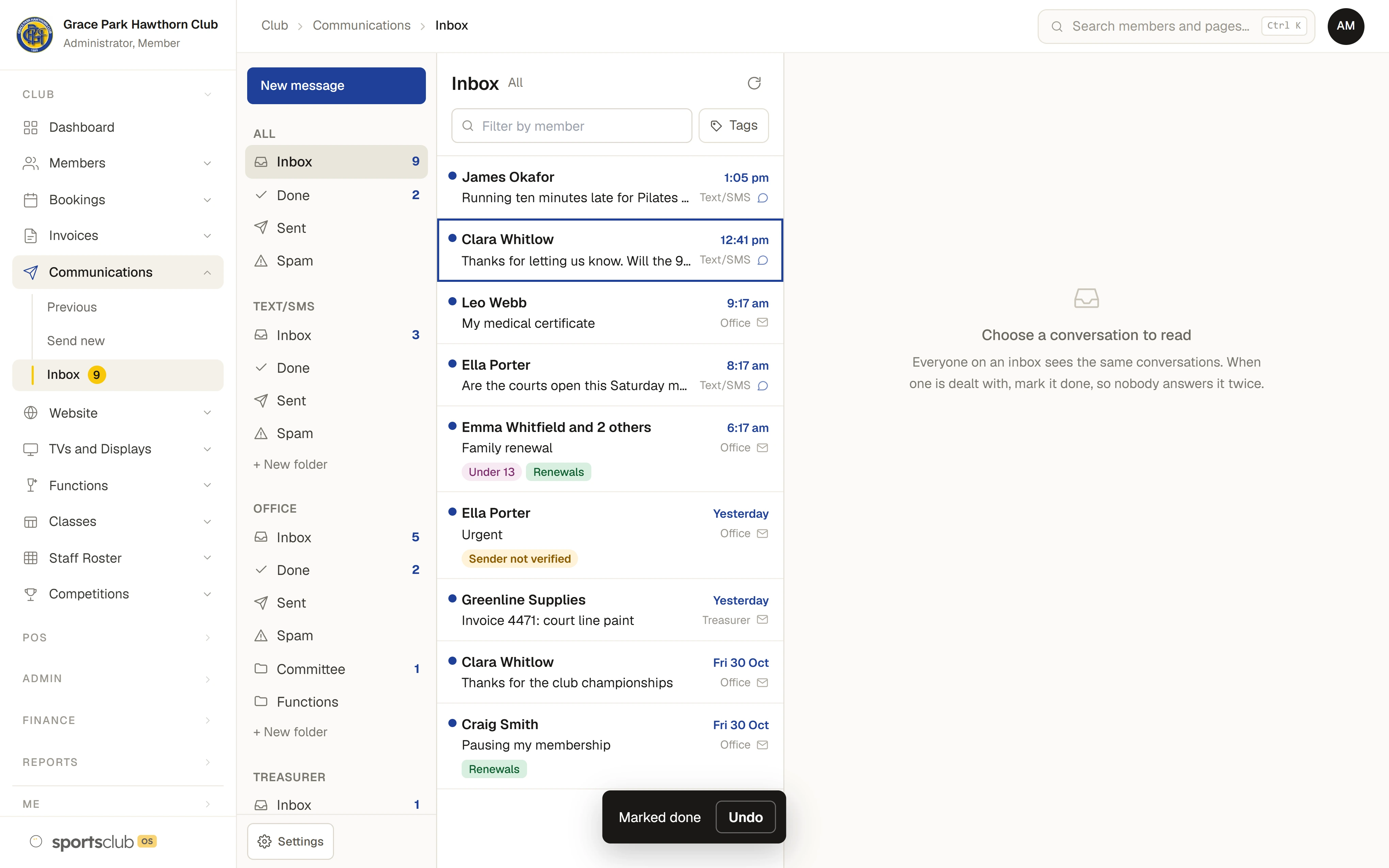
- An email or text from an address or mobile the club holds is linked to that person, and the list can be filtered by member. An address a household shares shows under each of them, marked, and can be pinned to one person.
- A member’s messages together
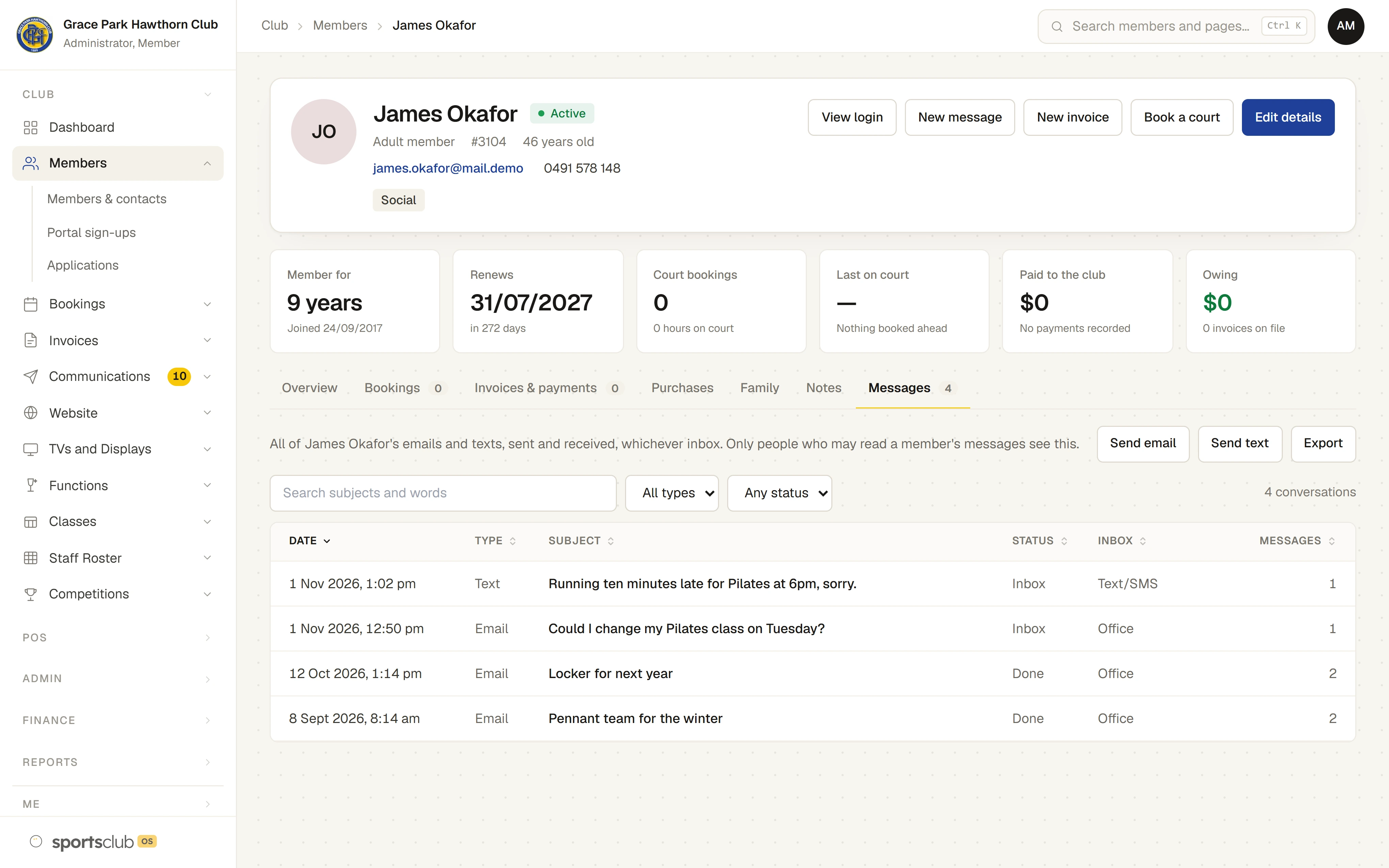
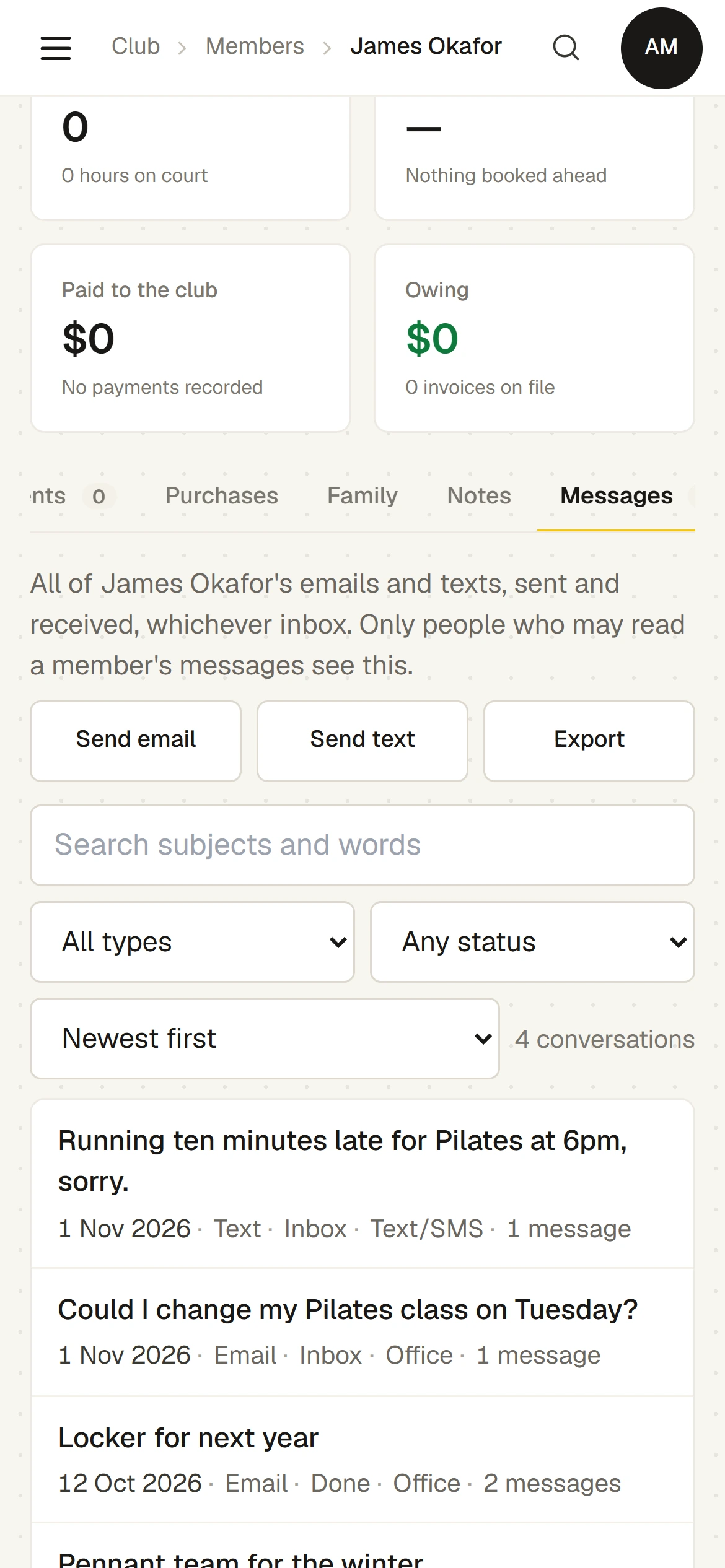
- The Messages tab on a member’s page is a table of their emails and texts, whichever inbox they came through, to sort and filter, with Send email and Send text. Overview lists the latest. Only people who hold “Read a member’s messages” see this: the Administrator to begin with.
- A sender that cannot be proved
- Forwarded mail cannot always be proved to be from who it says. Such a message is marked “Sender not verified”, with a warning, and a reply goes to the address on the member’s record, never one in the email.
- Folders, tags and several at once
- Inbox, Done, Sent, Spam and folders people make, with conversations dragged between them. Coloured tags to filter by. A right-click menu, and Ctrl and Shift to select several and act on them together.
- New messages
- Write an email or a text, never both, to one or more members, from the Inbox or a member’s page. Each gets their own copy, kept in Sent and against the member.
- Email signatures
- Each person can set their own HTML signature, added to the emails they send and never to a text.
- Safe to open
- An email keeps its look and its attachments, shown in a locked-down frame: no script runs, and outside pictures load only when someone asks. Attachments open through links that expire. Mail marked as a virus is refused, and spam goes to Spam.
- How long mail is kept
- A current member’s stays on their record. A former member’s goes seven years after they leave, unless someone marks it to keep, and the club can shorten this. Mail linked to no member goes after 30 days unless someone keeps it.
How it works
- Forward the club’s mailbox. Make an inbox, name who reads it, and set the mailbox to forward to its address. A second job sets up replies from the club’s address.
- Read and answer. Emails and replies to texts arrive in one list. Open one, see who it is from, and reply.
- Mark it done. It leaves the list and stays on the member’s record, and comes back if they write again.
The screens
Real screens from Sports Club OS, on an invented club.
Settings and options
- Inboxes
- Each inbox’s name, the club’s address for it, who reads it, its forwarding address, the domain it replies from, and how long its mail is kept.
- Tags and folders
- Coloured tags for conversations, and each inbox’s own folders.
- Alerts
- Where an alert about a new message goes.
Who can do what
| Who | What they can do |
|---|---|
| Administrator | Makes inboxes, chooses who reads each, and sees all of a member’s messages on their page. Reads an inbox only if named on it. |
| Casual Staff and Treasurer | Use the inboxes they are named on: read, reply by email and mark done. Replying by text also needs the permission to send texts. |
| Others | Using an inbox can be given to another role on the Roles & permissions page. |
| Members | Members do not see their own messages in Sports Club OS. |
These are the starting roles. The club can change what each role may do on its Roles & permissions page, give a person several roles, and take a role away when they step down. The server checks every request against those roles, so a hidden button is never the only protection.
What gets sent
| To | What |
|---|---|
| Members | Replies from the people on an inbox. Replies to a text other than STOP and START get no automatic answer. |
| The club | An alert to the Communications reply-to address when mail or a reply to a text waits, without its words, at most one every 15 minutes for each inbox, and a note if an inbox has been quiet for three days. |
Questions
What happens when a member replies to a text?
STOP and START are acted on at once. Any other reply goes to the Text/SMS inbox, linked to the member, and gets no automatic answer, so someone needs to watch it.
Do we have to change our email?
No. The club keeps its mailbox and its address. The mailbox forwards a copy to Sports Club OS. On Microsoft 365 an administrator may need to allow the forward.
Does it bring in our old emails?
No. Only mail from when the forward starts.
Can we assign a message to one person?
No. Everyone on an inbox sees everything, and anyone can answer and mark it done. There is no assigning, no priorities and no saved replies.
Can we attach a file to a reply?
No. Attachments that arrive are kept and can be opened, but replies and new messages cannot carry one.
Can members see their messages in the portal?
No. Their messages are seen by the people on an inbox and by whoever may read a member’s messages.
Works with
 Bulk Communications
 Membership Management
 Classes & Coaching
BOOK A WALKTHROUGH
Get a personalised walkthrough and demo
Book a walkthrough and bring the jobs that take your office the longest.