
The club system / AI Reporting
AI REPORTING · FULL DETAILS
Everything about AI Reporting
Committee reports, a Dashboard of widgets, report widgets and report pages you set up yourself, and the AI Report Assistant, which answers questions about your figures. Each person sees only the figures their roles allow.
What it is
AI Reporting is how a club sees how it is going. It covers the Committee reports, a Dashboard of widgets, report widgets you set up yourself, report pages you can print, share and download, and the AI Report Assistant, which answers questions about the club’s figures in plain words.
Every figure follows the signed-in person’s roles. Someone is offered, and shown, only the figures their own permissions allow.
What you can use now
- Committee reports
- A Reports page with three tabs. Membership: members by type and status, ages, renewals, and who has joined and left. Income: money received by month, split by source. Court use: how much each court and sport is used, and when.
- Income by source
- Income is split into membership, joining fees, court hire for each sport, classes, functions and other, with a “court hire only” view. Imported history and payments recorded in Sports Club OS are shown together.
- A Dashboard of widgets
- Each person adds, hides and reorders widgets for themselves: members, bookings, invoices, renewals, sign-ups, applications, income, communications, roster, hours and competitions. A widget shows a headline figure and a small chart, and opens out for more. Ready-made report widgets can be added from the same place.
- Report widgets you configure
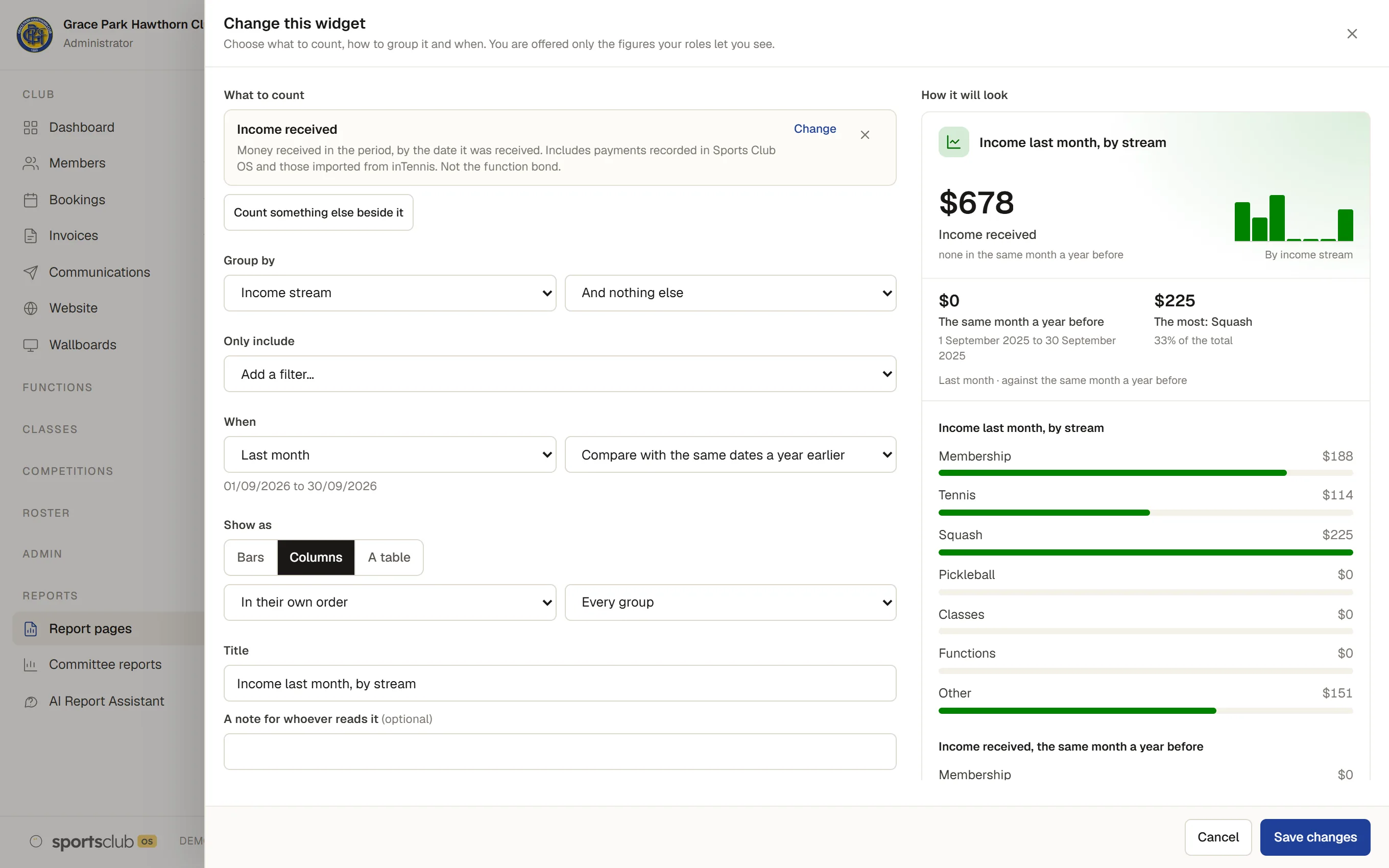
- Choose what to count from a catalogue of measures across membership, income, invoices, courts, classes, functions, roster, hours, communications and competitions, up to three at a time. Group by up to two things, include only some values, pick a period and compare it with an earlier one, and show it as bars, columns, a line or a table. Give it a title and a note, and watch a live preview as you change each setting. Every measure has one plain definition, so “members” and “income” mean the same on every screen.
- The rows behind a figure
- Press a bar, a point, a table cell or the main figure to see the rows it was made from, under your own permissions. A row links to its member, invoice or function only if you may open that.
- Report pages and templates
- Put widgets together as a report page, from a blank page or from one of ten templates, such as Treasurer’s monthly, Committee pack, Membership officer, Court use, Functions manager, Head coach, Staff hours, Communications health, Grant and affiliation and AGM. A page has one period for the whole page, can be printed with the club’s name, who printed it and when, and can be shared with roles. Each person sees only the figures their own permissions allow, and a widget they may not see says so while the rest draw.
- A spreadsheet download
- Download a page’s figures, and where you may see them the rows behind each measure, choosing the columns. Every download is recorded in the audit log, with what was downloaded and not the figures themselves.
- The AI Report Assistant
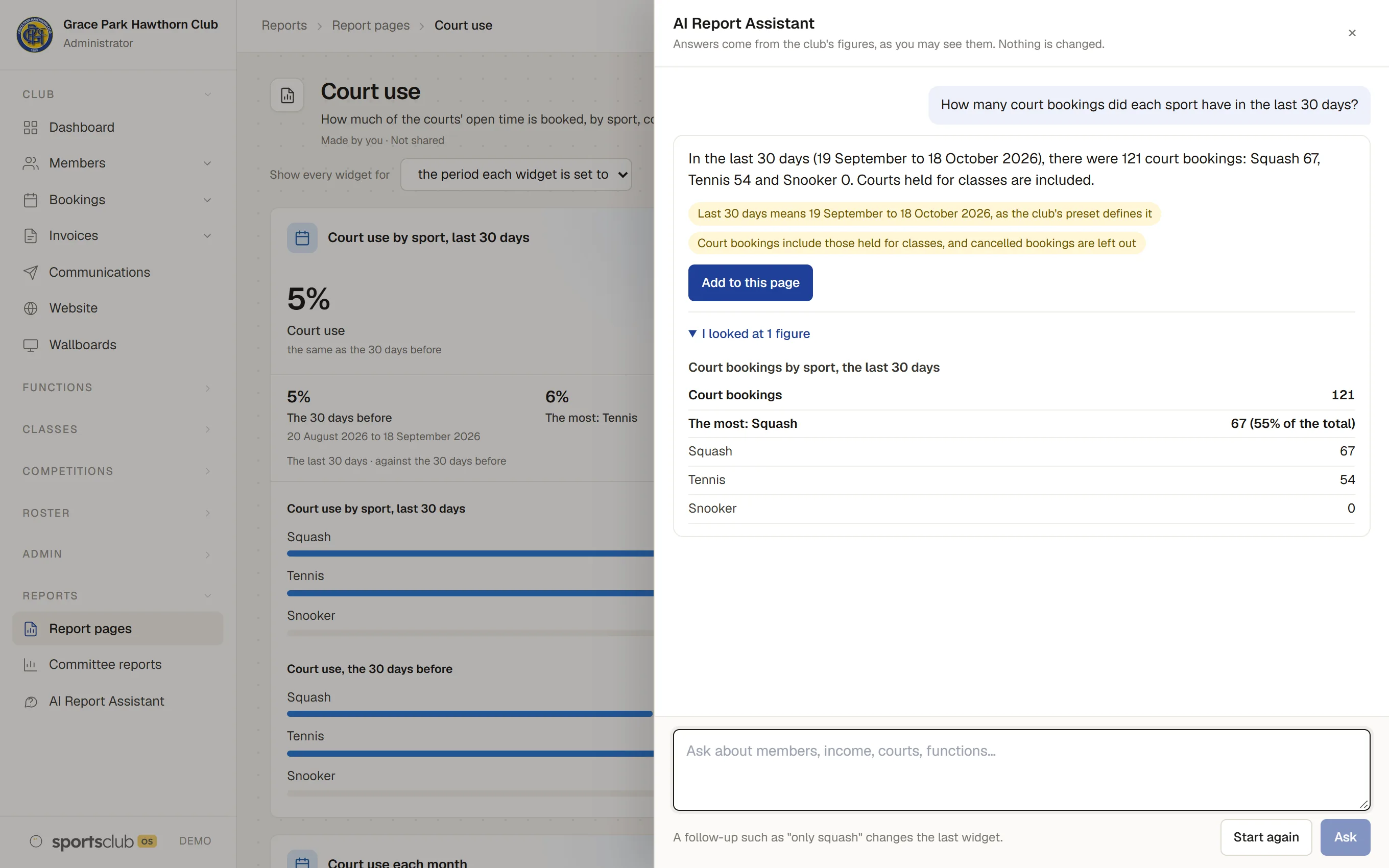
- Ask a question in plain words and get an answer with the figures it came from and the assumptions it made. It can suggest a widget to add to a report page or your Dashboard. How it works is below.
- Only what a role may see
- A widget or measure is offered only to someone who may open the page it sums up. Figures about people that could single one out, such as a group of two juniors, show as “under 5” to someone who cannot open the member list. The club can change that smallest group, and its financial or calendar year, in Settings, Reports.
- A record that builds up
- Every payment taken in Sports Club OS is recorded for income, invoice lines carry a category, membership changes are kept with their date and, if given, why someone left, and a count of members is taken each day. That history is what the reports read.
The screens
Real screens from Sports Club OS, on an invented club.
How the AI Report Assistant works
- You ask. Type a question in plain words, or ask what to watch, from the Reports pages or the Dashboard.
- It looks at the figures your role allows. The AI Report Assistant can only read, and only the figures you could already open yourself.
- It answers and shows its working. The answer is plain text, with the assumptions it made and the figures it looked at. Where two readings of a question would give very different answers, it asks you one question back.
- It can suggest widgets. For a broad question it suggests up to four widgets, each with a reason, and you add the ones you want to a report page or your Dashboard. Nothing is added unless you add it, and a follow-up such as “only squash” changes the last widget.
Who can do what
| Who | What they can do |
|---|---|
| Administrator | Everything on this page: the Committee reports, widgets, report pages, sharing, downloads and the AI Report Assistant. |
| Reporting | A role for a treasurer or secretary who needs to read the figures. It can see the Committee reports, build widgets and report pages from every area, share a page with roles, download figures and ask the AI Report Assistant. It cannot change anything in the club. |
| Treasurer | Reads the Committee reports and report pages and downloads figures, and runs Finance and GST: the BAS worksheet, bank reconciliation and the export to the accounts. It cannot build report pages or ask the AI Report Assistant. |
| Head Coach and Casual Staff | Open the Committee reports by default. |
| Sports Convener | Builds their own widgets and report pages from the competitions figures and nothing else, with players under 18 shown by first name and initial. A convener cannot share a page, download figures or use the AI Report Assistant. |
| Members and bar staff | No reports. |
Six permissions sit behind this, and the club can change which roles hold each on its Roles & permissions page: see Committee reports, build reports, share report pages, download report figures, figures from every area, and the AI Report Assistant.
These are the starting roles. The club can change what each role may do on its Roles & permissions page, give a person several roles, and take a role away when they step down. The server checks every request against those roles, so a hidden button is never the only protection.
The AI Report Assistant and your data
The assistants that draft emails and edit the website are sent no member data. Drafting an email is given your description and the club’s name. The website editor works on the website only.
The AI Report Assistant is different, because its job is to answer questions about the club’s figures. It reads club data, read-only, and only for people whose role already lets them see it. It cannot change, send or delete anything, and it cannot go beyond what the person asking could open themselves.
- What it is sent.Your question and the figures it needs to answer it, sent to an AI model on Amazon Bedrock in the club’s own AWS account. The model is Claude Haiku, through a profile that keeps the request in Australia.
- What it never reads.Dates of birth, contact details, medical notes and emergency contacts, notes, message text, tokens and the audit log are never part of a figure.
- What is kept.The words of a question and the answer are not stored by Sports Club OS. The audit log records that a question was asked, who asked, which figures it used and what it cost, never the words.
- How it is held to that.It has fixed tools only, runs as the person asking, and its own AWS role can only read the club’s records and call the model. It has no way to write anything.
- Limits.A daily limit on questions and a monthly spending limit, set by the club in Settings, Reports, so the cost cannot run away.
Questions
Is AI Reporting available now?
Yes. The Committee reports, the Dashboard, report widgets you configure, report pages with templates, printing, spreadsheet download and the AI Report Assistant are built and running on the development system. See what is deployed to your club before you plan around it.
Can the AI Report Assistant change anything in our records?
No. It reads only: it cannot change, send or delete anything.
Who can ask it questions?
Administrators and the Reporting role, by default. The club can change which roles may, on its Roles & permissions page, and can switch it off.
Will it show me figures my role does not let me see?
No. It works with the same permissions you have. If a question needs a figure you cannot open, it says so.
Does it tell me what it based an answer on?
Yes. The answer shows the figures it looked at and the assumptions it made, so you can check them. The answer is text only, with no links or pictures in it.
Can I keep an answer?
Yes, as a widget. Add it to a report page or your Dashboard. Nothing is saved unless you add it, and closing the panel clears the conversation.
Works with
 Membership Management
 Sport Booking Management
 Communications
 Competitions & Leagues
BOOK A WALKTHROUGH
Get a personalised walkthrough and demo
Book a walkthrough and bring the jobs that take your office the longest.