
How to
Add, change and disable logins
Make a login for a staff member or volunteer, give and take away roles, link a login to a member record, and disable a login someone no longer needs.
Who this is for: Anyone with “Users and roles” (by default: Administrator).
Users lists everyone who can sign in to Sports Club OS, with their roles. You make a login here for anyone who works at the club: office staff, bar staff, coaches, the treasurer. Each login has its own page, where you change its roles, link it to a member record or disable it.
Members do not need you to make them a login. Most members never have one, and they are on the member list all the same. A member who wants to book online makes their own login from the sign-in page, and the club approves it.
Before you start
- You need to be able to manage users and roles. The Administrator can by default. Your club can give it to other roles on Roles & permissions.
- Giving or taking away the Administrator role is for an administrator only.
- Decide which roles the person needs. Roles and their starting permissions says what each one allows; your club may have changed it on Roles & permissions.
The Users page
Open . The list shows each login's name and email, its roles, and its state:
- Active: the person can sign in.
- Invited — not signed in yet: a login was made with an invitation, and the person has not yet signed in and chosen a password.
- Signed up — email not verified: someone made their own login and has not yet typed in the code from their email.
- Disabled: the login cannot be used to sign in.
A login linked to a member record also shows Member, or Member — pending while the club has not approved it.
Type in Search name or email to find someone. The buttons above the list narrow it to one role (there is a button for every role), to Members, or to No roles, and each shows how many logins it holds. Press anyone's row to open their page.
Make a login
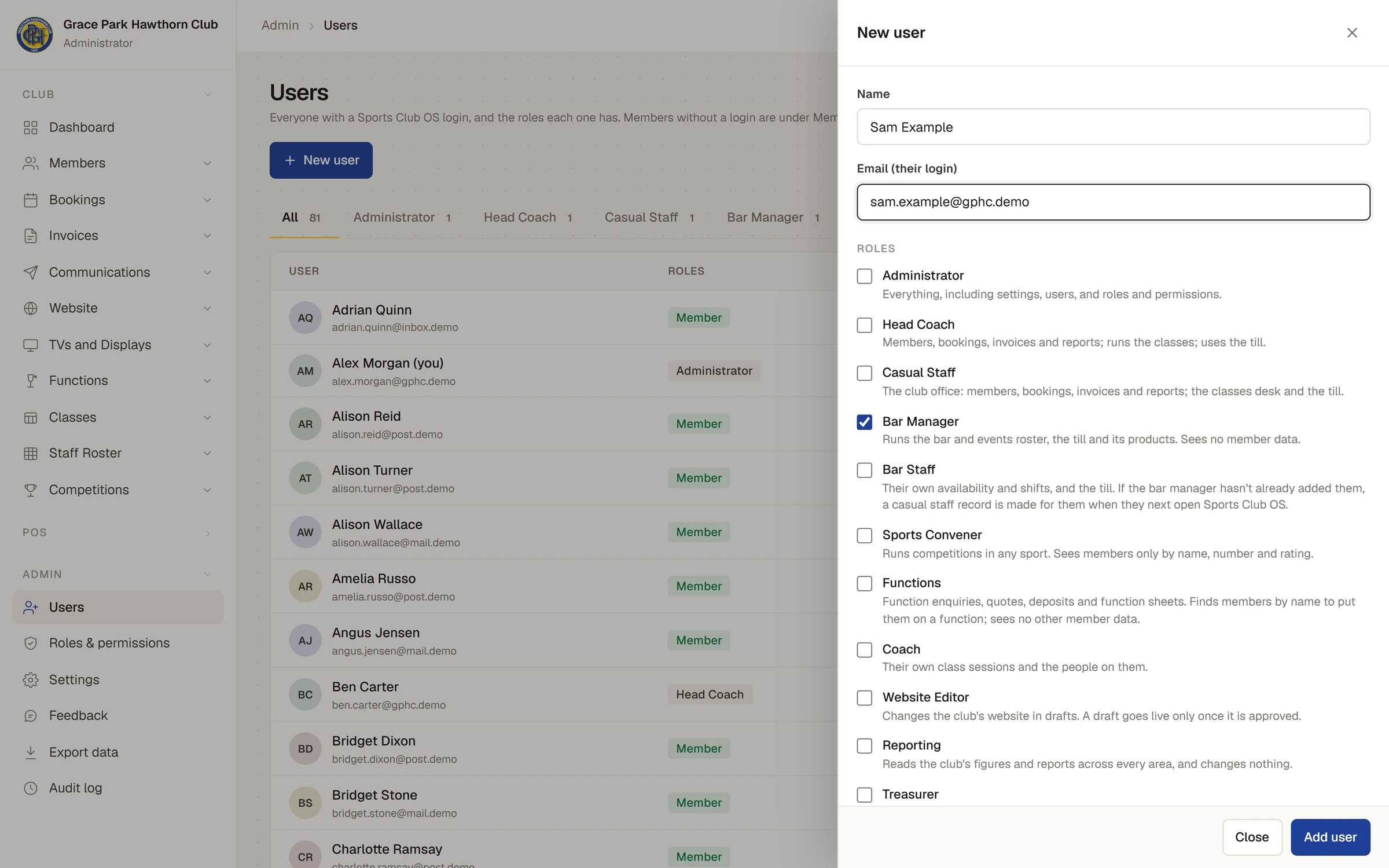
- On , press New user. The New user panel opens.
- Type their Name and their Email (their login). The email address is what they sign in with.
- Tick each role they need, under Roles. Every role the club has is listed, each with a line on what it covers. Only an administrator can tick Administrator.
- If the person is also a member, type their name or member number under Member and choose them from the list. This links the login to their member record and gives them their member pages, already approved.
- Leave Send an invitation email ticked.
- Press Add user. A message says User added and invited.
The person gets an email with a temporary password. When they first sign in, they are asked to choose their own. Until then their state is Invited — not signed in yet.
A login needs at least one role or a linked member record. Without either, Sports Club OS says Give the user at least one role, or link a member record. and makes nothing.
If the email address already has a login, no second login is made: the roles you ticked are added to the one already there.
A person's page
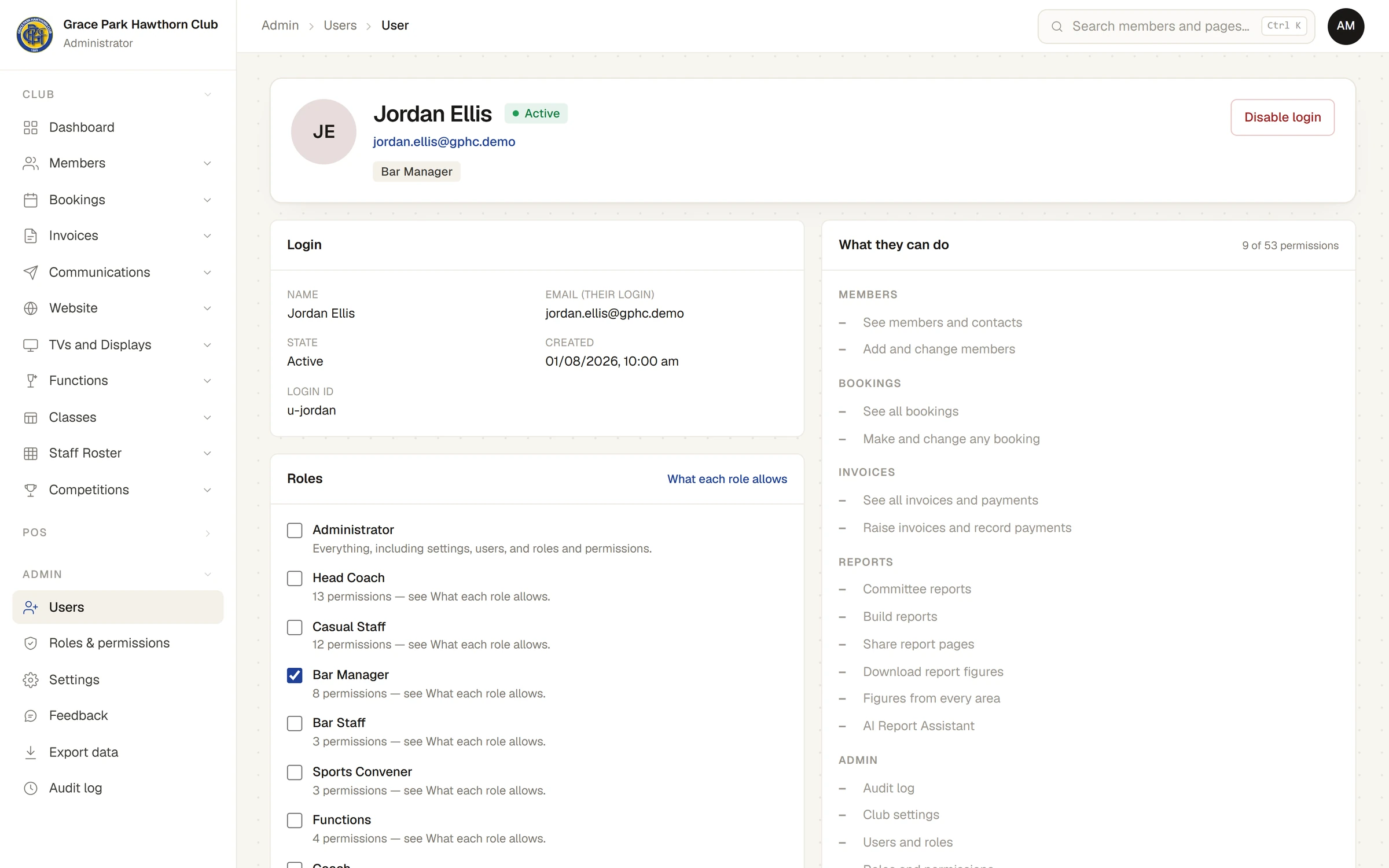
Press someone's row on the Users page. Their page shows:
- At the top: their name, state, email and roles, with Member page (when the login is linked to a member record and you can see members) and Disable login or Enable login.
- Login: their name, email, state, when the login was made, and its login id.
- Roles: a tick box for each role. What each role allows opens Roles & permissions.
- Member record: the member record the login is linked to, with Open member page and Unlink; or a box to link one.
- Member tags: the tags on their member record, for someone who can see members. They are the same tags as on the member page.
- Bar & events roster: their staff record on the roster, if they have one.
- What they can do: every permission, ticked or not, and the role each one comes from. Member means it comes from their membership.
- Recent activity: up to 25 recent entries in the audit log by or about this login, with a link to the Audit log. It shows for someone who can see the audit log.
Change someone's roles
- Open their page from .
- Under Roles, tick or untick the roles. Save roles and Discard appear.
- Press Save roles. A message says Roles saved, and What they can do shows the new set.
What they can do counts only saved roles, so it does not change until you press Save roles.
The person's own menu does not change straight away. Their roles are read when they sign in, and renewed about once an hour. Tell them to sign out and sign in again to see a role you gave them. A role you took away stays with them in the same way, until they sign in again or the hour is up. (A change to what a whole role allows, on Roles & permissions, does reach everyone within a few seconds.)
The Administrator box is greyed out unless you are an administrator, and on your own login: nobody can take the Administrator role away from themselves, so the club always keeps one.
Link or unlink a member record
- Link: on their page, under Member record, type the member's name or number and choose them. A message says Member record linked. Choosing a member who is already linked to another login is refused with, for example, Olivia Hartley is already linked to another login.
- Unlink: press Unlink. A message says Member record unlinked. The login loses its member pages; the member record itself is not changed otherwise.
Being a member is this link, not a role. See How roles and permissions decide what you see.
Disable a login
- Open their page and press Disable login.
- A message says Login disabled. Their state is Disabled, and they can no longer sign in.
Nothing they did is undone, and their member record, bookings, invoices and shifts are kept. Press Enable login to let them sign in again.
You cannot disable your own login.
If something goes wrong
- "An email address is required." Type the person's email before pressing Add user.
- "Only an administrator can give the Administrator role." Someone who manages users but is not an administrator cannot give or remove that role.
- "You cannot remove your own administrator role." Ask another administrator to do it.
- The person did not get the invitation. Check the email address on their page. Ask them to look in their junk mail. They can also use Forgot password? on the sign-in page to choose a password.
- The person can sign in but sees too little. Check What they can do on their page. If a permission is missing, give them a role that has it, or change the role on Roles & permissions.
Last checked in release 2026.10.23, on 23 October 2026.