
How to
Import a bank statement
Set up the club's bank account once, then import a statement downloaded from the bank as a CSV file. The same days imported again add nothing.
Who this is for: Anyone with “Reconcile the bank account” or “See bank statements and the reconciliation” (by default: Administrator, Reporting, Treasurer).
Reconciliation works from the club's bank statement, downloaded from the bank as a CSV file and imported here. Set up the bank account first, once, with the day reconciliation starts and the balance that day.
Before you start
- You need to be able to reconcile the bank account. The Treasurer and Administrator roles can by default.
- Download the statement from the bank's internet banking as a CSV file (for Westpac: Accounts, Export transactions, CSV). 2 MB at most.
Set up the bank account
Do this once for each account the club reconciles, before the first import: its name, bank, BSB and the last four digits of its number, the day reconciliation starts and the balance that day. The steps are in Set up bank accounts for reconciliation.
To change an account later, press Bank accounts and Change beside it, then Save changes. The start date and opening balance cannot change once the account has been reconciled, and the start date cannot change once lines are matched.
Import a statement
- Press Import a statement.
- Press Choose the statement file, or drop it here, and choose the file. It is read straight away. Nothing is kept yet.
- Under How the file is read, check what each column holds. Each column shows its first lines and a list: Leave out, Date, Amount (in and out), Money in, Money out, The bank's words, Reference, Balance or Account number. Change any that are wrong. Sports Club OS remembers this for the next file with the same headings.
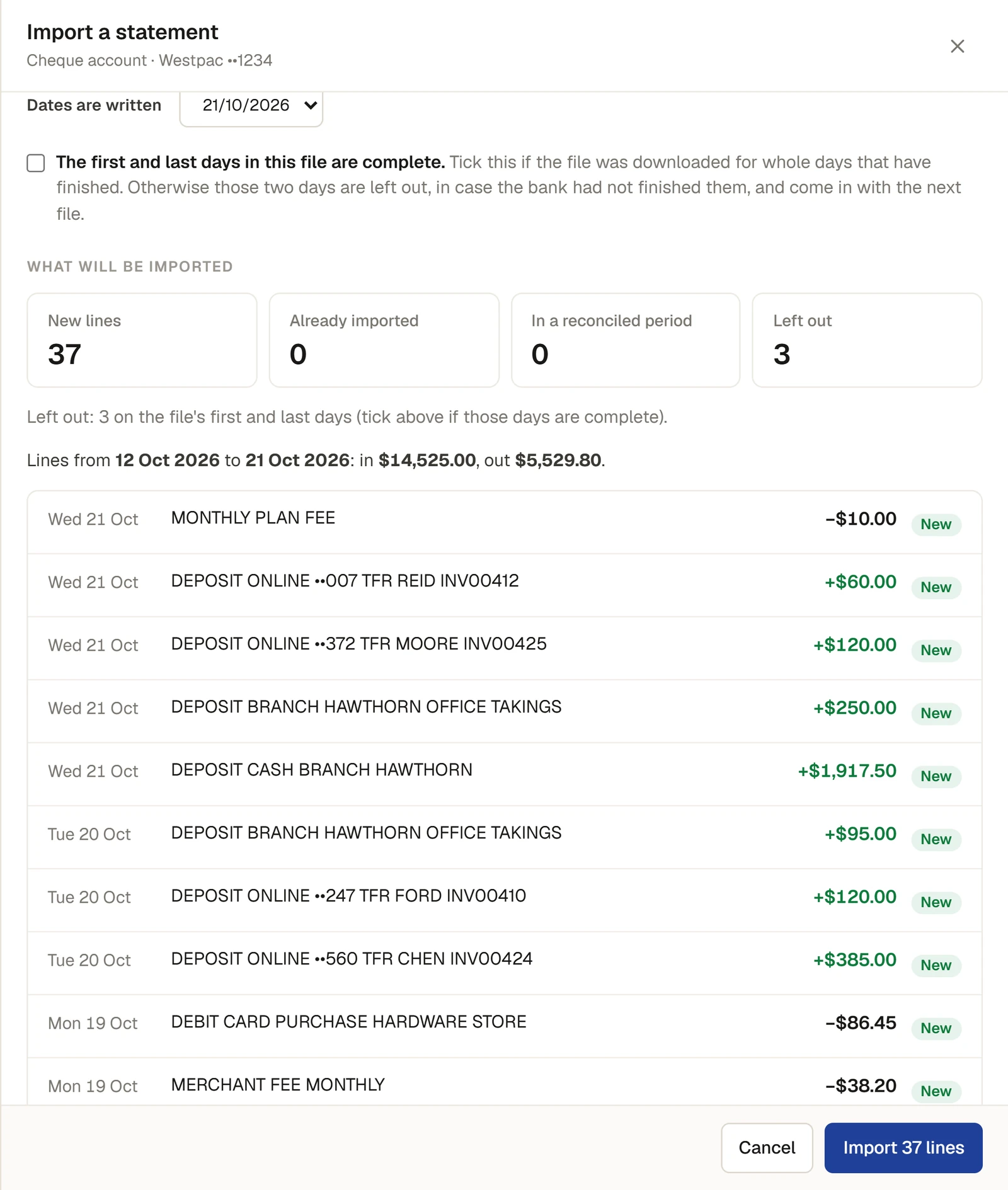
- Under Dates are written, choose how the file writes dates, for example 21/10/2026.
- Tick The first and last days in this file are complete. only if the file was downloaded for whole days that have finished. Otherwise those two days are left out, in case the bank had not finished them, and come in with the next file.
- Read What will be imported: New lines, Already imported, In a reconciled period and Left out, why any were left out, the dates and the totals in and out, and the lines themselves, each marked New or Already imported.
- Press Import 37 lines (the number is the new lines). A message says, for example, 37 lines imported.
The lines now wait under To match, most with a suggested match. See Match and explain bank lines.
What is left out of an import
- Lines dated today or later, which the bank may not have finished.
- Lines from before reconciliation starts.
- The file's first and last days, unless the tick says they are complete.
- Rows that are not statement lines, such as headings and totals, and lines with no amount.
- Lines already imported. Importing the same days again adds nothing, so a file that overlaps the last one is safe to import.
- Lines in a period already reconciled.
If something goes wrong
- "This file is for an account ending …, not …" The file's own account number does not end in the account's last four digits. Choose the right file, or the right account.
- "That file is over 2 MB. Download a shorter period from the bank.", or "That file has more than 3,000 lines. Download a shorter period from the bank." Download fewer days at a time.
- "There are no lines in this file to import." Every line was left out or already imported. Read Left out for why.
- "Choose which column holds the date.", "Choose the column that holds the amount, or the money in and money out columns.", "Choose the column that holds the bank's description of each line." or "One column has been chosen for two things." Correct the lists under How the file is read.
Last checked in release 2026.10.23, on 23 October 2026.