
Setting up
Set up membership types and fees
Make each kind of membership the club offers, with its fees, GST, when it renews, the sports it covers, its booking limits and whether it can be paid monthly.
Who this is for: Anyone with “Club settings” (by default: Administrator).
A membership type is one kind of membership the club offers, such as Adult, Junior, Social or Life. Each member is given one. The type sets what they pay, when their membership ends, and what they can book online. Every setting on a type is explained in Membership types and the membership year; this article is the order to set them up in.
Before you start
- You need to be able to change the club's settings. The Administrator can by default.
- Set up the sports first (Set up courts, tables and booking rules), so you can say which sports each type includes.
- Decide whether prices are typed including or excluding GST, on , before you type any fee: see Set up GST codes, price entry and your accounts. The fee fields follow that choice, and their labels say (inc GST) or (ex GST).
- List every type with its annual fee, joining fee and how it renews. A family or concession rate is a type of its own, such as "Adult (family)".
Decide how each type renews
- Everyone renews on the same date each year: every member on the type has the same expiry, the end of the club's membership year (31 July, for example). Most clubs use this. Someone joining part-way through pays for the months left, as set on the Club tab.
- Renews on the anniversary of joining: each member's year runs from the day they joined.
- No expiry: for Life and Honorary members. The membership never ends and is never renewed.
Make a type
- Open and press the Membership types tab.
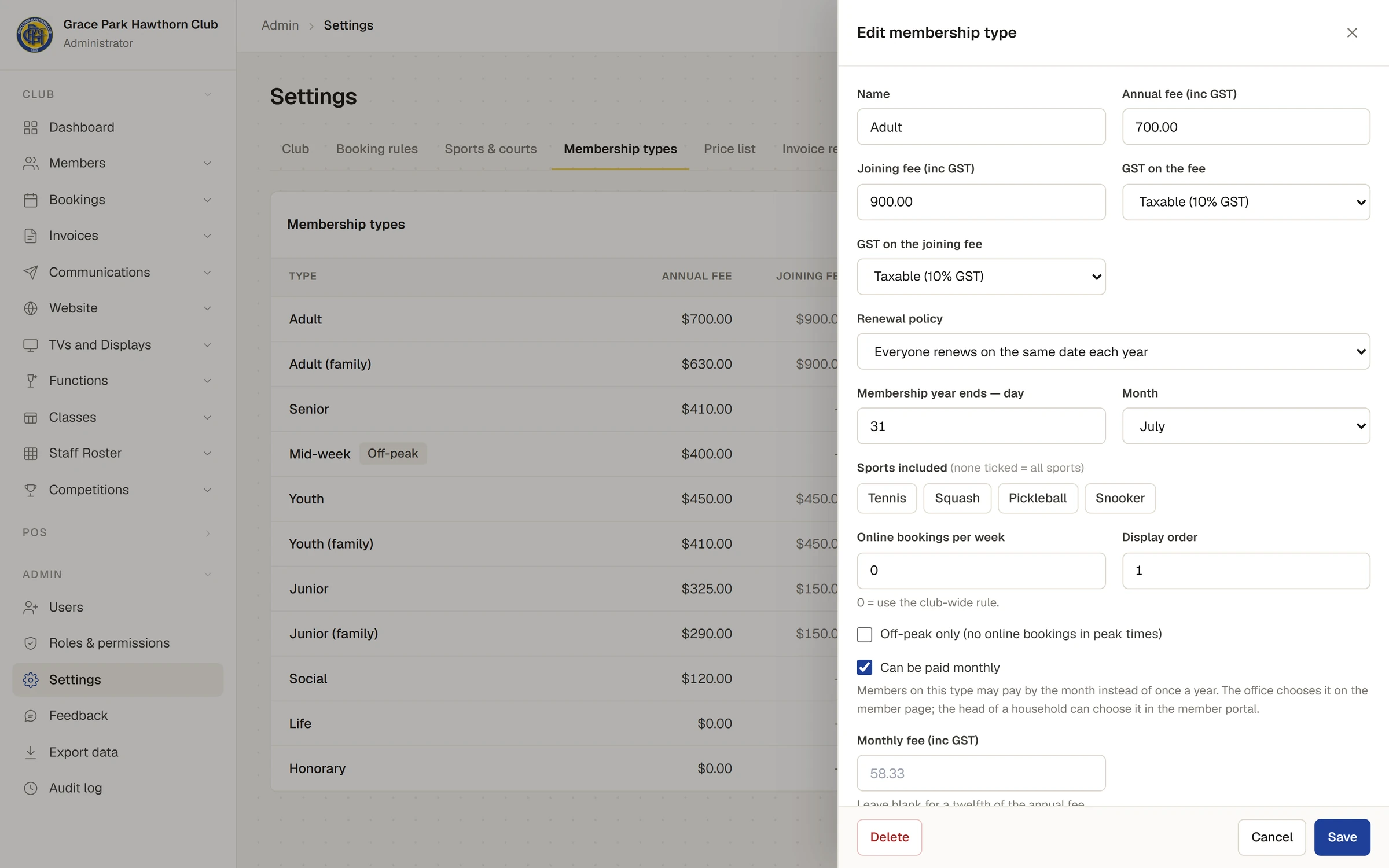
- Press Add type. The New membership type panel opens.
- Type the Name, the Annual fee and the Joining fee (leave it at 0 if there is none).
- Leave GST on the fee and GST on the joining fee at Taxable (10% GST) unless the club's accountant says otherwise. The other choices are GST-free, Input-taxed and Not a sale (no GST).
- Choose the Renewal policy. For Everyone renews on the same date each year, set Membership year ends — day and Month. A new type starts at 30 June.
- Under Sports included, tick the sports the type covers, or tick none for all sports.
- Set Online bookings per week, or leave it at 0 to use the club-wide rule on Booking rules.
- Tick Off-peak only (no online bookings in peak times) for a type that books only outside peak times.
- Tick Can be paid monthly if members on this type may pay by the month. A Monthly fee box appears; leave it blank to charge a twelfth of the annual fee.
- Leave Available for new members ticked.
- Set the Display order: the order types are listed in.
- Press Save. A message says Saved, and the type is in the list with its fees, renewal policy, sports and On.
A type needs a name: without one, Sports Club OS says A name is required.
Change or stop using a type
Press a type in the list to open it, change it, and press Save.
- A new fee is used from then on: by invoices raised after the change, and for someone paying monthly, from the next month invoiced. Invoices already raised keep their amounts.
- To stop offering a type, untick Available for new members. It shows as Off, and the join form stops offering it. Members already on it keep it.
- Delete removes a type after you confirm. Delete only a type nobody is on; for one that members hold, untick Available for new members instead.
What the type decides
The fees are what the Members page quotes when someone joins, what renewal invoices charge and what the join form shows. The renewal policy sets when a member's expiry falls and what a renewal moves it to. Sports included, Online bookings per week and Off-peak only limit what a member can book online: see Booking rules, sports and courts. Can be paid monthly lets the office, or the head of a household, choose monthly payments: see Paying yearly or monthly: how it works.
Check it worked
- On , press New member, choose the type on the Membership tab, and look at the fee it quotes. Press Cancel if you do not mean to add anyone.
Next
Last checked in release 2026.10.23, on 23 October 2026.