
How to
Voids, refunds and manager approval
Discounts, voids, refunds, corrected payments and going over a limit at the till, which of them a manager approves with a PIN, and which a manager does.
Who this is for: Anyone with “Voids, refunds and overrides” or “Use the till” or “See sales and till sessions” (by default: Administrator, Head Coach, Casual Staff, Bar Manager, Bar Staff, Reporting, Treasurer).
Some things at the till need a manager, so that money taken off a sale or given back is always someone's decision. A manager can approve on the seller's till by typing their own PIN, without the seller switching out. Refunds, voiding a whole sale and correcting a payment are done by the manager themselves.
Before you start
- Voids, refunds and overrides are for the bar manager by default. The Bar Manager role holds them; your club can give them to others on Roles & permissions.
- A manager who approves on a till needs a till PIN of 6 digits. See Till PINs and switching between staff.
What needs a manager
| What | Who does it |
|---|---|
| A discount over the club's limit | Anyone, with a manager's PIN |
| Taking lines off a saved tab | Anyone, with a manager's PIN |
| Going over a member's account limit | Anyone, with a manager's PIN |
| Going over a function's bar tab cap | Anyone, with a manager's PIN |
| Selling a product whose stock shows none left | Anyone, with a manager's PIN |
| Pricing a restringing job below what its string costs | Anyone, with a manager's PIN |
| Voiding a whole sale | The manager |
| Refunding a sale, or giving prepaid credit back | The manager |
| Correcting how a payment was taken | The manager |
| Opening the drawer with no sale | The manager |
Someone who may give overrides is never asked for a PIN: what they do is recorded with their name.
Approve with a manager's PIN
When the till needs approval, it shows A manager approves with the reason, for example More than 10% off this sale, counting every discount on it, needs a manager's approval.
- The manager presses their name in the list. Only staff with a till PIN are listed.
- They type their PIN and press Approve.
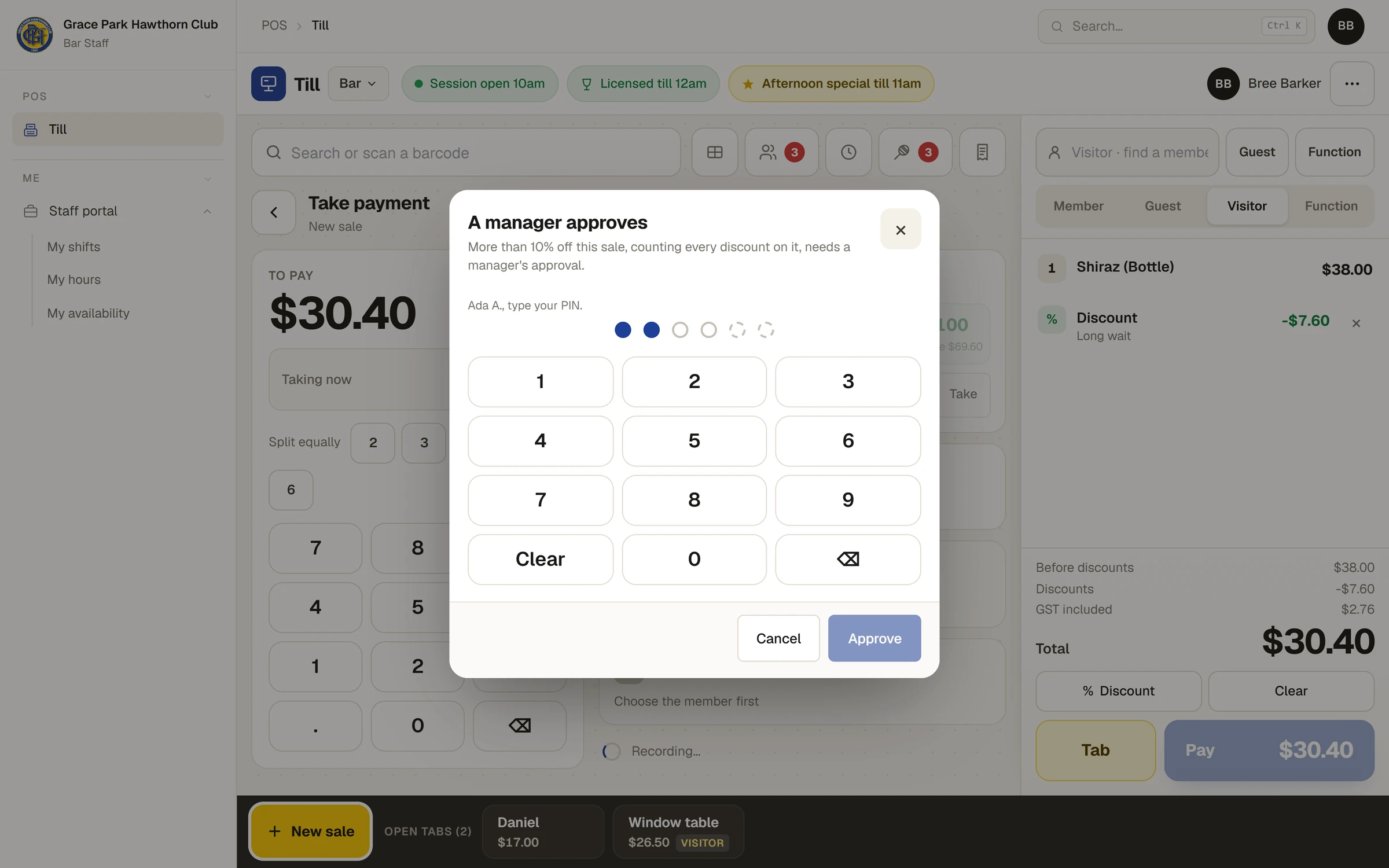
The till carries on, and the sale records who approved it. A wrong PIN says how many tries are left. See A till PIN is locked.
Give a discount
- Press Discount under the total for the whole sale, or press a line and then Discount for that line.
- Choose Per cent or Dollars, and press an amount or type one.
- Choose why: Staff, Volunteer, Damaged, Long wait, Manager's call, or Other and type it.
- Press Give the discount.
If the discount is over the club's limit, the dialog says so before you give it, for example More than the club's 10% limit: a manager approves it with their PIN when it is saved. The limit is for the sale and for each line, and the discounts given without approval on one sale count together, so several small discounts cannot add up to more.
Take lines off a tab
On an open tab, press a saved line and Take off…, or use Take lines off… in the tab's menu to choose several. Give a reason and press Take off. Stock comes back, and a court on the line is let go.
For anyone who can: “Voids, refunds and overrides”
Void a sale
A sale with nothing paid on it can be voided as a whole: on the till, open it from Sales and refunds and press Void the sale…, or on open it and press Void…. Give a reason. Its courts are let go, a guest fee goes back to owing, hire ends and stock comes back. It stays on record, marked Voided.
A sale with money taken on it cannot be voided: refund it instead.
Refund a sale
- On the till, press the Sales and refunds button and open the sale. Or open it on .
- Press Refund….
- Choose what to refund. On the till: All of it, or Some lines and how many of each. On the Sales page: Choose items, or An amount.
- Say why. The till offers Faulty, Wrong item, Not served and Court not used, or type your own.
- Press Refund. A message says, for example, Refunded $9.50: give $9.50 cash back from the drawer.
The money goes back the way it was paid, the latest payment first: cash from the drawer, EFTPOS back on the club's terminal, a charge taken off the account invoice, credit back to the household. A refunded court booking is cancelled, and stock comes back on the shelf. A cash refund needs a session open on the till it comes from.
Correct how a payment was taken
If a payment was recorded as cash when it was EFTPOS, or the other way round, open the sale and press Was EFTPOS (or Was cash) beside the payment, or Correct method on the Sales page. Say what happened and press Correct it. This can be done only on the day of the payment, while its till session is still open, and not once part of it has been refunded. The income record is corrected with it, and the cash-up lists the correction.
Someone who cannot give overrides sees Refunds, voids and corrections are for a manager: they switch in or sign in to do them. in a sale's details.
Everything is recorded
Every discount, void, refund, correction and override is kept on the sale with who did it, who approved it, when and why, and is written to the audit log.
If something goes wrong
- "Ada A. cannot approve that." The person chosen cannot give overrides. Choose someone who can.
- "Ada A.: set a 6-digit PIN on Password & two-factor." A manager's PIN must be 6 digits long before they can approve.
- "Money has been taken on this sale: refund it instead." Refund it rather than voiding it.
- "Open a till session first: a cash refund comes out of the drawer." Open a session on the till, then refund.
- "A payment can be corrected only on the day it was taken." After that, refund the payment and take it again the right way.
Last checked in release 2026.10.23, on 23 October 2026.