
How it works
How shifts and slots work
A shift is one person's work on one day. A slot is several shifts at the same times, drawn as one box with a chip per person and the places still open.
Who this is for: Anyone with “Run the bar and events roster” (by default: Administrator, Bar Manager).
Everything on the weekly roster is made of shifts. A shift is one person's work at set times on one day, with a position such as Bar, or an open shift with nobody on it yet. A slot is several shifts that share the same day and times, such as "three people on the bar from 5pm to 11pm". The roster draws a slot as one box, so you can fill it and move it as one thing.
A shift
A person's own shift is a box on their day, from its start to its finish. It shows the times, the person's name, where it stands and its position. Shifts that run at the same time sit side by side.
Each shift is in one of these states, shown in the box and by its colour:
| It says | What it means |
|---|---|
| Draft — not published | New. Staff do not see it and nobody has been told. Dashed outline. |
| Awaiting answer | Published. The person has been asked to say yes or no. |
| Confirmed | They said yes, with when they said it. |
| Edited — not republished | A published shift you have changed. Nobody is told until you publish again. |
| Can no longer work it | They said yes, then said they can no longer work it. It stays theirs until you find cover. |
| Cancelled: press Publish to send | A published shift you deleted. It goes, and the person is told, when you publish. |
| Open — nobody on it yet | No one is on it. Once published, staff who could work it can ask for it. |
An exclamation mark after the times means the shift clashes with the person's availability or with another of their shifts. The roster still lets you keep it.
A slot
A slot is one box for its times, with a chip for each person on it: their initials, their name and where their shift stands (draft, awaiting, confirmed, can't work). "+1 open" (or +2, +3) shows the places still to fill. Its count reads, for example, 3 people · 1 open. Where the box is too short for every chip, the last one says "+2 more" and lists the rest.
Each place on a slot is its own shift. It is published, offered to staff, asked for, answered and worked as its own shift, so a slot of four people sends each of them their own shift. Changing the day or times of a slot moves every place on it.
Who could work it
Pressing a slot picks it: it is outlined, and the staff list beside the calendar is sorted into three groups.
- Available, in green: marked for the slot's position (if it has one), not on approved time off, with no other shift then, and inside their regular week or an extra date they offered.
- On this slot: already on it.
- Not available: with the first reason under each name, such as Not available on Tuesdays, Outside their availability (4pm – 11:30pm) or Availability not set.
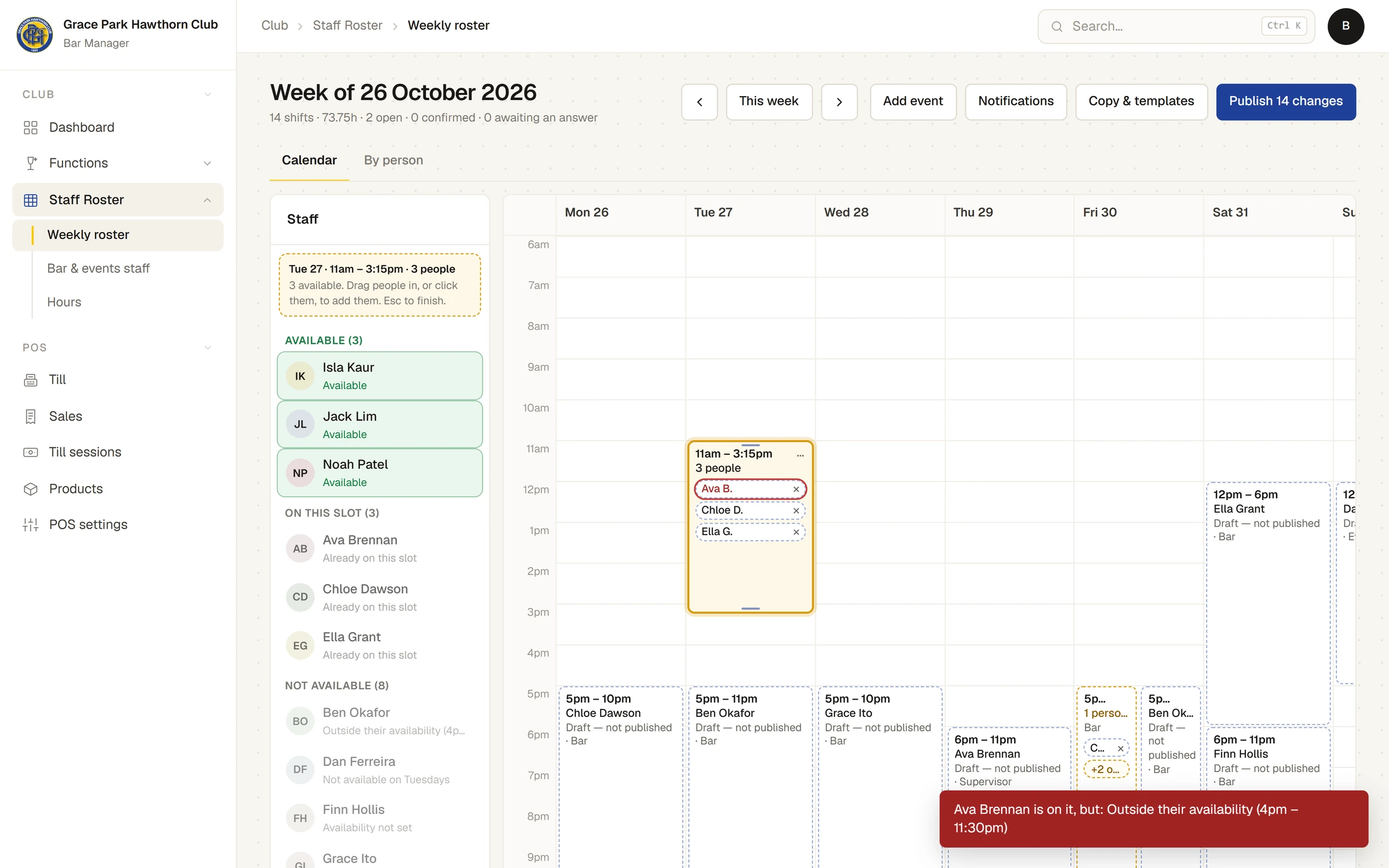
This is advice. You can still add someone who is not available: they are added, their chip is outlined in red, and a message gives the reason. Press Escape, or press the slot again, to stop picking it.
Adding and taking people off
- Adding never needs a number first. Drag a person onto the slot, or with the slot picked, press their name in the staff list. They fill an open place, or the slot grows by one place for them.
- Taking someone off leaves their place open. Press × on their chip, or Delete or Backspace on a focused chip, or drag the chip back to the staff list, or choose Take … off, leave the place open from the chip's menu. A message says, for example, Ava Brennan taken off., with Undo. If they had been told about the shift, it adds They'll be told when you publish.
- Take … off and remove the place in the chip's menu takes the person off and makes the slot one place smaller.
- Moving someone to another slot: drag their chip onto it. Dragging a chip to an empty part of a day makes it a shift of their own there.
- People needed in the slot's panel sets the number of places outright. It never goes below the places filled.
Names
A shift or a slot can have a name, such as "Saturday bar opening": one line, 60 characters at most. It is the first line of the box, shows on the person's My shifts, and leads the shift in emails. Choose Name… (or Rename…) from its menu and type in the box itself, then press Enter, or Escape to cancel. Renaming a published shift marks it changed, and staff are told at the next publish.
What a slot is not
A slot is not a separate record with a count. It is its shifts, kept together. Moving one place on its own takes it out of the slot. A function that is confirmed puts an ordinary slot of its own on the roster, named after it, and you can fill, rename, resize, move or delete it like any other. The function changes only its own date, times, name and People needed, and only when they change on the function: see The function's staff on the roster.
Related tasks
Last checked in release 2026.10.23, on 23 October 2026.