
How to
Report the hours you worked
After each shift, report the hours you worked on My hours, as rostered or with different times, and add work that was not on the roster.
Who this is for: Anyone with “Own shifts, availability and hours” (by default: Bar Staff).
After each shift, you report the hours you actually worked on My hours. If it went as rostered, it is one press. The manager then approves your hours on Hours, and they go into the club's hours for payroll. See Check and approve hours worked.
Before you start
Your login must be linked to your staff record. Until it is, the page says Your login isn't linked to a staff record yet. Ask the bar manager to add you with the email address you sign in with.
Report a shift you worked
- Open .
- Under To report, each finished shift shows its day, Rostered with its times and length, and its position. A shift appears here once its finish time has passed.
- If you worked the rostered times, press I worked these hours. A message says Hours reported.
- If you started or finished at other times, or had a break, press Different times. Change the Start and Finish, type your Break (minutes), add a Note if it helps, and press Report these hours.
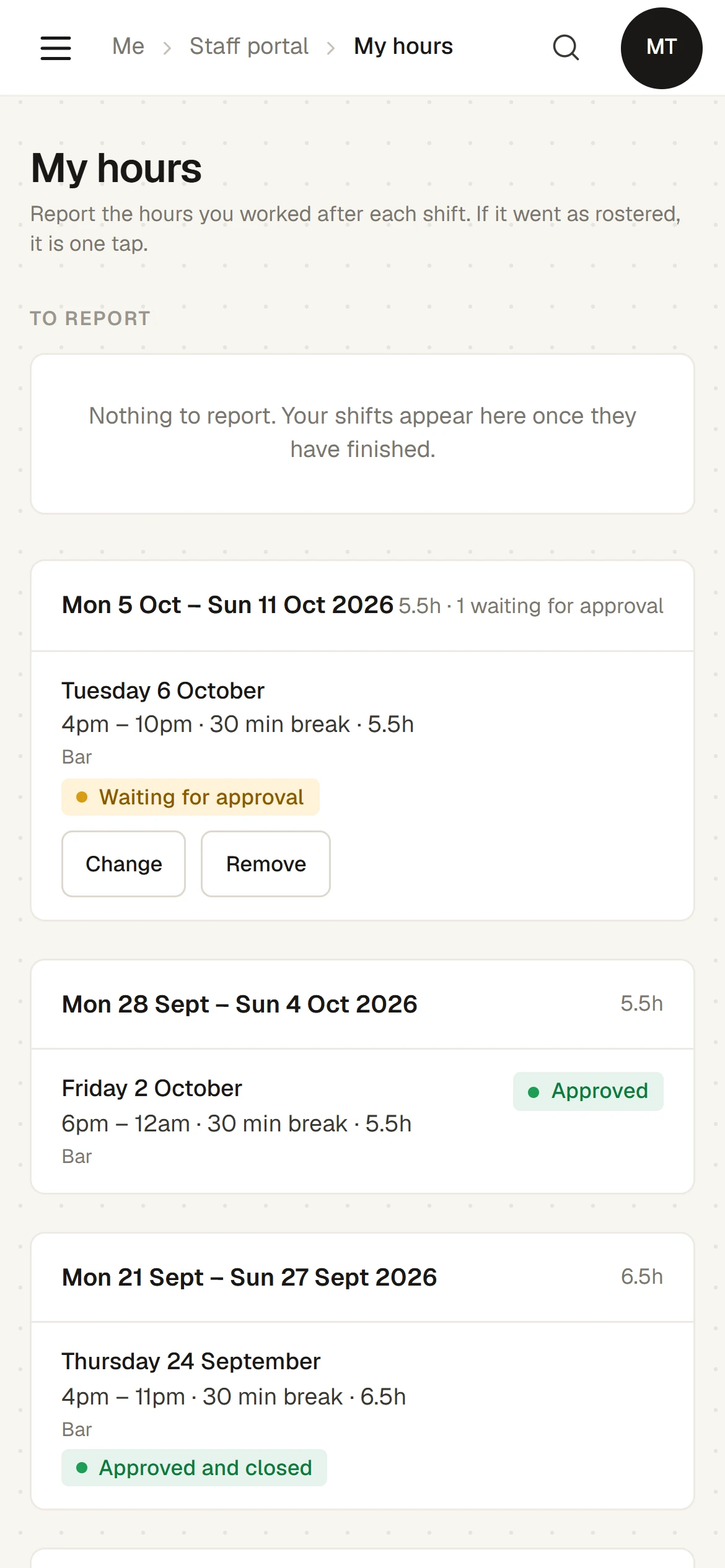
The shift leaves To report and appears in its pay period below, marked Waiting for approval. A shift reported with other times shows the rostered times beside yours, for example Rostered 4pm – 10pm.
I worked these hours reports the rostered times with no break. If you had an unpaid break, use Different times and type its length.
Your reported hours
Below To report, your hours are grouped by pay period, newest first, for example Mon 5 Oct – Sun 11 Oct 2026, with the period's total hours and how many are waiting for approval. Each entry is marked:
- Waiting for approval: reported, not yet approved. You can still press Change to correct it, or Remove to take it out (a rostered shift then goes back to To report).
- Approved: the manager has approved it. To change it, ask the manager.
- Approved and closed: the pay period has been closed. Nothing in it can be changed by anyone.
Hours that were not on the roster
For work the manager asked for that was never put on the roster, such as a stocktake:
- Under Hours that were not on the roster, choose the Date, the Start and Finish, and any Break (minutes).
- Under What was it?, say what the work was. It is needed, so the manager knows what they are approving.
- Press Add hours. A message says Hours added. The entry is marked Not on the roster and goes to the manager to approve.
What happens next
Whoever approves hours at your club checks and approves them on Hours (), then closes the pay period and downloads the hours for payroll. Sports Club OS records hours only: it has no pay rates and works out no pay.
If something goes wrong
- A shift you worked is not under To report. Only published shifts that have finished appear. If you worked a shift that was not on the roster, add it under Hours that were not on the roster.
- "Those hours have not finished yet. Report them once you have worked them." The finish time you gave is still to come.
- "The break is as long as the shift. Check the times." The break is as long as, or longer than, the time between the start and the finish.
- "That period has been closed. Ask the manager about these hours." The pay period has been closed, so nothing in it can be added or changed.
- "That is too long ago to report here. Ask the manager." You can report work here for up to 60 days after the day. Older hours are added by the manager.
- "These hours have been approved. Ask the manager if they need to change." You can change hours only while they are waiting for approval.
Last checked in release 2026.10.23, on 23 October 2026.