
Quick start
Your first visit to the member pages
For members: sign in, choose your emails, then book a court or a class, check your membership and invoices, and keep your details current.
Who this is for: Anyone with “Book courts for yourself” or “Own invoices and receipts” or “Own contact details” or “Book classes for your household” or “Play in competitions” or “Your purchases at the club” or “Choose how you pay your membership” (by default: Member).
As a member you use Sports Club OS to book courts and classes, see your membership and invoices, and keep your details current. It works in a web browser on a phone or a computer: there is no app to install. Everything about you is under Me, the last section of the menu.
1. Sign in
Open your club's Sports Club OS address and sign in with your email address and password.
- If the club made your login, you got an email with a temporary password. Sign in with it, and choose your own password.
- If you have no login, press Create your portal account on the sign-in page. Use the email address the club already has for you, so your login finds your membership. The club office then approves it.
See Sign in, and reset a forgotten password. If you signed up and cannot see your membership, see I signed up but can't see my membership.
2. Choose which emails you get
The first time you sign in, Sports Club OS asks Before you start: what should we email you about? Answer Yes or No for each kind of email the club sends, such as club news and events, and press Save and continue. Essential notices, such as closures and anything about your own membership, are always sent.
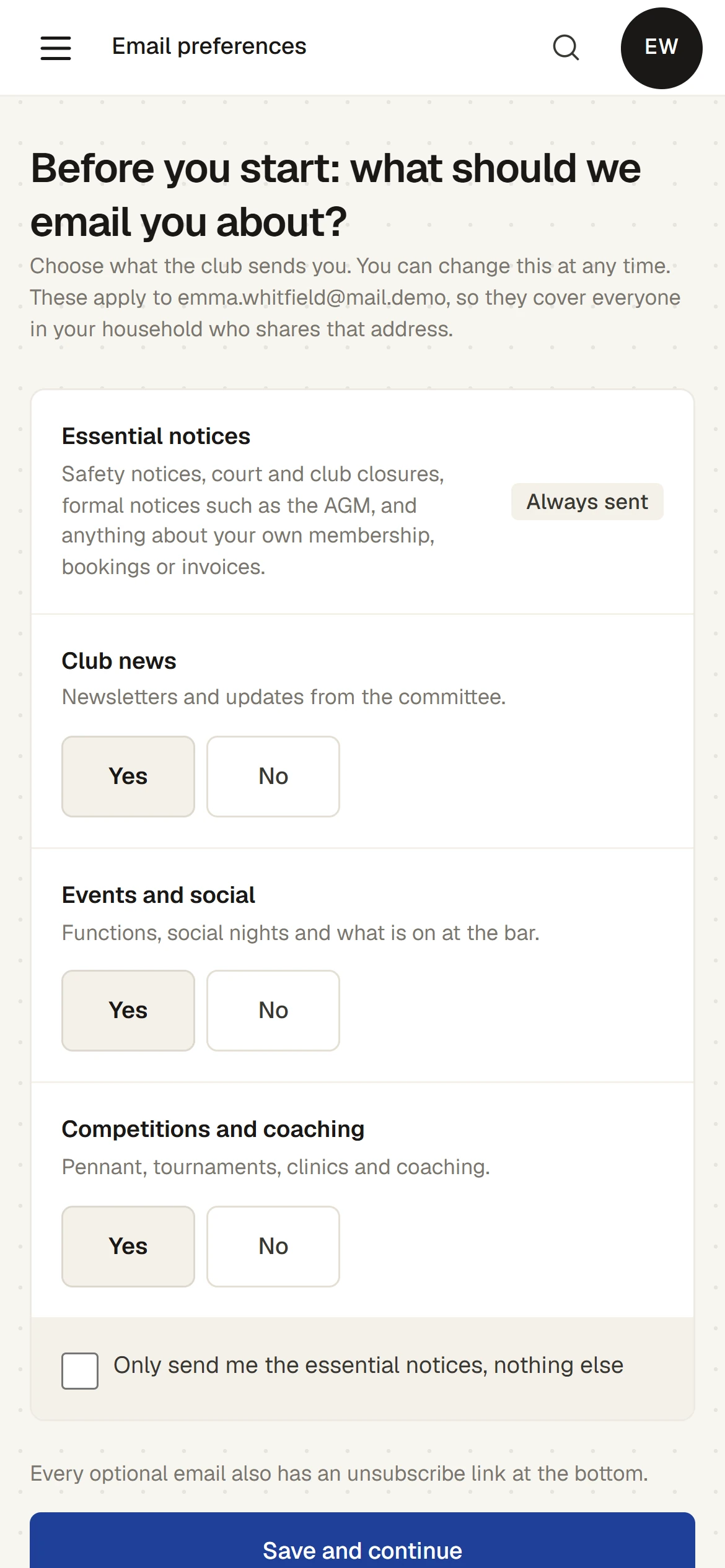
You can change your answers at any time. See Choose which emails you get.
3. Look at your Home page
You then arrive at Home: your membership type, member number and status, when it renews, your coming bookings, how your membership is paid, and anything you have to pay. See Your member home page.
4. Book a court
Press Make booking. Choose the day and the sport, press a free time, adjust it if you need to, then press Save and confirm who is playing. Nothing is booked until you confirm. See Book a court and Change or cancel your booking.
To book a class, press Book a class on Home, or open . See Book a class.
5. Check your invoices
lists every invoice addressed to you, with the total still owing, and how to pay each one. Members pay by bank transfer using the details on the invoice; the club records the payment when it arrives. See See your invoices and receipts.
6. Keep your details current
Press your initials at the top right, then My details, to change your phone number, address and emergency contact. See Keep your details up to date. Password & two-factor in the same menu changes your password and turns on two-factor sign-in. See Change your password and turn on two-factor sign-in.
Where things are
| In the menu | What it is for |
|---|---|
| Your membership, coming bookings, how you pay, anything to pay | |
| Book, change and cancel your own courts and tables | |
| and | The class timetable, and your household's classes |
| Your competition matches and results. See Your matches and rankings (members) | |
| Your invoices, and how to pay them | |
| What you bought at the bar or shop, and your household's account and credit | |
| The club's competitions and rankings, to enter and follow |
See What is under Me.
If you are the head of a household
The head of a household is the person who pays for it. Membership invoices for everyone in it are addressed to them. On Home, they can change whether each person pays yearly or monthly, where the club allows it. On My purchases they see what everyone in the household bought, and choose whether juniors may charge to the household's account.
Who to ask
Your club office, for anything you cannot change yourself: your name or email address, your membership type, an invoice that looks wrong, or a booking after the online cancellation cut-off. If your club has it switched on, the Help and feedback button at the top right answers questions about how to use Sports Club OS. See Ask Help and feedback how to do something.
Last checked in release 2026.10.23, on 23 October 2026.