
How to
Make your own widget
Choose a figure, how to group and filter it, the period and how it looks, with a live preview; then press a bar to list the rows behind it.
Who this is for: Anyone with “Build reports” or “Figures from every area” (by default: Administrator, Sports Convener, Reporting).
A widget of your own counts one thing from the club's records (income received, court bookings, class fill, members who left), grouped and filtered the way you choose, for the period you choose. You build it in a side panel and see it as it will look before you add it. It goes on your Dashboard, or on a report page you made.
Before you start
- You need to be able to build reports. The Administrator, Reporting and Sports Convener roles can by default. Your club can change this on Roles & permissions.
- You are offered only the figures your roles let you see. For example, membership figures need permission to see members or Committee reports; income needs permission to see invoices or Committee reports; a Sports Convener sees only the competitions figures.
- Figures for classes, competitions, the roster, hours worked and communications need the permission to run that area, or Figures from every area, which the Administrator and Reporting roles have by default. That permission lets someone see those figures, and the rows behind them, without being able to run the area.
Open the widget editor
- On the Dashboard: press Add a widget, then Make one beside Make your own.
- On a report page you made: press Add a widget, then Make one.
- To change a widget you already have: press its pencil (Change this widget).
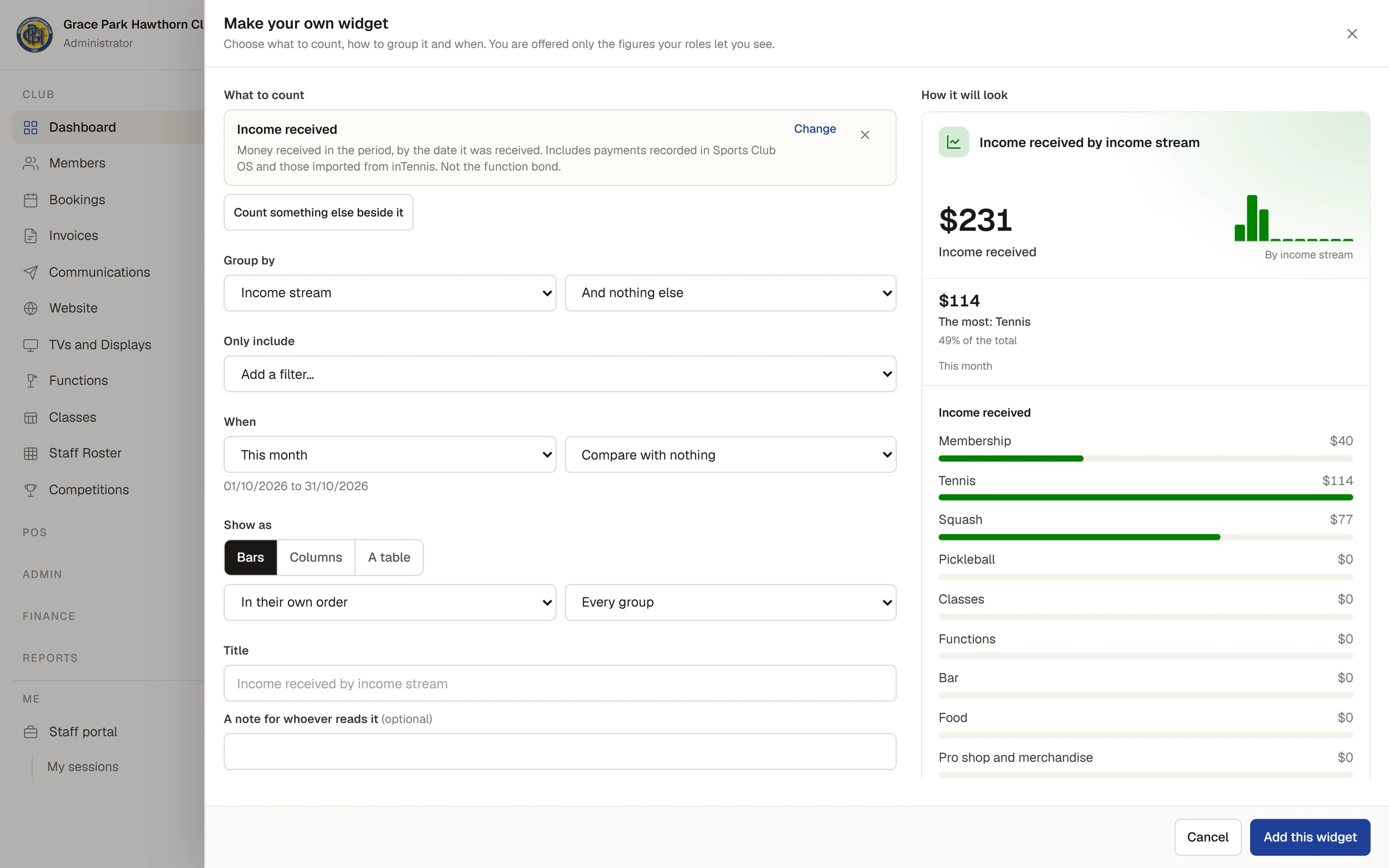
The panel is headed Make your own widget (or Change this widget). On a wide screen the settings are on the left and the preview, How it will look, stays in sight on the right.
Choose what to count
- Under What to count, find the figure. Type in Find a figure: members, income, courts…, or press an area's name (Membership, Income, Invoices, Courts, Classes, Competitions, Functions, Roster, Hours worked, Communications) to go to its figures. Each has a line saying exactly what it counts.
- Press the figure. It is shown at the top with Change and a cross to take it off.
- To count something beside it, press Count something else beside it. You can count up to three things, if they are counted the same way (two amounts of money, for example). Where nothing else fits, the list says Nothing else can be counted beside this one: figures counted in different ways cannot share a widget.
Group, filter and choose the period
- Group by: choose how to split the figure, for example Income stream, Membership type, Month or Sport. Nothing: one figure keeps it as one number. Once you have chosen one, you can add a second (Then by …), which makes a table.
- Only include: choose Add a filter… and a grouping, then tick the values to keep. Change Only to Leave out to keep everything except those. Remove takes the filter off.
- When: choose a period, such as This month, The last 90 days or This financial year, or Between two dates… and type From and To. The dates it covers are shown under it.
- Choose what to compare it with: Compare with nothing, Compare with the period before, or Compare with the same dates a year earlier. A period that is still running is compared with the same number of days of the earlier one.
Choose how it looks
- Show as: the choices depend on the grouping. One figure can be A number or A table (and A ring for a share). Grouped by dates it can be Columns, A line, Bars or A table; grouped by anything else, Bars, Columns or A table. Two groupings are always a table.
- Choose the order (In their own order, Largest first, Smallest first, A to Z) and how many groups to show (Every group, or The first 5, then the rest together and the like).
- Type a Title if you want one other than the figure's own name, and A note for whoever reads it if it needs explaining.
The preview changes a moment after each choice, with Working it out… while it does. If a setting cannot work, the reason is shown in place of the preview, for example a period the figures are not kept for.
Add it
Press Add this widget (or Save changes for one you are changing). It appears on your Dashboard, or on the report page, with its period written under its figures. Cancel closes the panel and keeps nothing.
See the rows behind a figure
Press a bar, a column, a point on a line, a cell of a table, or the large figure. A side panel lists the records it was counted from: the payments, bookings, invoices, people or matches, newest first, with the period and how many rows there are.
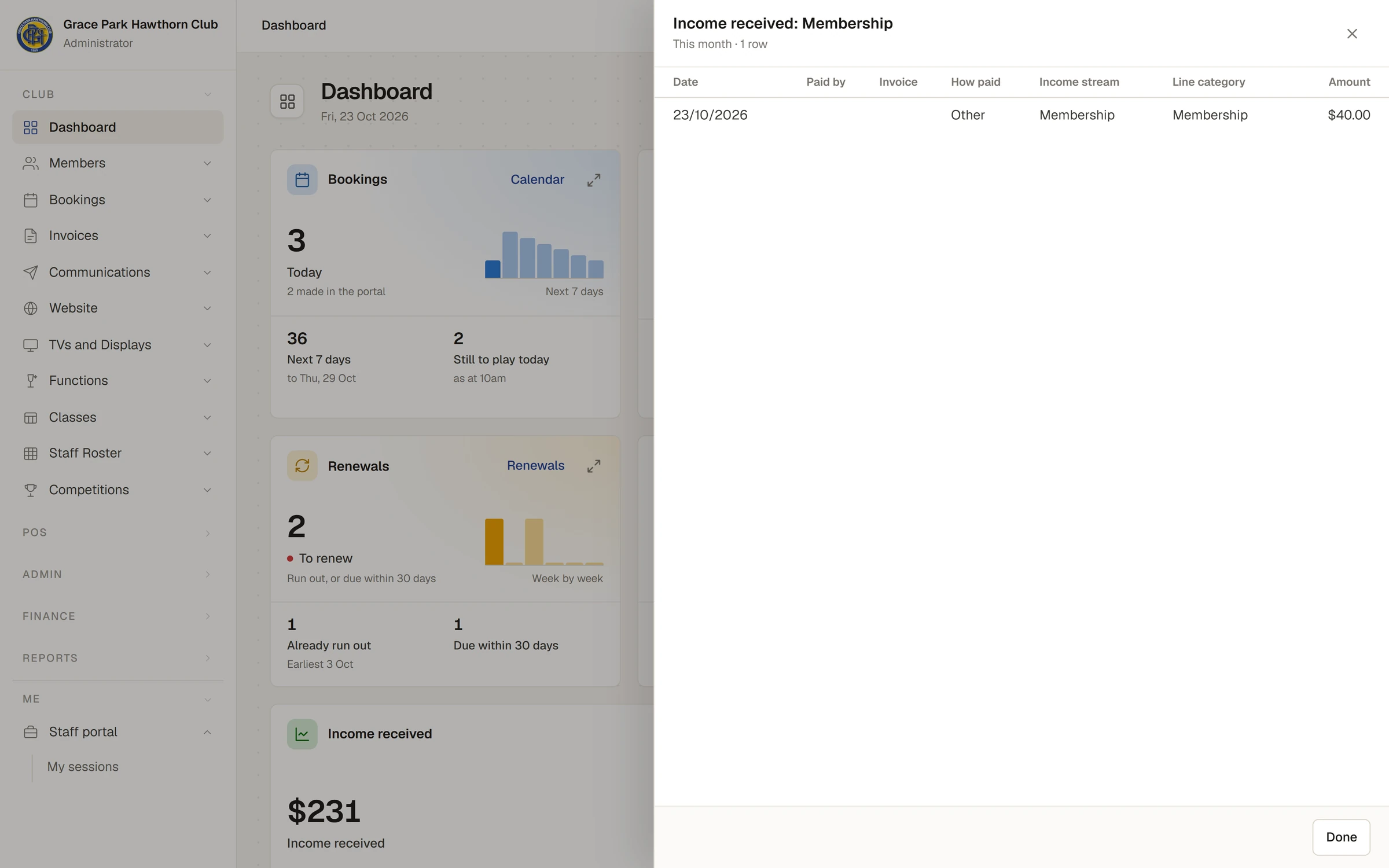
- You see only the columns your roles allow. A name links to the member's page, an invoice to the invoice, and a function to the function, only if you can open those.
- A hundred rows are shown at a time; press Show more for more, up to 500. A download of a report page has them all: see Report pages: make, share, print and download.
- Where you may see a figure but not the records behind it, its bars cannot be pressed, or the panel says You can see this figure, but not the people or records behind it.
- Some figures have no list behind them, because they are a share or come from a past day's member count. The panel says why.
- A group hidden as <5 is not listed either. See Why some figures show "<5".
The ready-made reports in Add a widget work the same way, and can be changed with their pencil like any other.
If something goes wrong
- The figure you want is not in the list. Your roles do not let you see it, or it is not one Sports Club OS counts. Ask your club's administrator.
- The widget says "You don't have access to this." Your roles no longer let you see one of its figures. On the Dashboard such a widget is left off until the role is given back.
- A widget says "No member count was kept for …" The period asks for a member count from before Sports Club OS began keeping daily counts. Choose a later period.
Last checked in release 2026.10.23, on 23 October 2026.