
How to
See what is still owing
Unpaid invoices lists every issued invoice with something owing, what is overdue, and the stage each has come to on the club's reminder schedule.
Who this is for: Anyone with “See all invoices and payments” (by default: Administrator, Head Coach, Casual Staff, Reporting, Treasurer).
Unpaid invoices lists every issued invoice that still has something owing, most overdue first, so you can see who to follow up. Each invoice has its own line of stages from the club's reminder schedule, coloured where the date has come.
Before you start
You need to be able to see invoices. The Administrator, Head Coach, Casual Staff, Treasurer and Reporting roles can by default.
See what is owing
- Open .
- Read the four figures at the top: Owing in total, Not yet due, Due today and Overdue, each with how many invoices. Press one to list only those invoices. Press it again, or Owing in total, to list them all.
- By stage shows the stages of the club's schedule as coloured lines, each with how many unpaid invoices have come to it and how much they owe. No stage yet is invoices whose first stage's date has not come. Press a stage to list only its invoices.
- Type a name or an invoice number in the search box to find one invoice.
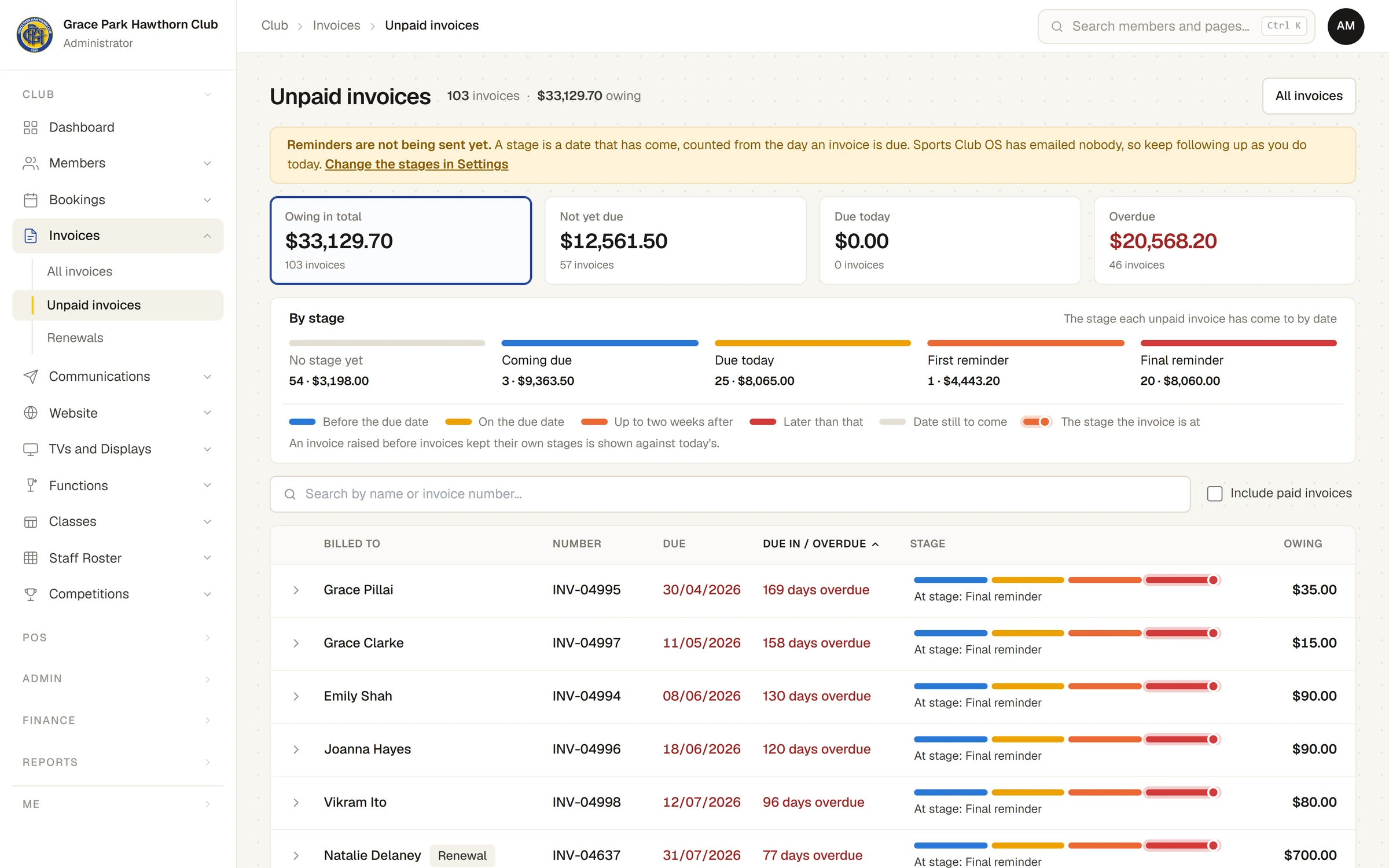
The list shows Billed to, Number, Raised, Due, Due in / Overdue, Stage, Total and Owing. Press a column heading to sort by it. On a narrower window Raised and Total are left out, then Due, so the stages and the amount owing stay in view. On a phone each invoice is a card, and a list sorts them.
Read an invoice's stages
The line under Stage has a part for each stage of the schedule, in order, coloured where its date has come. The stage the invoice is at is marked, and named underneath, for example At stage: First reminder · next stage in 3 days. The key under By stage explains the colours: Before the due date, On the due date, Up to two weeks after, Later than that and Date still to come.
Point at the line, or move to it with the Tab key, to see each stage with its date and whether that date has come. The words end No reminder has been sent. These are dates only.
An invoice keeps the stages that applied on the day it was raised, so a later change to the schedule does not move it. An invoice raised before invoices kept their own stages is shown against the club's stages today, and the key says so. An invoice whose kept stages differ from the club's today carries a small dotted circle.
Open an invoice
- The arrow at the start of a row (on a phone, the strip along the bottom of the card) opens the invoice out underneath: the invoice as it prints, its timeline with each stage it has come to and those still to come, its payments, and Open invoice and Print / PDF.
- Anywhere else on the row opens the invoice on the Invoices page, where payments are recorded.
- The name links to the member's page, for someone who can see members.
If an invoice turns out to have been paid when it is opened, it leaves the list and a line says why.
Include paid invoices
Tick Include paid invoices to add invoices already paid, with a Paid figure. A paid invoice's line shows how far it had come when it was paid, for example Had come to stage: Due today.
What is not listed
- Drafts and voided invoices, which owe nothing.
- An invoice that cannot be read at all. A line under the list says how many, and to look for them on the Invoices page. An invoice whose stage cannot be worked out is still listed and counted, and its row says Stage could not be worked out.
For anyone who can: “Club settings”
Change the stages in Settings, in the notice at the top, opens the reminder schedule. See The reminder schedule.
Last checked in release 2026.10.23, on 23 October 2026.