
How it works
A member's record, tab by tab
What a member's page shows, tab by tab, and how Edit details changes their record: details, membership, family, notes and activity.
Who this is for: Anyone with “See members and contacts” or “Add and change members” (by default: Administrator, Head Coach, Casual Staff, Reporting).
Each person on the member list has a page of their own. Open it by pressing their row on , or by finding them with the search box at the top right of any page. It brings together everything the club holds about them: their details, their membership and how they pay it, their bookings, invoices and payments, their household and the office's notes.
The top of the page
- Their name and status, their membership type, member number, age and occupation, and their email address, phone number and suburb. Their tags are under these.
- Buttons: New invoice (raise an invoice to them), Book a court (the bookings calendar), Edit details (change their record, below), and View login where they have a login and you can manage users.
- Six figures: Member for (and the day they joined), Renews (their expiry date and how many days away it is; Membership ended once it has passed, or Access until for someone paying monthly), Court bookings, Last on court, Paid to the club and Owing (with how many invoices they have).
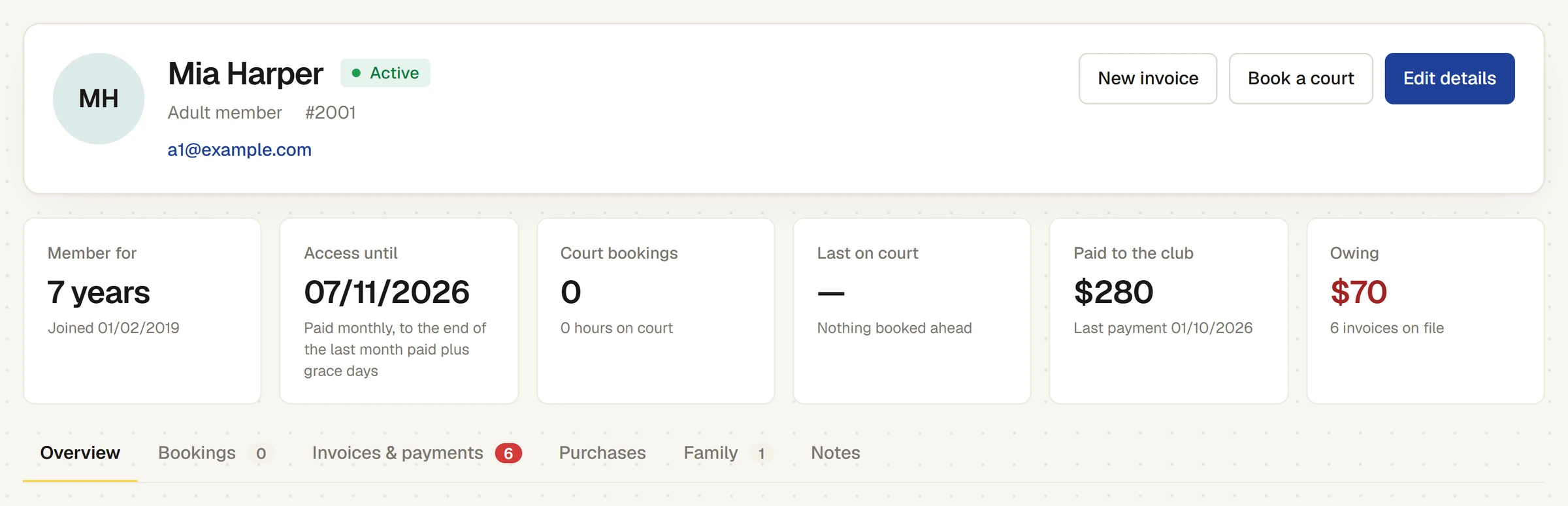
Overview
- Membership: type, annual fee, joined, expiry, last renewed, member number, access card and portal login (None, or the login's state, such as approved). Any earlier memberships are listed under it.
- How they pay: yearly or monthly, the price of each, and Auto renew and invoice. Those who may change members and raise invoices see Change… here. See Paying yearly or monthly: how it works.
- Contact details: email, phone, address, date of birth, gender and emergency contact.
- Tags: their tags, each with × to take it off, and a box to add one. See Tag members.
- Email preferences: what they have agreed to be emailed about, the latest messages sent to their address, and changes to their choices. Someone who may change members can press Change to record a choice the member asked the office to make.
- Monthly payments, for someone who pays monthly: each month as paid, not paid, due or to come.
- How they use the club, from their court bookings: the sports they play, the day and time they usually play, bookings a week, their favourite court, how many were made online, and guests they brought. Charts show bookings by sport, day of the week, time of day and week. Most recent bookings lists the last five.
The other tabs
- Bookings: every booking, with the day, time, court, whether it was made online or by staff, guests and status (Played, Upcoming or Cancelled). Press one to open that day's calendar.
- Invoices & payments: their invoices, with what has been paid, and court hire paid online that was matched to them by name. The number on the tab turns red when something is owing. Press an invoice to open it.
- Purchases: their household's account at the till and its purchases. It shows only for those who may see till sales.
- Family: the household they belong to, each person with their membership, expiry and status. See Households: who pays for whom.
- Notes: notes the office has written about them, newest first, each with when and who. Type a note and press Add note. Members never see notes.
Change their record
Press Edit details. A side panel opens with five tabs. Press Save changes to keep what you changed, or Cancel; either takes you back to their page.
- Details: first name, last name, email, phone, date of birth, gender, occupation, address, suburb, state, postcode, emergency contact and emergency phone. Under Tags, press a tag to give or take it away. Any extra fields your club records, such as a locker number, are under Club fields.
- Membership: membership type (or None — contact only), status, member number, access card number, last renewed, joined and expiry. Choosing a type shows its fee, joining fee and when it renews. Under Member portal, a person with a login has their approval (Pending, Approved or Rejected).
- Family: who they are linked to, and who is linked to them.
- Notes: the same notes as the page's own tab.
- Activity: their bookings from the last 60 days and coming up, their invoices, and when the record was last changed and by whom.
Delete is at the bottom left of the panel. See Delete a member, and what is kept.
Who can see and change it
Anyone who can see members can open every member's page. Changing a record, adding notes and changing tags needs the permission to add and change members: the Administrator, Head Coach and Casual Staff roles have both by default, and the Reporting role can see but not change. Your club can change this on Roles & permissions.
Last checked in release 2026.10.23, on 23 October 2026.