
Quick start
Looking after Sports Club OS for your club
For the club's administrator: give people logins and roles, decide what each role may do, keep the club's settings, and look after its data.
Who this is for: Anyone with “Users and roles” or “Roles and permissions” or “Club settings” or “Audit log” or “Download all the club's data” (by default: Administrator, Head Coach, Casual Staff).
The Administrator can do everything in Sports Club OS, except what belongs to a person themselves, such as booking a member's own courts. Your job is to give people the access they need, keep the club's settings right, and look after its data. Most clubs have one or two administrators.
Where things are
When you sign in, Sports Club OS opens your Dashboard, and you see every section of the menu. Your own work is in Admin:
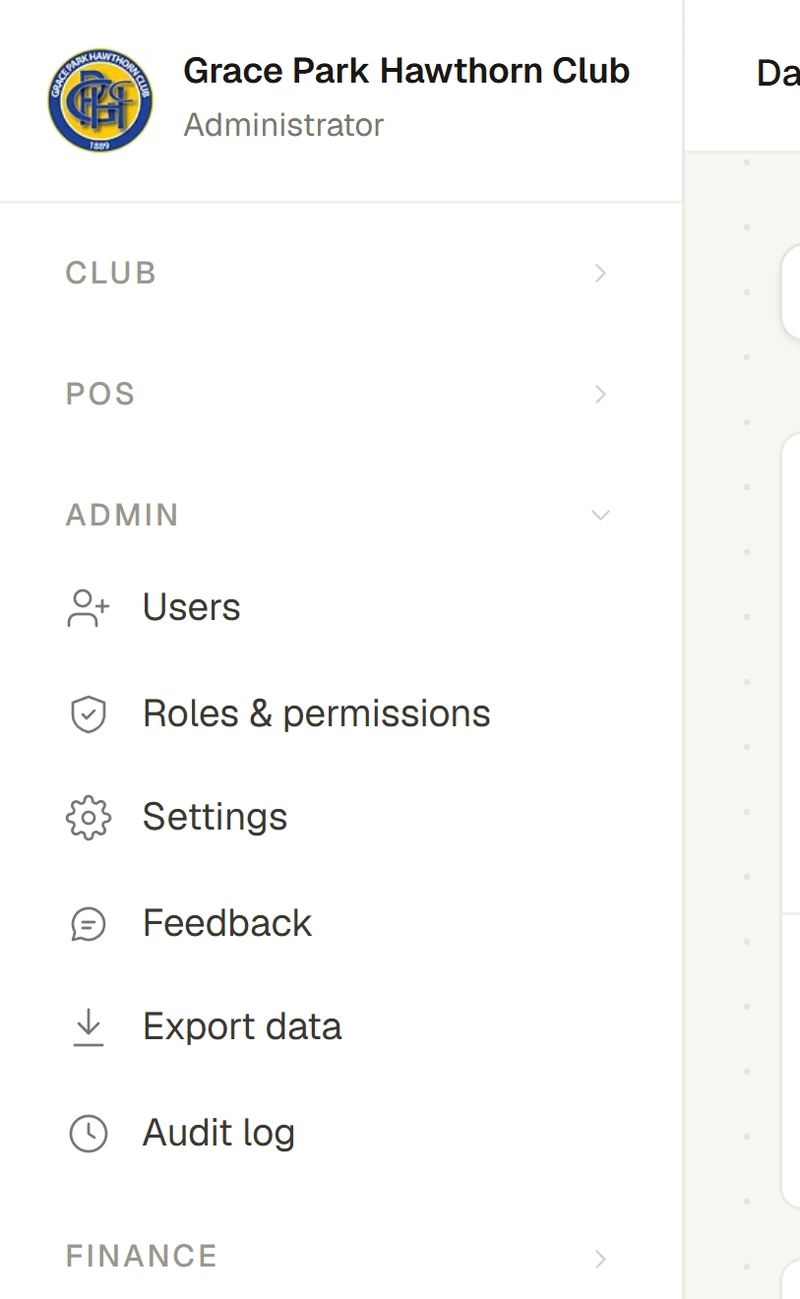
| In the menu | What it is for |
|---|---|
| Every login: make one, give and remove roles, link it to a member record, switch it off | |
| What each role may do | |
| The club's details, booking rules, courts, membership types, price list, invoice reminders, tags, email categories, reports, and the Functions, Classes and Tag rules tabs | |
| What people saved through Help and feedback | |
| Download everything Sports Club OS holds for the club | |
| Who changed what, and when |
1. Set the club up
If your club is new to Sports Club OS, work through the setup in order: the club's details, membership types and fees, courts and booking rules, the price list, logins and roles, bringing in your members, and email. See Set up Sports Club OS for your club: the steps in order.
2. Give people logins and roles
Open and press New user to make a login for someone who works for the club or volunteers for it. Choose their roles: a person can hold several. They get an email with a temporary password. On a login's own page you change its roles, link it to the person's member record, or switch it off when they leave. See Add, change and remove logins.
Members do not need you: they make their own login, and the office approves it on Portal sign-ups. Bar staff are invited by the bar manager from the roster.
3. Decide what each role may do
Each role starts with a set of permissions. Open to change what a role may do at your club, for example to let the Casual Staff role run the till or not. A change takes effect within a few seconds and is recorded in the audit log. A role you give a person on Users shows on their menu after they sign out and in again. See Change what a role may do and How roles and permissions decide what you see.
Some things only the Administrator can do, whatever the club decides: change what roles may do, give or remove the Administrator role, download all the club's data, read everyone's feedback, handle membership applications, and change the wording of text messages to staff.
4. Keep the settings right
holds the club's own configuration, one tab at a time. See Club settings, tab by tab.
5. Read the feedback
People tell the club about problems and ideas through the Help and feedback button. Open to read each saved summary with its whole conversation, mark it done, and set the assistant's limits. See Read everyone's feedback.
6. Look after the club's data
- The audit log records every change and who made it. See The audit log.
- Export data downloads everything Sports Club OS holds for the club, as spreadsheet and data files, at any time. Every download is recorded. See Download all the club's data.
Who to ask
For anything Sports Club OS does not do, or a problem you cannot solve, use Help and feedback: saved feedback also goes to the makers of Sports Club OS. Where the club's data is kept and how sign-in is protected is on the Trust Centre.
Last checked in release 2026.10.23, on 23 October 2026.