
Quick start
Running the bar: roster, till and hours
For the bar manager: add staff, build and publish the weekly roster, approve hours, and run the till's products, settings and cash-ups.
Who this is for: Anyone with “Run the bar and events roster” or “Approve hours worked” or “Run the till” or “See sales and till sessions” or “Voids, refunds and overrides” (by default: Administrator, Bar Manager, Reporting, Treasurer).
As bar manager you run the bar's staff and its till: who works when, the hours they worked, what the till sells and at what price, and the cash at the end of each session. The Bar Manager role does all of this by default, and can see the club's functions so the bar can be staffed for them.
Where things are
When you sign in, Sports Club OS opens your Dashboard.
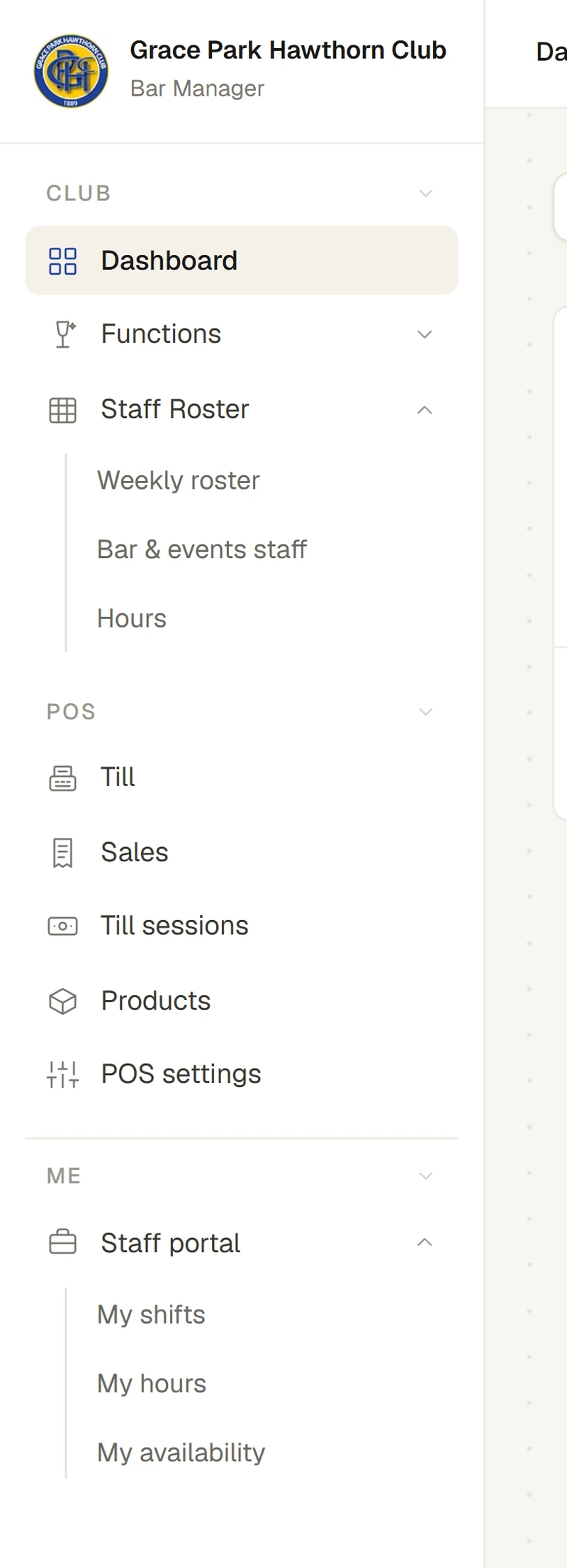
| In the menu | What it is for |
|---|---|
| The week's shifts on a calendar: build, change and publish | |
| Your staff: their positions, availability, time off and logins | |
| Hours staff reported, to check, approve and close each pay period | |
| The club's functions, to see what the bar must staff | |
| POS > Till | The till itself |
| POS > Sales and Till sessions | Every sale, and every session's cash-up |
| POS > Products and POS settings | What the till sells and its prices, licensed hours, accounts, tills and printers |
1. Add your staff
Open , press New staff member, and add each person with their email address, the positions they work and whether they are casual or permanent. Press Send login invitation to invite them to sign in. Once they sign in, they set their own availability and answer their own shifts. See Add staff and invite them to sign in.
2. Build the week
Open . Drag a person from the staff list onto a day to give them a shift, or drag down an empty part of a day to make an open shift for that time. A slot holds several people at one time, such as the bar on a busy night. When you pick a slot, the staff free to work it are listed first. Nothing is sent while you build. See How shifts and slots work and Build the week's roster.
3. Publish it
Press Publish 6 changes (the number is how many shifts are new, changed or cancelled). A dialog lists, before anything is sent, each person's new, changed and cancelled shifts and how each will be told. Press it, and each person gets one message for the week asking them to say yes or no. See Publish the week's roster. Afterwards, each shift shows who has confirmed. Requests for open shifts are approved or declined in the shift's panel, and every message sent is listed in the roster's Notifications panel. See Open shifts and requests and How staff are told: email, text and My shifts.
4. Approve hours
After shifts finish, staff report their hours on My hours. Open to check and approve them, then close the pay period and download the hours file for payroll. Sports Club OS has no pay rates. See Check and approve hours worked and Close an hours period and download the hours.
5. Run the till
- Products and prices: add what the till sells, members' prices, happy hours and stock counts on Products. See Products, prices, happy hours and stock.
- Settings: licensed hours, account limits, receipts, and each till and printer on POS settings. See Set up the till.
- Cash-ups: each closed session's count and variance is on Till sessions. Check it and sign it off. See Sign off a cash-up.
- Overrides: voids, refunds and larger discounts need you, signed in or with your 6-digit till PIN. See Voids, refunds and manager approval.
Functions
When a function is confirmed, a slot of open shifts for it appears on the weekly roster under the function's name, for the number of staff the function needs. Fill it like any other slot. See The function's staff on the roster.
Who to ask
- The club's administrator, for logins and roles, and to change what the Bar Manager role may do.
- Help and feedback, the button at the top right, for how to do something in Sports Club OS.
Last checked in release 2026.10.23, on 23 October 2026.