
How to
Close courts for an event or repairs
Close courts or tables for some hours or days, for repairs or an event, so nobody can book them, and deal with bookings already made.
Who this is for: Anyone with “Make and change any booking” or “See all bookings” (by default: Administrator, Head Coach, Casual Staff, Reporting).
A closure takes courts or tables out of use for a time: all day for one or more days, or between two times on each of those days. Nobody can book a closed time, the office included. Closed times show on the calendar, on members' Make booking page and on the court board in the foyer, with the reason.
Before you start
- You need to be able to make and change bookings. The Administrator, Head Coach and Casual Staff roles can by default. Your club can change this on Roles & permissions.
- A closure does not cancel bookings already made in its time. It lists them, so you can move or cancel them.
Close courts
- Open . It lists the closures still to come, with When, Hours, Courts / tables and Reason. Tick Show past to see earlier ones too.
- Press New closure. A panel opens.
- Type the Reason, for example "Court resurfacing". People see it on the calendar and the court board.
- Set From date and To date. For one day, leave them the same.
- Closed all day is ticked to start with. To close only some hours, untick it and choose From and To. The same hours are closed on each day.
- Under each sport, press each court or table to close. A tick shows on each one chosen. Select all chooses every court of that sport, and pressing it again clears them.
- Press Save closure. A message says Closure saved.
If no booking falls inside the closure, the panel closes. The closure is listed, and the calendar shows the closed time as a grey block with the reason.
When bookings are already made in that time
If bookings fall inside the closure, it is still saved. The panel stays open, now headed Edit closure, with a list headed, for example, 1 existing booking falls inside this closure:. Each line gives the date, time, court and who it is for. Under them it says They have not been cancelled — move or cancel them from the calendar.
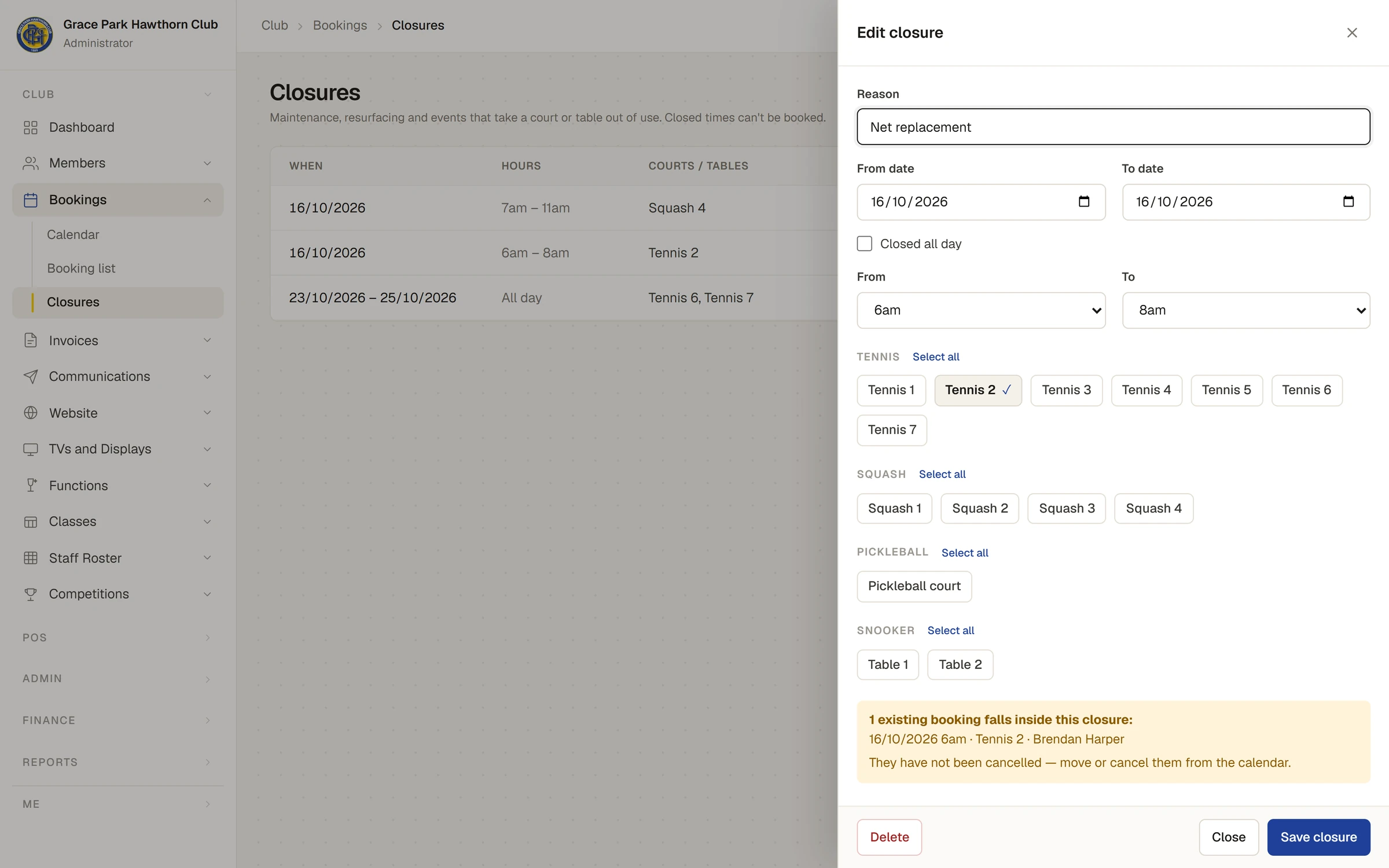
For each one, open the calendar on that day, then move or cancel the booking. See Move or cancel a booking. Sports Club OS does not tell the members. Let them know yourself.
Change or remove a closure
- Press the closure in the list. The panel opens headed Edit closure. Change it and press Save closure. Bookings inside the changed times are listed again.
- To remove it, press Delete. Sports Club OS asks Delete this closure? The times become bookable again. Confirm it, and a message says Closure deleted.
What a closure does
- No new booking can be made in a closed time, and no booking can be moved into one. The office sees Closed: and the reason. On Make booking, a member's box turns red with the same words.
- A weekly booking made over several weeks leaves out any week that is closed, and says so.
- Closed time is left out of the court-use figures in reports, so a court closed for a week does not count as a court nobody booked.
- A function that uses courts closes them by itself once it is confirmed. Its closure is listed here too, named after the function, and changes when the function's date, times or courts change.
If something goes wrong
- "A closure needs a start date and at least one court or table." Choose at least one court or table, and a From date.
- The closure is not on the list. It has ended. Tick Show past.
Last checked in release 2026.10.23, on 23 October 2026.