
How to
Wallboards and putting a board on a TV
Preview any competition board live, as a TV shows it, then put it on one of the club's TVs in light or dark, or manage the TVs from TV screens.
Who this is for: Anyone with “Run competitions” or “Play in competitions” (by default: Administrator, Sports Convener, Member).
Every competition in play has boards a TV can show: its draw, table, boxes or ladder, and a scoreboard for each match on court. Wallboards lists them all with a live preview. Anyone who plays in competitions can preview a board and open it full screen. The convener can also put a board on one of the club's TVs with one press, and the TV changes by itself within a few seconds. A TV can show other things too (the club's slide shows, a court board, today's classes); those are set on . See Set up a TV and choose what it shows.
The boards
| Board | What it shows |
|---|---|
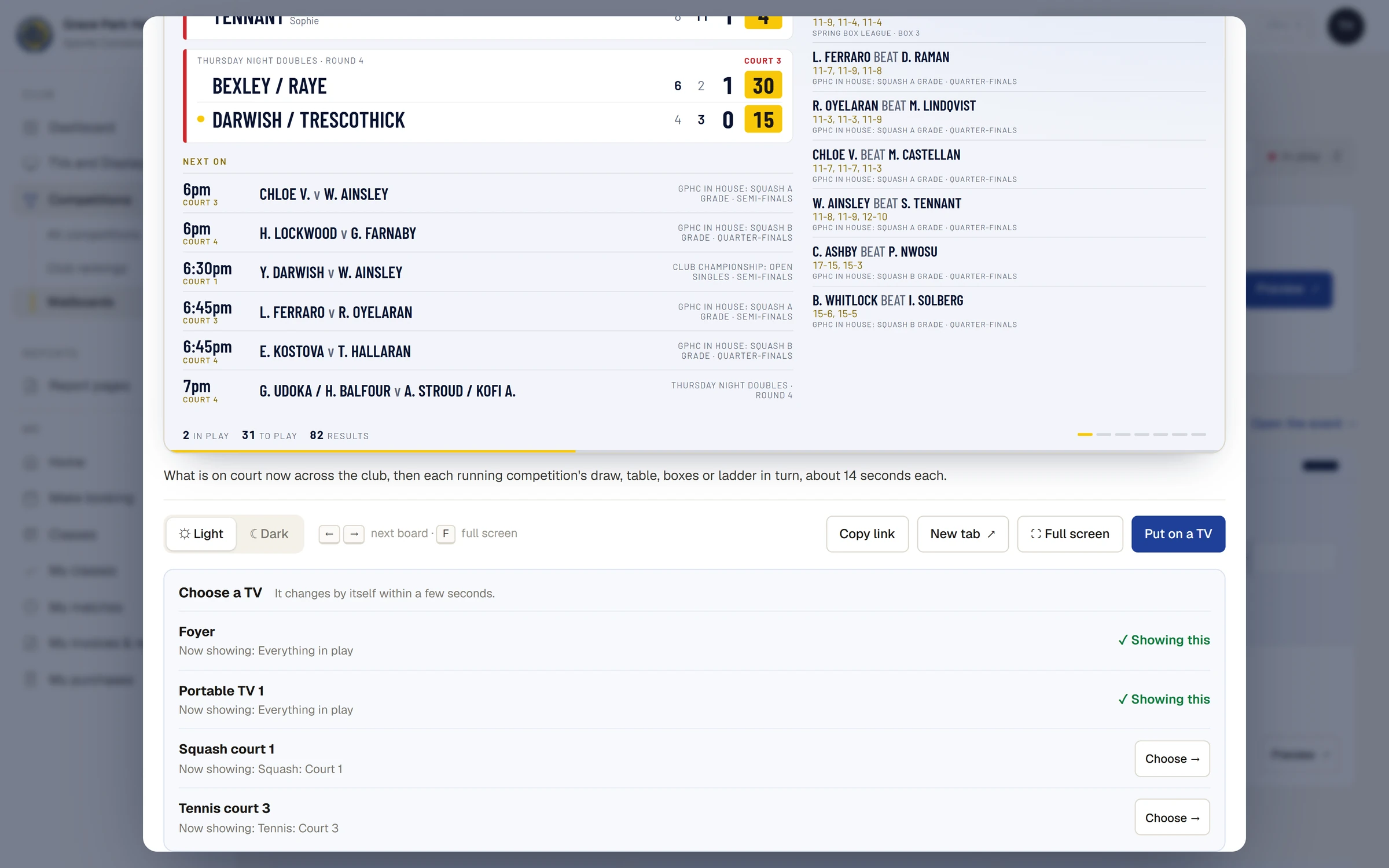
| Everything in play | What is on court now across the club (live scores, what is next, the latest results), then each running competition's draw, table, boxes or ladder in turn, about 14 seconds each |
| The whole event | The event's matches on court now, then each of its competitions in turn |
| A knockout draw | That draw alone, every match on court scored point by point in its box, turning to the plate every 25 seconds if there is one. Along the foot, the next matches due |
| A ladder, box league or round robin | What is on court now in that competition, then its ladder, boxes (with who is going up and down) or table |
| A match scoreboard | One match, large: the players, the games, the points now, who is serving, and each rally as the marker writes it, with the marker's calls: a let, no let, hand out, game won and the break between games |
| A court scoreboard | Whatever is being played on that court, and the next match due there when nothing is |
On a draw, a box flashes gold when its score changes.
Find a board
- has every board for every event: The whole club at the top, then each event with its boards, then other competitions, then By court. In play keeps only boards with a match on court. Competitions still taking entries are listed under Not started yet: their boards appear when play starts.
- An event's Wallboards tab has the same for that event, with Preview event wallboard at the top of its page.
- Each competition's card has a Wallboards footer: a chip for its board (Draw, Table, Boxes or Ladder) and one for each match on court with its score. Before play it says, for example, Available once the draw is made.
Preview a board
- Press Preview on a board, or a chip on a card. The preview opens with the board live, drawn as a TV shows it.
- Use the arrows, or the Left and Right arrow keys, to step through the boards you opened it from.
- Choose Light or Dark for the board's colours.
- Press Full screen (or F) to fill the screen, New tab to open the board on its own, or Copy link for a link to it. That link is for someone signed in.
Wallboard at the top of All competitions, and on each competition in play, also opens a board on its own in a new tab. On a board opened on its own, a Dark or Light button shows while the mouse moves (or press D), and on a board that turns, the arrow keys move on and the space bar pauses it.
For anyone who can: “Run competitions”
Put a board on a TV
- In the preview, choose Light or Dark, then press Put on a TV.
- Under Choose a TV, each of the club's TVs says what it shows now. Press Choose beside the TV. The message says, for example, Squash court 1 now shows Everything in play, and the TV changes within a few seconds.
- Changed your mind? Press Undo beside the TV straight away. It goes back as it was.
A TV already showing the board in other colours offers Make it dark or Make it light instead. On the Wallboards page, a board on a TV says which: On Foyer, Portable TV 1, for example, and the foot of the page lists what every TV shows.
The TV screens tab
The TV screens tab at the top of the Competitions page lists the club's TVs. It is the same list as : a TV added on one is on the other, and a board chosen on one shows on the other. For each screen:
- Screen: its name. Showing: Everything that is on (turning through), a Knockout draw, scored live, Only: one event or competition, or a court's live score. Colours: Light or Dark.
- Open this screen and Copy its link: open the link once on the TV's web browser and leave it there. It needs no sign-in.
- New link (then Press again: the old link stops working), and Remove (then Press again).
- Add a screen adds one, for a portable TV wheeled out for the day, say.
A screen set on TVs and Displays to show something else (a display, a court board, Classes today) shows here as Set on TVs and Displays until you choose a board for it. A screen showing a competition board is changed from here, or from a board's Put on a TV. Someone who makes displays but does not run competitions can still rename that screen and say where it is on Displays, but not change what it shows, its colours or its link. Adding, naming and linking screens is also described in Set up a TV and choose what it shows.
What a TV shows of people
Boards show players' names and scores only: adults in full, and anyone under 18 by first name and initial. They never show ratings, member numbers or contact details.
If something goes wrong
- "This board cannot be shown in a preview here." The browser would not show it inside the page. Press Open it in a new tab.
- "This browser would not show it full screen. Use Open in a new tab instead."
- No boards, and "Nothing is running yet". A competition's boards appear once its draw, boxes, fixtures or ladder are made.
- Put on a TV is missing. Only someone who runs competitions can put a board on a TV.
- A TV says "This screen's link no longer works. Ask whoever runs competitions for its new link." The screen was given a new link, or was removed. On TV screens, press Copy its link on that screen and open the link on the TV. If the screen is not listed, press Add a screen, choose what it shows and open its link on the TV.
Last checked in release 2026.10.23, on 23 October 2026.