
How to
Set your availability and dates off
Tell the manager when you can work: your regular week, dates you can't work or time off, extra dates you could work, and how you want to be told about shifts.
Who this is for: Anyone with “Own shifts, availability and hours” (by default: Bar Staff).
My availability tells the manager when you can work, so you are rostered for the right shifts. It is also where you choose how you are told about shifts. The manager sees what you set here when building the roster: when they choose a shift to fill, the people free to work it are listed first.
What you can change depends on your staff record. Casual staff set their own regular week and dates off. Permanent staff see the week the manager set for them, and ask for time off.
Before you start
Your login must be linked to your staff record. Until it is, the page says Your login isn't linked to a staff record yet. Ask the bar manager to add you with the email address you sign in with.
Set your regular week (casual staff)
- Open .
- Under My regular week, choose for each day Not available, All day or Set times. With Set times, choose the times you can work from and to.
- Press Save my week. A message says Your week is saved.
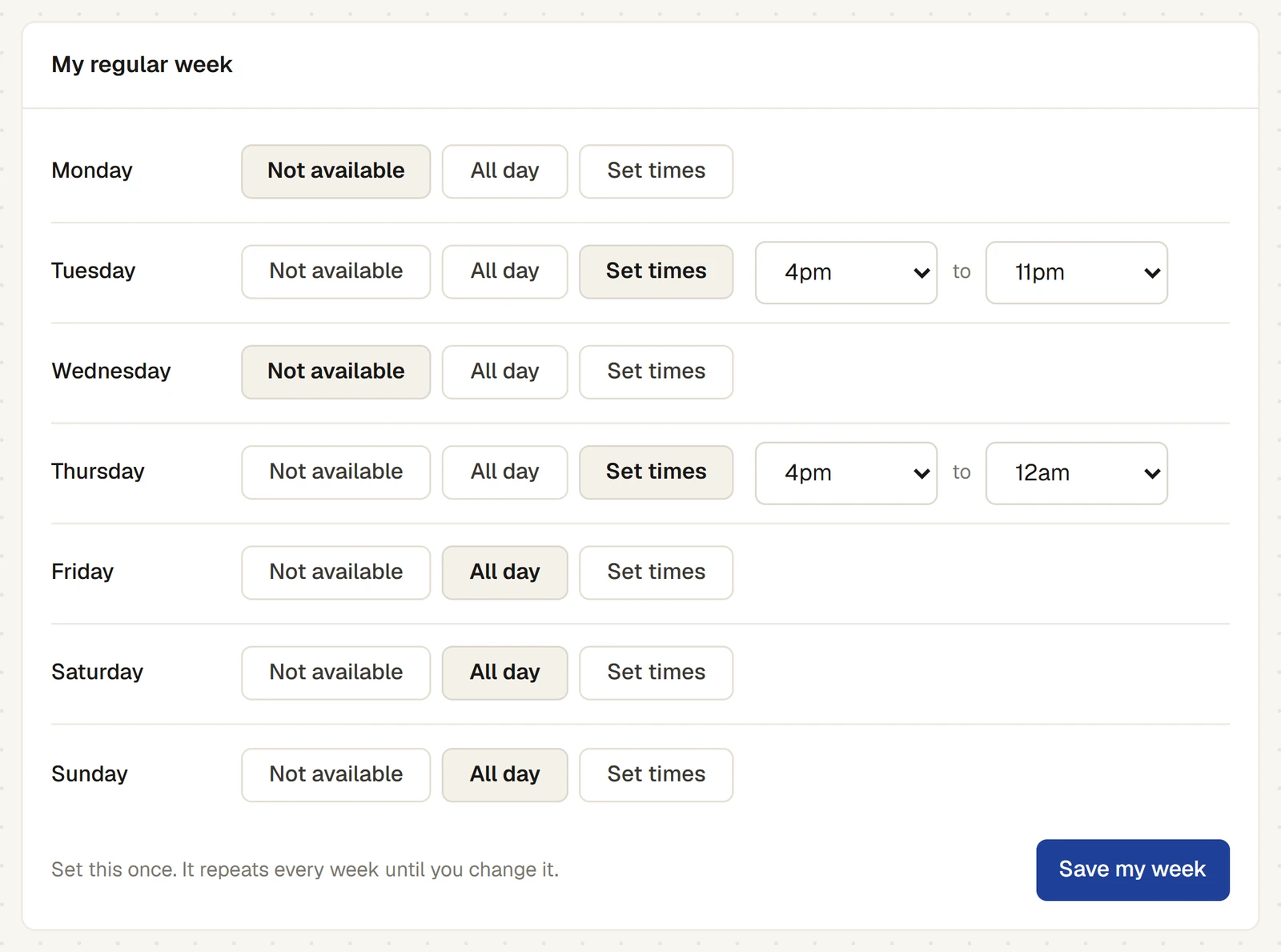
Set it once. It repeats every week until you change it. Until you save it the first time, the card is marked Not set yet.
If you are permanent staff, My regular week shows the hours the manager set for you, and says Your regular hours are set by the manager. Ask them if this needs to change.
Dates you can't work (casual staff)
- Under Dates I can't work, choose From and To. For a single day, leave To empty.
- Type a Note if you like, for example "away".
- Press Add dates. A message says Dates added, and the dates are listed above the form.
Your dates count straight away: the manager is not asked to approve them. To take dates out, press Remove beside them.
Ask for time off (permanent staff)
- Under Time off, choose From and To (leave To empty for one day) and type a Note if you like.
- Press Request time off. A message says Request sent to the manager.
The request is listed as Pending until the manager approves or declines it, and you are told the outcome by email or text, as you chose. To take back a request still pending, press Withdraw.
Extra dates you can work (casual staff)
For a day you don't normally work but could, for example for a function or to cover someone:
- Under Extra dates I can work, choose the Date.
- Leave All day ticked, or untick it and choose From and To.
- Press Add date. A message says Date added.
How you are told about shifts
Under How to tell me about shifts:
- Your Email is shown. To change it, ask the manager.
- Type your Mobile number, if you want texts.
- Tick Email me, Text me (SMS), or both.
- Press Save. A message says Saved.
You always see your shifts on My shifts as well, however you choose to be told. See How staff are told: email, text and My shifts.
What the manager sees
On the weekly roster, the manager sees who is available for each shift from your regular week, your dates off and your extra dates. It is a guide: the manager can still roster you outside it, and you are then asked to say yes or no as usual. The manager's side of this is in Time off and availability.
Last checked in release 2026.10.23, on 23 October 2026.