
How to
Sign in, and reset a forgotten password
Sign in to Sports Club OS, choose a password the first time, enter a two-factor code, reset a forgotten password, or make a login as a member.
Who this is for: Anyone: no sign-in needed.
Everyone signs in on the same page with their email address and password: members, staff, volunteers and the committee. Your club gives you its Sports Club OS address.
Sports Club OS logins are its own. There is no sign-in with Google or Microsoft.
Sign in
- Open your club's Sports Club OS address. The page says Welcome back and Sign in to the club's name, with the club's sports, as the club set them on its Settings.
- Type your Email and Password.
- Leave Keep me signed in ticked to stay signed in on this device. Untick it on a computer other people use, so you are signed out when the browser is closed.
- Press Sign in.
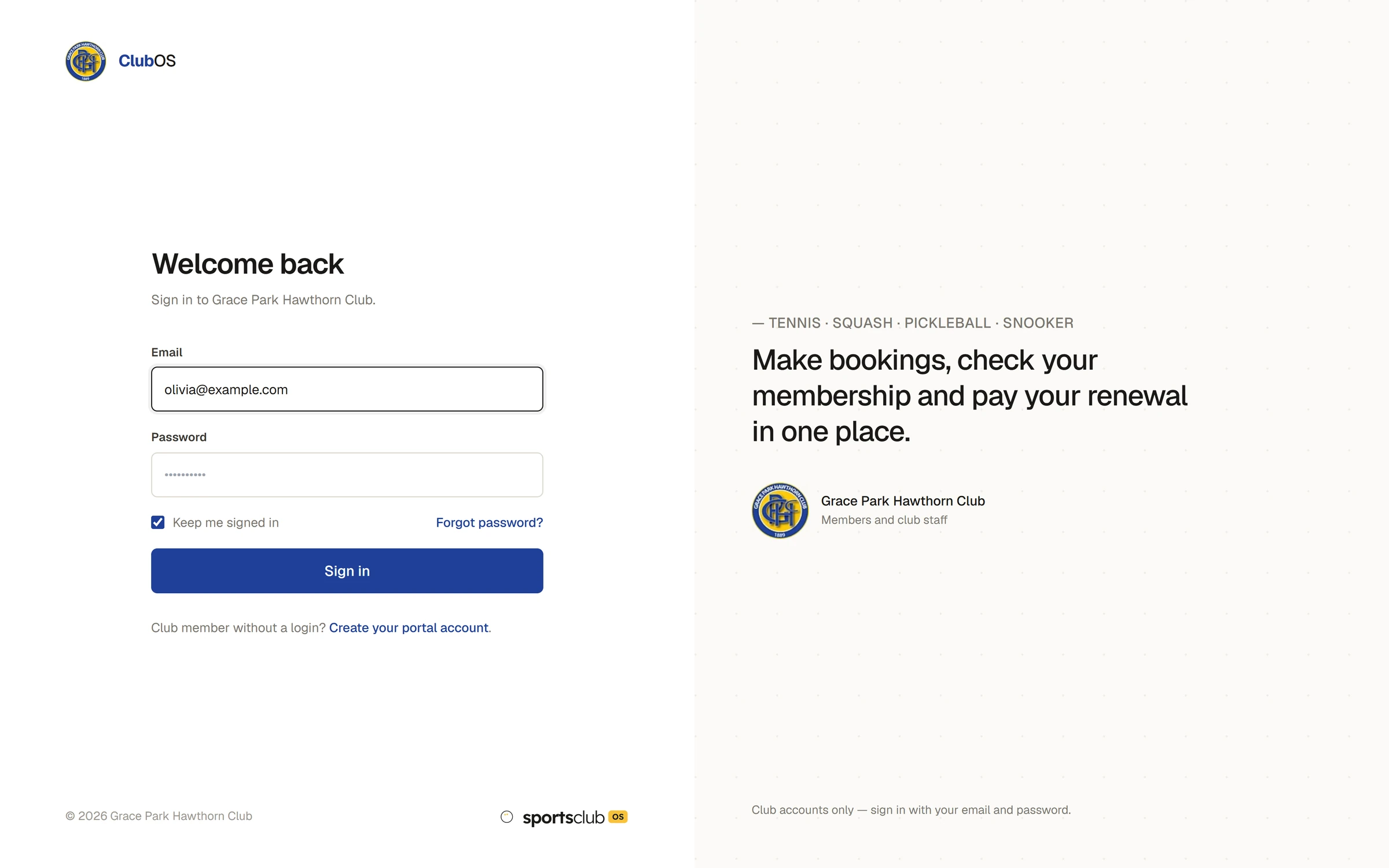
You arrive at your own starting page: the Dashboard for the office, Home for a member, My shifts for bar staff.
If you have two-factor sign-in turned on
After Sign in, the page asks for a Two-factor code. Type the 6-digit code from your authenticator app and press Verify. The code changes every 30 seconds, so type the one showing now.
Signing in for the first time
When the club makes you a login, you get an email with a temporary password.
- Sign in with your email address and the temporary password.
- The page says Choose a password: your temporary password has to be replaced before you continue.
- Type a New password and type it again under Repeat new password. It needs at least 10 characters, with upper case, lower case and a number.
- Press Save and continue.
If the two passwords are not the same, the page says The two passwords don't match. and nothing is saved.
Reset a forgotten password
- On the sign-in page, press Forgot password?.
- Type your Email and press Email me a code. The page says If that email has an account, a code is on its way.
- On Set a new password, type the Code from the email and a New password.
- Press Set password. The page says Password updated. Sign in with your new password.
Make a login as a member
A member without a login can make one.
- On the sign-in page, press Create your portal account.
- Type your Full name, your Email and a Password. Use the email address the club has for you, so your login can be matched to your membership.
- Press Create account.
- The page says Check your email. Type the code from the email and press Verify email. If nothing arrives, press Send it again.
You are then signed in. The club approves each new login before bookings open: until then your Home page says your account is waiting for approval, with a Check again button.
If something goes wrong
- A message under the form says the email or password is wrong. Check the address is the one the club has for you, and that Caps Lock is off. Then use Forgot password?.
- The code from the email does not work. Codes are used once. Ask for a new one and use the newest email.
- You no longer have your authenticator app. Contact the club's administrator.
To change your password or turn two-factor sign-in on or off once you are signed in, use Password & two-factor in your account menu, at the top right.
Last checked in release 2026.10.23, on 23 October 2026.