
Quick start
Your first day in the office
For the club office: find members, take bookings, raise invoices and record payments, run renewals and approve new member logins.
Who this is for: Anyone with “See members and contacts” or “Add and change members” or “See all bookings” or “Make and change any booking” or “See all invoices and payments” or “Raise invoices and record payments” (by default: Administrator, Head Coach, Casual Staff, Reporting, Treasurer).
In the club office you keep the member list, take bookings for members and visitors, raise invoices, record payments and run renewals. The Casual Staff and Head Coach roles do this by default; your club may give it to other roles too. This page takes you through the jobs you will do first, and where they are.
Where things are
When you sign in, Sports Club OS opens your Dashboard. The office's work is in the Club section of the menu:
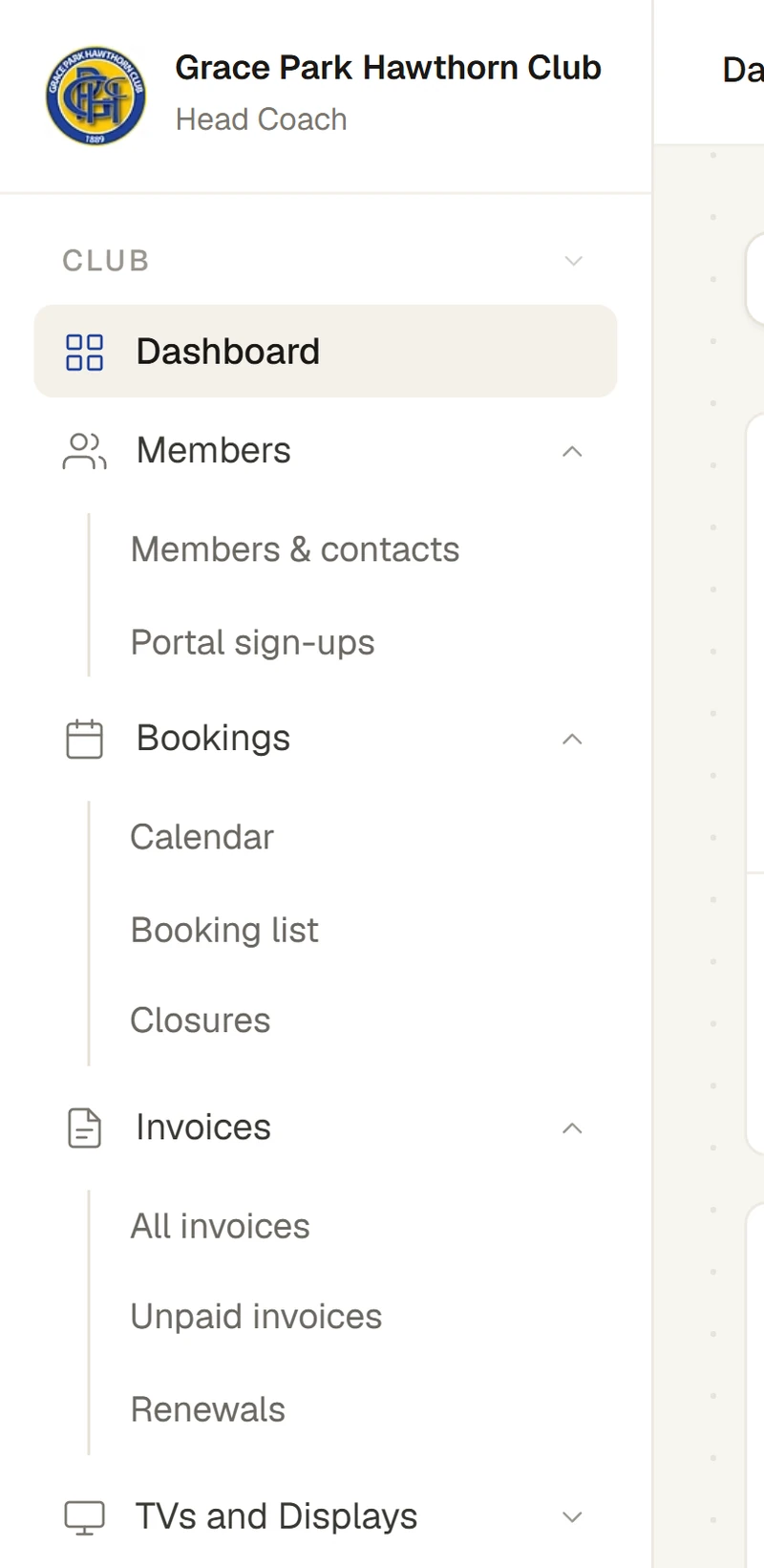
| In the menu | What it is for |
|---|---|
| Your own widgets: members, income, today's bookings and more. See Your Dashboard and its widgets. | |
| The member list, and each member's record | |
| Members who made their own login and are waiting for approval | |
| A day of courts and tables, to book, move and cancel | |
| Bookings as a list, to search and filter | |
| Courts closed for an event or repairs | |
| Every invoice, to raise, change and record payments | |
| What is still owing, and how late | |
| Memberships ending soon, to raise their renewal invoices |
You may also see TVs and Displays, Classes (for the front desk's bookings and rolls), the Till under POS, the Audit log under Admin, and Report pages and Committee reports under Reports.
1. Find a member
Open , or type a name in the search box at the top right (Ctrl+K) from any page. The list opens on current members; the Filters panel narrows it by status, membership type, tag and more. Press a row to open the member's record: their details, membership, family, notes and activity. See Find members and filter the list and A member's record, tab by tab.
To add someone, see Add a member or a contact. Households, where one person pays for others, are explained in Households: who pays for whom.
2. Make a booking for someone
Open , choose the day and the sport, and press a free time in a court's column. In the New booking panel, check the times, choose the Booking type, choose the member under Booked for (or type a description for a visitor), and press Book. The online booking rules do not apply to bookings the office makes. Members can also book for themselves on their own phone. See Make a booking for someone and Move or cancel a booking.
3. Raise an invoice and record a payment
Open to raise an invoice from the price list, and record a payment against it when the money arrives, in full or in part. Members see their invoices on their own Home page. See Raise an invoice and Record a payment.
4. Run renewals
Open to see whose membership ends soon, and raise their renewal invoices in one go. Paying the invoice moves the member's expiry on a year. Members on Auto renew and invoice have theirs raised for them. See Raise renewal invoices.
5. Approve new member logins
Members who make their own login wait on until the office approves them. Check each against the member list, then press Approve or Reject. A sign-up whose email matches a member is already linked to that member's record. See Approve portal sign-ups and I signed up but can't see my membership.
Who to ask
- The club's administrator, for a login, a role, or something your menu does not show. See Why is my menu different from someone else's?
- The Help and feedback button at the top right, for how to do something in Sports Club OS. See Ask Help and feedback how to do something.
Last checked in release 2026.10.23, on 23 October 2026.