
How to
Ask the assistant to change the website
Describe a change to the club's website in plain words, attach pictures or PDFs, and the assistant makes it in your draft and lists what it changed.
Who this is for: Anyone with “Change the website” (by default: Administrator, Website Editor).
Ask the assistant lets you describe a change to the website as you would to a person: "The bar now closes at 9pm on Fridays." The assistant reads the website's own pages, makes the change in your draft, checks it, and lists what it changed. It works only on the draft, so nothing is public until an approver publishes it.
It is the way to change what cannot be edited on the page: the menu and footer, news items and events, a page's title, a new page, and how the site looks.
Before you start
- You need to be able to change the website. The Website Editor and Administrator roles can by default.
- Open a draft first: , then Start a draft if none is open. See Start a draft and edit the page.
Ask for a change
- Above the draft, press ✦ Ask the assistant. The conversation opens on the left and the draft stays on the right. On a narrow screen, Chat and Site switch between them.
- Type what you want changed in the box (What would you like changed?). Name the page if it matters, and give the exact words, dates and times you want used. With nothing asked yet, the page offers examples to start from, such as Add a news item about the squash open day on 14 November.
- For longer text, such as the words of a notice or a list of dates, press Paste text and paste it into the second box.
- Press Send, or Ctrl and Enter.
- While it works, the conversation lists each step: Looking at the site's files, the files it reads and writes, Checking the site. Press Stop to stop it; nothing is changed.
- When it has finished, it lists each change with a ✓, then says in a sentence what it did. Buttons such as Show the news item open the pages it changed in the draft.
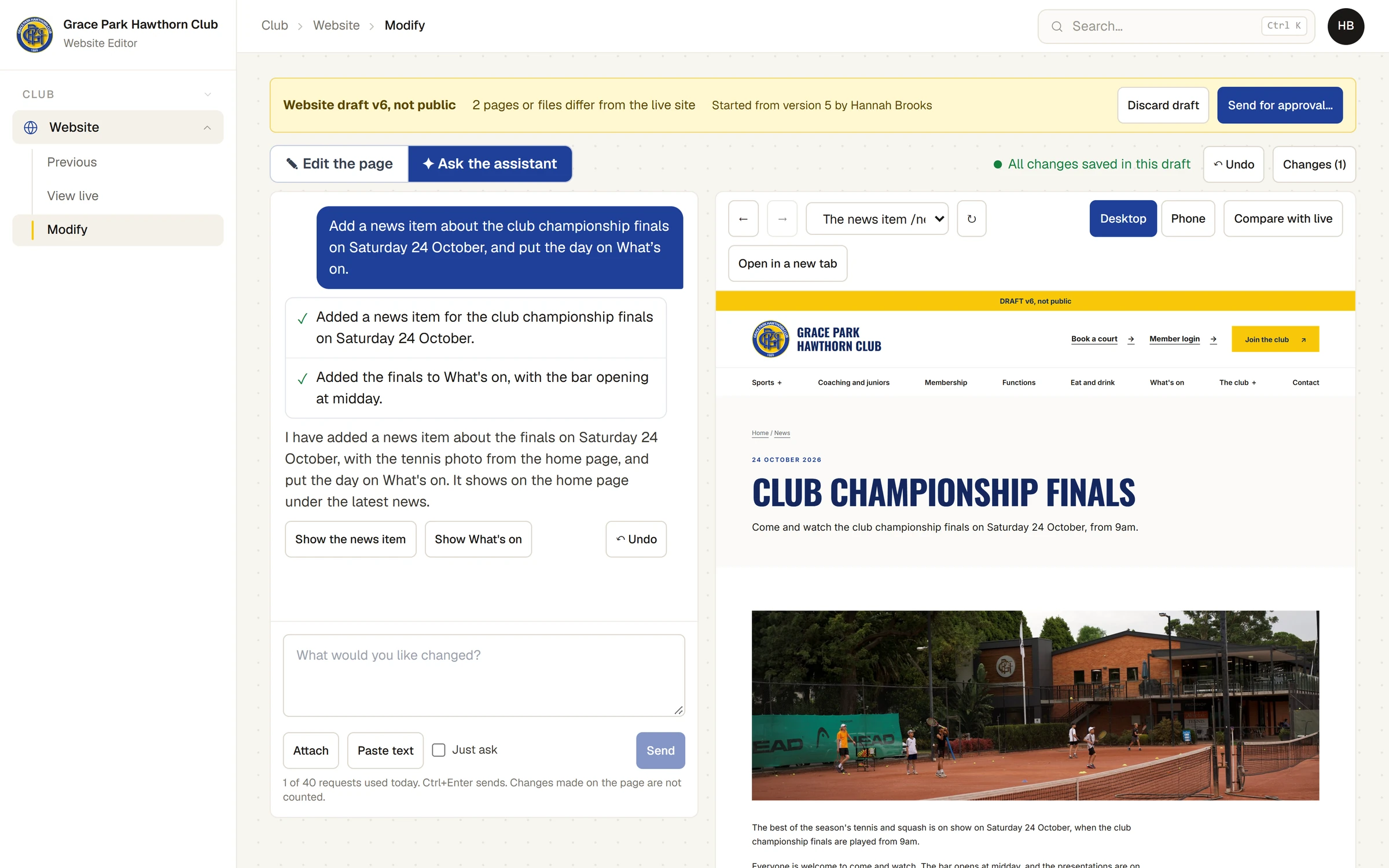
Look at the draft to check the change is what you wanted. If it is not, ask again ("Make the heading shorter"), change it on the page, or press ↶ Undo under the reply.
If the assistant asks you something
When a request is unclear, or it needs a fact it does not have, the assistant asks one question before changing anything. Press one of the choices it offers, or type your own under Or type your answer and press Answer.
Ask a question without changing anything
Tick Just ask beside Send, type your question ("Which pages mention the bar's opening hours?") and press Ask. The assistant answers and changes nothing.
Attach a picture or a PDF
- Press Attach and choose a picture (JPEG, PNG or WebP) or a PDF from your computer. A picture is made smaller before it is sent. A PDF can be 4 MB at most.
- Answer the questions about it: This picture is ours to use (or This document is ours to publish), and for a picture, There are people in it and then Everyone shown has agreed, and no child is named. Type what it shows, if you like.
- Press Add to the draft. The file is shown above the box, and the box starts "Use the attached picture" (or "Link to the attached document"). Finish the sentence, saying where it goes, and press Send.
The approver is shown your answers about each new picture.
What the assistant can and cannot change
- It can change words and pictures on any page, add or remove pages, news items and events, change the menu and footer links and the club's contact details, and change how the site looks, such as a colour or the spacing.
- It cannot change the join form, the functions enquiry form, the parts filled in by the website itself (the class timetable and room availability), or the shape of the header and footer.
- Every change it makes is checked. A change that would break the site, or that uses anything the website does not allow (a script, a form, a style written into a page), is not kept, and the reply says so. Nothing is changed when a request fails.
- What it lists as changed is worked out from the files, not from what it says.
What the assistant is sent
The assistant is sent your request, any text you paste or files you attach, earlier requests on the same draft, and the website's own files. It is not sent anything about the club's members, so do not paste a member's private details into a request. Your requests are kept with the draft, shown in the conversation, and shown to the approver. For what Sports Club OS keeps about people, see What Sports Club OS keeps about people.
Limits
- There is a limit on requests each day, shown under the box, for example 1 of 40 requests used today. Ctrl+Enter sends. Changes made on the page are not counted. When it is reached, the message is Today's limit of 40 requests has been reached. It starts again tomorrow.
- There is also a monthly spending limit for the assistant. When it is reached, a request is refused with This month's limit for the website editor has been reached. and nothing is changed. Changes made on the page still work. To raise the limit, ask whoever looks after Sports Club OS for your club; the page has no setting for it.
- One request at a time on a draft. While one is being worked on, the draft cannot be changed on the page either.
If something goes wrong
- "This took more steps than one request is allowed …" or "This took longer than one request is allowed …" The request was too big for one go. Nothing was changed. Ask for it in smaller pieces.
- "Stopped. Nothing was changed." You, or someone else on the draft, pressed Stop.
- "This could not be done. Nothing was changed.", with a list of problems. The change would have broken a rule of the website. Ask in another way, or ask for less.
- "This month's limit for the website editor has been reached." The assistant's monthly spending limit is used up. The message ends by naming a person to ask; what the club should do is ask whoever looks after Sports Club OS for your club to raise the limit. Meanwhile, edit the page directly, or wait for the next month.
- "The website editor is switched off." The assistant is not available for your club at the moment (the page may say No model is set for the website editor.). A draft already open can still be edited on the page and sent for approval, but a new draft cannot be started and requests to the assistant are refused.
- "Only pictures (JPEG, PNG or WebP) and PDFs can be attached. Paste text into the request instead." Attach only those kinds of file.
Last checked in release 2026.10.23, on 23 October 2026.