
How to
Change your password and turn on two-factor sign-in
Change your password, and turn two-factor sign-in with an authenticator app on or off, on the Password & two-factor page.
Who this is for: Anyone who signs in to Sports Club OS.
Password & two-factor is where you look after your own login: change your password, and turn two-factor sign-in on or off. Everyone who signs in has it, in the account menu under their initials at the top right. The page says which email address you are signed in as.
Change your password
- Press the round badge with your initials at the top right, then Password & two-factor.
- Under Change password, type your Current password.
- Type a New password, and the same again under Repeat new password. It needs at least 10 characters, with upper case, lower case and a number.
- Press Update password. A message says Password updated, and the boxes are cleared.
If the two new passwords are not the same, a message says The two new passwords don't match. and nothing is changed.
If you have forgotten your current password, sign out and use Forgot password? on the sign-in page. See Sign in, and reset a forgotten password.
Turn on two-factor sign-in
Two-factor sign-in is an optional second step: after your password, you type a 6-digit code from an authenticator app on your phone, such as Google Authenticator, Microsoft Authenticator, Authy or 1Password. Someone who learns your password still cannot sign in without your phone.
- Install an authenticator app on your phone, if you have none.
- Under Two-factor authentication, the badge says Off. Press Set up an authenticator app.
- A square code appears, with 1. Scan this code in your authenticator app. Scan it with the app. If you cannot scan it, type the key shown under Can't scan it? Enter this key by hand: into the app instead.
- Under 2. Enter the 6-digit code it shows, type the code the app now shows for the club.
- Press Turn on. A message says Two-factor authentication is on, and the badge says On.
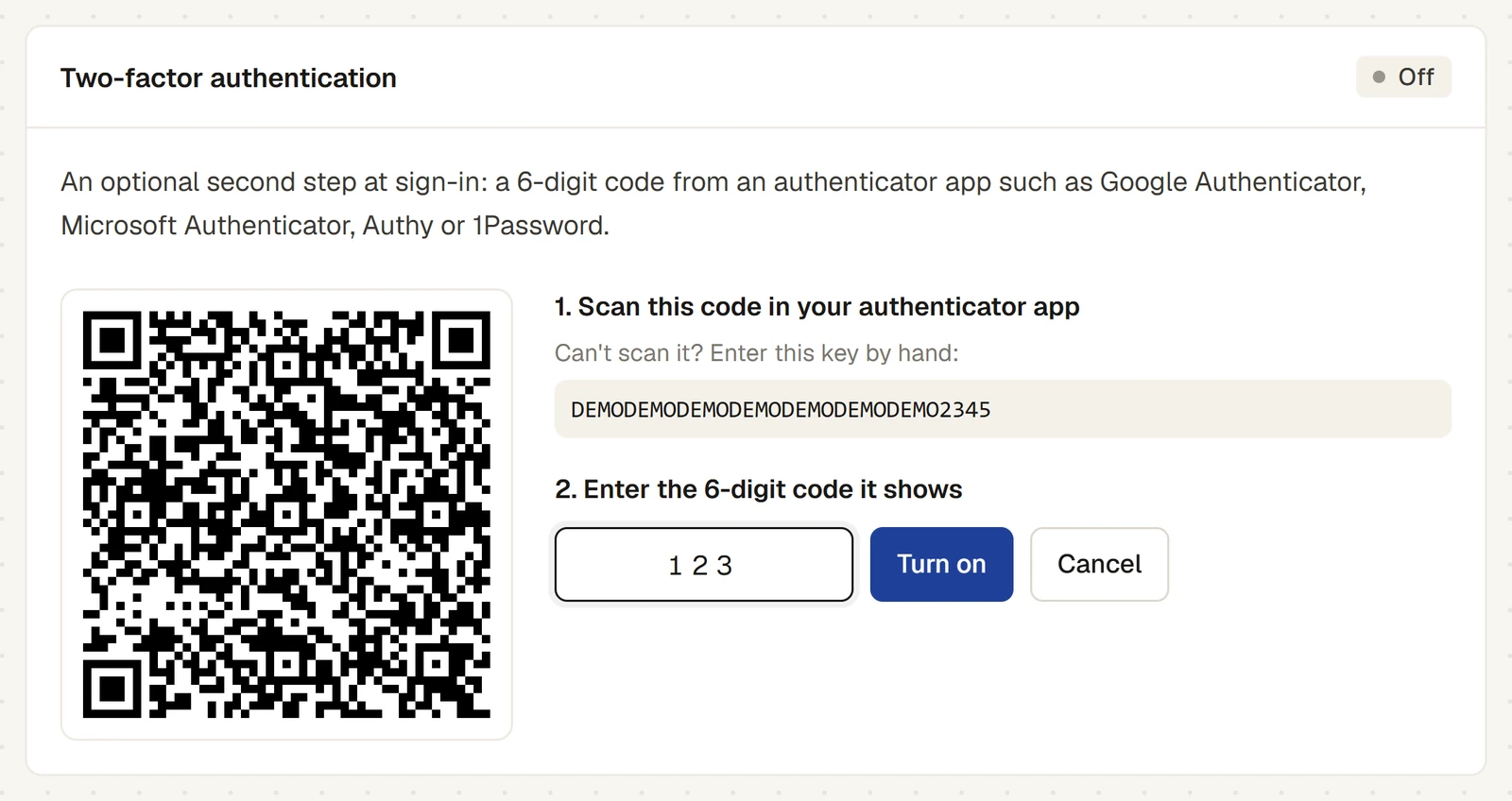
From then on, after your password the sign-in page asks for a Two-factor code. The code changes every 30 seconds, so type the one showing at the time.
Two-factor sign-in applies to your login only, on every device you use. If you press Cancel before Turn on, nothing changes.
Turn it off
- Under Two-factor authentication, the page says You'll be asked for a code each time you sign in. Press Turn off.
- Sports Club OS asks Turn off two-factor authentication for your login? Confirm it.
A message says Two-factor authentication is off.
A new phone
Before you change phones, move the club's entry to the new phone using your authenticator app's own transfer, or turn two-factor sign-in off and on again with the new phone. If you have lost the phone and cannot sign in, contact the club's administrator. See I can't sign in.
For anyone who can: “Use the till”
Your till PIN
If you use the club's till, this page also has a Till PIN card. On a till set up for PIN sign-in, you switch in with this number instead of signing in, and what you sell is recorded against your name. Set it, change it or remove it here: type it under PIN and again under The same again, then press Set PIN (or Change PIN). A PIN is 4 to 6 digits, or 6 digits if you can approve overrides or change the till's products and settings. See Till PINs and switching between staff.
Last checked in release 2026.10.23, on 23 October 2026.