
Setting up
Set up courts, tables and booking rules
Add each sport with its hours and booking grid, every court and table, and the rules for members booking online: how far ahead, how long, guests and peak times.
Who this is for: Anyone with “Club settings” (by default: Administrator).
Bookings need three things set up: each sport, with the hours it can be booked and the grid the calendar uses; every court or table, each belonging to one sport; and the rules for members booking online. All three are on . What every setting does is in Booking rules, sports and courts; this article is the order to set them up in.
Before you start
- You need to be able to change the club's settings. The Administrator can by default.
- List each sport, the hours it opens and closes, and how long a usual booking is.
- List every court and table by the name members know it by, in the order you want them shown.
- Decide the online rules: how far ahead members can book, the longest booking, any weekly limit, guest fees, and when peak time is.
Add the sports
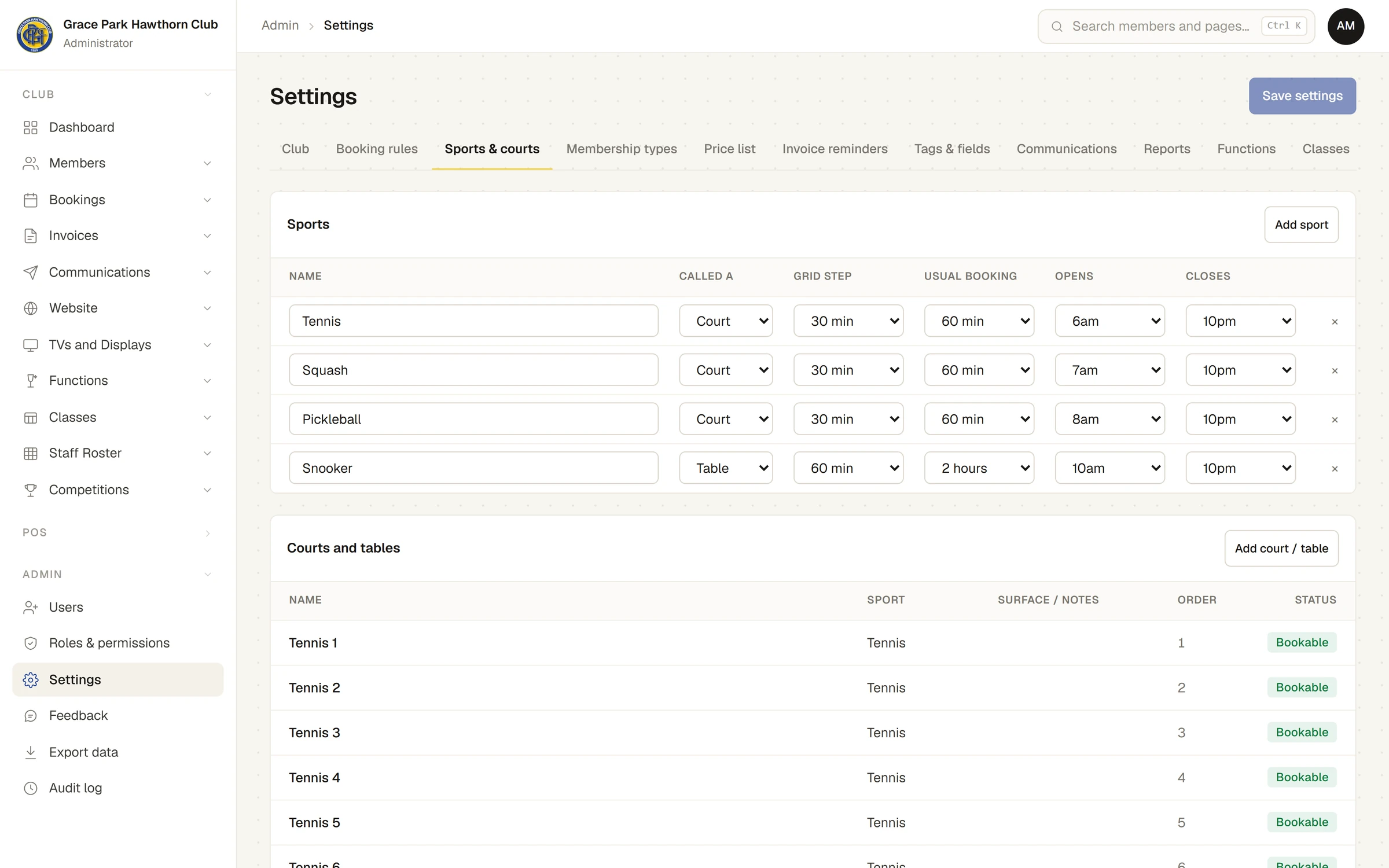
- Open and press the Sports & courts tab.
- Press Add sport. Your browser asks for the name of the sport; type it and press OK. A new row starts as a Court, on a 60-minute grid, with 60-minute bookings, open 7am to 10pm.
- In the sport's row, set:
- Called a: Court, Table, Lane or Room.
- Grid step: how far apart the times on the office calendar are, 30, 45, 60 or 90 minutes.
- Usual booking: how long a booking made on the office's calendar is to begin with, from 30 minutes to 2 hours.
- Opens and Closes: the hours the calendar shows and bookings can be made in.
- Press Save settings at the top right. A message says Settings saved.
To remove a sport, press × at the end of its row and then Save settings. A sport that still has courts is refused, with, for example, Move or delete the Squash courts first.
Add the courts and tables
- Under Courts and tables on the same tab, press Add court / table. The New court / table panel opens.
- Type the Name, such as "Squash 5", choose its Sport, and set its Display order (its place in the list and on the calendar).
- Type anything worth knowing under Surface / notes, such as "Synthetic grass".
- Leave Bookable (untick it to hide it from the calendar) ticked.
- Press Save. A message says Saved, and the court is in the list as Bookable.
Press a court in the list to change it. Untick Bookable to take a court out of use for good; it shows as Hidden, and its past bookings are kept. For a court closed for a while (resurfacing, an event), use a closure instead: see Close courts for an event or repairs.
Set the rules for online booking
These rules apply to members booking for themselves. The office can book outside them.
- Press the Booking rules tab.
- Under Rules for bookings members make online, set:
- Bookings open this many days ahead: 7 to start with.
- Longest booking (minutes): 90 to start with.
- Bookings per member per week: 0 (no limit) to start with. A membership type can set its own.
- Online cancellation cut-off (hours before start): 2 to start with. Closer to the start than this, a member cannot cancel online. It does not stop them moving the booking.
- Adult guest fee and Junior guest fee: $20 and $5 to start with, charged for each guest named on a booking. See Guests and guest fees.
- Under Peak times, press the days that have a peak (Monday to Friday to start with; a tick shows on each), and set Peak from and Peak to (5pm to 8pm to start with). Members on a membership type marked off-peak only cannot book online in those times.
- Press Save settings. A message says Settings saved.
Check it worked
- Open . Each sport should show its courts or tables, in order, between its opening and closing times, on its grid.
- Ask a member (or a member's login you can use) to try booking further ahead than the rule allows: they should be told it opens later.
Next
Set up membership types and fees, where each type can include only some sports, set its own weekly limit, or be off-peak only.
Last checked in release 2026.10.23, on 23 October 2026.