
How it works
The public What's on page and the foyer screen
The classes timetable anyone can read with no sign-in, how a visitor asks for a place and confirms it by email, and the foyer screen of today's classes.
Who this is for: Anyone: no sign-in needed.
The public What's on page shows the club's classes to anyone, with no sign-in: what is on, when, who runs it, what it costs and who can come. A visitor can ask for a place. Members are sent to sign in and book in Sports Club OS. The foyer screen shows today's classes on a TV.
The office opens both from the links above the office timetable: The public page and Foyer screen. Members find The public page beside their own Classes tabs.
What the public page shows
- The kinds of class, as photographs, with how many sessions each has this week. Pressing one shows only those.
- An introductory offer where a class has one, for example New to pickleball? Your first session is free., with See the sessions.
- The timetable a day at a time, with All day, Morning, Afternoon and Evening, and the week's days. Each row has the time, the class, the coach, the place, who runs it, how many places are left, and its button.
- Each class has a page of its own, opened from its row, with About, the level, what to bring, where, the coach, Booking and cancelling, the coming dates and Share this class. The link opens that class's page, with no sign-in, so it can be sent to anyone.
Only classes set to be seen by Everyone, and the public page appear. Classes for members only, or hidden ones, do not. The page names nobody but the coaches, and says how many places are left, never who is booked.
Prices are shown as the club lists them. Where a business runs a class, its name is on it.
The buttons on the public page
| Button | When |
|---|---|
| Ask for a place | A class open to members and visitors |
| Sign in to book | A class open to members only |
| Sign in to enrol | A term group, course or camp |
| Sign in to join the waitlist | A full class with a waitlist |
Members: sign in, at the top, opens Sports Club OS.
A visitor asks for a place
- The visitor presses Ask for a place on the session.
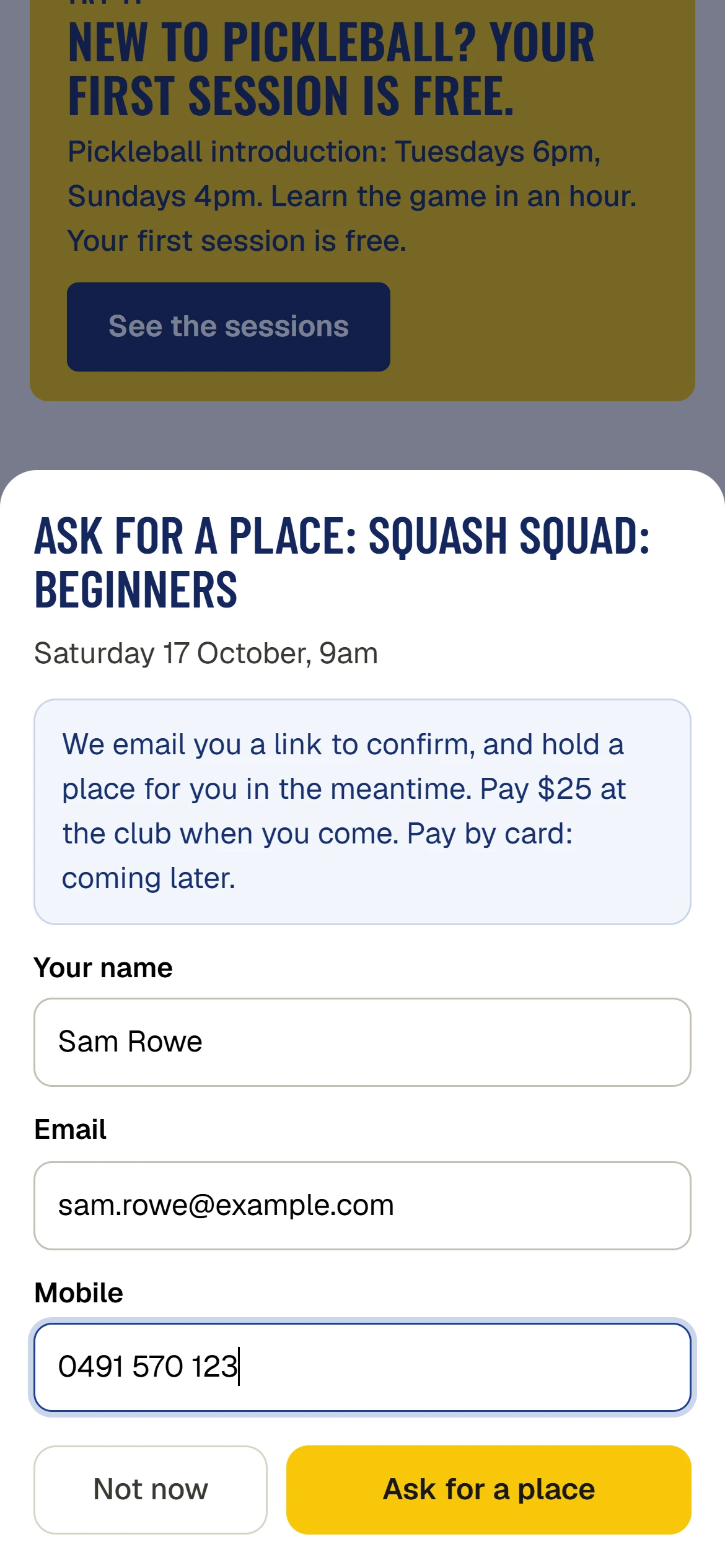
- The sheet says what to expect, for example We email you a link to confirm, and hold a place for you in the meantime. Pay $25 at the club when you come. Pay by card: coming later. For a first session that is free, it says so.
- They type Your name, Email and Mobile, and press Ask for a place.
- The sheet says Check your email, for example We have sent an email to sam.rowe@example.com. Press the link in it by 11am and the place is yours. The place is held in the meantime.
- The link in the email opens the public page with Confirm your place and Confirm my place. Once pressed, it says You are on the list.
If the link is not pressed in time, the place is released and the visitor is told. Pressed too late, the page says That place has gone. The visitor pays at the club when they come, and the coach sees not paid on the roll until they do.
A visitor is not added to the member list. Their name, email address and mobile are kept for classes only.
The club's website
If your club's website is kept in Sports Club OS, its What's on page and each sport's page show the same classes in the website's own look, and a visitor can ask for a place there in the same way.
The foyer screen
The foyer screen shows today's classes in large type, for a TV in the foyer:
- On now: each session under way, with the place and the coach.
- The next sessions today, each with its time, length, place and coach, and 4 places left, Full, Term group or the reason it is cancelled. When few are left today, it adds Tomorrow.
- Every twenty seconds it turns to one class as a poster, then back.
- At the foot, how to book: in Sports Club OS or at the office.
It names no member, and it keeps itself up to date, so a session cancelled on a phone shows as cancelled on the TV.
To put it on one of the club's TVs, choose Classes today as what the screen shows on . See Set up a TV and choose what it shows.
Last checked in release 2026.10.23, on 23 October 2026.