
How to
Record a payment
Record money received against an invoice, in full or in part. A paid renewal moves the member's expiry, and the payment joins the club's income.
Who this is for: Anyone with “Raise invoices and record payments” or “See all invoices and payments” (by default: Administrator, Head Coach, Casual Staff, Reporting, Treasurer).
When money for an invoice reaches the club, record it on the invoice. The invoice's balance goes down, and once the payments add up to its total it is Paid. Each payment is also the club's income from then on: it is counted in the reports, on the BAS worksheet and in the export to the accounts.
Before you start
- You need to be able to record payments. The Administrator, Head Coach, Casual Staff and Treasurer roles can by default.
- Have the amount, the day it was paid, how it was paid and any reference (for example the words on the bank statement).
Record the payment
- Open , or .
- Find the invoice. Type its number or the person's name in the search box.
- Open it:
- On Invoices, press the row (not the arrow at its start) to open its side panel. Or open the row out with the arrow and press Record payment.
- On Unpaid invoices, press the row. The invoice opens on the Invoices page.
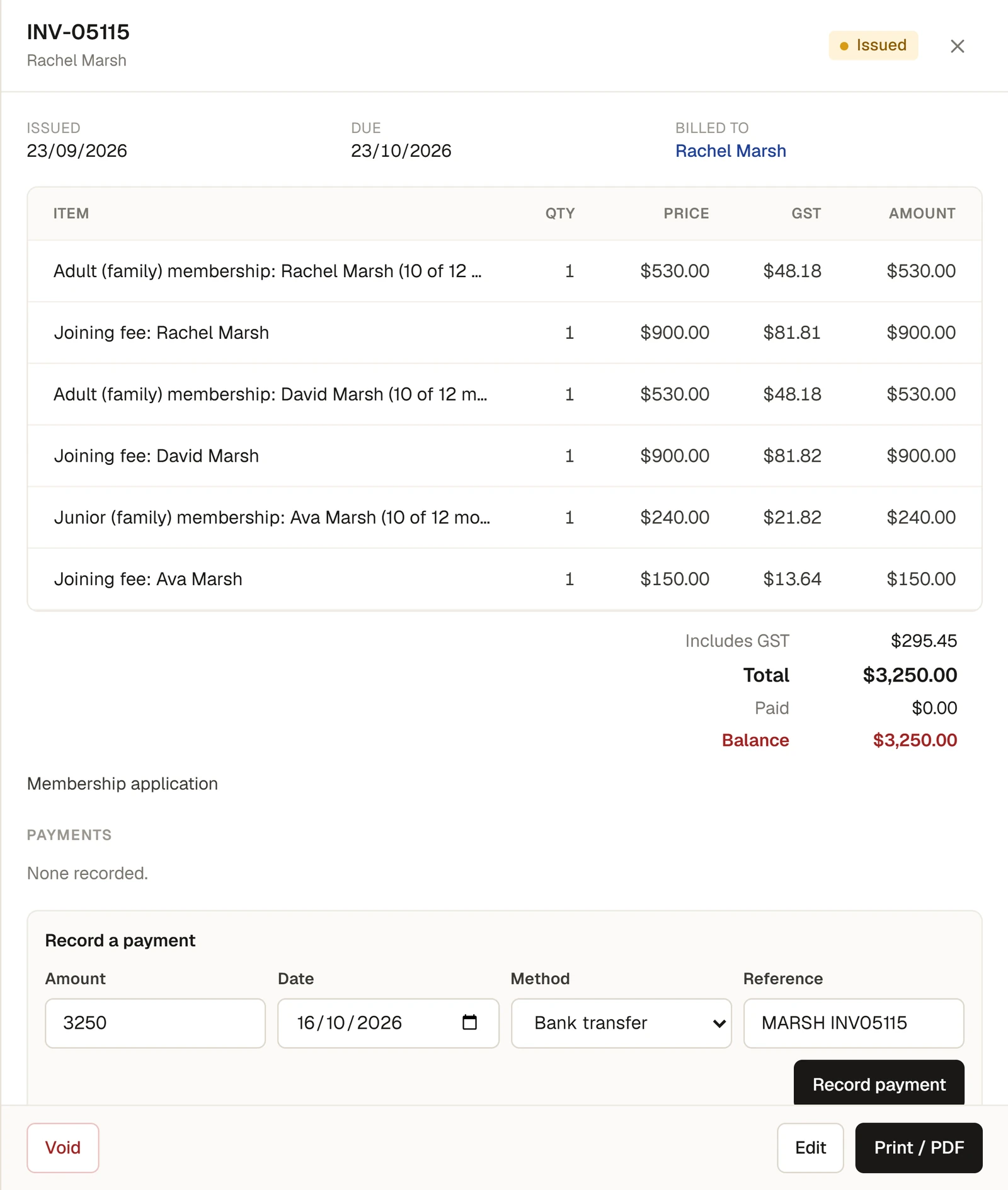
- Under Record a payment, check the Amount. It starts as the balance still owing. Change it for a part payment.
- Check the Date. It starts as today. Change it to the day the money was paid if that was earlier.
- Choose the Method: Bank transfer, EFTPOS, Card, Cash or Cheque.
- Type a Reference if there is one.
- Press Record payment.
A message says Payment recorded. The payment is listed under Payments, and Paid and Balance change. If the payments now add up to the total, the invoice is Paid, and it is headed Tax invoice / Receipt when printed.
What happens next
- A renewal invoice paid in full moves the member's expiry to the new date and makes them Active. A second message says, for example, Membership renewed to 31/07/2027. See Raise renewal invoices.
- A monthly membership invoice paid gives each person on it access to the end of the months paid, plus the club's days of grace.
- The money is income. Each payment is shared across the invoice's line categories, with its share of the invoice's GST. A fully paid invoice's payments add up to its GST exactly. See How GST is worked out, and how prices are entered.
- The treasurer matches it to the bank. A payment recorded here waits on Bank reconciliation until it is matched to the bank statement. See Match and explain bank lines.
- Money that reached the bank before it was recorded. Bank reconciliation never records a payment. If a bank line has no recorded payment to match, it says Record the payment first: record it here on the invoice, then match it there.
Things to know
- A part payment leaves the invoice Issued (or Overdue after its due date) with the rest as its balance. Record each payment as it comes.
- A payment cannot be taken back off an invoice once it is recorded, and an invoice with a payment on it can no longer be changed or voided. Check the amount before you press Record payment.
- The date matters. A payment dated in a GST period already marked lodged changes that period's figures, and the next BAS worksheet lists the difference. A payment dated in a period the bank account is reconciled to is marked as recorded after that period was reconciled.
- A function's invoice can also be marked paid on the function, and a class invoice on Classes. Both record the payment in the same way.
If something goes wrong
- "Enter a payment amount." The amount is empty or nought.
- "This invoice has been voided." A voided invoice takes no payments.
- "Someone else recorded a payment on this invoice at the same moment. Please reload it and check before trying again." Two people recorded a payment on the same invoice at once. Only one was kept. Reload the page and look at Payments before recording it again.
- There is no Record a payment form. The invoice is paid in full or voided.
Last checked in release 2026.10.23, on 23 October 2026.