
How to
A function welcome slide
Welcome a function's guests on the club's TVs on its day - its name, occasion, rooms, date, times and a line of welcome - and what a TV shows and never shows.
Who this is for: Anyone with “Make and change displays” (by default: Administrator, Head Coach, Casual Staff, Sports Convener, Functions).
A Function welcome slide greets a function's guests on the club's TVs: the name on the screen, the kind of occasion, the rooms, the date, the times and a line of welcome. It fills itself in from the function, and shows on a TV only on the function's day.
Before you start
- You need to be able to make and change displays. The Administrator, Head Coach, Casual Staff, Functions and Sports Convener roles can by default.
- The function must be switched on for the club's screens. Functions are off the screens until whoever runs functions switches one on, so no function is named on a TV by accident.
The quickest way: from the function
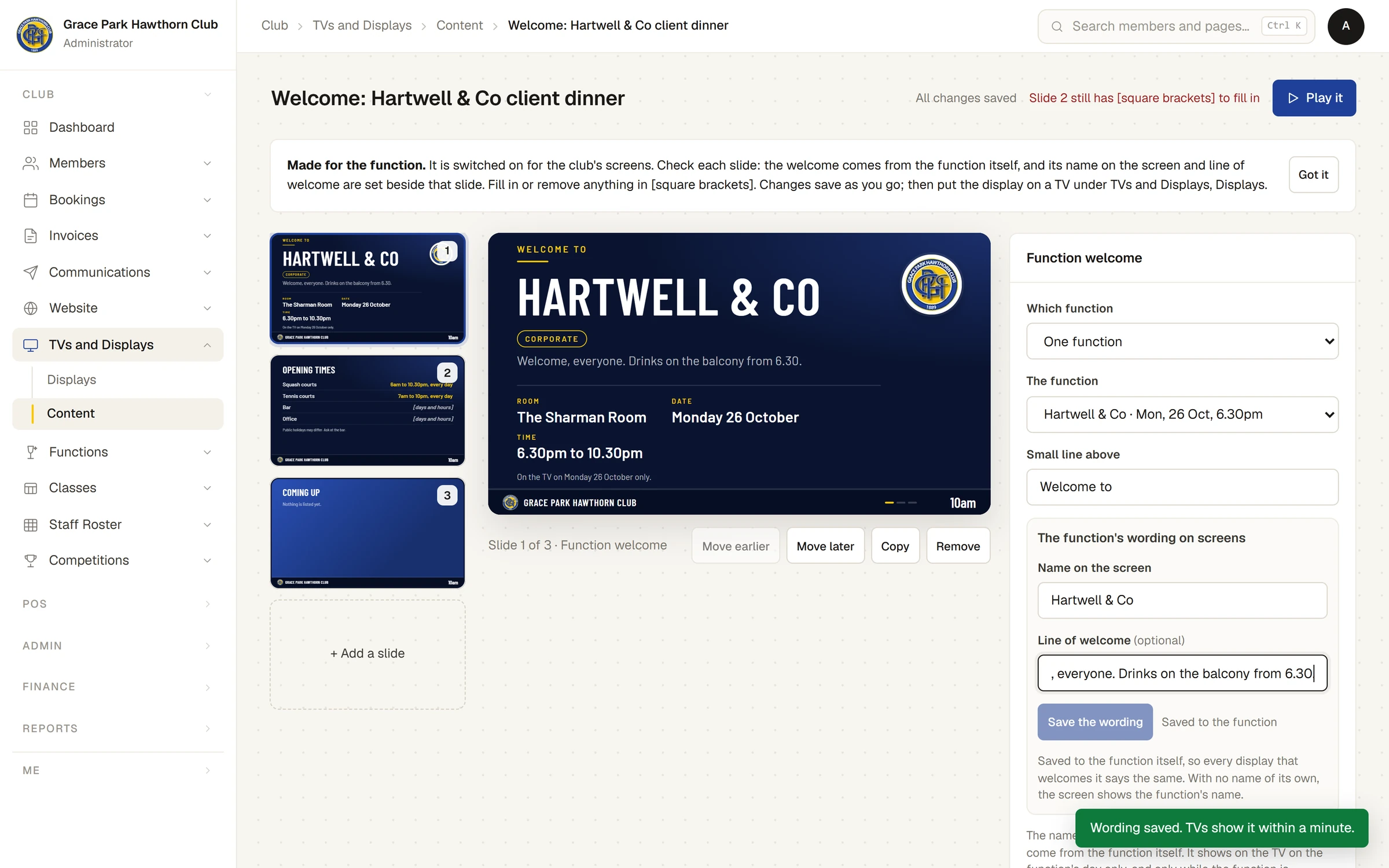
On the function's page in Functions, the Club screens card has Create screen for this event, for someone who can both run functions and make displays. Pressing it switches the function on for the club's screens, makes a display named "Welcome: " and the function's name from the ready-made Function welcome, and opens it in the display editor. A note at the top says Made for the function. and what to check; press Got it to put it away. The steps on the function's side are in Welcome a function on the club's TVs.
Then fill in or remove anything in square brackets (the ready-made display's opening times, for example), set the wording (below), and put the display on a TV under .
Add a welcome slide to any display
- Open the display in the editor (, then Edit).
- Press + Add a slide, then Function welcome.
- Under Which function, choose:
- One function, then the function under The function. The list holds only functions on the club's screens, each with its date and start time.
- Every function on the screens that day, in turn. On a day with several functions, each gets a slide of its own as the display plays. The ready-made Tonight's functions is made this way.
- Change Small line above if you like. It starts as "Welcome to".
If The function list says No function is on the club's screens yet. On a function's page, under Club screens, press "Create screen for this event"., no function has been switched on.
Set the wording
The name on the screen and the line of welcome belong to the function, not the display. Every display that welcomes the function says the same.
For anyone who can: “Run functions”
If you also run functions, the slide for one function has The function's wording on screens beside it:
- Type a Name on the screen, such as "Hartwell & Co". With none, the screen shows the function's own name.
- Type a Line of welcome, if you like, such as "Welcome, everyone. Drinks on the balcony from 6.30."
- Press Save the wording. A message says Wording saved. TVs show it within a minute. Beside the button it says Saved to the function, or Not saved yet while there are changes to save.
Anyone else sees the wording as it is, and This wording is the function's own. Someone who runs functions can change it here.
What the TV shows, and when
- The function's name on the screen, its kind of occasion, its rooms, date and times, and its line of welcome.
- Only on the function's day, and only while the function is confirmed (or completed) and switched on for the club's screens. On any other day, the TV passes over the slide.
- Never a price, the hirer, guest numbers or dietary notes.
In the editor, the slide is shown as it will look on the day, with On the TV on Monday 26 October only. under it. Anything the function does not have yet, such as a line of welcome, is drawn as a faint [placeholder] in the editor only. If you can see functions, a function switched on but not confirmed yet is also offered, marked "(not confirmed yet)"; it does not show on a TV until it is confirmed.
The editor tells you when the slide would not show:
- That function is not on the club's screens just now (not switched on, not confirmed yet, or no longer on), so this slide is passed over.
- That function's day has passed, so this slide is passed over.
- Choose a function that is switched on for the club's screens.
Take a function off the screens
On the function's page, Club screens has Stop showing on screens. The welcome slides for it are then passed over on every TV. Its displays are kept, so Show on screens again brings it back. See Welcome a function on the club's TVs.
Last checked in release 2026.10.23, on 23 October 2026.