
Setting up
Set up the price list
List everything an invoice can charge for besides a membership type's fees, with its price, GST code and the income it counts as in the reports.
Who this is for: Anyone with “Club settings” (by default: Administrator).
The price list holds the things an invoice can charge for: court hire for the public, locker hire, a restring, a joining fee charged on its own. When the office raises an invoice, it picks lines from here, so the price, the GST and where the money counts in the reports are the same every time.
Before you start
- You need to be able to change the club's settings. The Administrator can by default.
- Decide first whether prices are typed including or excluding GST: see Set up GST codes, price entry and your accounts. The price box follows that choice, and its label says (inc GST) or (ex GST). The list itself always shows prices including GST.
- List the club's charges. You do not need one for a membership type's own fees: renewals and joining invoices take those from the type.
What the price list is not
- The till has its own products: drinks, food, the pro shop, court time sold at the bar. See Set up the till: products, licensed hours, tills, PINs and printers.
- Functions and classes have their own items and prices, on their own tabs.
- Guest fees on bookings come from the Booking rules tab, not from here. A guest fee item on the price list is only for putting a guest fee on an invoice by hand.
Add an item
- Open and press the Price list tab.
- Press Add item. The New price list item panel opens.
- Type the Item: the words that go on the invoice line, such as "Locker hire (annual)".
- Choose its Category: Membership, Court hire, Coaching or Other. The list is grouped by it.
- Type the Price.
- Leave Counts in the income figures as at As its category says unless the item belongs elsewhere in the reports. For example, a joining fee in the Membership category should count as Joining fees.
- Leave GST at Taxable (10% GST) unless the club's accountant says otherwise.
- Press Save. A message says Saved.
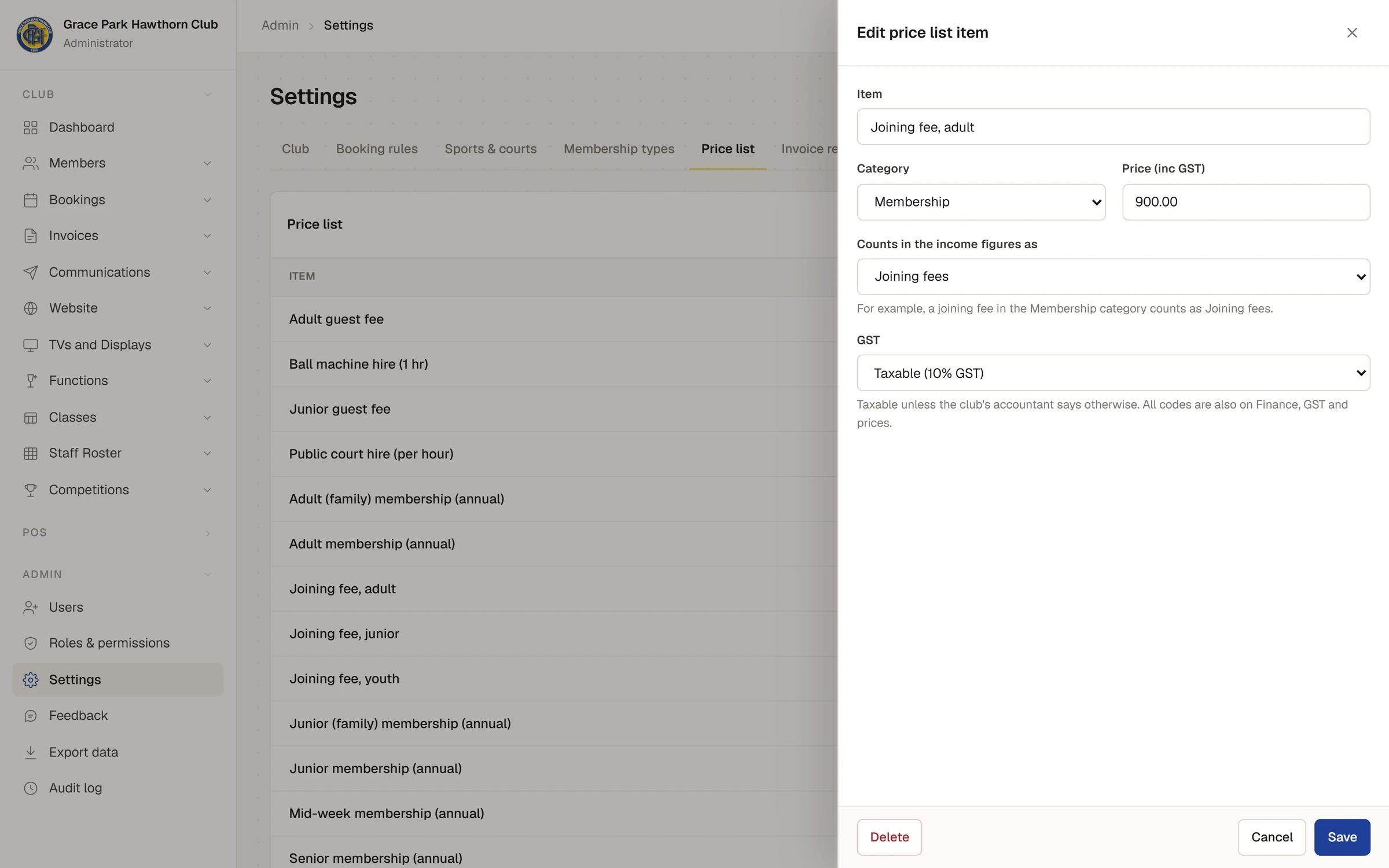
The list shows each item's category, its price including GST, and its GST (10%, or the code if it is not taxable).
Change or remove an item
Press an item, change it, and press Save. A new price is used on invoices raised from then on; invoices already raised keep their amounts. Delete removes the item after you confirm. Invoices that used it keep their lines.
Why "Counts in the income figures as" matters
Every invoice line counts towards one kind of income, and a line from the price list takes its item's choice. The reports, the Dashboard and the Finance pages all add income up this way, so a wrong choice puts money in the wrong place. The kinds, and how a line gets its category and its GST code, are in Invoice line categories and GST codes, and why they matter.
Check it worked
On , press New invoice and open Add from price list…: each item is there with its price. Close the panel without saving if you do not mean to raise one.
Next
Last checked in release 2026.10.23, on 23 October 2026.