
How to
Send a draft for approval
Send a finished website draft to the approver with a note. Sports Club OS checks it first, and locks the draft until it is approved or sent back.
Who this is for: Anyone with “Change the website” (by default: Administrator, Website Editor).
When a draft is ready, you send it for approval. Sports Club OS checks it, keeps a frozen copy of exactly what you sent, and emails the approver. Nothing is public until the approver publishes it.
Before you start
- You need to be able to change the website. The Website Editor and Administrator roles can by default.
- Look over the draft first, on a computer and with Phone. Everything you have changed is already saved.
Send it
- Open the draft: .
- Press Send for approval… in the bar at the top. Send this draft for approval opens.
- Under A note for the approver (optional), say what the draft is for and anything they should check, for example "The finals news item, for this weekend."
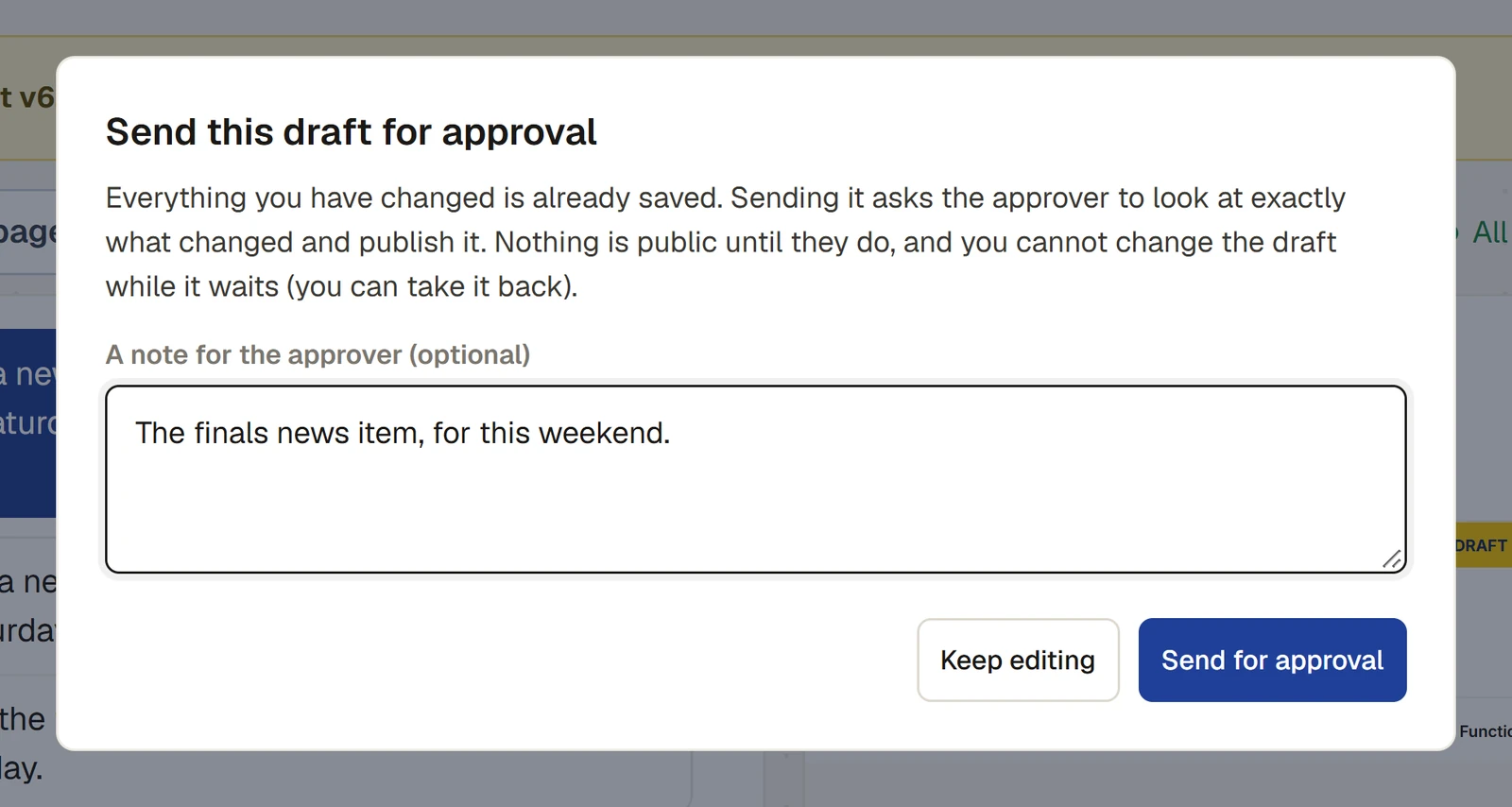
- Press Send for approval. It says Checking and sending… while Sports Club OS checks the draft and copies it.
- If nothing stops it, a message says Sent for approval. The approver has been emailed.
If the draft cannot be sent, the box says This draft cannot be sent yet. Put these right first: with a list of what to fix. See Why can't I send the draft for approval?. Press Keep editing, fix them, and send it again.
While it waits
- The bar says Waiting for approval, and under it: Sent for approval by Hannah Brooks, … The draft cannot be changed while it waits. The approver has been emailed and will publish it or send it back with a note. Nothing is public until then.
- Nobody can change the draft, on the page or through the assistant.
- To change something, press Take it back to change it. A message says Taken back. You can change the draft again. The frozen copy is thrown away; send it again when you are ready.
What the approver sees
The approver sees what changed, worked out by comparing the files with the live website, not from anyone's description. They also see your note, everything asked of the assistant and what it said it did, a grade (Small, Routine or Look closely) with the reasons, and a list of things to check, such as new dates, times, amounts, phone numbers, links to other websites and new pictures. See Approve a draft or send it back.
After the approver decides
- Approved: you are emailed that the website is live. The draft becomes the next version (draft v6 becomes version 6) and reaches every visitor in about half a minute. The draft is closed; start a new one for the next change.
- Sent back: you are emailed the approver's note, and the draft opens again with the note above it: Sent back by …: and the note, then Make the changes, then send it for approval again.
If something goes wrong
- "The live website has changed since this draft was started …" Another version was made live after you started, so this draft cannot be sent. Start a new draft and make the changes again.
- "A request is still being worked on. Wait for it to finish, then send." The assistant is still working. Wait for it to finish, or press Stop.
Every message that can stop a draft being sent, with what to do about each, is in Why can't I send the draft for approval?.
Last checked in release 2026.10.23, on 23 October 2026.