
How to
Approve a draft or send it back
As the club's website approver, read exactly what a draft changes, then publish it as the next version or send it back with a note.
Who this is for: Anyone with “Approve and publish the website”.
A draft sent for approval waits on Review the website until an approver looks at it. The page shows exactly what changed, so you can approve it knowing what will go live, or send it back with a note.
Who can approve
Approvers are not a role the club gives on Roles & permissions. They are the few logins named when Sports Club OS is set up for the club, and the Administrator is not one unless named. Ask whoever looks after Sports Club OS for your club to add or remove an approver.
To approve, you must also:
- have two-factor sign-in turned on, under Password & two-factor in your account menu (the page's own link to it says Password & 2FA). Without it the page says Two-factor sign-in must be on for your login before you can approve.
- be signed in as yourself. Approving is refused while using Sports Club OS as someone else.
Anyone else who opens the page sees This is waiting for the approver. Only a login named as an approver when Sports Club OS was set up can publish the website.
Open the draft
You are emailed when a draft is sent, with a Review the draft button. You can also open it from : Waiting for your approval lists it with its grade, and Review opens it. Opened with no draft chosen, Review the website lists everything Sent for approval, with each one's state.
Read what changed
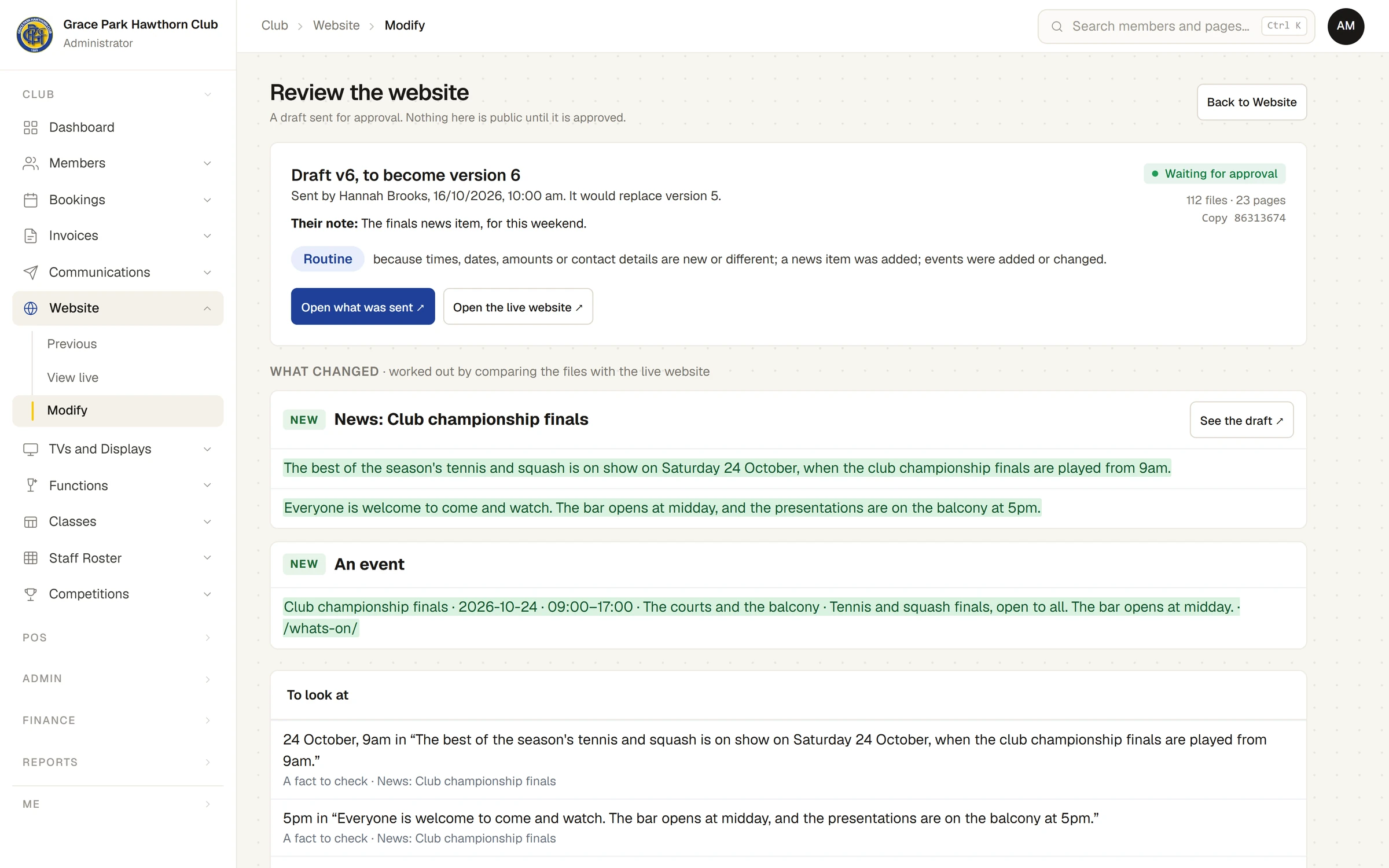
From the top:
- Draft v6, to become version 6: who sent it and when, which version it would replace, and Their note.
- The grade and why:
- Small: only words on pages that already exist were changed.
- Routine: for example, times, dates, amounts or contact details are new or different, a news item was added, events or pictures were changed.
- Look closely: for example, a page was added or removed, the menu changed, how the site looks was changed, there are new links to other websites, or a new picture has people in it.
- Open what was sent opens the frozen copy, exactly as it will be published, in a new tab. Open the live website opens what the public sees now.
- What changed, worked out by comparing the files with the live website. Each page, news item or event changed is a card marked New page, New, Changed or Removed, with the words taken out and put in, pictures before and after, and See the draft and See live for that page.
- To look at: each new fact in its sentence (a time, date, amount, phone number, email address or number), links to other websites, new pictures with the sender's answers about them (ours to use; people in it, everyone agreed), changes to the menu, and a change to the stylesheet, which can show on every page.
- What was asked for and done in this draft: each request in the person's own words, and what the assistant said it did. The list above it is what actually changed.
Approve it
- For a draft graded Look closely, tick each item under To look at (or Tick all once you have read them). Approve and publish stays greyed until you have, with Tick each item under "To look at" first.
- Press Approve and publish. It asks Make this the public website now, as version 6?
- Press Yes, publish it. Sports Club OS checks every file against what was sent, then publishes. A message says Published. It reaches every visitor in about half a minute.
The person who sent it is emailed that the website is live. The version it replaced is kept and can be made live again: see Versions, and making an earlier one live again.
Send it back
- Press Send back….
- Under What needs changing? This goes to the person who sent it., type what to change. A note is needed.
- Press Send it back. A message says Sent back with your note.
The sender is emailed your note, and the draft opens again for them to change and send once more.
If something goes wrong
- "The live website is now version 7, not the version this draft was made from, so it cannot be published. Send it back." Another version went live after the draft was started. Send it back; the sender starts a new draft.
- "This is not the version you were shown. Load the page again and look at it once more." The draft was taken back and sent again while you had the page open.
- "… file has changed since this was sent for approval, so it was not published." or "What is stored is not what was sent for approval, so it was not published." The frozen copy no longer matches what was sent, so nothing was published. Send it back, and the sender sends it again.
Last checked in release 2026.10.23, on 23 October 2026.