
How to
Products, prices, happy hours and stock
Add and change what the till sells, with members' prices, sizes and add-ons, set happy hours, count stock, and import products from a spreadsheet.
Who this is for: Anyone with “Run the till” (by default: Administrator, Bar Manager).
Products is everything the till sells: drinks and food, the pro shop, court and table time, hire, lockers, guest fees, restringing and prepaid credit. Each group is a row of buttons on the till, in the order shown on the page. Prices changed here are on the till at once.
Before you start
- Products are for the bar manager by default. The Bar Manager role can change them; your club can give this to others on Roles & permissions.
Find a product
Open . The figures at the top show what is On sale, what is Running low (press it to list them), what has None left, and the Stock at cost. Search by name, button text or barcode, or narrow the list with Filters: on sale or not, group, what it is, what it counts as in the income, stock and other features.
Add or change a product
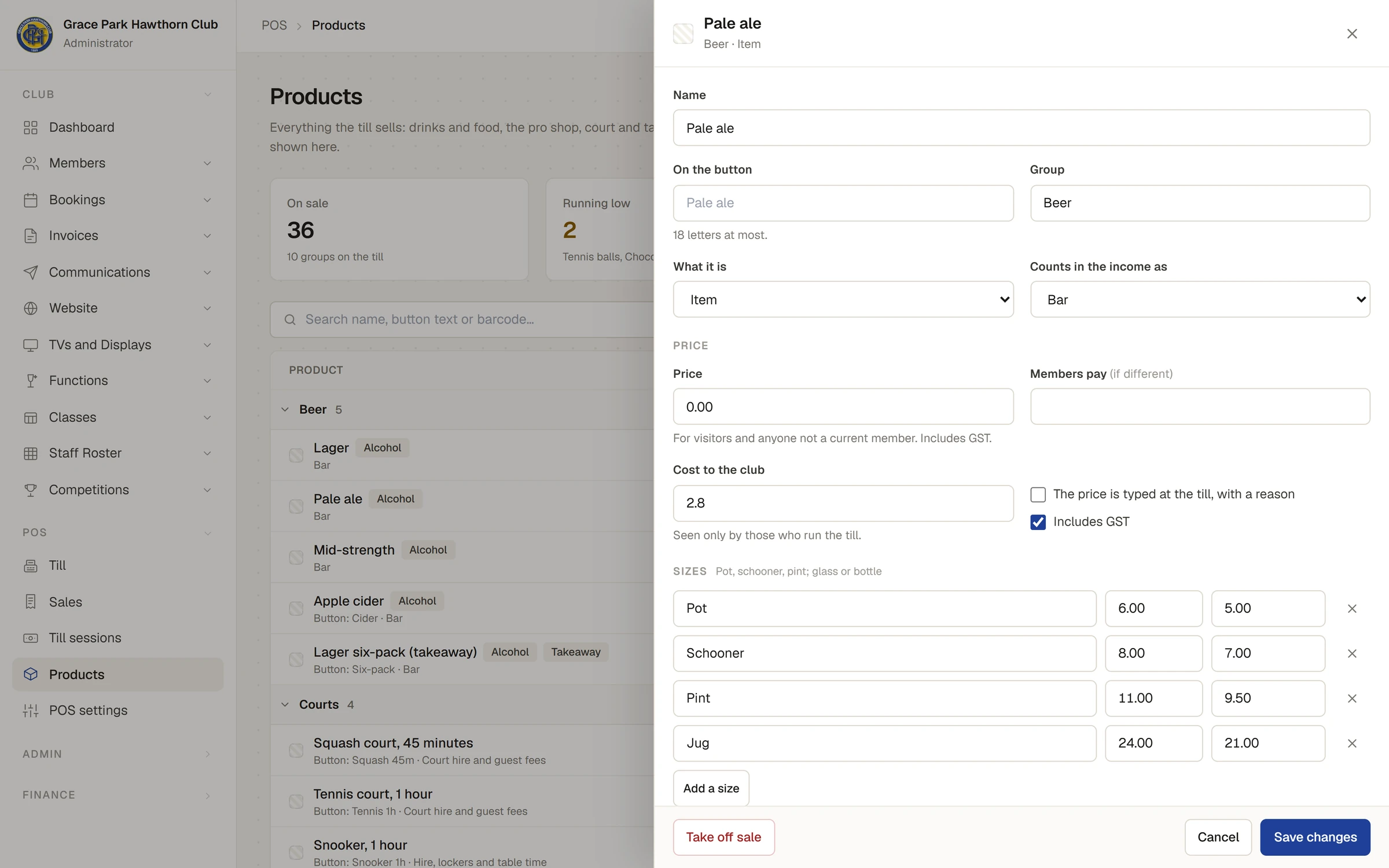
- Press New product, or press a product in the list. A side panel opens.
- Fill in:
- Name, and On the button (18 letters at most; the name is used if you leave it empty).
- Group: the row of buttons it goes in, such as Beer, Wine or Shop.
- What it is: Item, Court time, Table time, Guest fees, Equipment hire, Locker, Prepaid credit or Restringing. Court and table time also ask for the Sport and Length sold (minutes); hire asks How many the club has and Due back after (minutes).
- Counts in the income as: Bar, Food, Pro shop and merchandise, Hire, lockers and table time, Court hire and guest fees or Other. This is how the club's income reports split the sale.
- Under Price:
- Price is for visitors and anyone not a current member.
- Members pay (if different) is the members' price. Leave it empty for one price for everyone.
- Cost to the club shows the margin. It is not shown on the till.
- Tick The price is typed at the till, with a reason for a one-off item, such as a shop sundry.
- Includes GST is ticked for a product that carries GST. Untick it for one that is GST-free.
- Under Sizes, press Add a size for each size (pot, schooner, pint; glass or bottle), each with its price and members' price. With sizes, the till asks which one, and the price above is not used.
- Under Add-ons, press Add an add-on for extras such as a mixer or a double shot, each with its price.
- Under Rules, tick Alcohol and, for something to take away, Takeaway. See Licensed hours, age and ID checks.
- Under On the till, choose a Button colour, scan or type its Barcode, and set its Place in its group (lower numbers come first).
- Press Add product or Save changes.
Take off sale removes a product from the till. It is kept, because past sales name it, and Put back on sale returns it. Every price change is written to the audit log.
Stock
- Tick Count the stock of this product, type how many are On hand, and Warn when down to a number. The till then shows "3 left" on the button when it is low, and None left when it is out.
- Each sale takes stock away; a refund or void puts it back.
- To change the count later, use Count or adjust the stock: A stock count: there are now…, A delivery: this many came in, Breakage: this many broken or spoilt, Given away: this many, or Another adjustment: up or down by…, with a reason, then Record it.
- Stock history lists every change, newest first, with who made it and a link to the sale.
Selling past a count of nought needs a manager's approval. Guest fees and restringing are never counted.
Happy hours and specials
Happy hours are set on , Prices and accounts:
- Press Add a happy hour. Give it a Name; it goes on the line and on the receipt.
- Choose the Days and the times. It must finish after it starts, on the same day.
- Under On, press the groups it applies to, or add single products.
- Choose A share off (a percentage) or A set price each.
- Press Save settings.
While it runs, the till's top bar shows it (for example Happy hour till 6:30pm), the buttons show the discount, and the price is worked out at the moment each line goes on the sale. A happy hour applies to members' prices too. A happy hour with no days, or nothing to apply to, is not kept.
Import from a spreadsheet
- Press Download template for a spreadsheet with the columns it reads.
- Fill it in, with a header row naming the columns: name and price at least, and any of short, group, category, member price, cost, barcode, gst, alcohol, takeaway, stock and warn at, in any order. Save it as CSV.
- Press Import from a spreadsheet, then Choose a file…, or paste the rows into Or paste it here and press Check the rows.
- Each row is shown as New or Changes. A row whose barcode, or else name, matches a product changes that product; any other row adds one. Rows with problems are listed, and nothing is imported until every row is right.
- Press Import with the number of products. A message says, for example, 12 added, 3 changed.
Last checked in release 2026.10.23, on 23 October 2026.