
How to
Report pages: make, share, print and download
Make a page of widgets from a template or a blank page, share it with roles, print it, or download its figures and the rows behind them.
Who this is for: Anyone with “Committee reports” or “Build reports” or “Share report pages” (by default: Administrator, Head Coach, Casual Staff, Sports Convener, Reporting, Treasurer).
A report page is a page of widgets kept under a name, such as "Committee pack" or "Treasurer's monthly", to open again, print and share. Whoever made a page is the only one who can change it. Everyone it is shared with sees each widget's figures as their own roles allow.
Before you start
- To open report pages you need Committee reports or Build reports. The Administrator, Head Coach, Casual Staff, Reporting, Treasurer and Sports Convener roles have one of them by default.
- To make a page, change it or make a copy, you need to be able to build reports. The Administrator, Reporting and Sports Convener roles can by default.
- To share a page you made, you need Share report pages. The Administrator and Reporting roles can by default.
Your club can change all of these on Roles & permissions.
Find your pages
Open . It lists:
- Your pages: the pages you made, with how many widgets each holds, when it was last changed and the roles it is shared with.
- Shared with you: pages someone else shared with one of your roles, with who made each.
- Start from a template (if you can build reports): ready-made pages.
Press a page to open it.
Make a page
- On Report pages, either:
- press Use this template beside one of the templates: Treasurer's monthly, Committee pack, Membership officer, Court use, Functions manager, Head coach, Staff hours, Communications health, Grant and affiliation or AGM; or
- press New blank page.
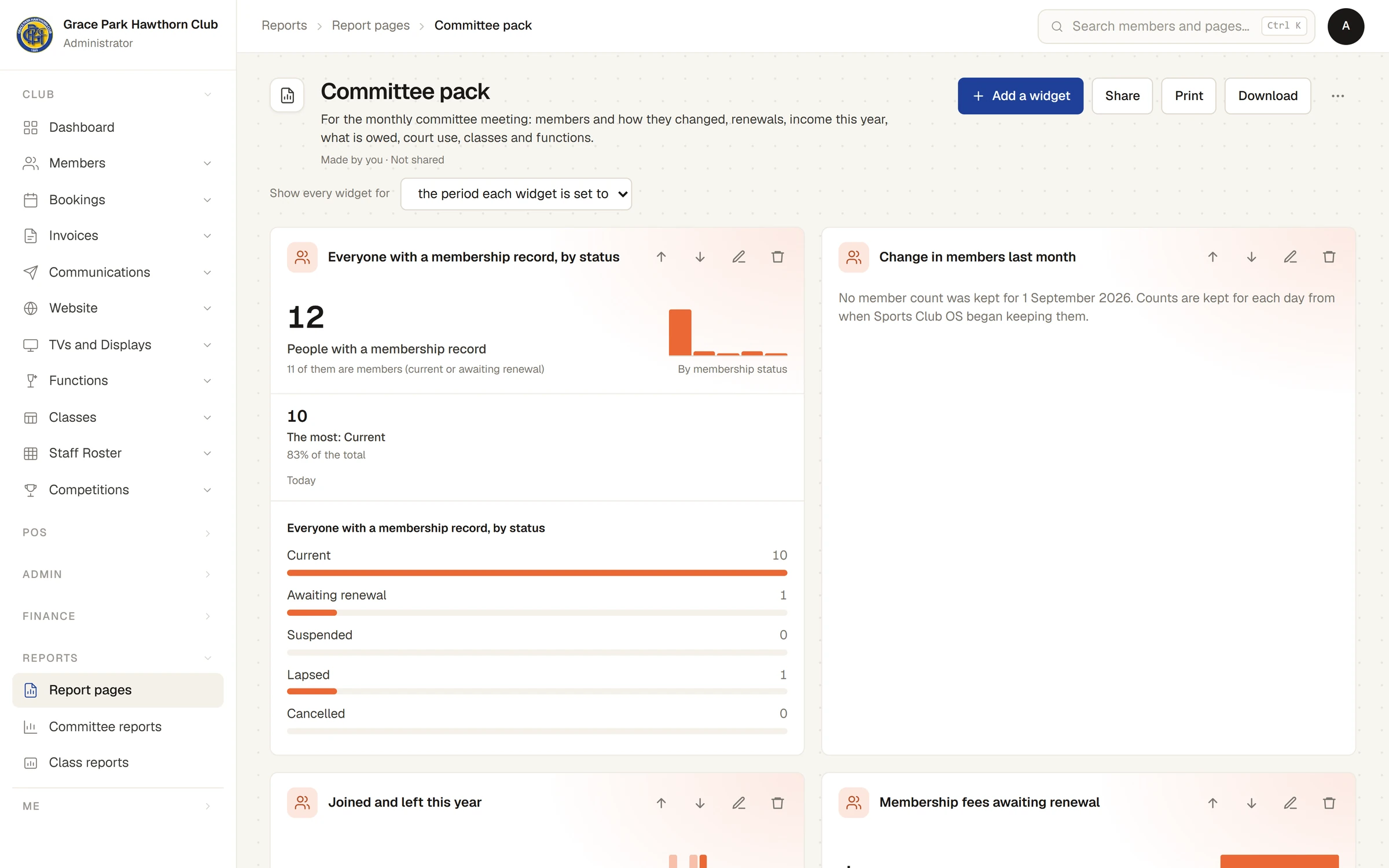
- The new page opens. A page from a template already holds its widgets, each opened out with its figures.
A template is offered with only the widgets your roles let you see. The list says how many it holds and how many are left out (for example 1 widget · 7 left out), and the new page says, for example, 7 of the template's widgets were left out: they need permissions your roles do not have. A template none of whose widgets you may see is not offered.
The templates' contents follow general guidance for clubs. Change them to suit yours.
Change your page
Only the person who made a page sees these. Each change is saved as you make it.
- Add a widget: Make one opens the widget editor (Make your own widget), or press Add beside a ready-made one. A page holds 30 widgets at most.
- On each widget: Move up, Move down, the pencil (Change this widget) and Take it off the page, which asks first.
- Show every widget for: choose one period for the whole page, such as last month or this financial year, in place of each widget's own. Choose the period each widget is set to to go back. Your choice is saved with the page.
- The … button: Rename… (the title and a line about the page, then Save), Make a copy and Delete this page. Deleting asks first, and nobody it is shared with sees the page any more.
Widgets are drawn two to a row on a wide screen, one under another on a narrower one. A table, or a long line or row of columns, takes the whole row.
Share a page
- Open a page you made and press Share. The panel says Everyone holding a role you tick can open it. Each sees only the figures their own roles allow; only you can change it.
- Tick the roles to share it with. Only roles that can open report pages are listed.
- Press Save. A message says Sharing saved, and the line under the title says, for example, Made by you · Shared with Reporting.
Untick a role and press Save to stop sharing with it.
If a role it is shared with later loses Committee reports and Build reports, it can no longer open the page. It stays ticked in Share with the words This role no longer holds Committee reports or Build reports, so it cannot open report pages. Untick it, or change it on Roles & permissions., and the line under the title names it.
Open a page someone shared with you
- The line under the title says who made it and Only whoever made it can change it.
- A widget whose figures your roles do not let you see says You don't have access to this. The others still show.
- You can still choose a period in Show every widget for. It says On your screen only: it changes nothing for anyone else.
- If you can build reports, … > Make a copy makes a copy that is yours to change.
- An Administrator can also delete a page someone else made, from its … menu.
Nobody else can open a page that is not shared with one of their roles, an Administrator included.
Print a page
Press Print. The page opens again in a new tab laid out for paper, with the club's name, who printed it and when, the period, each widget whole, and each chart's figures as a table beneath it. The browser's print then opens: choose a printer, or save it as a PDF.
Download a page
For anyone who can: “Download report figures”
Download saves every widget's figures on the page in a spreadsheet file, with the rows behind each figure if you want them. See Download figures and the rows behind them.
If something goes wrong
- "This report page is not here": it was deleted, or it is no longer shared with one of your roles. Press Back to report pages.
- "This page was changed somewhere else. Reload it to see the latest.": you have the page open in two places, or changed it on another device. Reload the page, then make your change again.
- "Only whoever made this page can change it.": you pressed … on a page someone else made, and your roles do not let you build reports, so there is nothing to offer.
- "A page holds 30 widgets at most.": take one off before adding another, or make a second page.
- "You have 60 report pages. Delete one you no longer need first.": each person may keep 60 pages.
Last checked in release 2026.10.23, on 23 October 2026.