
How to
Choose which emails you get
Choose which kinds of email the club sends you, or only its essential notices, on Email preferences or from the unsubscribe link in an email.
Who this is for: Anyone with “Own contact details” (by default: Member).
The club sends a few kinds of email, such as club news, events and competitions. You choose which of them you get. The club's essential notices, such as safety notices, closures, formal notices and anything about your own membership, bookings or invoices, are always sent.
Choose your emails
- Press the round badge with your initials at the top right, then Email preferences.
- Each kind of email has a name and a line on what it covers. Press Yes or No beside each one. Essential notices says Always sent and has no buttons.
- Press Save. A message says Preferences saved.
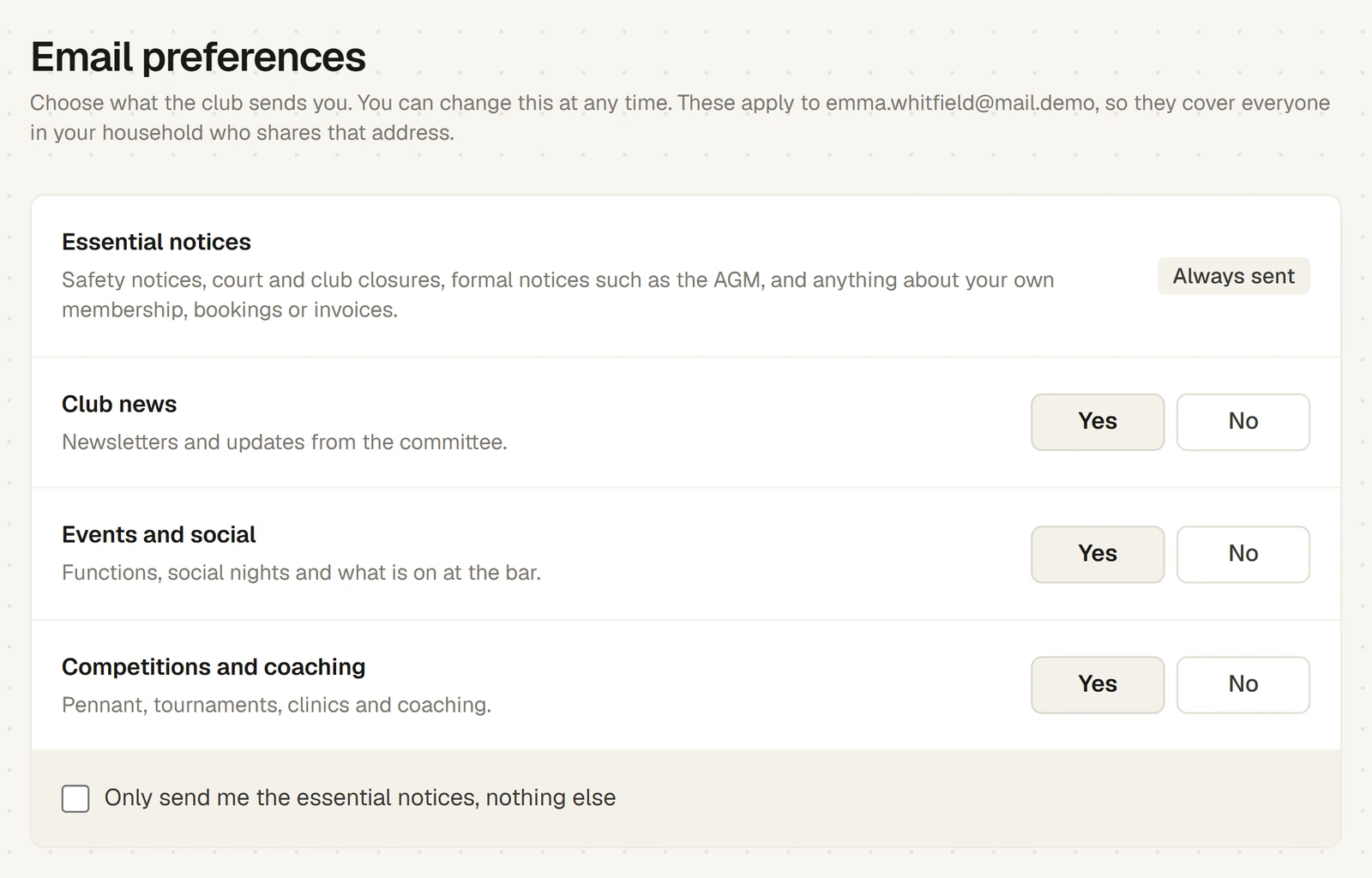
To get only the essential notices, tick Only send me the essential notices, nothing else. Every other choice is then switched off and its buttons are greyed out. Untick it to choose again.
Save stays greyed out until every kind has a Yes or a No, and the line beside it says Choose Yes or No for each one. Nothing is chosen for you.
The first time you sign in
If you have never answered, Sports Club OS asks you the first time you sign in. The page is headed Before you start: what should we email you about? Answer each one and press Save and continue, and you go on to the page you were opening.
Your choices belong to your email address
The page says which address your choices apply to. Everyone in your household who shares that address shares the same choices, because the club sends one copy of each email to each address. If you change them, you change them for everyone on that address. The office's side of this, and what happens when an address stops working, is in Email preferences: who chooses what.
What you changed, and when
Below the choices, Changes lists each change to the choices for your address, with the date and how it was made, for example by you in Sports Club OS, by the club office, or from an unsubscribe link.
Unsubscribe from an email
Every optional email from the club has an unsubscribe link at the bottom. It opens a page headed Stop these emails? without signing in, for your address and anyone who shares it.
- Stop and the kind of email, for example Stop Club news emails, switches off that kind only.
- Stop everything except essential notices switches off every optional kind.
The page then says, for example, Done. No more Club news emails. If you pressed it by mistake, press That was a mistake, keep sending them. Under What you get now the page lists each kind as On, Off or Always sent.
Opening the link changes nothing: only pressing a button does. The link works for well over a year. If it has expired, the page says This link has expired. Sign in to Sports Club OS to change what we email you.
Essential emails have no unsubscribe link.
If something goes wrong
- A red note says "Emails to this address have stopped because one could not be delivered." An email to your address bounced, or was reported as spam, so the club has stopped sending to it, essential notices included. Check the address with the club office; they can start it again once it is right.
- You still got an email after saying No. Essential notices are always sent, whatever you choose. Check the kind of email it was.
- You don't see Email preferences in your account menu. It is there for members. If you work at the club but are not a member, the club does not email you about these things.
Last checked in release 2026.10.23, on 23 October 2026.