
How to
Record the committee's election
Record that the committee elected an applicant, choose whether to make a login, send the welcome email and raise the first invoice, and see what each step did.
Who this is for: Anyone with “Membership applications” (by default: Administrator).
When the committee has voted to accept an application, record it here. Electing always makes the member records. Before anything is done, a pop-up lists the other three steps (a login, the welcome email and the first invoice) with a switch for each, so you choose which happen.
Before you start
- Recording decisions is for the Administrator. Making a login while electing also needs the permission to manage users, which the Administrator has.
- The application should be at Ready for committee, though one at Waiting for proposer can be elected too.
Elect an applicant
- Open . The To decide tab lists applications waiting and ready, ready ones first.
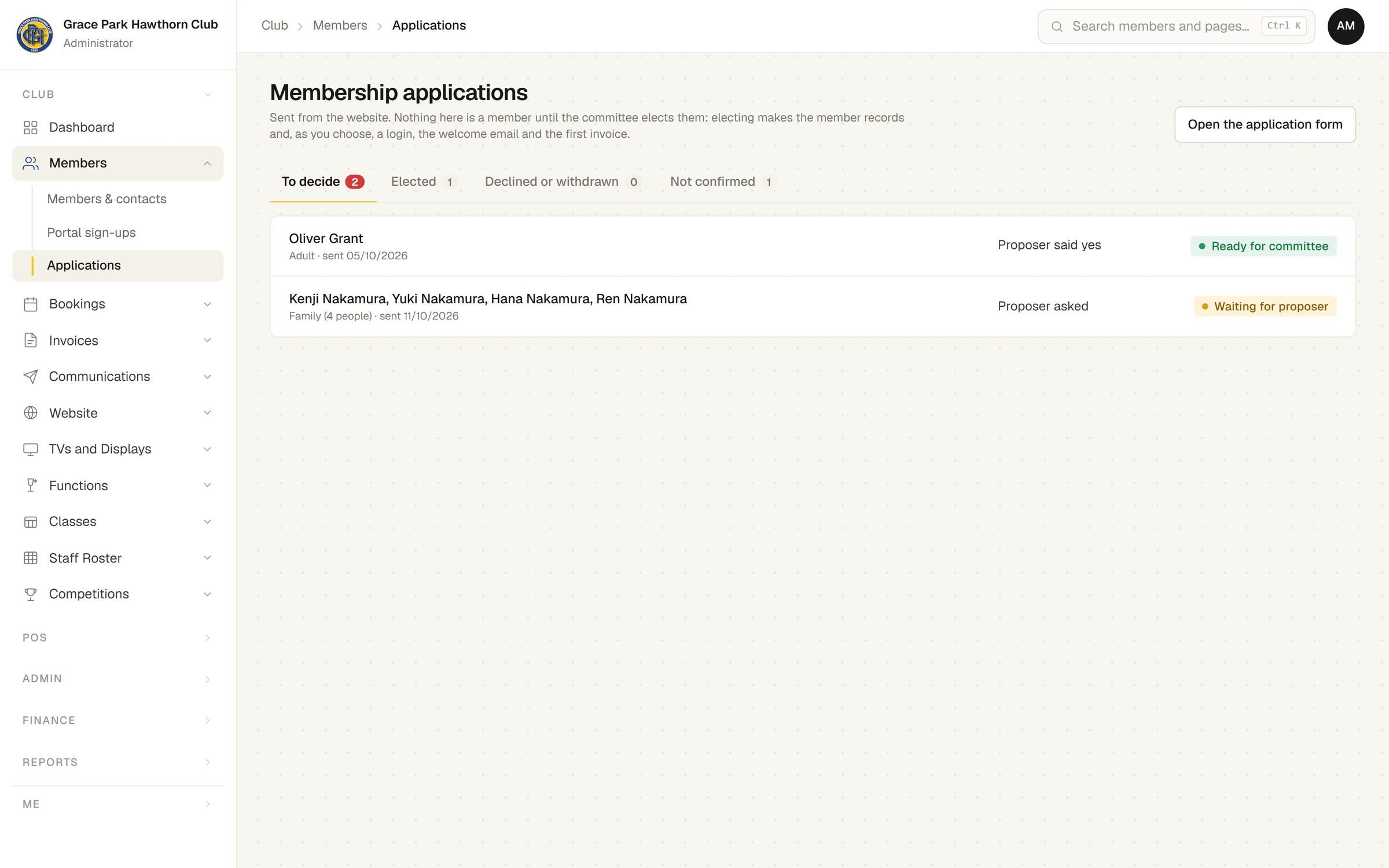
- Press the application. Its page says what is still needed and If elected today, the first invoice would be:, person by person.
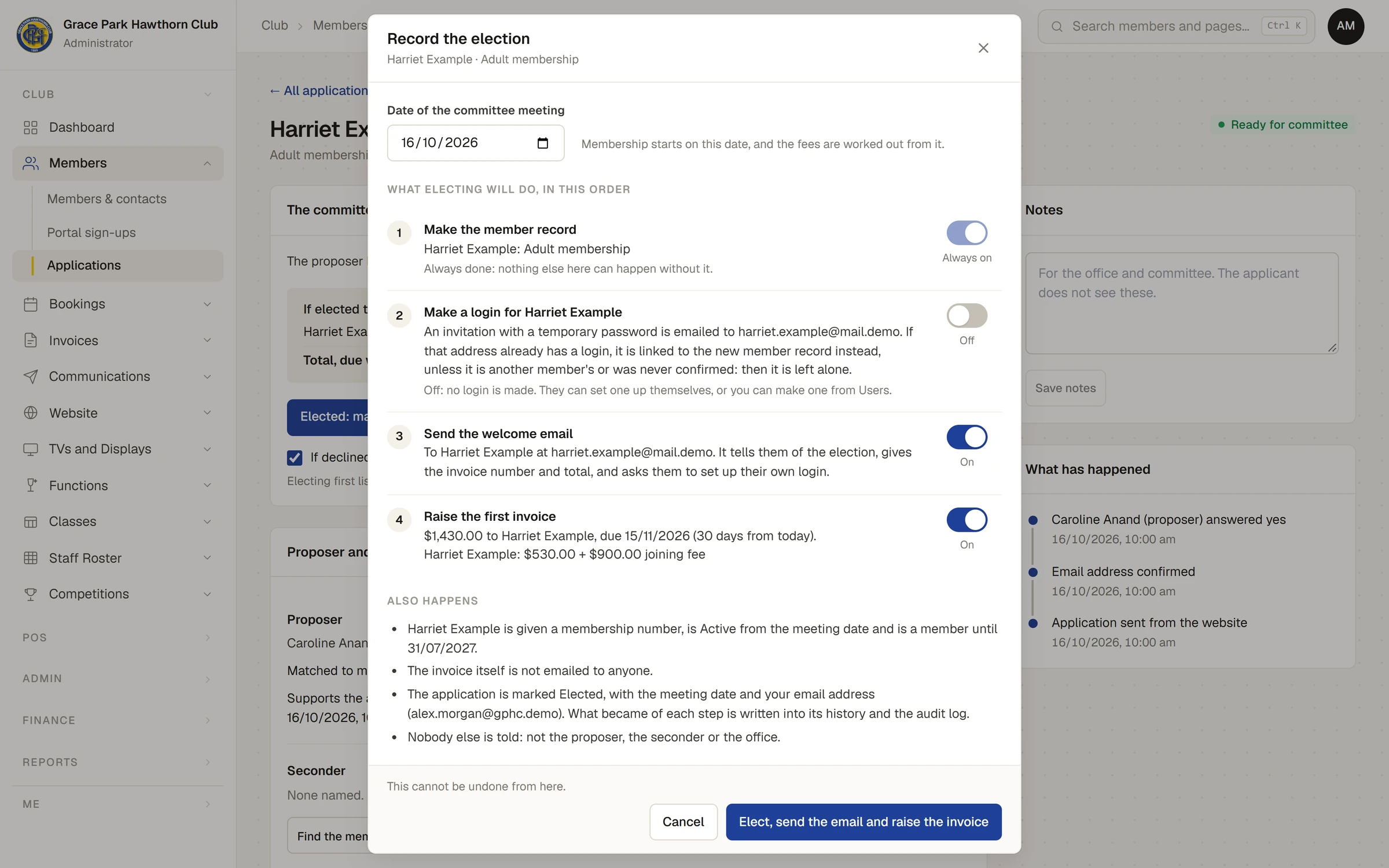
- Press Elected: make them a member…. A pop-up opens: Record the election.
- In Date of the committee meeting, enter the meeting's date: today or earlier. Membership starts on this date, and the fees are worked out from it: where your club charges new members for the part of the year left, the date decides how much that is. If the date would leave the membership already ended, the pop-up says so; check the date.
- Read What electing will do, in this order, and set the switches:
- Make the member record (or records, for a family): Always on.
- Make a login for …: off to begin with. Switched on, Sports Club OS emails the person an invitation with a temporary password. If their email address already has a login, it is linked to the new record instead, unless it belongs to another member or was never confirmed, in which case it is left alone.
- Send the welcome email: on to begin with. It goes to the person the club writes to, tells them of the election, gives the invoice number and total if an invoice is raised, and tells them how to sign in or to set up their own login.
- Raise the first invoice: on to begin with. It has each person's first-year fee, worked out from the meeting date, and their joining fee in full, due 30 days from today.
- Read Also happens: what electing does that has no switch.
- Press the button at the bottom. Its words follow the switches, for example Elect, send the email and raise the invoice. This cannot be undone from here.
A message says Elected, and the application moves to the Elected tab.
What also happens
- Each new member is given a membership number, is Active from the meeting date, with the expiry the fee was worked out for: usually the end of that membership year, or of the next for a late joiner the club carries over. See Membership types and the membership year.
- On a family application, everyone is linked to the first person as one household. The first person holds the email address and phone number, and is the one invoiced.
- For an applicant under 18, the parent or guardian on the form is kept on the record. Where the child gave no email or mobile of their own, the parent's become the record's.
- A proposer or seconder who has not answered can no longer answer.
- The invoice itself is not emailed to anyone.
- The application is marked Elected with the meeting date and who recorded it. Nobody else is told: not the proposer, the seconder or the office.
- If your club starts new members on Auto renew and invoice, the new members start on it.
Afterwards
The Elected card on the application says what became of each step: Done, Switched off, Not available or Not done, with the reason. It has buttons to open each new member's page, the invoice, and the login if one was made.
When a step cannot be done
- A login is made only for the first person on the application, and only if they are an adult with an email address of their own. A parent applying for a child gets none, and children get none. The switch then says Not available, with why. A login can be made later on .
- The welcome email is not sent where the club's email is not set up, or the address is a test address. The switch says why.
- If a step fails, the election still stands. The card says what was not done and what to do by hand, such as raising the invoice from Invoices.
- If no member record at all could be made, nothing is done, the application stays open, and the message says The member records could not be made, so nothing was done and the application is still open. Please try again.
- A membership type is missing: the pop-up says A membership type for this application is missing or switched off, so it cannot be elected yet. Check the membership types in Settings.
Paying monthly
Electing raises a yearly first invoice. If the new member is to pay monthly, switch Raise the first invoice off (the welcome email would otherwise quote a yearly invoice the change then replaces), elect them, then on their page under How they pay press Change… and choose Monthly. See Change how a member pays.
Last checked in release 2026.10.23, on 23 October 2026.