
How to
Take the roll on your phone (coaches)
Open your session on My sessions, tick who is here, add someone who turned up, and finish the roll. Message everyone, set cover or cancel from the same page.
Who this is for: Anyone with “Take your own classes” or “Book and take rolls for anyone” or “Run classes” (by default: Administrator, Head Coach, Casual Staff, Coach).
The roll is a page made for a phone. You open your session, press a circle for each person who is here, and finish the roll when the session is over. From the same page you can add someone who turned up, message everyone booked, say someone else is taking the session, or cancel it.
Before you start
- You need the Coach role, or to be able to take rolls for anyone (Casual Staff and the Head Coach can by default).
- Your sign-in is tied to your coach record by your email address. The office puts your email address on your coach record and sends you an invitation to sign in. If My sessions says Your login is not tied to a coach yet, ask the office to check the email address on your coach record.
Find your session
- Open .
- At the top are your sessions today, this week and places booked. Under Needs your attention are sessions whose roll was not taken, then today and each day of the week.
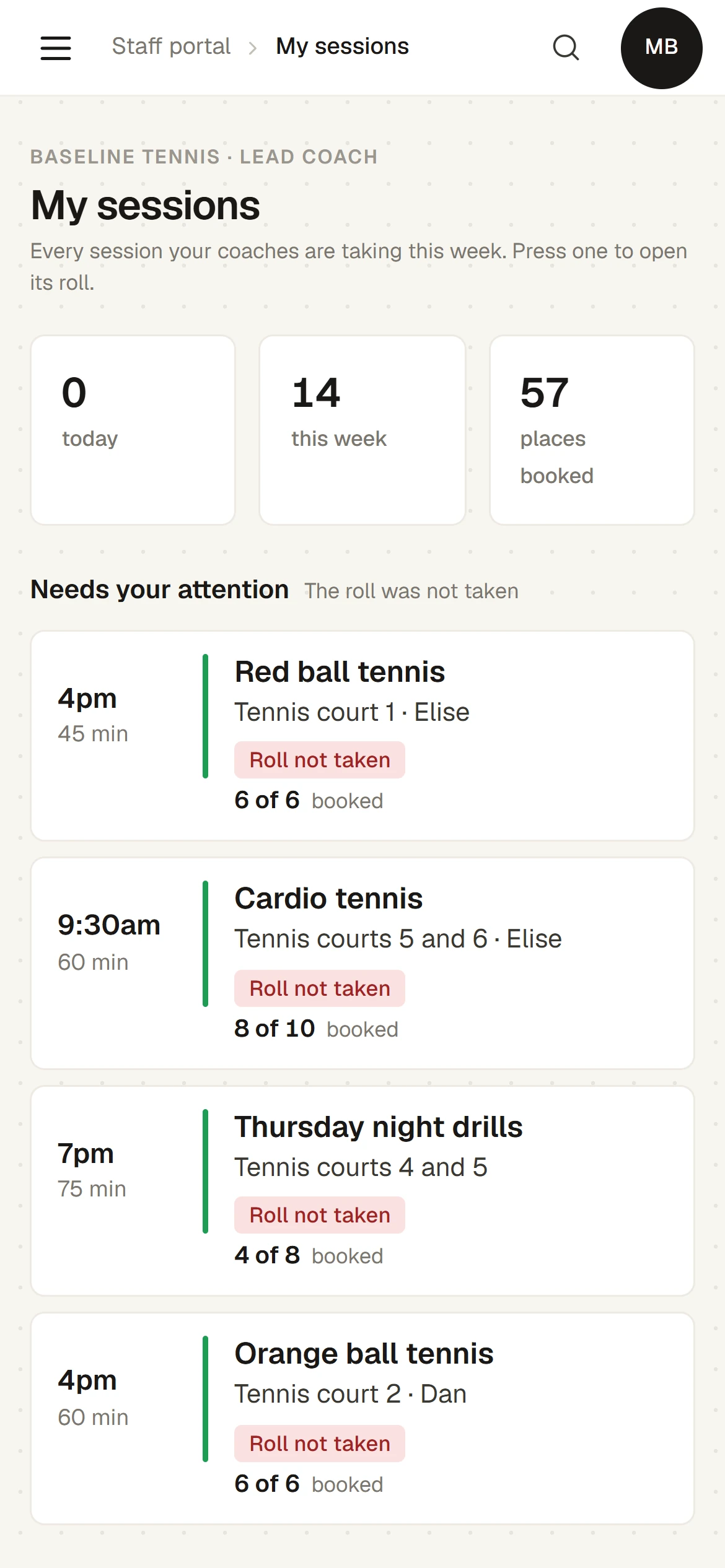
A lead coach sees every session their coaches are taking, with each coach's name. Each session shows the time and length, the place, how many are booked, and a flag where one applies: On now, Full, 2 waiting, You are covering for Tom, Roll not taken, or Below minimum: 3 booked, needs 4.
- Press the session. Its roll opens.
Take the roll
The top of the roll has the class, the time, the place and the coach, then three counts: booked, here and waiting. Press a count to show only those people.
- Press the circle beside each person who is here. It turns to a green tick. Press it again to undo.
- Read the tags under a name. They tell you what needs your attention:
- medical note: press it to read the note and the emergency contact, with a button to ring them.
- not paid: a fee that was to be paid at the club has not been paid, or an invoice for it is unpaid. If they pay at the club, press it to mark it paid. If it is on an invoice, it says This one is on an invoice: the office follows it up.
- first time, trial, make-up, added today, 2 left on pass, not confirmed: for your information.
- A child's age is after their name.
- When the session is over, press Finish the roll. Everyone not ticked is marked as did not come, and the message says, for example, 2 marked as did not come. The foot of the page then says Roll taken.
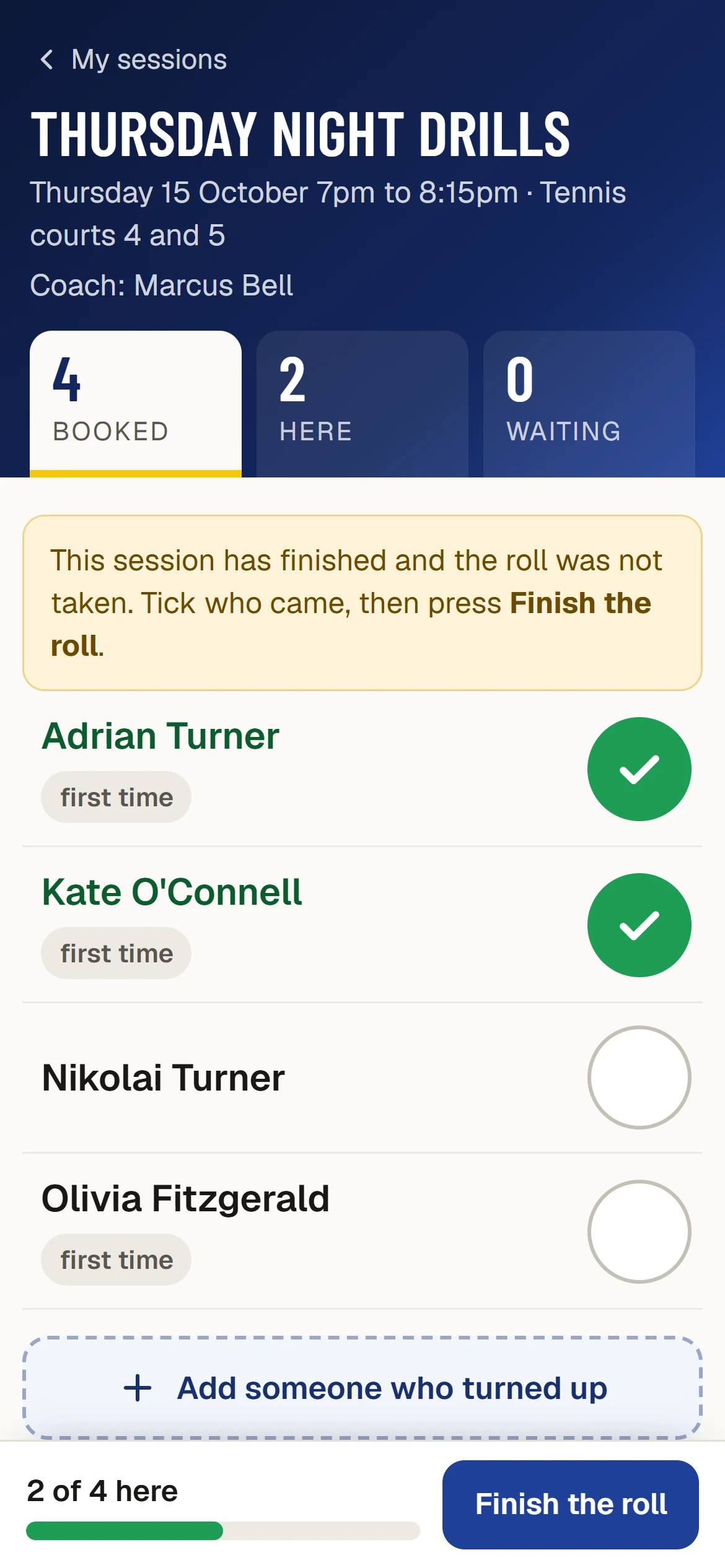
Ticks are saved as you press them, in the order you press them, so you can take a roll as fast as you can press.
If a session finished with nobody ticked, the roll says This session has finished and the roll was not taken. Tick who came, then press Finish the roll. Nobody is marked absent by the clock: a roll stays open until it is taken.
Someone turned up who is not booked
- Press Add someone who turned up.
- Type two letters or more of their name. Members of that name are listed, each with how they would pay, for example On their account.
- Press Add beside the person. If there is more than one way they could pay, press the one to use.
They are put on the roll with added today. To add someone who is not a member, ask the office.
People waiting
Below the people booked are the people waiting, in order. When there is a place free, or a place has been offered to someone, Let in puts that person in the session straight away.
Message everyone booked
- Press Message everyone.
- Type the message, for example "We are on court 3 today, not court 1.", and press Send.
Everyone booked gets it by email from the club, unless they have switched off Competitions and coaching emails in their email preferences. You never see their email addresses.
Someone else is taking this session
- Press Someone else is taking this.
- Press the coach who is taking it, from your business's coaches.
Their name goes on the timetable, the class page and the foyer TV, as "Priya (for Tom)". To go back to the usual coach, press their name, which says The usual coach: back to normal.
Cancel the session
- Press Cancel this session. It says how many people are booked and waiting.
- Under Why, choose Wet courts, Coach away, Not enough people or Something else. The note that goes to them is filled in for the reason; change it if you like.
- The box says what will happen, for example how many people will be told and how many make-up credits will be given.
- Press Cancel the session and tell them, or Keep it.
On a day of rain, My sessions has Rain: cancel outdoor sessions while you have outdoor sessions still to come today. It lists each one, all ticked, and cancels them together.
A session below its minimum shows Run it or cancel it? on My sessions, with Run it anyway and Cancel it. Nothing is cancelled automatically.
Move a child up a stage
On the roll of a junior group, Ready to move up shows beside each child at the group's stage.
- Press Ready to move up.
- Type a note for the parent, for example "Rallying consistently and ready for the bigger court."
- The groups at the next stage this term are listed with their places. The parent chooses the new group; nothing moves until they do.
- Press Move up and tell the parent.
What a coach sees
A coach sees their own sessions only (a lead coach, their whole business's), and of the people on them a name, an age for a child, any medical note and emergency contact, and the tags above. A coach does not see addresses, email addresses, phone numbers, membership types, dates of birth or invoices.
Last checked in release 2026.10.23, on 23 October 2026.