
How to
Publish the week's roster
Send the week's shifts to staff, and see before you press Publish who will be told what, and how. Each person gets one message for the week.
Who this is for: Anyone with “Run the bar and events roster” (by default: Administrator, Bar Manager).
Shifts you add or change are drafts until you publish them. Staff see nothing, and nobody is told, until then. Publishing puts the week's shifts on each person's My shifts page and sends each person one message with all their changes, asking them to say yes or no.
Before you start
- You need to be able to run the bar and events roster. The Bar Manager and the Administrator can by default.
- Build the week first: Build the week's roster.
Publish the week
- Open and go to the week.
- Press Publish 11 changes. The number is how many shifts are new, changed or cancelled. When there is nothing to publish, the button says All published.
- A dialog opens headed Publish this week, with the week's dates. While it works things out it says Working out who will be told what…. Then it says how many shifts are new or changed, and that each person gets one message with all their changes.
- Read the list under Who is told what. For each person it shows their shifts marked New, Changed (with what it was), Cancelled or No longer theirs, and chips for how they will be told:
- My shifts: always. Their own page shows it.
- Email and SMS: as they chose on their staff record.
- Or why not, such as No mobile, No email address, or Inactive: not told.
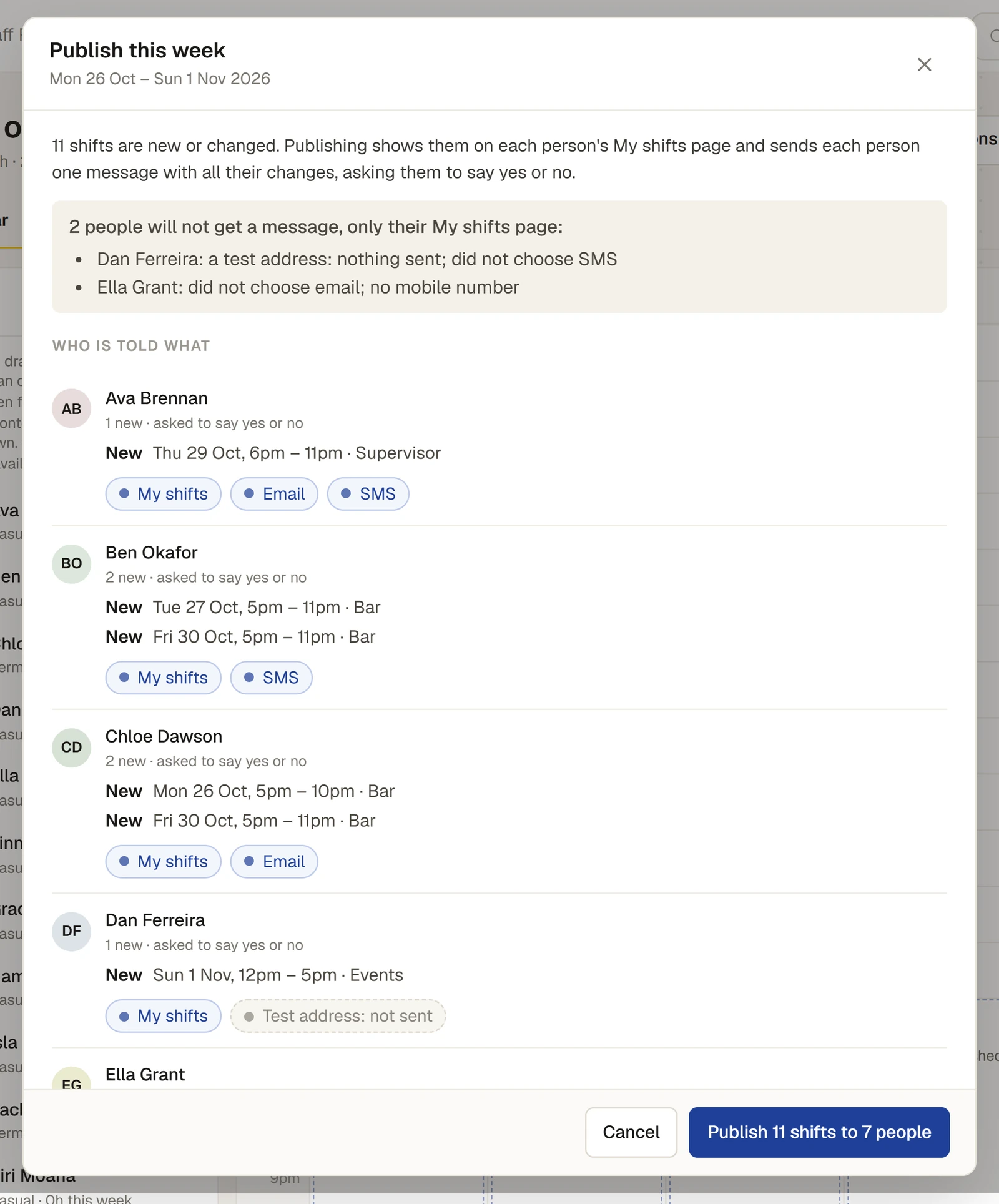
Anyone no message will reach is listed above, for example 2 people will not get a message, only their My shifts page:, each with the reason. Open shifts are published too, and the dialog says staff who could work them will see them on My shifts and can ask.
- Press Publish 11 shifts to 7 people (the button gives the numbers). The dialog's heading changes to Publishing…, and each person's chips change from Email: sending… to Email sent, SMS sent or SMS failed as the messages go. The foot says, for example, Publishing and sending: 5 of 9 messages done…. The dialog stays open until it is done.
- When it finishes, the heading says Published and a summary leads, such as All 11 shifts published to 7 people., with how many emails and texts were sent. Anything that failed is listed first, under Not sent: needs you, with the reason.
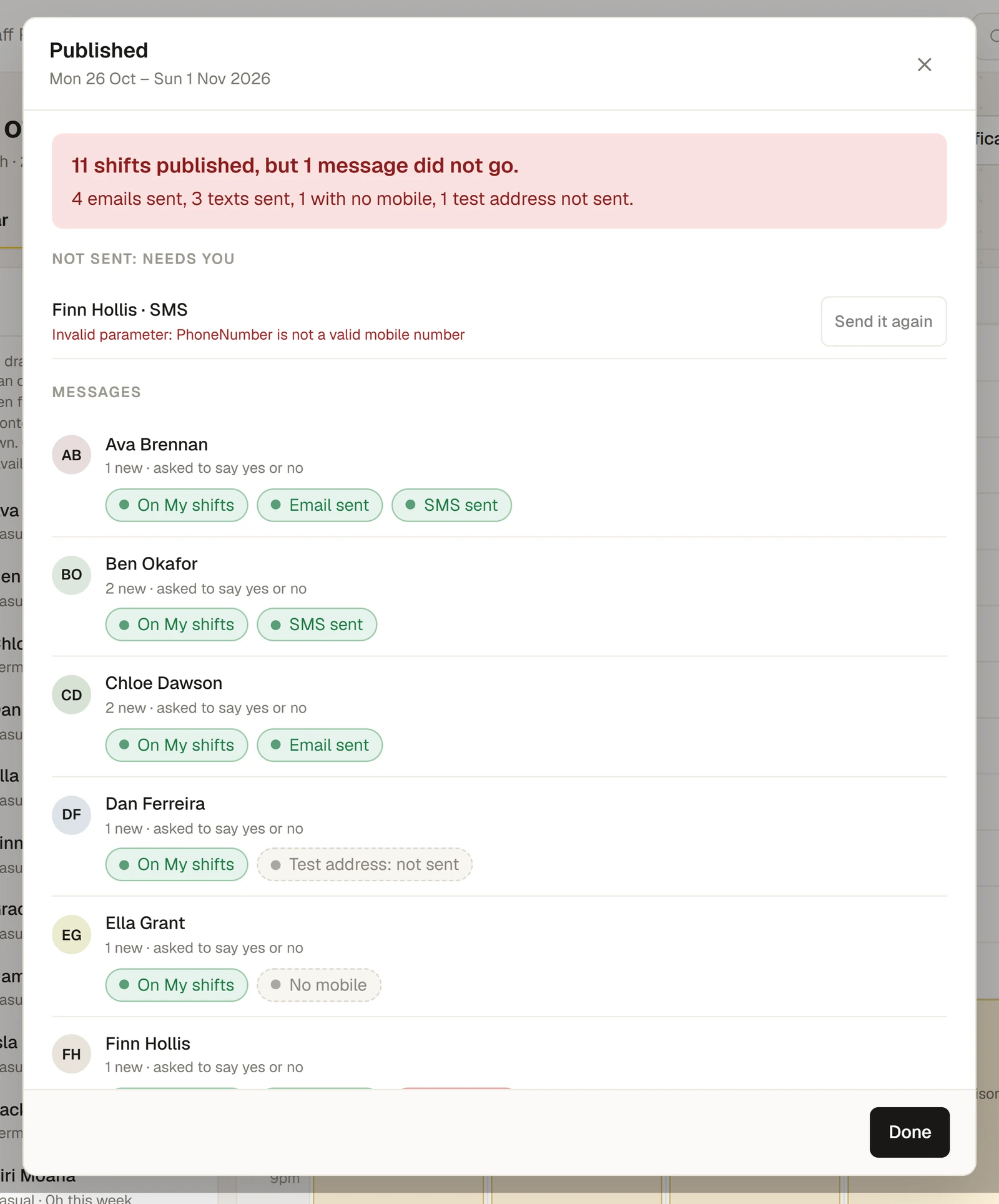
- For someone whose message failed and who still has shifts to answer, press Send it again. It sends them all their unanswered shifts once more and changes to Sent again. Press Done.
Each person gets one message for the week, however many of their shifts changed. Press Cancel at step 4 to close the dialog without sending anything.
What staff get
- My shifts shows the shift straight away, with Yes, I'll be there and I can't do it.
- An email lists their new, changed and cancelled shifts, with a button to say yes or no.
- A text says how many shifts are new or changed for the week, with a short link to answer. The link needs no sign-in.
See See and answer your shifts for what they do next, and How staff are told: email, text and My shifts for reminders.
After publishing
- On the calendar, each published shift shows Awaiting answer until the person says yes (Confirmed) or no (it becomes an open shift). See Open shifts and requests.
- Changing a published shift tells nobody until you publish again. The shift says Edited — not republished, and the publish button counts it. To undo your changes instead, see Cancel a shift, or discard changes.
- Days that have already passed are left out of publishing, and nothing is sent about them.
For anyone who can: “Approve hours worked”
Once a published shift has finished, it appears on Hours for the person to report their hours. See Check and approve hours worked.
If something goes wrong
- SMS failed with a reason such as "not a valid mobile number". Check the mobile on their staff record, then press Send it again.
- Someone shows No mobile or No email address. Add it to their staff record, or change how they are told. They still see the shift on My shifts.
- A person was not told about a change. A change is told only when you publish. If the publish button still shows a number, publish again.
- See A staff member didn't get the text about their shift.
Last checked in release 2026.10.23, on 23 October 2026.