
How to
Your Dashboard and its widgets
Choose which widgets your Dashboard shows, put them in your own order, open one out for more, and add ready-made reports. Your layout is yours alone.
Who this is for: Anyone with “See all bookings” or “See members and contacts” or “See all invoices and payments” or “Raise invoices and record payments” or “Add and change members” or “Membership applications” or “Committee reports” or “Send communications” or “Run the bar and events roster” or “Approve hours worked” or “Run competitions” or “Build reports” or “See sales and till sessions” (by default: Administrator, Head Coach, Casual Staff, Bar Manager, Sports Convener, Reporting, Treasurer).
The Dashboard is the first page office staff, managers and conveners see when they sign in. It is a set of widgets, one for each part of Sports Club OS you can open, and you choose which ones it shows and in what order. Your choice is your own: nobody else's Dashboard changes when you change yours.
Before you start
- You have a Dashboard if your roles let you see at least one part of the club it sums up, or build reports. A member, or someone who only works the bar, has none.
- You are offered a widget only for what you can open. Two people's Dashboards differ on purpose.
What each widget shows
Open . Each widget has:
- its name and a link to the page it sums up (for example Calendar on Bookings);
- one large figure, with a small chart beside it: thin columns, or a ring showing a share;
- up to two more figures beneath.
Press the button in a widget's top right corner (Show more) to open it out across the row. It then shows more: bars, columns, lists or facts. Press the same button (Show less) to close it again.
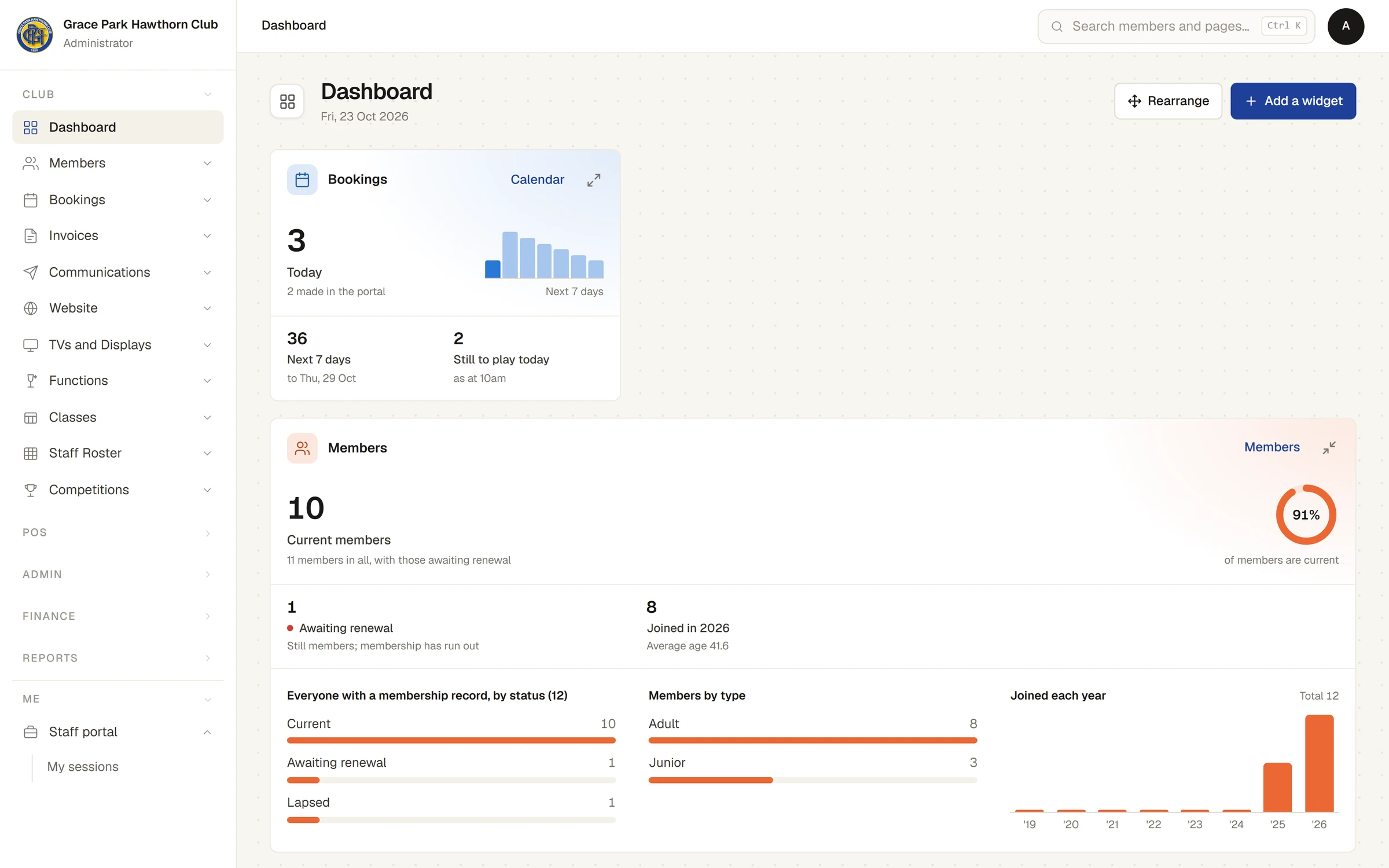
If one widget cannot be worked out, it says These figures could not be worked out. with Try again, and the others still show.
The widgets you can have
| Widget | What it shows | Who has it by default |
|---|---|---|
| Bookings | What is booked today and over the next week, by sport | Administrator, Head Coach, Casual Staff, Reporting |
| Members | How many members the club has, by status and by type, and how many have joined | Administrator, Head Coach, Casual Staff, Reporting |
| Invoices | What the club is owed, what is overdue, and what has come in this month | Administrator, Head Coach, Casual Staff, Reporting, Treasurer |
| Renewals | Memberships that have run out or are about to, waiting for a renewal invoice | Administrator, Head Coach, Casual Staff, Treasurer |
| Portal sign-ups | People who have made a member login and are waiting to be approved | Administrator, Head Coach, Casual Staff |
| Membership applications | Applications from the website: which are ready for the committee and which wait on a proposer | Administrator |
| Income | Money received, month by month, and where it came from | Administrator, Head Coach, Casual Staff, Reporting, Treasurer |
| Communications | Messages in draft, what has been sent lately, and how the last one was received | Administrator |
| Roster | This week's bar and events shifts: what is unfilled, unanswered or waiting on a decision | Administrator, Bar Manager |
| Hours worked | Hours staff have reported that are waiting to be approved | Administrator, Bar Manager |
| Competitions | Competitions under way, matches still to play, and entries waiting for a yes | Administrator, Sports Convener |
| Bar and shop | Today's sales at the till, by category, the tabs still open, and the last cash-up. See What Point of sale does | Administrator, Bar Manager, Reporting, Treasurer |
Each widget follows the permission of the page it sums up, so your club changes who has it on Roles & permissions. The Members widget's large figure is current members; members awaiting renewal are counted under it.
Add or hide a widget
- Press Add a widget. A panel lists every widget you can have, each with a line about it.
- Press Add beside one to put it at the end of your Dashboard, or Hide beside one you have to take it off.
- Press Done.
A hidden widget stays in Add a widget, so you can add it back at any time.
When you first open the Dashboard, before you have changed anything, it shows up to six widgets: the first six of Bookings, Members, Invoices, Renewals, Roster, Hours worked, Membership applications, Portal sign-ups and Competitions that you can have.
Put them in your own order
- Press Rearrange. Each widget shows Drag to move, two arrows and Hide.
- Drag a widget by its top edge to where you want it, or press the arrows (Move earlier, Move later). On a phone, use the arrows.
- Press Done.
Each change is saved a moment after you make it. To go back to how the Dashboard started, press Back to the starting layout while rearranging.
Ready-made reports and your own widgets
If you can build reports, Add a widget has two more parts. The Administrator, Reporting and Sports Convener roles can by default.
- Ready-made reports: figures from the club's reports, such as Income by stream, this financial year against last, Members by age, Court use by sport, Owed to the club, by how late and Class fill. Press Add. Each is offered only if you may see every figure in it, so a Sports Convener is offered only the competitions ones.
- Make your own: press Make one to choose a figure, how to group it and the period. See Make your own widget.
These widgets say under their figures the period they cover, and have a pencil (Change this widget) to change them. Pressing a bar, a column or the large figure lists the records behind it: see Make your own widget. A group of fewer than five people may show as <5: see Why some figures show "<5".
If your roles later stop letting you see a figure in one of your widgets, that widget is left off your Dashboard but kept. If the role is given back, the widget comes back.
Ask about the figures
While your club has the AI Report Assistant switched on, the Administrator and Reporting roles see AI Report Assistant at the top of the Dashboard. A widget it suggests can be added to your Dashboard with one press. See Ask the AI Report Assistant.
What it does not do
- It does not set anyone else's Dashboard. Each person chooses their own.
- The Dashboard cannot be printed as a report or downloaded. Put the widgets on a report page for that: see Report pages: make, share, print and download.
Last checked in release 2026.10.23, on 23 October 2026.