
How to
Keep your details up to date
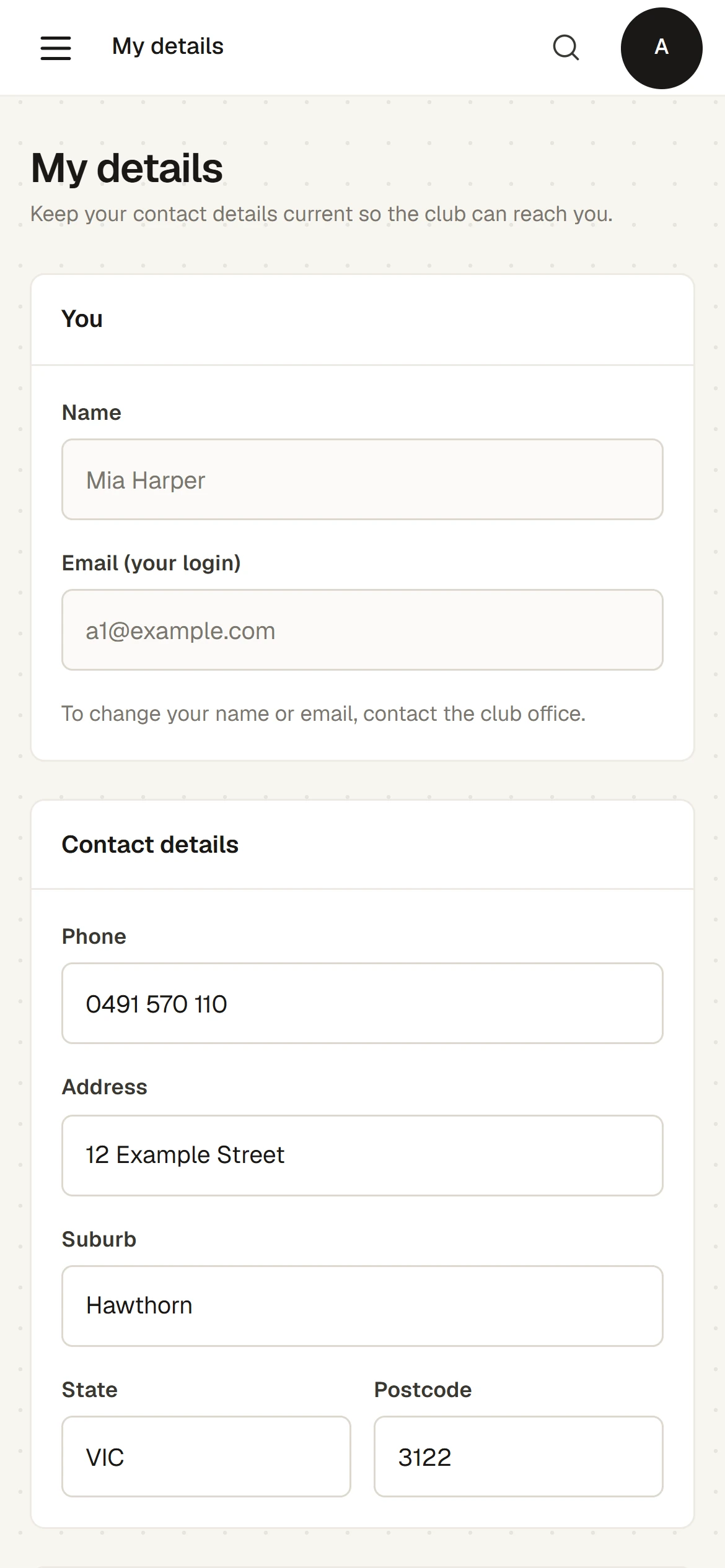
Change your phone number, address and emergency contact on My details, so the club can reach you. Your name and email are changed by the office.
Who this is for: Anyone with “Own contact details” (by default: Member).
My details holds the contact details the club keeps for you: your phone number, your address and who to call in an emergency. Keep them current so the club can reach you.
Change your details
- Press the round badge with your initials at the top right, then My details.
- Under Contact details, change your Phone, Address, Suburb, State or Postcode.
- Under Emergency contact, type the Name and Phone of the person the club should call if something happens to you at the club.
- Press Save changes. The button says Saving… while it works, and a message then says Details saved.
Nothing is saved until you press Save changes. If you leave the page first, your changes are lost. After saving, the form shows your details exactly as the club now holds them.
The office sees the same details on your member record, so there is nothing else to tell them.
Your name and email address
Under You, your Name and Email (your login) are shown greyed out. You cannot change them here: the page says To change your name or email, contact the club office.
Your email address is the one you sign in with, and the club's emails to you go to it.
What you cannot change here
- Your membership type, its expiry and its status. Contact the club office.
- How you pay your membership: that is on your Home page. See Your member home page.
- Which emails you get: see Choose which emails you get.
- Your password: see Change your password and turn on two-factor sign-in.
Who can see your details
The club's office and anyone your club lets see the member list see your details on your member record. Each change you save is recorded in the club's audit log as made by you.
Last checked in release 2026.10.23, on 23 October 2026.