
How to
Make a class and put it on the timetable
Put a class on the timetable in three steps: what it is, when and where it runs, and its prices and booking rules, with clashes shown before you save.
Who this is for: Anyone with “Run classes” (by default: Administrator, Head Coach).
New class puts a class on the timetable: one you already have at another time, or a new kind of class. It takes three short steps, and nothing is shown to members until you save.
Before you start
- You need to be able to run classes. The Head Coach can by default.
- The coach must be on the coaches list, and an outside business on the providers list: see Providers, coaches and who collects the fees.
- For a class that runs for a term, make the term first: see Terms and enrolment.
Step 1: What
- Open and press New class.
- Press one of the classes you already have. Its photograph, length, places and prices come with it.
- Or press A new kind of class and fill in its Name, Category, who it is Run by, In one line: what is it?, Photograph, Length, minutes, Places and Who it is for (Everyone, Adults or Juniors).
- Press Next.
Step 2: When and where
- Choose the First day, the time it Starts and the Coach. The coaches listed are the ones who work for the class's provider.
- Under Where: one place or several, press the courts or rooms it uses. A squad on two courts uses both.
- Under Repeats, choose Never, Daily, Weekly, Fortnightly or Every 4 weeks.
- Under Booked a session at a time, or all at once?, choose:
- A session at a time: people book each session.
- For a term: people enrol once for the term. Choose the Term, the Fee for all of it, the Stage if it is on a junior pathway, and A name for this group. Tick One session can be booked on its own as well to let people book single sessions too.
- As one course: a course or a camp enrolled in once, with its fee for all of it.
- Under Ends, choose Never, On a date, After a number of sessions, or For the term.
- To leave out a date (a public holiday, say), choose it under Dates to skip and press Skip this date.
What this will do says the class in a sentence, for example Every Friday at 6pm from 16 October, until it is stopped. 45 minutes, 12 places.
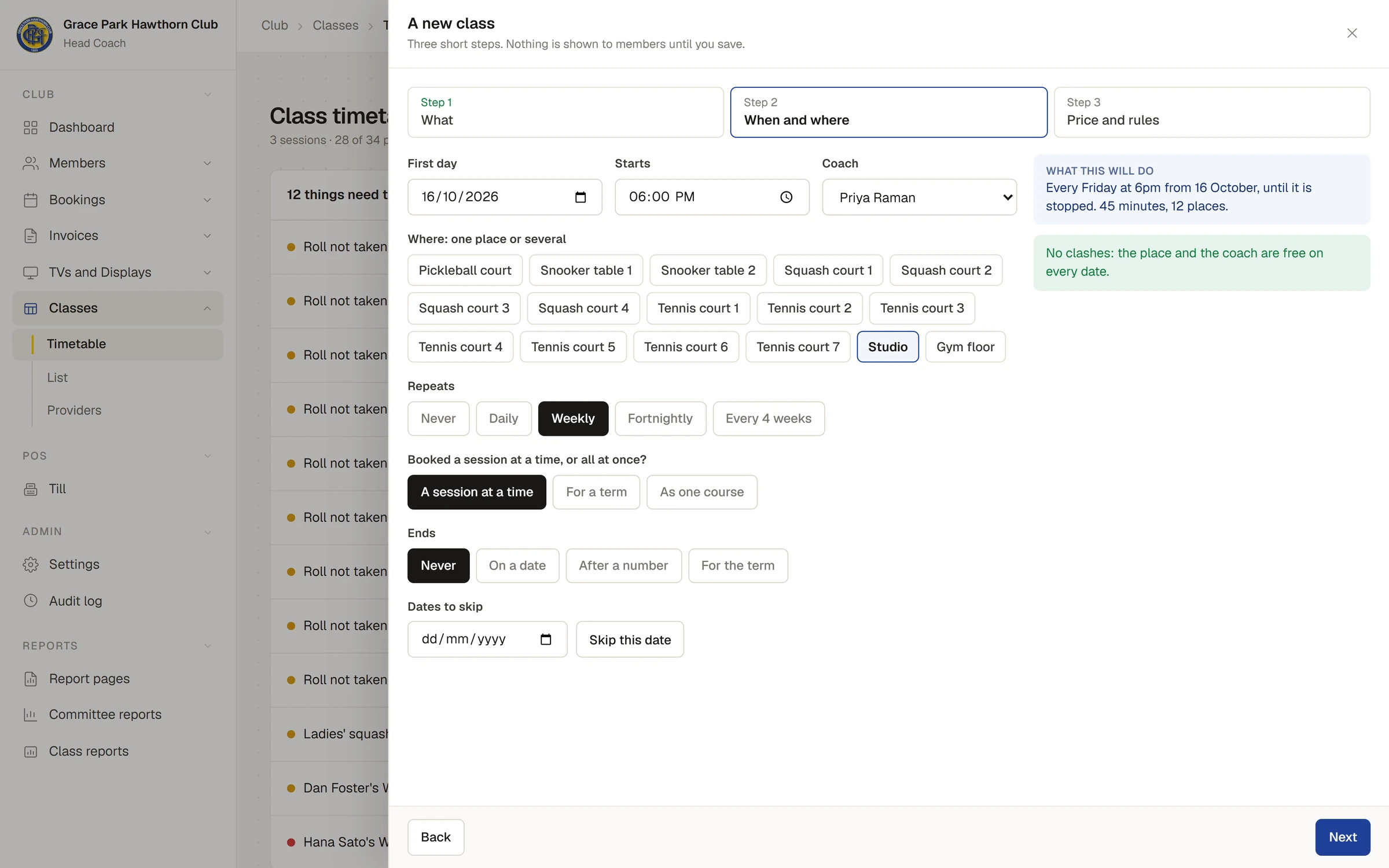
Clashes are shown here as soon as there is one, in words, for example a court already booked by a member on some of the dates. A clash of place says Choose another place or time. and cannot be saved. A coach in two places at once says This can still be saved. When there is none, it says No clashes: the place and the coach are free on every date.
- Press Next.
Step 3: Price and rules
- Under Prices, each price is a sentence, for example $24 a session for any member. To add one, choose A fee a session, Included or A fee for the whole program, type the amount, choose who it is for (everyone, any member, these memberships or non-members), and press Add this price. ✕ takes a price off. A class with no price cannot be booked.
- Under Passes accepted, tick the passes that can be used for it.
- Under Booking rules: each is off until wanted, switch on the ones the class needs and set the number:
- Booking opens: a number of days before the session. Off: people can book any time.
- Booking closes: a number of minutes before the start. Off: up to the start.
- Free cancelling until: a number of hours before. After that it is a late cancel.
- Waitlist: how many people can wait. Off: a full class just says Full.
- Minimum to run: how many it needs, and how many hours before the coach is asked. Nothing is cancelled automatically.
- What a member will see shows the class's row as it will appear, with its price and its rules in words.
- Press Save and show members, Save as hidden (members cannot see it yet), or Keep as a draft.
The message says Saved. Members can see it now., Saved as hidden: members cannot see it yet or Saved as a draft. A draft is listed under the things that need the office, with Open it, until it is saved or deleted with Delete this draft.
When you add a time for a class you already have, the prices, passes and rules you set apply to that class everywhere it is on the timetable.
Change a class's words or who can see it
On , Classes, press Change beside the class to change its name, the line for the timetable, the full description, what to bring, the photograph, Who can see it (Everyone, and the public page, Members only, or Hidden: only the people in it), who it is for, who it is open to (Members and visitors or Members only), the youngest and oldest ages, First session free and By invitation only. Prices and booking rules are changed from New class: choose the class again.
To change one session, or this session and all after it, see The office timetable and its alerts.
Sessions ahead
Sports Club OS makes the sessions of a repeating class eight weeks ahead, or to the end of its term, and keeps making them as time goes on. A session you have changed by hand is never overwritten by the class's own times.
Last checked in release 2026.10.23, on 23 October 2026.