
How to
Make a booking for someone
Book a court or table on the office calendar for a member, a visitor or the club itself, with guests and notes.
Who this is for: Anyone with “Make and change any booking” or “See all bookings” (by default: Administrator, Head Coach, Casual Staff, Reporting).
The office books courts and tables on the Calendar: for a member who rings or walks in, for a visitor, or for the club's own use such as coaching, a competition or maintenance. The online booking rules (how far ahead, how long, how many a week, peak times) do not apply to bookings the office makes. Only a clash with another booking, or a closed time, stops one.
Before you start
- You need to be able to make and change bookings. The Administrator, Head Coach and Casual Staff roles can by default. Your club can change this on Roles & permissions.
- To choose a member under Booked for, you also need to be able to see the member list. The same roles can by default.
- The club's courts and tables are set up under , on Sports & courts. If a sport has none, the calendar says No courts or tables are set up for this sport yet.
Make the booking
- Open . It opens on today.
- Go to the day with the arrows beside Today, or type a date in the date box.
- Choose the sport from the tabs under the date. Each tab shows how many bookings that sport has that day. Each court or table is a column, with the times down the side.
- Press a free time in the court's column, where it says + Book. Or press New booking at the top, which starts on the first court at the time the sport opens.
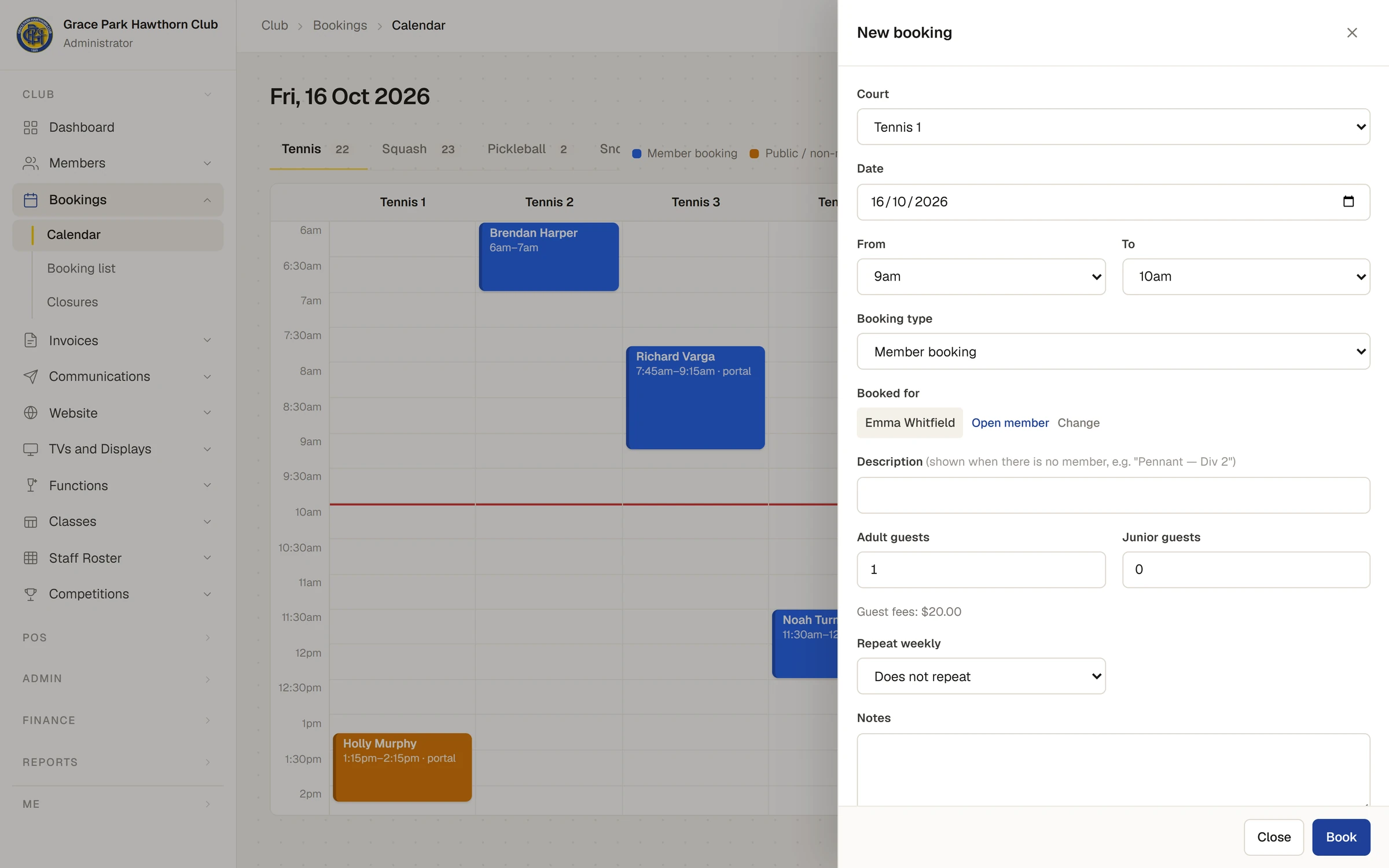
- A panel opens headed New booking, with the court, the date and the times filled in. A booking starts as long as the sport's usual booking, which your club sets on Sports & courts.
- Change anything that needs changing:
- Court (or Table): any court or table, of any sport.
- From and To: in quarter-hours.
- Booking type: Member booking to start with. Choose Public / non-member for a visitor, or the club's own types: Club booking, Coaching, Competition, Junior program or Maintenance. The type sets the booking's colour on the calendar.
- Under Booked for, type part of the member's name and choose them from the list. Each name shows the member's status, such as Active. Once chosen, Open member opens their record and Change clears it.
- If the booking is not for a member, leave Booked for empty and type a Description instead, for example "Pennant practice" or "Junior squad". The description is shown on the calendar in place of a name.
- If non-members are playing too, set Adult guests and Junior guests. The panel shows the fees, for example Guest fees: $40.00. See Guests and guest fees.
- Add anything the office should know under Notes.
- Press Book.
A message says Booked, the panel closes, and the booking appears on the calendar in its type's colour, with the name or description and the times.
To make the same booking every week, choose a number of weeks under Repeat weekly before pressing Book. See Make a booking repeat weekly.
What the calendar shows
- Each booking shows the member's name or the description, its times, and after them portal if a member booked it online, weekly if it repeats, and how many guests it has.
- Closed times show as a grey block with the reason, such as "Lighting repairs". See Close courts for an event or repairs.
- A line across the columns marks the time now, on today's calendar.
- The colours are explained in the key beside the sport tabs.
If something goes wrong
- "Pick a member or enter a description." Choose a member under Booked for, or type a Description.
- "That time is already booked." Someone else has the court for part of that time. Choose another time or court.
- "Closed:" and a reason. The court is closed for part of that time. Choose another time or court, or change the closure.
- "End time must be after the start time." Change From or To.
- No members are offered under Booked for. You may not be able to see the member list. Type a Description instead, or ask someone who can.
For anyone who can: “See all bookings”
Someone who can see bookings but not make them, such as the Reporting role by default, can open the calendar and every booking's details, but cannot book, change or cancel.
Last checked in release 2026.10.23, on 23 October 2026.