
How to
Make a booking repeat weekly
Book the same court at the same time every week for up to 52 weeks, for a regular game, a squad or a pennant team, and see which weeks could not be booked.
Who this is for: Anyone with “Make and change any booking” or “See all bookings” (by default: Administrator, Head Coach, Casual Staff, Reporting).
A weekly booking is a run of ordinary bookings, one each week, on the same court at the same times. You make the whole run at once, from the office calendar. Each week can then be changed or cancelled on its own, and the run can be stopped from any week.
Before you start
- You need to be able to make and change bookings. The Administrator, Head Coach and Casual Staff roles can by default. Your club can change this on Roles & permissions.
- Weekly bookings are made by the office. Members cannot make them online.
Make a weekly booking
- Open and go to the day of the first week.
- Press a free time on the court, as for any booking. See Make a booking for someone.
- Fill in the court, times, type, member or description, guests and notes as for a single booking.
- Under Repeat weekly, choose how many weeks, counting this one: 4 weeks, 8 weeks, 10 weeks (a term), 13 weeks, 26 weeks or 52 weeks. Does not repeat is a single booking.
- Press Book.
If every week was free, a message says, for example, 10 weekly bookings made, and the panel closes. Each week shows on the calendar with weekly after its times.
When some weeks are not free
Any week where the court is already booked, or closed, is left out, and the rest are booked.
The message says how many were made, for example 3 weekly bookings made. The panel stays open, with Some weeks could not be booked: and each week left out, with the reason, for example "That time is already booked." or "Closed: Resurfacing courts 6 and 7."
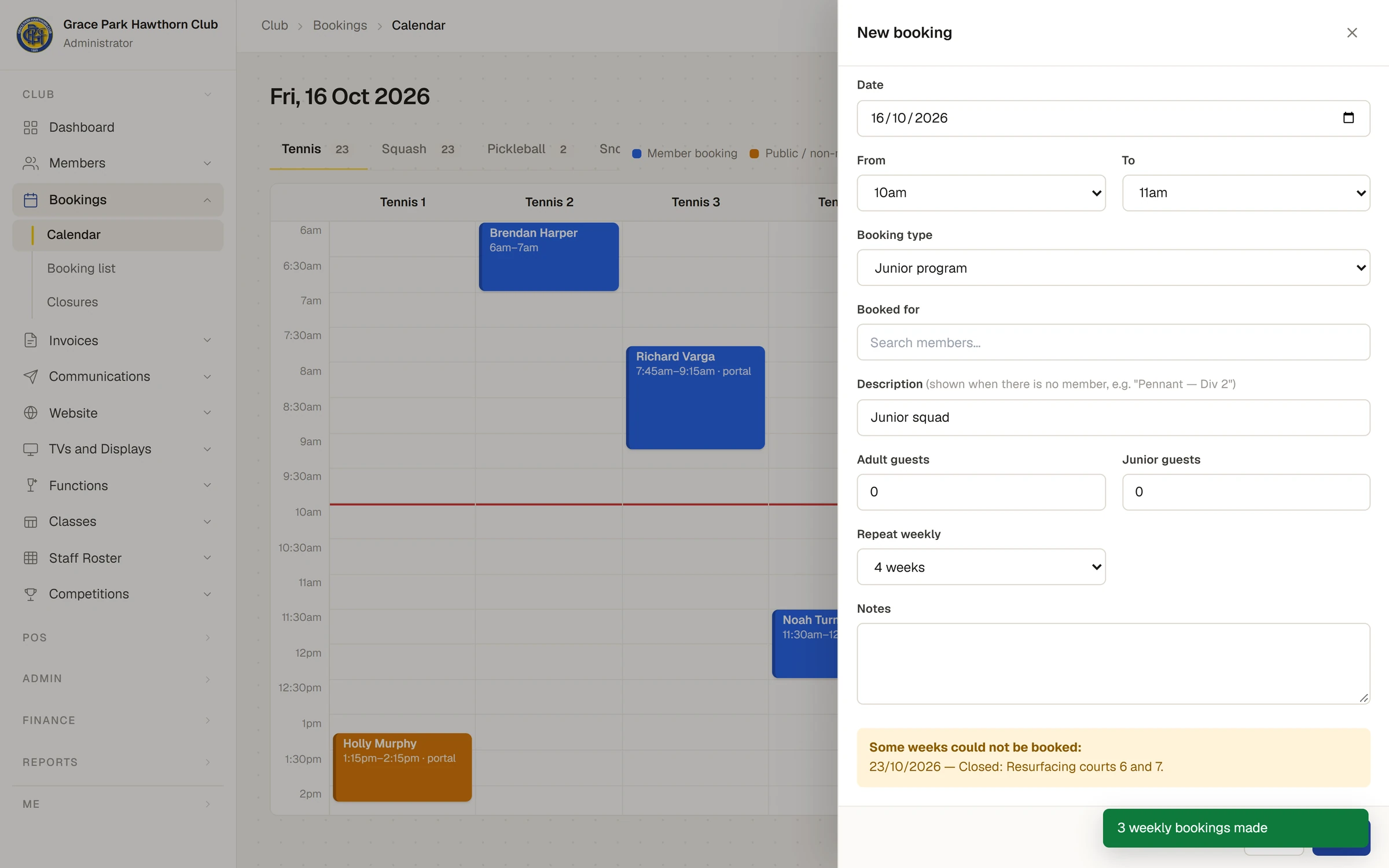
Sort out each week listed: book it on another court or at another time, or leave it. Then press Close.
If no week at all could be booked, nothing is made, and the message gives the first week's reason.
Change or stop a weekly booking
- One week: press that week on the calendar, change it and press Save changes. Only that week changes.
- Cancel one week: press it and press Cancel booking. The other weeks stay.
- Stop it from a week on: press that week and press Cancel this and later weeks. That week and every later one are cancelled.
On the booking list
The booking list shows Weekly in its Recurring column for each week of a run, and its Filters panel has a Recurring section to list only weekly bookings, or only one-off ones.
Last checked in release 2026.10.23, on 23 October 2026.