
How it works
Who a message goes to, and who is left out
How the Who step chooses a message's recipients, why one household gets one copy, and each reason a person can be left out.
Who this is for: Anyone with “Send communications” or “See members and contacts” (by default: Administrator, Head Coach, Casual Staff, Reporting).
Step 2 of a message, Who, decides who gets it. You choose people by their membership, or use one of your saved Members filters, and you can add or leave out people by hand. Sports Club OS then works out the addresses: one copy for each email address, to people who have not switched this kind of email off. The panel on the right, Who gets it, shows the result and everyone left out, with the reason.
Choosing who
Under Who should get it?:
- Tick Everyone in Sports Club OS, members and other contacts to start from everyone.
- Or press choices under Membership status (Active, Expired, Suspended, Lapsed, Cancelled), Membership type and Tag. Choices in one row add together: Active and Expired means people who are either. Choices in different rows narrow each other: Active plus Junior means active juniors. A person with any one of the tags chosen counts.
- With nothing chosen, nobody gets it.
Expired is worked out: an Active member whose expiry has passed.
Using a saved Members filter
If you can see members, Use a saved Members filter lists the filters you saved on the Members list. Choose one and press Use it. A panel then names it and says it in words, and the count reads, for example, "Current members, pays Monthly: 142 addresses".
- A saved filter takes the place of the message's own choices. People added or left out by hand still count.
- The message keeps the filter as it was when you chose it. Renaming, changing or deleting the saved filter later does not change the message. Use it as it is now takes the filter's current version; Stop using it goes back to the message's own choices.
- Who the filter matches is worked out again at the moment of sending, from the members as they are then.
You have no saved filters until you filter the Members list and press Save this filter. Each saved filter is its owner's own.
Adding or leaving out one person
If you can see members, Add or leave out individual people has a box: type a name and choose the person to add them. To leave someone out, press See who under the count, then Leave out beside their name. Each person added or left out shows as a chip; × undoes it.
One copy for each address
A message goes once to each email address. Where several people share an address, such as a household, one copy goes in the name of the head of the household, and the list shows, for example, "Fiona Porter (and Kai Porter, Leo Porter)". Merge fields such as {{first_name}} use the head of the household's details.
Who gets it
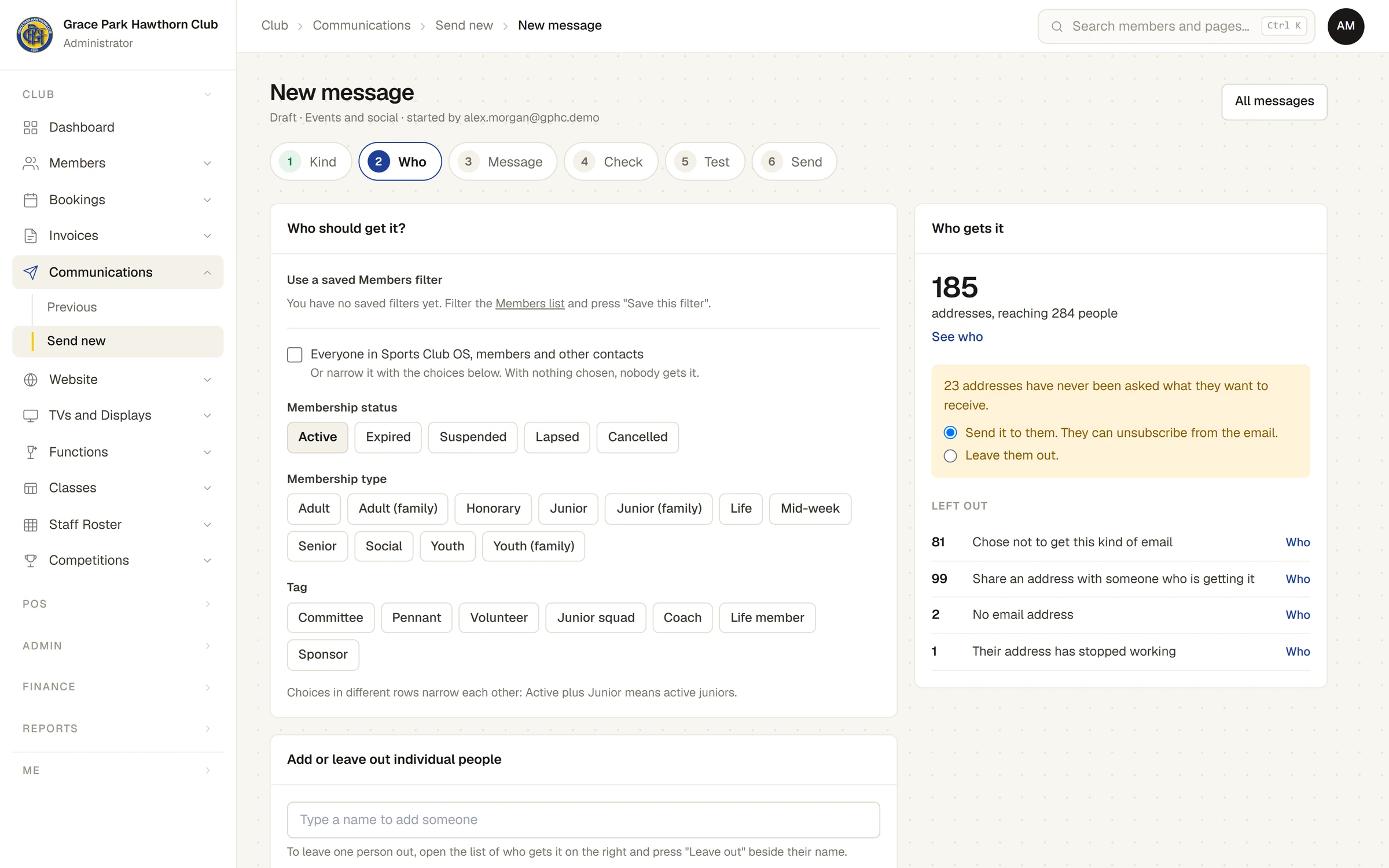
The large number is how many addresses it goes to, with how many people they reach. See who lists them, with "never asked" beside anyone who has not answered. The count is worked out again each time you change a choice.
People who were never asked
For any kind except essential notices, people who have not yet said which kinds they want are counted as never asked. The panel asks what to do with them:
- Send it to them. They can unsubscribe from the email. (the choice a new message starts with)
- Leave them out.
Why people are left out
Under Left out, each reason has a count and, if you can see members, Who to list the names:
| Reason | What it means |
|---|---|
| Chose not to get this kind of email | They switched this kind off. Essential notices ignore this. |
| Never asked, and you chose to leave them out | As above. |
| Share an address with someone who is getting it | Their household's copy goes to the same address, in someone else's name. |
| No email address | Their record has no email address. |
| Their address has stopped working | The address bounced or marked an email as spam, so nothing is sent to it, essential notices included, until the office clears it. See An email address is marked blocked. |
| A test address, never sent to | An address of the kind used as a placeholder, such as one ending @example.com. Sports Club OS never sends to these. |
At the moment of sending
The list is worked out again when you press Send, and you confirm the number on the button. If it has changed, nothing is sent until you check it again. While the message is being sent, each address is checked once more, so someone who unsubscribes or whose address stops working in that time is skipped.
If you can see numbers but not names
Without the permission to see members, the panel shows the counts only, and says You can see the numbers. Seeing the names needs the "See members" permission. You cannot use a saved Members filter or add people by hand.
Last checked in release 2026.10.23, on 23 October 2026.