
How to
Tag members
Give a member a tag, or take one off, from their page, from their row on the list, or for many people at once, and keep the club's list of tags.
Who this is for: Anyone with “Add and change members” or “See members and contacts” or “Club settings” (by default: Administrator, Head Coach, Casual Staff, Reporting).
A tag is a short label on a person, such as "Pennant", "Volunteer" or "Committee". Tags let you find a group on the member list, filter a message to them, and count them in reports. Each tag is saved the moment you add or take it off.
Before you start
- Seeing tags needs the permission to see members. Adding and taking off tags needs the permission to add and change members: the Administrator, Head Coach and Casual Staff roles can by default.
- Everyone who can see members sees every tag on everyone. Do not use a tag for something private about a person.
On a member's page
- Open the member's page. The Tags card is on the Overview tab.
- Press in the box Add a tag: choose one or type a new one. It lists the tags the club uses that this person does not have yet.
- Type to narrow the list, then press a tag, or use the arrow keys and Enter.
- To make a tag the club does not have yet, type it and choose Add new tag “…”.
- The tag appears as a chip and the card says Saved. The list stays open, so you can add another.
To take a tag off, press × on its chip. It is taken off at once.
Without the permission to change members, the card says You can see these, not change them, and the chips have no ×.
From the member list
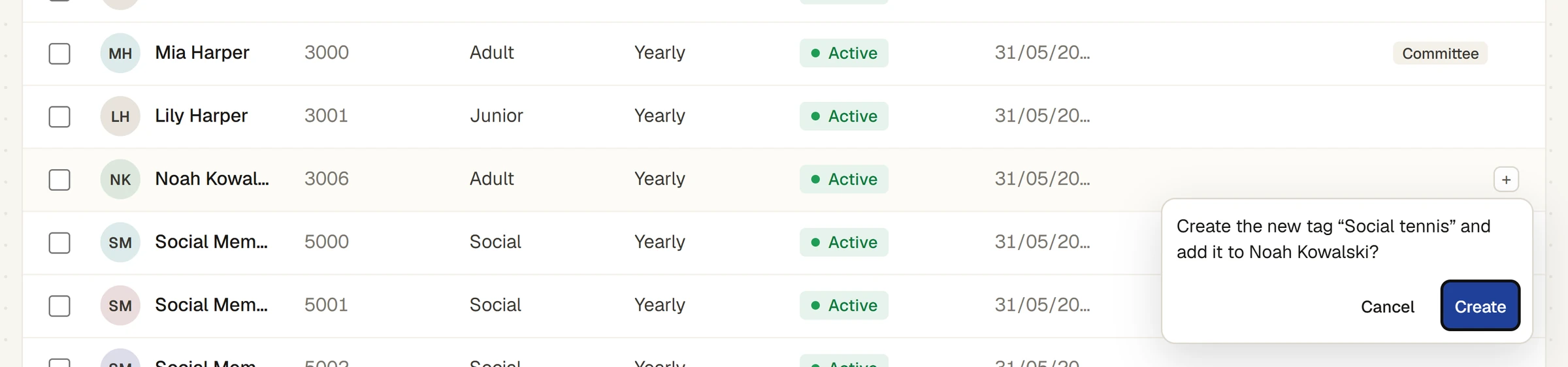
On a wide screen, the list has a Tags column. Point at a row and a + appears at the end of its Tags cell; on a phone, each card has its + on its Tags line.
- Press +. A small box opens with a search box, Find or create a tag, over a list of the club's tags. Tags the person has already are greyed and marked has it.
- Type to find a tag, and press it, or press Enter on the one marked.
- A tag that does not exist yet is offered as Create new tag “…”. Choosing it asks, for example, Create the new tag “Social tennis” and add it to Noah Kowalski? Press Create, or Cancel.
- The box says Added … and closes. The row shows the new tag, and the counts in the Filters panel follow.
Escape closes the box without adding anything.
For many people at once
Tick the people on the list, choose a tag from Add tag… in the bar that appears, and press Apply. See Change several members at once.
How tags are written
- A tag is one line of 40 characters at most, and cannot hold < or >. A person can have up to 30.
- A tag has one spelling across the club. Typing "pennant" when the club already uses "Pennant" gives the person "Pennant".
- Tags are listed in the order they were given.
Tags a rule gave
A chip marked ⟳ was given by a tag rule. Point at it to see which rule, for example Added by rule: Members who have ever booked a squash court.
Pressing × on it asks first, because the rule would give it back: Taken off here, it comes back at the next run while the rule holds. Choose Take it off anyway, Keep it, or Edit the rule instead (for someone who may change tag rules). If you give the same tag by hand as well, no rule takes it off. See How tag rules work.
The club's list of tags
The tags offered everywhere are the club's own list plus every tag already on someone.
- Open and the Tags & fields tab. This needs the permission to change the club's settings, which the Administrator has by default.
- Under Member tags, type a tag in New tag, e.g. Pennant and press Add tag. Press × on a tag to take it off the list.
- Press Save settings.
Taking a tag off the club's list does not take it off anyone who has it. A tag a switched-on tag rule gives joins the list by itself.
The same tab has Extra member fields: club-specific details to record on every member, such as a locker number. Type a name in Field name and press Add field, then Save settings. Each field then appears under Club fields in a member's Edit details.
Tags a login's page shows
On , a login's page shows Member tags for the member record it is linked to, and changes them the same way.
Last checked in release 2026.10.23, on 23 October 2026.