
How to
See what was sold
The Sales page lists every till sale with figures by payment method, category and kind of sale, and opens each sale's items, payments, refunds and receipt.
Who this is for: Anyone with “See sales and till sessions” (by default: Administrator, Bar Manager, Reporting, Treasurer).
Sales is every sale made at the till: open tabs, paid sales, refunds and voids. It opens on today and covers up to 92 days at once.
Before you start
- Seeing every sale is for the Bar Manager, Reporting and Treasurer roles by default. Your club can change this on Roles & permissions.
- Someone who only uses the till sees today's sales on their own till, from the till's Sales and refunds button, and not this page.
See the figures
- Open .
- Choose the days with From and To, or press Today, Yesterday, Last 7 days, This month or Last 30 days. More than 92 days starts the list later, and the page says so.
- The figures for those days are:
- Sold: the paid sales, with how many and how many are still open.
- Refunded: given back at the till.
- Discounts: off the paid sales.
- Credit topped up: held for members, not income.
- Voided: sales cancelled before payment.
- Bars show what was sold By payment method, By category (bar, food, pro shop, hire, courts) and By kind of sale (member, guest, visitor, function).
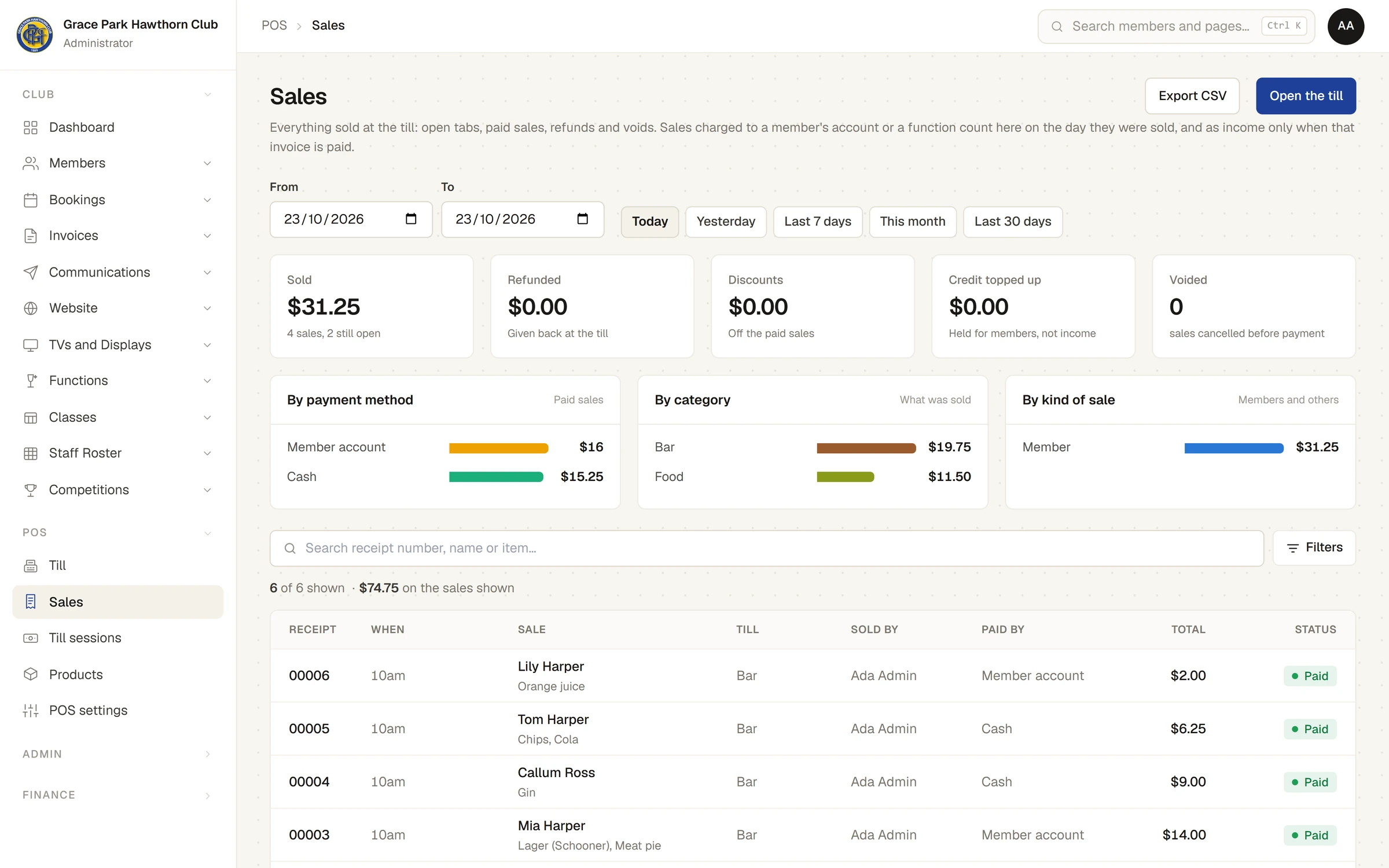
Sales charged to a member's account or a function count here on the day they were sold, and as income only when that invoice is paid.
Find a sale
- Search by receipt number, name or item.
- Filters narrows the list by Status (Open tab, Paid, Part refunded, Refunded, Voided), Kind of sale, Paid by, Till, Sold by, Also (has a refund, credit top-up, sold offline) and Customer.
- Each row shows the receipt number, when, the sale (name and items), the till, who sold it, how it was paid, the total, and its status.
- Export CSV downloads the sales shown, as a spreadsheet.
Open a sale
Press a sale. Its side panel shows:
- the customer and their member number, the kind of sale, any host or function, the tab's name and the buyer's name,
- the till session it was in, when it finished, and whether it was sold offline,
- every item with its quantity and price, and any price rule, booking, hire, typed price or override on it,
- discounts, with who gave them and who approved them,
- the totals with the GST included, each payment with who took it, and any refunds,
- What happened: a timeline of the sale.
Receipt shows the receipt as it prints, to print from the browser, send to a receipt printer or email. See Receipts and receipt printers.
For anyone who can: “Voids, refunds and overrides”
Someone who may give overrides also has Refund…, Void… and Correct method here. See Voids, refunds and manager approval.
On the Dashboard
The Bar and shop widget shows today's sales, the tabs still open and their total, and the last cash-up's variance, and, opened out, today's sales by category and the cash-ups not signed off for a week. It is offered to anyone who can see sales. See Your Dashboard and its widgets.
What it does not do
- Sales are not yet among the figures you can choose for a widget of your own, a report page or the AI Report Assistant.
- A member's purchases are also on the Purchases tab of their page, for someone who can see till sales. See Charge to a member's account.
Last checked in release 2026.10.23, on 23 October 2026.