
How it works
Providers, coaches and who collects the fees
Who runs each class, whether the club or the coaching business collects the fees, the coaches and their Working with Children Checks, and a coach's sign-in.
Who this is for: Anyone with “Run classes” (by default: Administrator, Head Coach).
Much of a club's coaching is run by outside businesses with their own coaches. In Sports Club OS each class belongs to a provider: the club itself, or a named business. The provider decides who sees which sessions, and whether the club or the business collects the fees.
Everything here is on , which has four tabs: Classes, Passes, Providers and Coaches. It is for whoever runs classes: the Head Coach by default.
Providers
Each provider has a card with its name, The club itself or Outside business, the few words members read about it, its coaches and its classes.
- New provider adds a business: its Name and A few words members will read. Then choose who collects the money.
- Change on a card changes its name and words.
Who collects the money
For an outside business there are two choices, each saying what members will then see on the Book button:
- The club: the fee goes on the member's account, and the club settles with the business. Members see, for example, Book: $25 on your account. Term fees for its groups are on the term's invoices.
- The business (its own name): Sports Club OS takes the booking and shows the price, and the member pays the business. Members see, for example, Book: $25, pay Baseline Tennis. Nothing is invoiced.
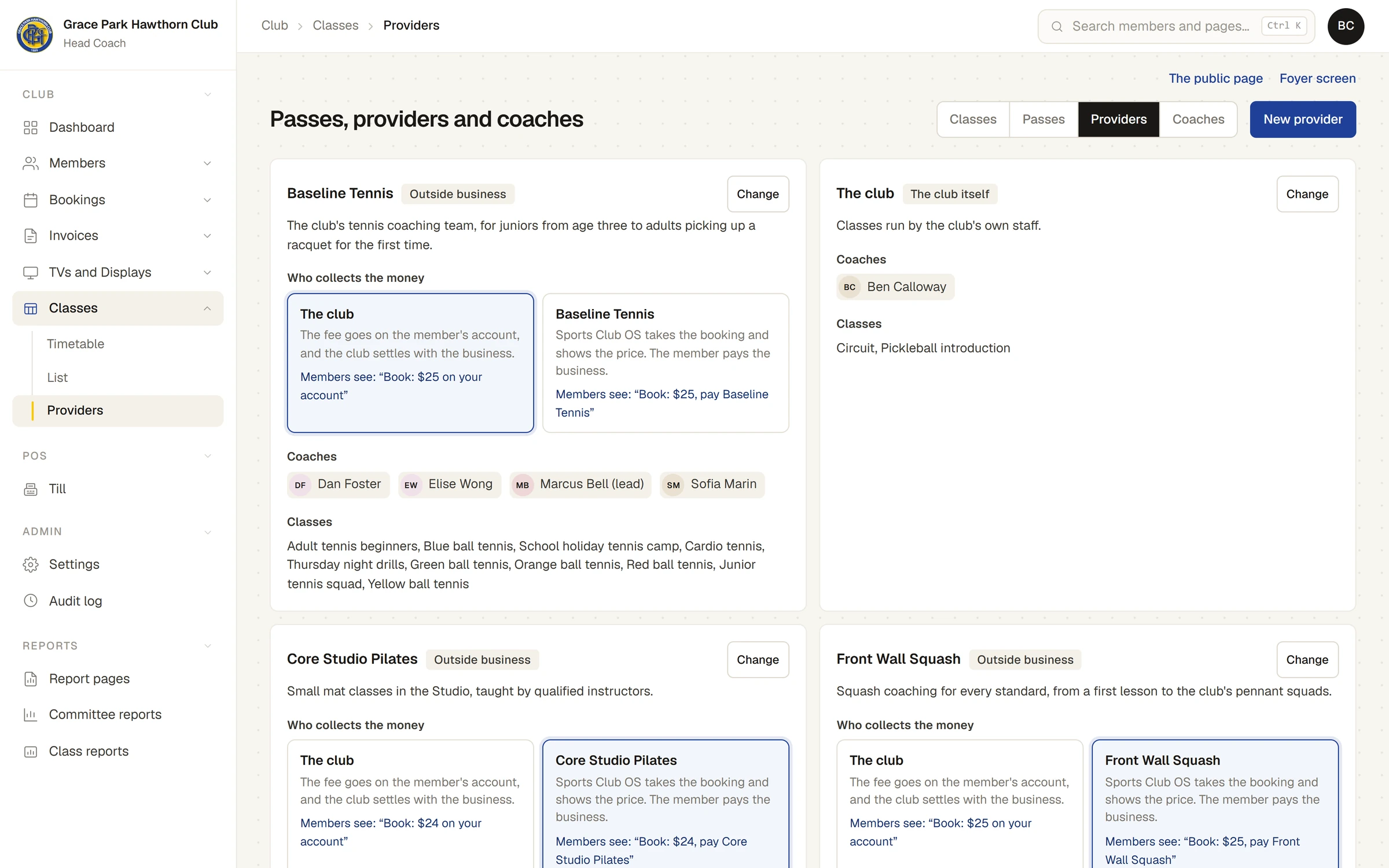
The choice is per provider and takes effect for bookings made from then on. A class run by the club itself always goes on the account.
Class reports show the listed prices of bookings by provider, split into what went on members' accounts and what was paid to the provider. They are a count and a sum of listed prices only: Sports Club OS does not work out what the club owes a business.
Coaches
The Coaches tab lists each coach with their provider, their Working with Children Check, how many junior sessions they are down to take in the next two weeks, and their sign-in.
- New coach, or Change beside a coach, asks for the Name, who they Work for, Lead coach: sees the whole team's sessions (No or Yes), Email address: it becomes their login, and A few words members will read.
- A lead coach sees every session their business runs, with the people booked. Any other coach sees only their own sessions.
Working with Children Checks
Type the check's number and expiry date in the coach's row. Each is saved as you leave the box. The row then says Until the expiry date, Expires in a number of days (amber, within 30 days), Expired (red) or None recorded (red).
A coach whose check has a problem and who is down to take junior sessions in the next two weeks is listed under the things that need the office on the timetable, and their junior sessions are marked Check.
A coach's sign-in
- Put the coach's email address on their coach record.
- Press Invite in the Login column, then press it again. The message says it will email that address an invitation to sign in as a coach.
- The coach signs in with the invitation. Their sign-in is tied to the coach record by the email address the first time.
The Login column then says Signs in. Before that it says Invited, with Invite again, or No email yet. The invitation gives the sign-in the Coach role, which reaches the coach's own sessions and nothing else, unless they also have a membership.
A coach sees, of the people on their own sessions, a name, an age for a child, any medical note and emergency contact, and tags such as not paid and first time. They never see addresses, email addresses, phone numbers, dates of birth, membership types or invoices.
Classes
The Classes tab lists every class with who runs it, when it runs, its price in words, and who can see it (Everyone, Members or Hidden). Change opens its words, photograph and who it is for: see Make a class and put it on the timetable.
Passes
The Passes tab is described in Passes, credits and make-ups.
Last checked in release 2026.10.23, on 23 October 2026.