
Setting up
Enter your club's details
Type the club's name, ABN, contact details and address, how invoices are numbered and paid, the membership year's rules and how names show on the foyer screen.
Who this is for: Anyone with “Club settings” (by default: Administrator).
The Club tab of Settings holds the club's own details, which go on every invoice, receipt and email, and the rules for invoices and the membership year. It is the first step of setting up: see Set up Sports Club OS for your club: the steps in order.
Before you start
- You need to be able to change the club's settings. The Administrator can by default.
- Have to hand: the club's legal name and a short form of it, its ABN, phone, email, the address to print on invoices, and the bank details members pay into.
- Decide how long members have to pay an invoice. Most clubs use 14 or 30 days.
Enter the details
- Open . The Club tab opens first.
- Under Club details, type the Club name, a Short name (such as the club's initials), the ABN, Phone (public), Email (public) and the Address printed on invoices.
- Under Invoices & renewals, set:
- Invoice number prefix: what goes in front of every invoice number. It starts as INV-.
- Payment terms (days): how long after an invoice is raised it is due. It starts at 14.
- How to pay: the bank details shown on unpaid invoices, with what members should use as the reference.
- Invoice footer: a line at the foot of every invoice, if you want one.
- Press Save settings at the top right. A message says Settings saved.
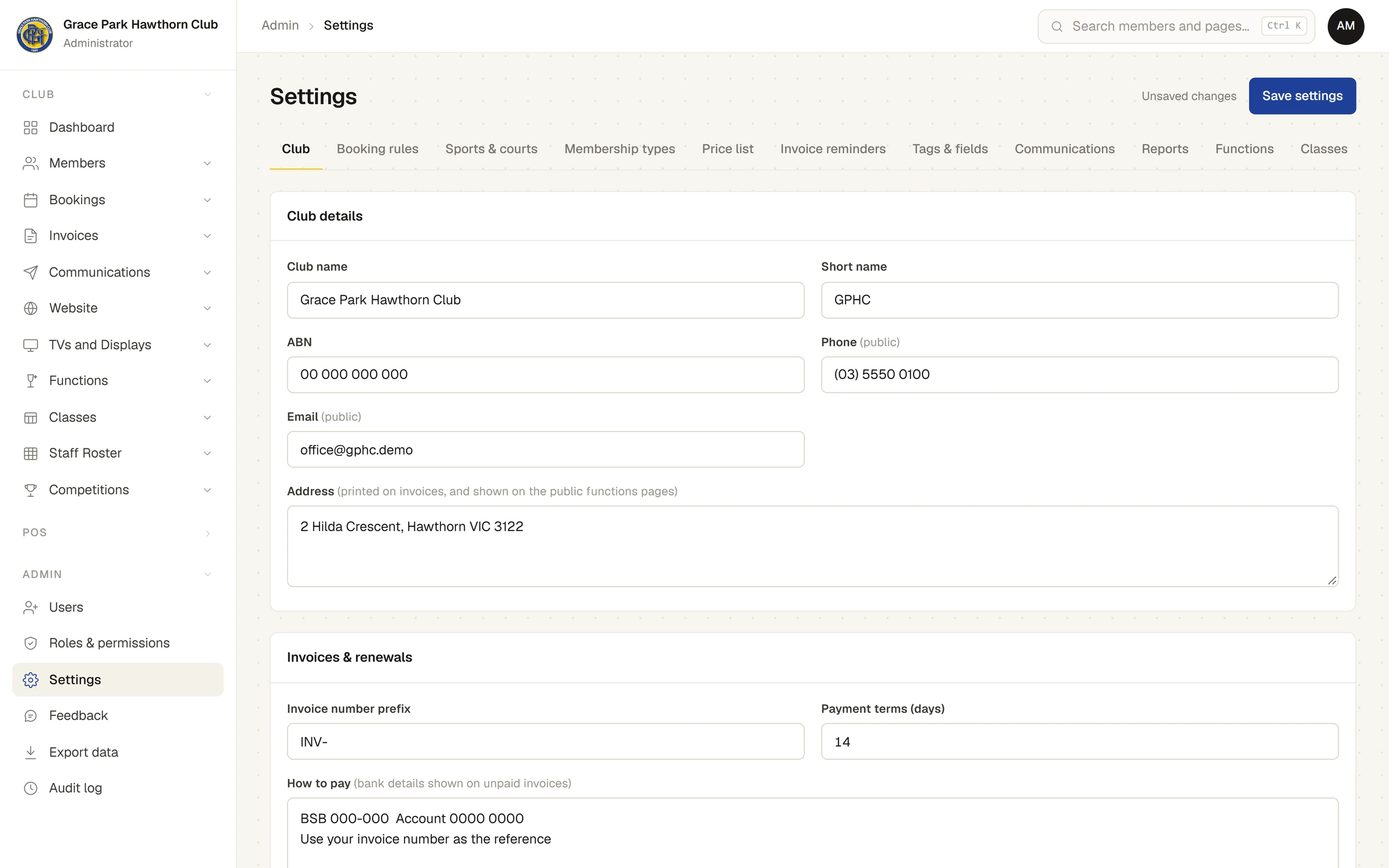
The club's name, phone, email and address are public. Besides invoices, receipts and emails, they appear wherever Sports Club OS speaks for the club without a sign-in: the sign-in page (the name), the membership form, the proposer's page, the venue page, a hirer's quote page, What's on and the foyer screens. Leave a detail blank and those pages leave it off.
Unsaved changes shows beside the button until you save. If you leave the page with changes not saved, your browser asks first.
The renewal settings on the same card (how far ahead renewals show, and auto renew) are explained in Set up invoices, renewals and auto renew.
The membership year
The Membership year card, further down the same tab, decides what someone who joins part-way through a membership year pays. It applies to membership types where everyone renews on the same date (31 July, for example). Set it before you add or elect the first new member. It starts as:
- Pro-rate the first year for people who join part-way through: ticked.
- Round the pro-rated fee to: The nearest $10.
- The month they join: Is free — charge from the following month.
- Late joiners carry into next year: Joining in the last 3 months.
What each one does, with a worked example, is in Membership types and the membership year. A renewal always covers the whole next year at the full fee, however late it is paid.
Names on the foyer screen
Under Foyer wallboard, Names on the public screen decides how members' names show on the court boards on the club's TVs. It starts as First name and initial (Olivia H.). The boards can be seen by anyone in the clubhouse, so choose what the club is comfortable showing. The four choices are in The court board in the foyer.
Check it worked
- Open any invoice and press Print / PDF: the club's name, ABN, address and how to pay should be on it.
- The first invoice raised after a change of prefix starts with the new prefix. Invoices already raised keep their numbers.
Next
Set up GST codes, price entry and your accounts, then Set up courts, tables and booking rules.
Last checked in release 2026.10.23, on 23 October 2026.