
How to
Add staff and invite them to sign in
Add the people who can be rostered on Bar & events staff, set their positions, how they are told and their regular week, and send each a login invitation.
Who this is for: Anyone with “Run the bar and events roster” (by default: Administrator, Bar Manager).
Bar & events staff is the list of people who can be rostered. Each has a record: their name, how to reach them, whether they are casual or permanent, the positions they can work, their regular week and dates off, and their login. You can roster someone as soon as they are on the list. Inviting them to sign in lets them answer their shifts, set their own availability and report their hours.
Before you start
- You need to be able to run the bar and events roster. The Bar Manager and the Administrator can by default. Your club can give it to other roles on Roles & permissions.
- Each person needs an email address or a mobile number. To invite them to sign in, they need an email address: it becomes their login.
Add a staff member
- Open .
- Press New staff member. A panel opens headed New staff member.
- Type their First name, Last name, Email and Mobile. A mobile is typed as an Australian mobile, for example 0491 570 156.
- Choose their Employment:
- Casual: "Sets their own availability and dates off, with no approval."
- Permanent: "You set their regular week. Their dates off come to you as requests."
- Under Positions, press each position they can work. A tick shows on each one chosen.
- Under Shift notifications, tick Email, SMS or both. This is how they are told about shifts. Staff can change it themselves once they have signed in.
- Type any Notes. Only managers see these.
- Press Add staff member. A message says Staff member added, and the panel stays open on their record, with the tabs Details, Regular week and Dates off, so you can carry on.
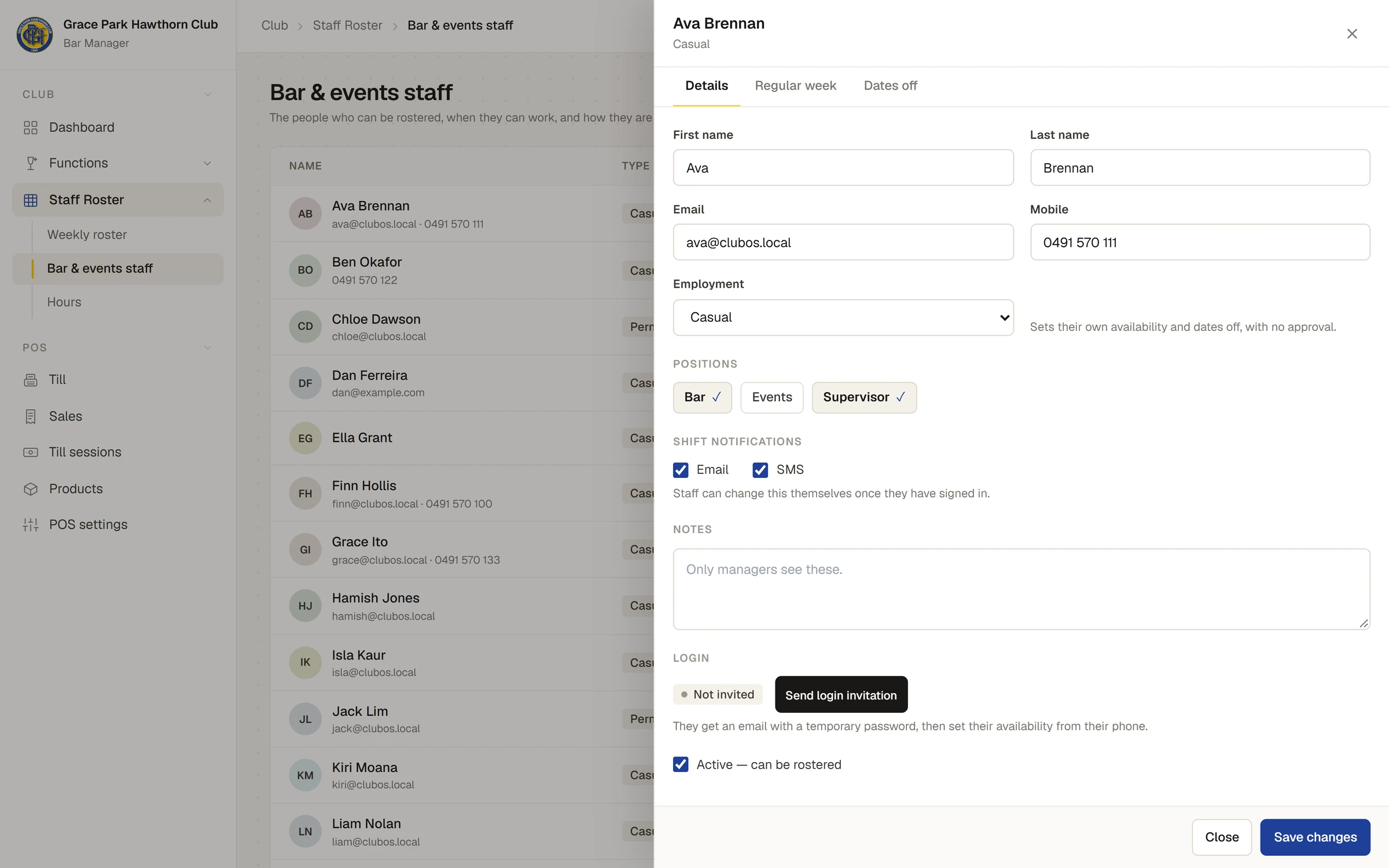
Invite them to sign in
- On their Details tab, under Login, press Send login invitation. It is there while they have no login and the record is active.
- A message says Invitation sent, and Login changes to Invited with the date and time.
They get an email with a temporary password. When they first sign in with that email address, their login is joined to this staff record. The login is given the Bar Staff role, which lets them see and answer their shifts, set their availability, report their hours and use the till. If they already have a login with that email address, for example as a member, the role is added to it and no new email is sent.
In the list, Login shows Not invited, Invited, Signed in or Inactive.
Their regular week
- Open their record and press Regular week.
- For each day, press Not available, All day or Set times. Set times shows a from and a to time.
- Press Save regular week. A message says Regular week saved.
Casual staff set this themselves from their phone, on My availability; you can change it for them. For permanent staff, you set it. The list's Regular week column shows each day as a letter, coloured for all day, set times or not available. See Time off and availability.
Positions
Positions are the jobs a shift can be for. Your club keeps its own list; a new club starts with Bar, Events and Supervisor.
- Press Positions. The panel says "The jobs a shift can be for. Each staff member is ticked for the ones they can do."
- Type a new one under Add a position, e.g. Glassie and press Add, or press ✕ on one to remove it.
- Press Save positions. A message says Positions saved.
Keep at least one position. A position is 30 characters at most, and there can be 20.
Change or stop rostering someone
- Press their row, change their details and press Save changes. A message says Saved.
- To stop rostering someone, untick Active — can be rostered on their Details tab and press Save changes. They leave the staff list and the roster's list of staff (except in a week where they still have shifts), and they are told nothing about shifts. Their record and history are kept. Tick Show inactive to see them again, and tick Active to bring them back.
If something goes wrong
- "An email address or a mobile number is required." Add one or the other.
- "Add an email address, or turn off email notifications." or "Add a mobile number, or turn off SMS notifications." Each way of telling them needs its address.
- "Choose email, SMS or both for shift notifications." Tick at least one.
- "Enter a mobile number like …" The mobile was not a number Sports Club OS recognises. Type it as an Australian mobile, starting 04, or with the country code.
- "Another staff record already uses that email address." Each staff member needs their own email address.
- "Add an email address first — it becomes their login." Shown on Send login invitation for someone with only a mobile.
- Their login and record have not joined up. The login is joined to the staff record with the same email address the first time they sign in. If they signed in with another address, change the email on their record to match.
Last checked in release 2026.10.23, on 23 October 2026.