
How to
Till PINs and switching between staff
Set your own till PIN, set a tablet up as a PIN till so staff switch in and out with their PIN, and approve on a till with a manager's PIN.
Who this is for: Anyone with “Use the till” or “Run the till” (by default: Administrator, Head Coach, Casual Staff, Bar Manager, Bar Staff).
On a busy bar, several people share one tablet. A till set up for PIN sign-in lets each person switch in with their own PIN instead of signing in, so every sale is recorded against the person who made it. A PIN reaches the till and nothing else in Sports Club OS.
Set your till PIN
Everyone who uses the till sets their own PIN, while signed in as themselves.
- Open the account menu (your initials at the top right) and press Password & two-factor.
- Under Till PIN, type your PIN in New PIN and again in The same again.
- Press Set PIN (or Change PIN if you have one). Remove PIN takes it away.
The rules:
- A PIN is 4 to 6 digits. Easy ones such as 1111 or 1234 are refused with Choose a PIN that is harder to guess.
- Anyone who may give overrides, or change the till's products and settings (the Bar Manager by default), must use 6 digits: Your PIN must be 6 digits, because you can approve overrides or run the till.
- Five wrong tries in a row lock it for 15 minutes, or until you set it again.
- Changing or removing your PIN switches you out of any till you are on.
- Keep it to yourself: what is sold on a till while you are switched in is recorded against your name.
Switch in on a PIN till
- The till shows Who is on the till? Choose your name. Press your name.
- It says, for example, Hello Bree. Type your PIN. Type it and press Go.
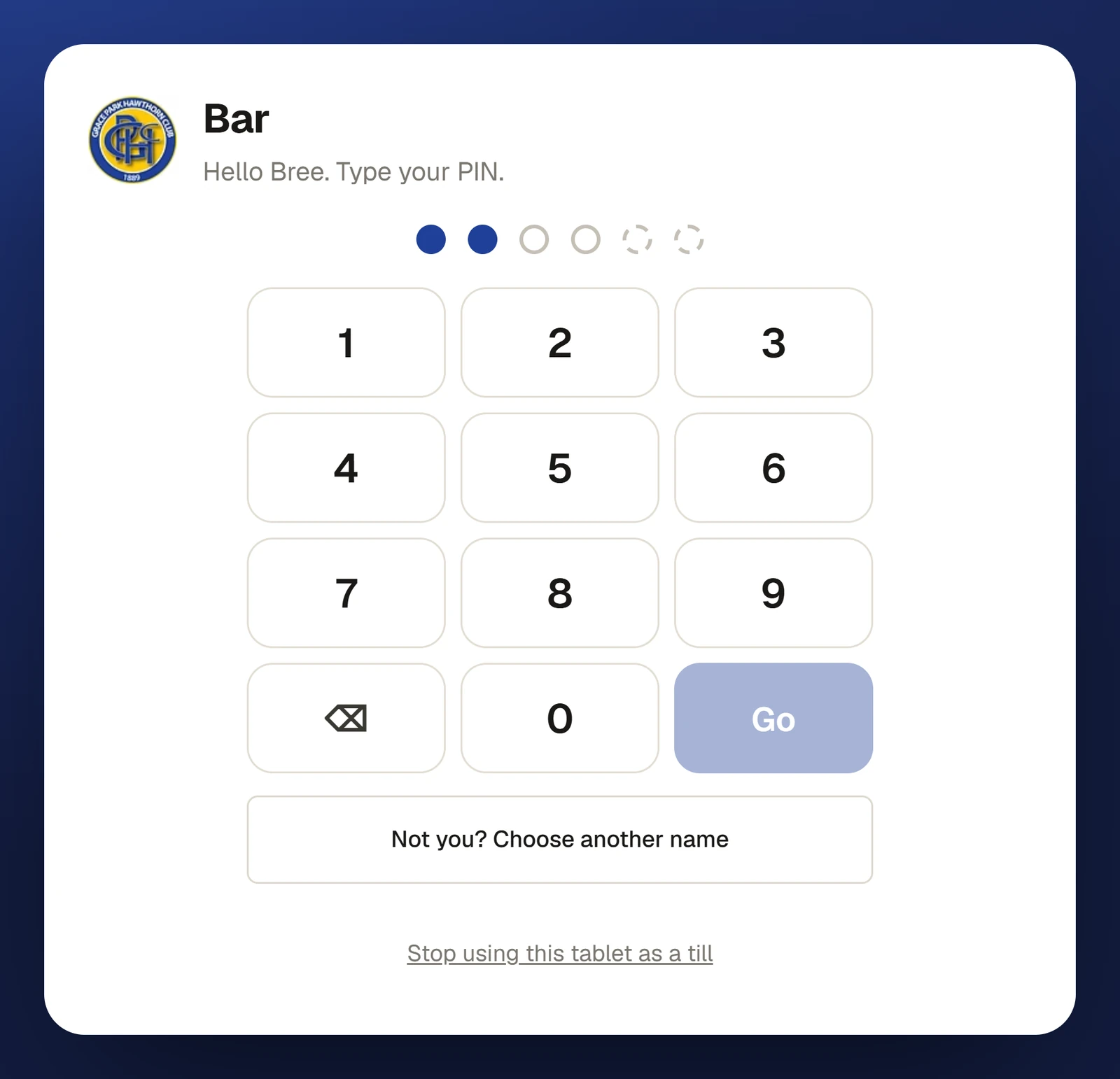
The till opens as you, with your name at the top. Only one person is switched in at a time: switching in ends whoever was on before.
To hand over, press Switch at the top of the till (or Switch person in the ··· menu). The next person chooses their name. Not you? Choose another name goes back to the list.
You are switched out:
- after 10 minutes without touching the till,
- after 12 hours, at the most,
- when your PIN is changed, removed or locked.
On a PIN till you can sell, take payment, run tabs and do whatever else your roles allow at the till, except what is done signed in: products, prices, settings, tills and printers, and signing off cash-ups. The till shows no side menu and no other page of Sports Club OS.
A manager approves on a till
On any till, PIN or signed in, a manager approves a discount over the limit, a charge over an account's limit and the other overrides by choosing their name and typing their PIN, without the seller switching out. See Voids, refunds and manager approval.
For anyone who can: “Run the till”
Set up a PIN till
- On , open Tills and printers.
- Under Register a till, type its name (for example "Bar"), choose its receipt printer if it has one, and tick Staff sign in with a PIN. Press Register till. For a till already registered, tick Staff sign in with a PIN on its row.
- The page shows the till's address once, for example "Bar: its till address", with Copy. It cannot be shown again, only replaced. Press Copy, then I have it.
- On the till's tablet, open that address once in the web browser. The tablet is now a PIN till and stays one.
On a tablet already signed in to the till, you can instead press ···, then Use this tablet as a PIN till…, and paste the till's code or address.
Replace its code on the till's row makes a new address: the old one stops working at once and whoever is switched in there is switched out. Unticking Staff sign in with a PIN stops PIN sign-in on that till. Stop using this tablet as a till, on the PIN screen, makes the tablet forget the till.
Safeguards
- Ten wrong PINs on one till within 15 minutes, from anyone, stop switching in and PIN approvals on that till for 15 minutes.
- Ten wrong PINs in one seller's approvals within 15 minutes stop that seller's PIN approvals for 15 minutes.
- Each switch in, and each lock, is recorded in the audit log.
If something goes wrong
- "That PIN is not right. 4 tries left." Try again carefully. After five, it is locked.
- "Switched out after 10 minutes without use. Switch in again with your PIN." Choose your name and type your PIN again.
- "Nobody has a till PIN yet. Each person sets one on their own account while signed in." Set PINs first, as above.
- Your name is not in the list. You have no PIN yet, or yours is locked. See A till PIN is locked.
- "Bree B. does not use the till." That login has no permission to use the till.
Last checked in release 2026.10.23, on 23 October 2026.